

This section describes how to deploy SNAP as a container.
SNAP does not come pre-installed with the BFB.
1. Installing Full DOCA Image on DPU
To install NVIDIA® BlueField®-3 BFB:
[host] sudo bfb-install --rshim <rshimN> --bfb <image_path.bfb>
For more information, please refer to section "Installing Full DOCA Image on DPU" in the DOCA Installation Guide for Linux.
2. Firmware Installation
[dpu] sudo /opt/mellanox/mlnx-fw-updater/mlnx_fw_updater.pl --force-fw-update
For more information, please refer to section "Upgrading Firmware" in the DOCA Installation Guide for Linux.
3. Firmware Configuration
FW configuration may expose new emulated PCI functions, which can be later used by the host's OS. As such, user must make sure all exposed PCI functions (static/hotplug PFs, VFs) are backed by a supporting SNAP SW configuration, otherwise these functions will continue malfunctioning and host behavior will be undefined.
-
Clear the firmware config before implementing the required configuration:
[dpu] mst start [dpu] mlxconfig -d /dev/mst/mt41692_pciconf0 reset -
Review the firmware configuration:
[dpu] mlxconfig -d /dev/mst/mt41692_pciconf0 queryOutput example:
mlxconfig -d /dev/mst/mt41692_pciconf0 -e query | grep NVME
Configurations:                                      Default         Current         Next Boot
*        NVME_EMULATION_ENABLE                       False(0)        True(1)         True(1)
*        NVME_EMULATION_NUM_VF                       0               125             125
*        NVME_EMULATION_NUM_PF                       1               2               2
         NVME_EMULATION_VENDOR_ID                    5555            5555            5555
         NVME_EMULATION_DEVICE_ID                    24577           24577           24577
         NVME_EMULATION_CLASS_CODE                   67586           67586           67586
         NVME_EMULATION_REVISION_ID                  0               0               0
         NVME_EMULATION_SUBSYSTEM_VENDOR_ID          0               0               0
*       NVME_EMULATION_NUM_MSIX                      0               2               2
*       NVME_EMULATION_NUM_VF_MSIX                   0               2               2
*       NVME_EMULATION_MAX_QUEUE_DEPTH               0               12              12
Where the output provides 5 columns:
-
Non-default configuration marker (*)
-
Firmware configuration name
-
Default firmware value
-
Current firmware value
-
Firmware value after reboot – shows a configuration update which is pending system reboot
-
-
To enable storage emulation options, the first DPU must be configured to operate in internal CPU model:
[dpu] mlxconfig -d /dev/mst/mt41692_pciconf0 s INTERNAL_CPU_MODEL=1 PF_BAR2_ENABLE=0PF_BAR2_ENABLEis a deprecated option and must be explicitly disabled. -
To enable the firmware config with virtio-blk emulation PF:
[dpu] mlxconfig -d /dev/mst/mt41692_pciconf0 s VIRTIO_BLK_EMULATION_ENABLE=1 VIRTIO_BLK_EMULATION_NUM_PF=1 -
To enable the firmware config with NVMe emulation PF:
[dpu] mlxconfig -d /dev/mst/mt41692_pciconf0 s NVME_EMULATION_ENABLE=1 NVME_EMULATION_NUM_PF=1 -
To enable the firmware configuration for any system (host or DPU) with a kernel page size of 64k (which can be verified using
getconf PAGESIZE):[dpu] mlxconfig -d /dev/mst/mt41692_pciconf0 s BAR_PAGE_ALIGNMENT=2
For a complete list of the SNAP firmware configuration options, refer to appendix "DPU Firmware Configuration".
Power cycle is required to apply firmware configuration changes.
3.1. RDMA/RoCE Firmware Configuration
RoCE communication is blocked for BlueField OS's default interfaces (named ECPFs, typically mlx5_0 and mlx5_1). If RoCE traffic is required, additional network functions must be added, scalable functions (or SFs), which do support RoCE transport.
To enable RDMA/RoCE:
[dpu] mlxconfig -d /dev/mst/mt41692_pciconf0 s PER_PF_NUM_SF=1
[dpu] mlxconfig -d /dev/mst/mt41692_pciconf0 s PF_SF_BAR_SIZE=8 PF_TOTAL_SF=2
[dpu] mlxconfig -d /dev/mst/mt41692_pciconf0.1 s PF_SF_BAR_SIZE=8 PF_TOTAL_SF=2
When using an OS with a 64KB page size, set PF_SF_BAR_SIZE=10 instead of the default value of 8.
This is not required when working over TCP or RDMA over InfiniBand.
3.2. SR-IOV Firmware Configuration
SNAP supports up to 512 total VFs on NVMe and up to 2000 total VFs on virtio-blk. The VFs may be spread between up to 4 virtio-blk PFs or 2 NVMe PFs.
The following examples are for reference. For complete details on parameter ranges, refer to appendix "DPU Firmware Configuration".
-
Common example:
[dpu] mlxconfig -d /dev/mst/mt41692_pciconf0 s SRIOV_EN=1 PER_PF_NUM_SF=1 LINK_TYPE_P1=2 LINK_TYPE_P2=2 PF_TOTAL_SF=1 PF_SF_BAR_SIZE=8 -
Virtio-blk 250 VFs example (2 queue per VF):
[dpu] mlxconfig -d /dev/mst/mt41692_pciconf0 s VIRTIO_BLK_EMULATION_ENABLE=1 VIRTIO_BLK_EMULATION_NUM_VF=125 VIRTIO_BLK_EMULATION_NUM_PF=2 VIRTIO_BLK_EMULATION_NUM_MSIX=2 VIRTIO_BLK_EMULATION_NUM_VF_MSIX=2 -
Virtio-blk 500 VFs example (2 queue per VF):
[dpu] mlxconfig -d /dev/mst/mt41692_pciconf0 s VIRTIO_BLK_EMULATION_ENABLE=1 VIRTIO_BLK_EMULATION_NUM_VF=250 VIRTIO_BLK_EMULATION_NUM_PF=2 VIRTIO_BLK_EMULATION_NUM_MSIX=2 VIRTIO_NET_EMULATION_ENABLE=0 NUM_OF_VFS=0 PCI_SWITCH_EMULATION_ENABLE=0 VIRTIO_BLK_EMULATION_NUM_VF_MSIX=2 -
NVMe 512 VFs example (2 IO-queue per VF):
[dpu] mlxconfig -d /dev/mst/mt41692_pciconf0 s NVME_EMULATION_ENABLE=1 NVME_EMULATION_NUM_VF=256 NVME_EMULATION_NUM_PF=2 NVME_EMULATION_NUM_MSIX=2 NVME_EMULATION_NUM_VF_MSIX=2 NVME_EMULATION_MAX_QUEUE_DEPTH=12
3.3. Hot-plug Firmware Configuration
Once enabling PCIe switch emulation, BlueField can support up to 31 hotplug NVMe/Virtio-blk functions. "PCI_SWITCH_EMULATION_NUM_PORT-1" hot-plugged PCIe functions. These slots are shared among all DPU users and applications and may hold hot-plugged devices of type NVMe, virtio-blk, virtio-fs, or others (e.g., virtio-net).
To enable PCIe switch emulation and determine the number of hot-plugged ports to be used:
[dpu] mlxconfig -d /dev/mst/mt41692_pciconf0 s PCI_SWITCH_EMULATION_ENABLE=1 PCI_SWITCH_EMULATION_NUM_PORT=32
PCI_SWITCH_EMULATION_NUM_PORT equals 1 + the number of hot-plugged PCIe functions.
For additional information regarding hot plugging a device, refer to section "Hot-pluggable PCIe Functions Management".
Hotplug is not guaranteed to work on AMD machines.
Enabling PCI_SWITCH_EMULATION_ENABLE could potentially impact SR-IOV capabilities on Intel and AMD machines.
Currently, hotplug PFs do not support SR-IOV.
3.4. UEFI Firmware Configuration
To use the storage emulation as a boot device, it is recommended to use the DPU's embedded UEFI expansion ROM drivers to be used by the UEFI instead of the original vendor's BIOS ones.
To enable UEFI drivers:
[dpu] mlxconfig -d /dev/mst/mt41692_pciconf0 s EXP_ROM_VIRTIO_BLK_UEFI_x86_ENABLE=1 EXP_ROM_NVME_UEFI_x86_ENABLE=1
4. DPU Configurations
4.1. SNAP Container Deployment
SNAP container is available on the DOCA SNAP NVIDIA NGC catalog page.
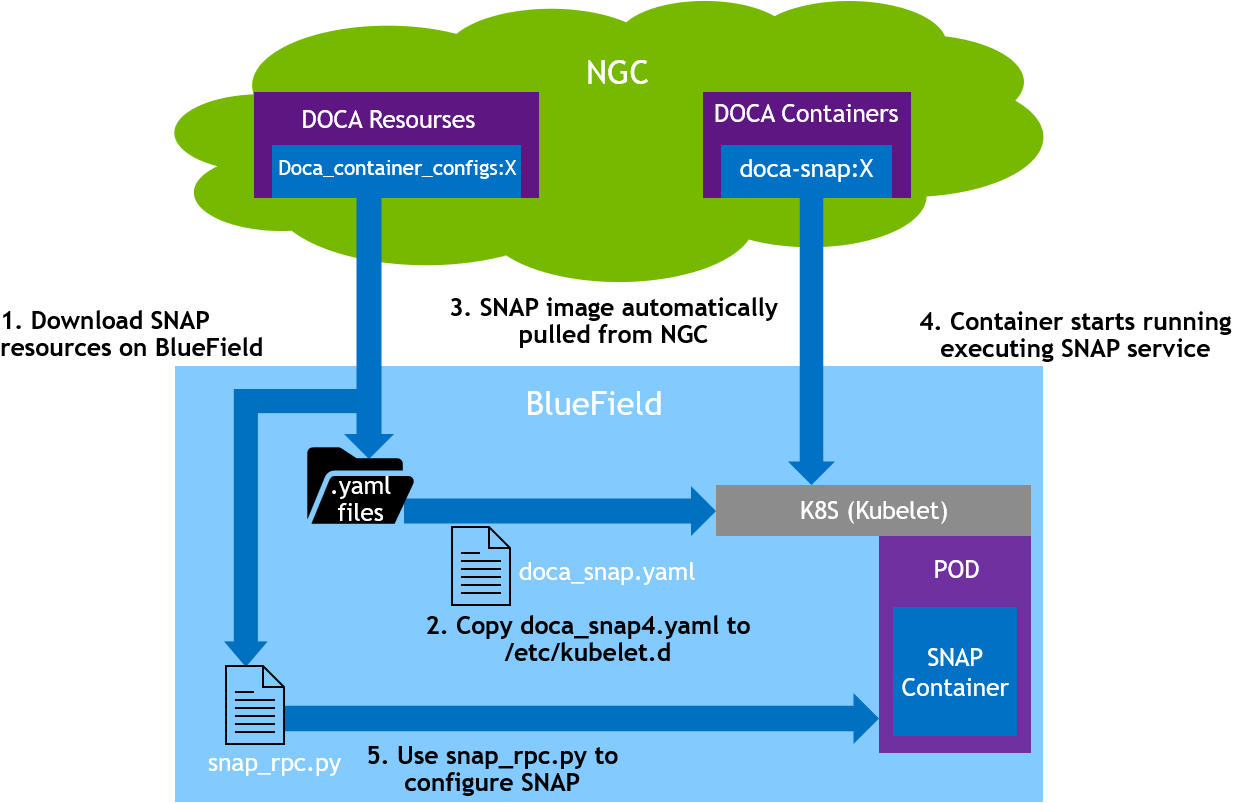
SNAP container deployment on top of the BlueField DPU requires the following sequence:
-
Setup preparation and SNAP resource download for container deployment. See section "Preparation Steps" for details.
-
Adjust the
doca_snap.yamlfor advanced configuration if needed according to section "Adjusting YAML Configuration". -
Deploy the container. The image is automatically pulled from NGC. See section "Spawning SNAP Container" for details.
The following is an example of the SNAP container setup.
4.2. Preparation Steps
4.2.1. Step 1: Allocate Hugepages
Allocate 4GiB hugepages for the SNAP container according to the DPU OS's Hugepagesize value:
-
Query the
Hugepagesizevalue:[dpu] grep Hugepagesize /proc/meminfoFor Ubuntu22 and Ubuntu24, the value should be 2048KB. For Ubuntu24 with 64k page size, the value should be 524288KB.
-
Use the
doca-hugepagesto configure the requested hugepages:-
For OS with 2048KB hugepage:
[dpu] doca-hugepages config --app snap --size 2048 --num 2048 -
For OS with 524288KB hugepage:
[dpu] doca-hugepages config --app snap --size 524288 --num 8For setups with a large size of hugepages (> 512MB), it is recommended to allocate slightly more than the requested amount (e.g., 5 GB instead of 4 GB), to ensure that SNAP has access to the required memory.
-
-
Reload the hugepages configuration for all applications based on the current database settings:
[dpu] doca-hugepages reload
If live upgrade is utilized in this deployment, it is necessary to allocate twice the amount of resources listed above for the upgraded container.
If other applications are running concurrently within the setup and are consuming hugepages, make sure to allocate additional hugepages beyond the amount described in this section for those applications.
When deploying SNAP with a high scale of connections (i.e., disks 500 or more), the default allocation of hugepages (4GiB) becomes insufficient. This shortage of hugepages can be identified through error messages in the SNAP and SPDK layers. These error messages typically indicate failures in creating or modifying QPs or other objects.
4.2.2. Step 2: Create nvda_snap Folder
The folder /etc/nvda_snap is used by the container for automatic configuration after deployment.
5. Downloading YAML Configuration
The .yaml file configuration for the SNAP container is doca_snap.yaml. The download command of the .yaml file can be found on the DOCA SNAP NGC page.
Internet connectivity is necessary for downloading SNAP resources. To deploy the container on DPUs without Internet connectivity, refer to appendix "Deploying Container on Setups Without Internet Connectivity".
5.1. Adjusting YAML Configuration
The .yaml file can easily be edited for advanced configuration.
-
The SNAP
.yamlfile is configured by default to support Ubuntu setups (i.e.,Hugepagesize= 2048 kB) by using hugepages-2Mi.To support other setups, edit the hugepages section according to the DPU OS's relevant
Hugepagesizevalue. For example, to support CentOS 8.x configureHugepagesizeto 512MB:limits: hugepages-512Mi: "<number-of-hugepages>Gi"When deploying SNAP with a large number of controllers (500 or more), the default allocation of hugepages (4GB) may become insufficient. This shortage of hugepages can be identified through error messages, typically indicate failures in creating or modifying QPs or other objects. In these cases, more hugepages needed.
-
The following example edits the
.yamlfile to request 16 CPU cores for the SNAP container and 4Gi memory and 4Gi hugepages:resources: requests: memory: "2Gi" hugepages-2Mi: "4Gi" cpu: "8" limits: memory: "4Gi" hugepages-2Mi: "4Gi" cpu: "16" env: - name: APP_ARGS value: "-m 0xffff"If all BlueField cores are requested, the user must verify no other containers are in conflict over the CPU resources.
When running the Virtio-fs service with a large number of cores, it is necessary to increase the number of IO buffers in SPDK. For example, to run with 16 cores, the size of the large IO buffer pool must be set to at least 4095. This can be configured by adding the RPC command
iobuf_set_options --large-pool-count 4095tospdk_rpc_init.confunder/etc/nvda_snap. Depending on the scale and SPDK subsystems in use other SPDK configuration parameters may need to be adjusted. Refer to SPDK documentation for more details. -
To automatically configure SNAP container upon deployment, edit the files below according to the use case. During bring-up, SNAP will forward the content of these files into the appropriate RPC script, whether SPDK RPCs or SNAP RPCs. Ensure that the required RPCs for your use case are included.
-
Add
spdk_rpc_init.conffile under/etc/nvda_snap/. The file includes the required SPDK RPCs. File example:bdev_malloc_create 64 512 -
Add
snap_rpc_init.conffile under/etc/nvda_snap/. The file includes the required SPDK RPCs.Virtio-blk file example:
virtio_blk_controller_create --pf_id 0 --bdev Malloc0NVMe file example:
nvme_subsystem_create --nqn nqn.2022-10.io.nvda.nvme:0 nvme_namespace_create -b Malloc0 -n 1 --nqn nqn.2022-10.io.nvda.nvme:0 --uuid 16dab065-ddc9-8a7a-108e-9a489254a839 nvme_controller_create --nqn nqn.2022-10.io.nvda.nvme:0 --ctrl NVMeCtrl1 --pf_id 0 --suspended nvme_controller_attach_ns -c NVMeCtrl1 -n 1 nvme_controller_resume -c NVMeCtrl1 -
Edit the
.yamlfile accordingly (uncomment):env: - name: SPDK_RPC_INIT_CONF value: "/etc/nvda_snap/spdk_rpc_init.conf" - name: SNAP_RPC_INIT_CONF value: "/etc/nvda_snap/snap_rpc_init.conf"It is user responsibility to make sure SNAP configuration matches firmware configuration. That is, an emulated controller must be opened on all existing (static/hotplug) emulated PCIe functions (either through automatic or manual configuration). A PCIe function without a supporting controller is considered malfunctioned, and host behavior with it is anomalous.
-
5.2. Spawning SNAP Container
Run the Kubernetes tool:
[dpu] systemctl restart containerd
[dpu] systemctl restart kubelet
[dpu] systemctl enable kubelet
[dpu] systemctl enable containerd
Copy the updated doca_snap.yaml file to the /etc/kubelet.d directory.
Kubelet automatically pulls the container image from NGC described in the YAML file and spawns a pod executing the container.
cp doca_snap.yaml /etc/kubelet.d/
The SNAP service starts initialization immediately, which may take a few seconds. To verify SNAP is running:
-
Look for the message "SNAP Service running successfully" in the log
-
Send
spdk_rpc.py spdk_get_versionto confirm whether SNAP is operational or still initializing
5.3. Debug and Log
View currently active pods, and their IDs (it might take up to 20 seconds for the pod to start):
crictl pods
Example output:
POD ID CREATED STATE NAME
0379ac2c4f34c About a minute ago Ready snap
View currently active containers, and their IDs:
crictl ps
View existing containers and their ID:
crictl ps -a
Examine the logs of a given container (SNAP logs):
crictl logs <container_id>
Examine the kubelet logs if something does not work as expected:
journalctl -u kubelet
The container log file is saved automatically by Kubelet under /var/log/containers.
The container log file is automatically saved by Kubelet to /var/log/containers/, using the filename format: <pod_name>_default_snap-<container_id>.log.
Refer to section "RPC Log History" for more logging information.
5.4. Logging Verbosity
To persist a custom log level across container restarts—or ensure it is applied during startup—add the relevant configuration command to the snap_rpc_init.conf file located at /etc/nvda_snap/.
Log level can also be modified at runtime using the snap_log_level_set RPC. For more details, refer to section "Log Management".
5.5. SNAP Logs (Source Package)
By default, the source package version of SNAP does not save logs automatically. To enable logging, follow the instructions in section "Run SNAP Service". For additional debugging information, refer to section "Build with Debug Prints Enabled".
To redirect SNAP output to a file, use the following command:
/opt/nvidia/nvda_snap/bin/snap_service > snap.log 2>&1
5.6. Exporting SNAP Logs (Container Only)
SNAP is integrated with SOS—a framework for consistent and structured log collection.
To generate a log package:
-
Clone the SOS report tool: https://github.com/NVIDIA/doca-sosreport.
-
Follow the installation instructions in the repository.
-
Run the following command:
sos report --only snap_service,container_log
This creates a comprehensive log package. You may include additional plugins depending on the nature of the issue. For more details, refer to the "Collecting DOCA Logs for NVIDIA Inspection" page.
5.7. Stop, Start, Restart SNAP Container
SNAP binaries are deployed within a Docker container as SNAP service, which is managed as a supervisorctl service. Supervisorctl provides a layer of control and configuration for various deployment options.
-
In the event of a SNAP crash or restart, supervisorctl detects the action and waits for the exited process to release its resources. It then deploys a new SNAP process within the same container, which initiates a recovery flow to replace the terminated process.
-
In the event of a container crash or restart, kubeletclt detects the action and waits for the exited container to release its resources. It then deploys a new container with a new SNAP process, which initiates a recovery flow to replace the terminated process.
General Kublet Comment
After containers crash or exit, the kubelet restarts them with an exponential back-off delay (10s, 20s, 40s, etc.) which is capped at five minutes. Once a container has run for 10 minutes without an issue, the kubelet resets the restart back-off timer for that container. Restarting the SNAP service without restarting the container helps avoid the occurrence of back-off delays.
5.7.1. Different SNAP Termination Options
5.7.1.1. Container Termination
-
To kill the container, remove the
.yamlfile form/etc/kubelet.d/. To start the container,cpthe.yamlfile back to the same path:cp doca_snap.yaml /etc/kubelet.d/ -
To restart the container (with sig-term) using
crictl, use the-t(timeout) option:crictl stop -t 10 <container-id>
5.7.1.2. SNAP Process Termination
To restart the SNAP service without restarting the entire container, user can either use the supervictl tool to restart the SNAP service or terminate the SNAP service process on the DPU. Different signals correspond to different termination behaviors. For example:
-
Restart sends SIGTERM
crictl exec -it $(crictl ps -s running -q --name snap) supervisorctl restart snap -
Pkill sends SIGKILL
pkill -9 -f snap
SNAP service termination may take time as it releases all allocated resources. The duration depends on the scale of the use case and any other applications sharing resources with SNAP.
5.7.1.3. SNAP Process Fast Restart
The duration can be improved by configuring supervisorctl to give the exited SNAP process a shorter or zero termination time when using supervisorctl restart snap.
This causes the new process to start up while the old process' resources are still being freed by the kernel.
The user must ensure that the hugepage allocation is sufficient to accommodate both processes running in parallel. To modify the time SNAP takes to exit, the user should use the relevant environment variable SUPERVISOR_STOPWAITSECS.
To restart the SNAP service without restarting the container, kill the SNAP service process on the DPU. Different signals can be used for different termination options. For example:
pkill -9 -f snap
6. SNAP Source Package Deployment
6.1. System Preparation
Allocate 4GiB hugepages for the SNAP container according to the DPU OS's Hugepagesize value:
-
Query the
Hugepagesizevalue:[dpu] grep Hugepagesize /proc/meminfoFor Ubuntu22 and Ubuntu24, the value should be 2048KB. For Ubuntu24 with 64k page size, the value should be 524288KB.
-
Use the
doca-hugepagesto configure the requested hugepages:-
For OS with 2048KB hugepage:
[dpu] doca-hugepages config --app snap --size 2048 --num 2048 -
For OS with 524288KB hugepage:
[dpu] doca-hugepages config --app snap --size 524288 --num 8For setups with a large size of hugepages (> 512MB), it is recommended to allocate slightly more than the requested amount (e.g., 5 GB instead of 4 GB), to ensure that SNAP has access to the required memory.
-
-
Reload the hugepages configuration for all applications based on the current database settings:
[dpu] doca-hugepages reload
If live upgrade is utilized in this deployment, it is necessary to allocate twice the amount of resources listed above for the upgraded container.
If other applications are running concurrently within the setup and are consuming hugepages, make sure to allocate additional hugepages beyond the amount described in this section for those applications.
When deploying SNAP with a high scale of connections (i.e., disks 500 or more), the default allocation of hugepages (4GiB) becomes insufficient. This shortage of hugepages can be identified through error messages in the SNAP and SPDK layers. These error messages typically indicate failures in creating or modifying QPs or other objects.
6.2. Installing SNAP Source Package
Download the SNAP source package provided by NVIDIA on BlueField (BF).
Install the package:
-
For Ubuntu, run:
dpkg -i snap-sources_<version>_arm64.* -
For CentOS, run:
rpm -i snap-sources_<version>_arm64.*
6.3. Build, Compile, and Install Sources
To build SNAP with a custom/legacy SPDK, see section "Replace the BFB SPDK".
-
Move to the sources folder. Run:
cd /opt/nvidia/nvda_snap/src/ -
Build the sources using
-Denable-spdk-compat=trueto ensure compatibility with SPDK, especially when using the out-of-box SPDK from a BFB. Then run:meson setup /tmp/build -Denable-spdk-compat=true -
Compile the sources. Run:
meson compile -C /tmp/build -
Install the sources. Run:
meson install -C /tmp/build
6.4. Configure SNAP Environment Variables
To config the environment variables of SNAP, run:
source /opt/nvidia/nvda_snap/src/scripts/set_environment_variables.sh
6.5. Run SNAP Service
/opt/nvidia/nvda_snap/bin/snap_service
6.6. Replace the BFB SPDK (Optional)
Start with installing SPDK.
For legacy SPDK versions (e.g., SPDK 19.04) see appendix "Install Legacy SPDK".
To build SNAP with a custom SPDK, instead of following the basic build steps, perform the following:
-
Move to the sources folder. Run:
cd /opt/nvidia/nvda_snap/src/ -
Build the sources with spdk-compat enabled and provide the path to the custom SPDK. Run:
meson setup /tmp/build -Denable-spdk-compat=true -Dsnap_spdk_prefix=</path/to/custom/spdk> -
Compile the sources. Run:
meson compile -C /tmp/build -
Install the sources. Run:
meson install -C /tmp/build -
Configure SNAP env variables and run SNAP service as explained in section "Configure SNAP Environment Variables" and "Run SNAP Service".
6.7. Build With Dynamically-linked Dependencies (Optional)
Instead of the basic build steps, perform the following:
-
Move to the sources folder. Run:
cd /opt/nvidia/nvda_snap/src/ -
Build the sources with
-Dlibsnapemu=shared. Run:meson setup /tmp/build -Denable-spdk-compat=true -Dlibsnapemu=shared /tmp/build -
Compile the sources. Run:
meson compile -C /tmp/build -
Install the sources. Run:
meson install -C /tmp/build -
Configure SNAP environment variables and run SNAP service as explained in section "Configure SNAP Environment Variables" and "Run SNAP Service".
6.8. Build with Debug Prints Enabled (Optional)
Instead of the basic build steps, perform the following:
-
Move to the sources folder. Run:
cd /opt/nvidia/nvda_snap/src/ -
Build the sources with
buildtype=debug. Run:meson --buildtype=debug /tmp/build -
Compile the sources. Run:
meson compile -C /tmp/build -
Install the sources. Run:
meson install -C /tmp/build -
Configure SNAP env variables and run SNAP service as explained in section "Configure SNAP Environment Variables" and "Run SNAP Service".
6.9. Automate SNAP Configuration (Optional)
The script run_snap.sh automates SNAP deployment. Users must modify the following files to align with their setup. The configuration files are in the same format explained in the "adjust the YAML section". If different directories are utilized by the user, edits must be made to run_snap.sh accordingly:
-
Edit SNAP env variables in:
/opt/nvidia/nvda_snap/bin/set_environment_variables.sh -
Edit SPDK initialization RPCs calls:
/opt/nvidia/nvda_snap/bin/spdk_rpc_init.conf -
Edit SNAP initialization RPCs calls:
/opt/nvidia/nvda_snap/bin/snap_rpc_init.conf -
Run the script:
/opt/nvidia/nvda_snap/bin/run_snap.sh
7. SNAP-4 Deployment for BlueField-4
This section details the deployment of SNAP on BlueField-4 hardware. The BlueField-4 architecture introduces structural changes that impact resource allocation and supported offloading pathways. The following sections outline the primary architectural shifts and the required parameters for deploying SNAP on BlueField-4.
7.1. Main Architectural Changes
7.1.1. Expanded Compute and Resource Allocation
The BlueField-4 architecture features an expanded hardware resource pool, including 64 available Arm cores and higher memory bandwidth. To ensure proper resource isolation and predictable data path execution, you must explicitly bind compute resources to the SNAP container.
7.1.1.1. Configuring Core Allocation
To provision 16 of the 64 available cores exclusively for the SNAP process, define the exact resource requests and limits in your YAML file, alongside the APP_ARGS environment variable:
    resources:
      requests:
        memory: "2Gi"
        hugepages-2Mi: "4Gi"
        cpu: "8"
      limits:
        memory: "4Gi"
        hugepages-2Mi: "4Gi"
        cpu: "16"
env:
  - name: APP_ARGS
    value: "-m 0xffff"
7.1.2. GGA Architecture Deprecation
By design, the GGA architecture is no longer supported on BlueField-4. SNAP deployments now rely entirely on the BlueField-4's standard hardware-offloading engines and direct core processing.
This architectural transition is handled automatically by the system. No user intervention or manual reconfiguration is required to enable this standard operating mode on BlueField-4.
7.1.3. I/O Buffer Configuration for High Core Counts
When running SNAP with a high number of CPU cores, the default SPDK I/O buffer pool configuration may be insufficient. In these scenarios, you must increase the small_pool_count and large_pool_count parameters to ensure adequate buffer availability and prevent allocation failures.
You can apply this configuration using one of the following methods:
7.1.3.1. Option 1: Runtime Configuration via RPC
Start SNAP with the --wait-for-rpc flag, and then invoke the iobuf_set_options RPC to dynamically update the buffer pool parameters.
7.1.3.2. Option 2: Static Configuration via SPDK Configuration File
Add the following configuration block to your SPDK JSON configuration file:
{
  "subsystems": [
    {
      "subsystem": "iobuf",
      "config": [
        {
          "method": "iobuf_set_options",
          "params": {
            "small_pool_count": 32767,
            "large_pool_count": 4095,
            "small_bufsize": 9728,
            "large_bufsize": 131072
          }
        }
      ]
    }
  ]
}
Applying one of these configurations ensures stable operation when scaling SNAP to a large number of cores.
7.2. Supported Features (SNAP-4)
This NVMe SNAP-4 release on BlueField-4 hardware supports the following baseline capabilities:
-
Physical and Virtual Emulation Functions
-
Scale and Performance
-
Live Update
-
Crash Recovery
Additional features and enhancements are scheduled for upcoming SNAP and firmware releases.
Last updated: