

Single Root I/O Virtualization (SR-IOV) enables a single physical PCIe device to expose multiple virtual instances on the PCIe bus. Each instance, known as a virtual function (VF), acts as an independent PCIe device while sharing the physical function (PF)'s resources.
NVIDIA® ConnectX® adapters support up to 127 VFs per port, each of which can be provisioned and managed independently. SR-IOV is typically used with an SR-IOV-enabled hypervisor to provide virtual machines with direct hardware access to network interfaces, improving throughput and reducing CPU overhead.
This section describes how to configure SR-IOV in a Red Hat Enterprise Linux (RHEL) environment using ConnectX VPI adapters.
System Requirements
To configure and use SR-IOV, ensure the following prerequisites are met:
-
Installed MLNX_OFED driver
-
A server or blade with an SR-IOV-capable BIOS
-
A hypervisor that supports SR-IOV (for example, Red Hat Enterprise Linux Server 6 or later)
-
An ConnectX VPI adapter supporting SR-IOV
BIOS and Kernel Setup
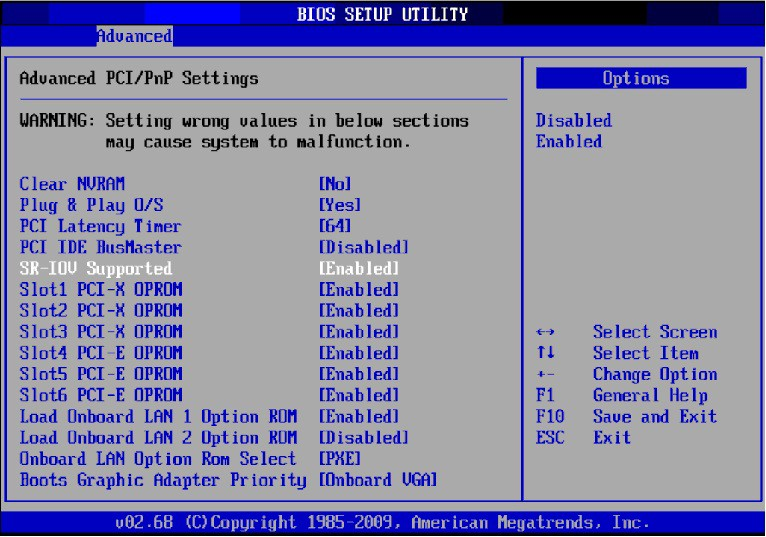
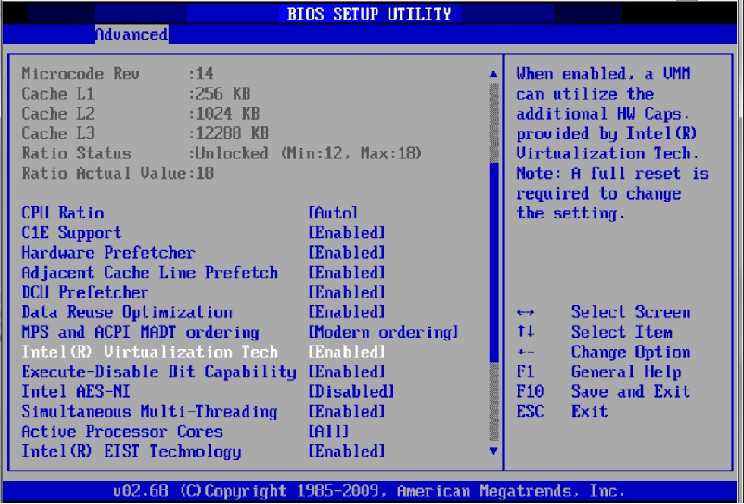
The figures used in this section are for illustration purposes only. For further information, refer to your BIOS User Manual.
-
Enable "SR-IOV" in the system BIOS.
-
Enable "Intel Virtualization Technology" (VT-d).
-
Install a hypervisor that supports SR-IOV.
-
Update the GRUB configuration to enable IOMMU:
Example for Intel systems (/boot/grub/grub.conf):default=0 timeout=5 splashimage=(hd0,0)/grub/splash.xpm.gz hiddenmenu title Red Hat Enterprise Linux Server (4.x.x) root (hd0,0) kernel /vmlinuz-4.x.x ro root=/dev/VolGroup00/LogVol00 rhgb quiet intel_iommu=on initrd /initrd-4.x.x.imgEnsure the parameter
intel_iommu=onis present. On newer systems using/boot/grub2/grub.cfg, add the parameter to the line starting withlinux16.
Configuring SR-IOV (Ethernet)
For configuration details, refer to the community guide HowTo Configure SR-IOV for ConnectX-4/ConnectX- 5/ConnectX-6 with KVM (Ethernet).
Configuring SR-IOV (InfiniBand)
-
Install MLNX_OFED for Linux with SR-IOV support.
-
Verify SR-IOV enablement in the firmware:
mlxconfig -d /dev/mst/mt4115_pciconf0 qExample output:
SRIOV_EN              1
NUM_OF_VFS            8
To modify these settings, if needed:
mlxconfig -d /dev/mst/mt4115_pciconf0 set SRIOV_EN=1 NUM_OF_VFS=16 -
Reboot the server.
-
Create VFs. Depending on your kernel version, use one of the following sysfs files:
-
Standard (for newer kernels):
echo <num_vfs> > /sys/class/infiniband/mlx5_0/device/sriov_numvfs -
Legacy (for older kernels):
echo <num_vfs> > /sys/class/infiniband/mlx5_0/device/mlx5_num_vfsThe
sriov_numvfsfile is only present ifintel_iommu=onwas set in GRUB.Rules:
-
You can change the number of VFs only when none are assigned.
-
If VFs are assigned to VMs, the count cannot be changed.
-
Unloading the PF driver removes SR-IOV only if no VFs are assigned.
-
When the PF driver is reloaded, assigned VFs become operational again (the VF driver may need to be restarted).
-
-
-
Verify VF creation.
lspci | grep MellanoxExample output:
08:00.0 Infiniband controller: Mellanox Technologies MT27700 Family [ConnectX-4] 08:00.1 Infiniband controller: Mellanox Technologies MT27700 Family [ConnectX-4] 08:00.2 Infiniband controller: Mellanox Technologies MT27700 Family [ConnectX-4 Virtual Function] 08:00.3 Infiniband controller: Mellanox Technologies MT27700 Family [ConnectX-4 Virtual Function] 08:00.4 Infiniband controller: Mellanox Technologies MT27700 Family [ConnectX-4 Virtual Function] 08:00.5 Infiniband controller: Mellanox Technologies MT27700 Family [ConnectX-4 Virtual Function] -
Configure each VF. Sysfs entries are available under
/sys/class/infiniband/mlx5_<PF_INDEX>/device/sriov/. Example output:sriov/ ├── 0/ │ ├── node │ ├── port │ └── policy ├── 1/ │ ├── node │ ├── port │ └── policy └── 2/ ├── node ├── port └── policy-
Node GUID:
echo 00:11:22:33:44:55:1:0 > /sys/class/infiniband/mlx5_0/device/sriov/0/node -
Port GUID:
echo 00:11:22:33:44:55:2:0 > /sys/class/infiniband/mlx5_0/device/sriov/0/port -
Policy (
/sys/class/infiniband/<PF>/device/sriov/<index>/policy) – Defines VF port behavior. Options:Value
Description
Down
Port state remains down
Up
Sets port to Initialize, allowing the SM to bring it up
Follow
Mirrors the physical port's state
By default, all VF policies initialize as
Down, exceptVPort0, which defaults toFollow.
-
-
Enable virtualization in OpenSM by adding the following to
/etc/opensm/opensm.conf:virt_enabled 2OpenSM and related InfiniBand tools (e.g.,
iblinkinfo,ibqueryerr) must run on the PF, not the VF. In multi-PF configurations, OpenSM should run onhost0.
VF Initialization and Binding
Because the same mlx5_core driver handles both PFs and VFs, the PF driver attempts to initialize all VFs by default.
To assign a VF to a virtual machine, unbind it from the PF driver first:
-
Identify the VF PCIe address:
lspci -DExample:
0000:09:00.2 -
Unbind from PF driver:
echo 0000:09:00.2 > /sys/bus/pci/drivers/mlx5_core/unbind -
Bind again (if needed):
echo 0000:09:00.2 > /sys/bus/pci/drivers/mlx5_core/bind
PCIe BDF Mapping of PFs and VFs
PCIe addresses are sequential across PFs and VFs.
For example, if the card's PCIe slot is 05:00 and it has two ports:
|
Function |
PCIe BDF Range |
Description |
|---|---|---|
|
PF0 |
05:00.0 |
PF for port 0 |
|
PF1 |
05:00.1 |
PF for port 1 |
|
VFs for PF0 |
05:00.2–05:00.4 |
VFs 0–2 for PF0 ( |
|
VFs for PF1 |
05:00.5–05:00.7 |
VFs 0–2 for PF1 ( |
Additional SR-IOV Configurations
Assigning VF to Virtual Machine
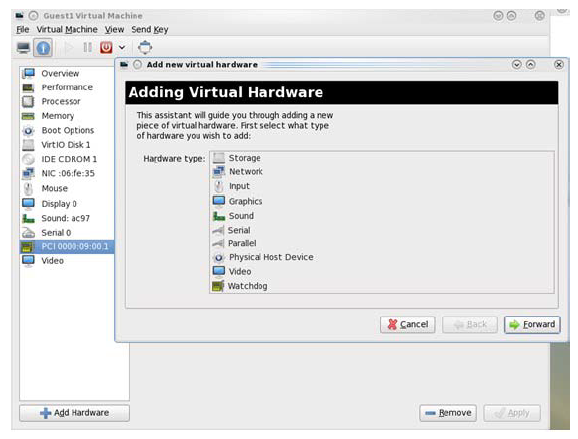
This section describes how to attach an SR-IOV VF to a VM on a Red Hat KVM host using virt-manager (RHEL/KVM).
-
Run the virt-manager.
-
Double-click the VM and open its Properties.
-
Go to Details → Add Hardware → PCI Host Device.
-
Select the NVIDIA VF by its PCIe address (e.g.,
00:03.1). -
Reboot the VM if it's running; otherwise, start it.
-
Inside the guest, verify the device is present:
lspci | grep MellanoxExample:
01:00.0 Infiniband controller: Mellanox Technologies MT28800 Family [ConnectX-5 Ex] -
(Optional) Configure the guest interface (e.g., via
/etc/sysconfig/network-scripts/ifcfg-ethX).VF MACs are randomly assigned by default; you don’t need to set one unless you require a stable MAC.
Ethernet VF Configuration (Host)
You can configure VFs via iproute2 (preferred) or sysfs.
-
Using ip (preferred)
ip link set { dev <PF_DEVICE> | group <DEVGROUP> } [ up | down ] \ vf <NUM> [ mac <LLADDR> ] [ vlan <VLANID> [ qos <VLAN-QOS> ] ] \ [ spoofchk { on | off } ] \ [ state { enable | disable | auto } ] -
Using sysfs (example layout, ConnectX-4)
/sys/class/net/<PF>/device/sriov/<VF>/
├── config
├── link_state
├── mac
├── mac_list
├── max_tx_rate
├── min_tx_rate
├── spoofcheck
├── stats
├── trunk
└── trust
VLAN Modes: VGT vs VST
-
VGT (VLAN Guest Tagging) – Guest tags/untags its own traffic. (Default)
-
VST (VLAN Switch Tagging) – Hypervisor enforces a VLAN/QoS for the VF; outgoing untagged/priority-tagged traffic is tagged by the hypervisor; incoming VLAN tags are stripped.
Configure VST:
ip link set dev <PF_DEVICE> vf <NUM> vlan <VLAN_ID> [qos <QOS>]
# Example:
ip link set dev eth2 vf 2 vlan 10 qos 3   # enable VST with VLAN 10, QoS 3
ip link set dev eth2 vf 2 vlan 0          # revert to VGT
Additional Ethernet VF Options
-
Guest MAC (set a stable MAC before the guest driver loads):
ip link set dev <PF_DEVICE> vf <NUM> mac <LLADDR>For legacy/ConnectX-4 guests (no random MAC), always configure via
ip link. -
Spoof checking (kernel ≥ 3.1):
ip link set dev <PF_DEVICE> vf <NUM> spoofchk [on | off] -
Guest link state:
ip link set dev <PF_DEVICE> vf <UM> state [enable| disable| auto]
VF Statistics (sysfs)
The sysfs interface for displaying VF statistics is deprecated. To display VF statistics, use the following command:
/opt/mellanox/iproute2/sbin/ip -s link show dev <VF-interface-name>
On systems where the deprecated sysfs interface is still available, it displays the following counters:
# cat /sys/class/infiniband/mlx5_2/device/sriov/2/stats
tx_packets   : 5011
tx_bytes     : 4450870
tx_dropped   : 0
rx_packets   : 5003
rx_bytes     : 4450222
rx_broadcast : 0
rx_multicast : 0
rx_dropped   : 0
Mapping VFs to Ports
Use ip link (v2.6.34~3+):
ip link
Example (excerpt):
61: p1p1: ...
    vf 0 MAC 00:00:00:00:00:00, vlan 4095, spoof checking off, link-state auto
    vf 38 MAC ff:ff:ff:ff:ff:ff, vlan 65535, spoof checking off, link-state disable
A MAC of ff:ff:ff:ff:ff:ff indicates the VF is not assigned to this net device's port.
You can still configure such VFs from this PF; changes apply to the VF’s actual port owner.
RoCE Support
RoCE is supported on VFs and can be used with VLANs. The hypervisor GID table has 16 entries; the remaining 112 entries are shared across VFs. With >56 VFs, some may have only a single GID entry, which is insufficient if a VF’s Ethernet interface is assigned an IP. Plan VF counts accordingly.
SR-IOV Advanced Security
MAC Anti-Spoofing
Prevents a VF from sending frames with a MAC different from the one assigned by the admin. Disabled by default.
-
Using
ip(kernel ≥ 3.10):ip link set ens785f1 vf 0 spoofchk on # enable ip link set ens785f1 vf 0 spoofchk off # disable -
Using sysfs:
echo "ON"  > /sys/class/net/ens785f1/device/sriov/0/spoofcheck
echo "OFF" > /sys/class/net/ens785f1/device/sriov/0/spoofcheck
This setting is non-persistent across driver restarts.
Rate Limit per VF
See HowTo Configure Rate Limit per VF for ConnectX-4/ConnectX-5/ConnectX-6 Community post. Per-VF files (e.g., /sys/class/net/<ifname>/device/sriov/<vf_num>/max_tx_rate) still apply.
Rate Limit per Group of VFs
Group VFs and apply a group rate limit; effective VF limit is the min of the VF's own limit and the group’s available bandwidth share.
Configuration outline:
-
When supported, the driver exposes
/sys/class/net/<ifname>/device/sriov/groups/. -
All VFs start in group 0.
-
Move a VF to a group:
echo 7 > /sys/class/net/<ifname>/device/sriov/5/group -
Set group max rate:
echo 5000 > /sys/class/net/<ifname>/device/sriov/groups/7/max_tx_rate -
Inspect VF/group:
-
VF stats include group ID:
cat /sys/class/net/<ifname>/device/sriov/<vf_num>/stats -
Group config shows current rate limit and member count:
cat /sys/class/net/<ifname>/device/sriov/groups/<group_id>/config
-
Bandwidth Guarantee per Group of VFs
Guarantee a minimum transmit rate per group; ensure the sum of group minimums ≤ line rate.
Example (40 Gb/s link):
echo 20000 > /sys/class/net/<ifname>/device/sriov/groups/1/min_tx_rate
echo 5000 > /sys/class/net/<ifname>/device/sriov/groups/2/min_tx_rate
echo 15000 > /sys/class/net/<ifname>/device/sriov/groups/3/min_tx_rate
-
Group 1: 20 Gb/s
-
Group 2: 5 Gb/s
-
Group 3: 15 Gb/s
-
Groups with 0 have no guarantee.
You can still set per-VF min rates to split a group’s guarantee among member VFs (sum should not exceed the group minimum).
Privileged VFs
Trusted VFs can receive a limited set of PF-like privileges (e.g., entering promiscuous mode).
-
Using
ip(kernel ≥ 4.5):ip link set ens785f1 vf 0 trust on ip link set ens785f1 vf 0 trust off -
Using sysfs:
echo "ON"  > /sys/class/net/ens785f1/device/sriov/0/trust
echo "OFF" > /sys/class/net/ens785f1/device/sriov/0/trust
Probed VFs
Probing VFs consumes resources. Disable probing if you don’t need to monitor VMs:
-
Kernel ≥ 4.12 (preferred) – use
sriov_drivers_autoprobe(PCIe sysfs). -
Older kernels – use
mlx5_coremodule paramprobe_vf:echo 0 > /sys/module/mlx5_core/parameters/probe_vf
For more information on how to probe VFs, see HowTo Configure and Probe VFs on mlx5 Drivers Community post.
VF Promiscuous and All-multicast Modes
Only trusted VFs can enable these modes.
-
Promiscuous Mode (receive unmatched and all multicast traffic):
ifconfig eth2 promisc # enable ifconfig eth2 -promisc # disable -
All-Multicast Mode (receive all multicast on the port):
ifconfig eth2 allmulti    # enable
ifconfig eth2 -allmulti   # disable
Uninstalling the SR-IOV Driver
-
Detach all VFs from VMs or stop the VMs that use VFs.
Stopping the driver while VMs are using VFs may hang the host.
-
Run the uninstall script:
/usr/sbin/ofed_uninstall.shFollow the prompts. Example output (truncated):
This program will uninstall all OFED packages on your machine. Do you want to continue? [y/N]: y ... -
Reboot the server.
Last updated: