

To update the software on the NVIDIA® BlueField® device, the BlueField must be booted up without mounting the eMMC flash device. This requires an external boot flow where a BFB (which includes ATF, UEFI, Arm OS, NIC firmware, and initramfs) is pushed from an external host via USB or PCIe. On BlueField devices with an integrated BMC, the USB interface is internally connected to the BMC and is enabled by default. Therefore, you must verify that the RShim driver is running on the BMC. This provides the ability to push a bootstream over the USB interface to perform an external boot.
Changing Default Credentials Using bf.cfg
Ubuntu users are prompted to change the default password (ubuntu) for the default user (ubuntu) upon first login. Logging in will not be possible even if the login prompt appears until all services are up ("DPU is ready" message appears in /dev/rshim0/misc).
Attempting to log in before all services are up prints the following message: Permission denied, please try again.
Alternatively, Ubuntu users can provide a unique password that will be applied at the end of the BFB installation. This password must be defined in a bf.cfg configuration file. To set the password for the ubuntu user:
-
Create password hash. Run:
# openssl passwd -1
Password:
Verifying - Password:
$1$3B0RIrfX$TlHry93NFUJzg3Nya00rE1
-
Add the password hash in quotes to the
bf.cfgfile:# vim bf.cfg ubuntu_PASSWORD='$1$3B0RIrfX$TlHry93NFUJzg3Nya00rE1'The
bf.cfgfile is used with thebfb-installscript in the steps that follow.
Installing BFB
The BFB installation procedure consists of the following main stages:
-
Disabling RShim on the server.
-
Initiating the BFB update procedure by transferring the BFB image using one of the following options:
-
Redfish interface
-
Confirming the identity of the host and BMC—required only during first-time setup or after BMC factory reset.
-
Sending a Simple-Update request.
-
- Deploying BlueField Software Using BFB from BMC | id (24.04)DeployingBlueFieldSoftwareUsingBFBfromBMC DirectSCP
-
Running an SCP command.
-
-
Transferring BFB Image
Since the BFB is too large to store on the BMC flash or tmpfs, the image must be written to the RShim device. This can be done by either running SCP directly or using the Redfish interface.
Redfish Interface
The following is a simple sequence diagram illustrating the flow of the BFB installation process.
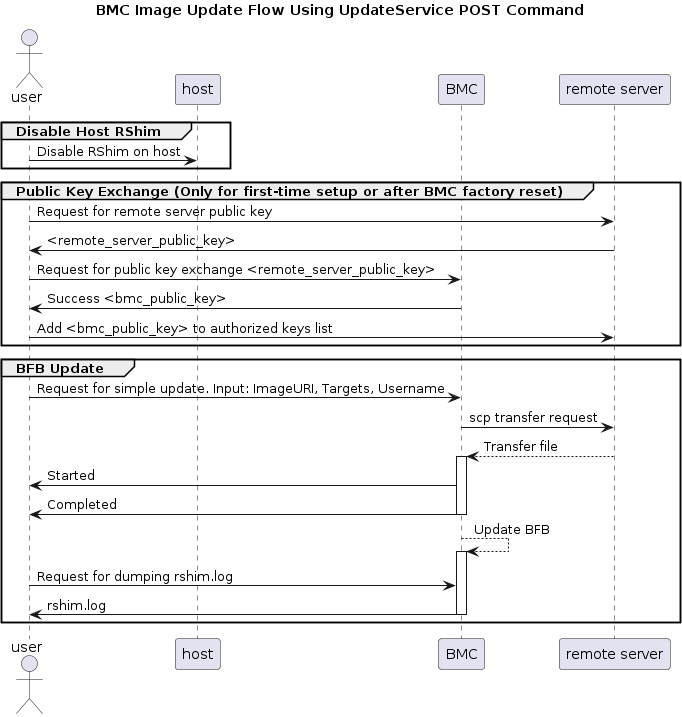
The following are detailed instructions outlining each step in the diagram:
-
Confirm the identity of the remote server (i.e., host holding the BFB image) and BMC.
Required only during first-time setup or after BMC factory reset.
-
Run the following on the remote server:
ssh-keyscan -t <key_type> <remote_server_ip>Where:
-
key_type– the type of key associated with the server storing the BFB file (e.g., ed25519) -
remote_server_ip– the IP address of the server hosting the BFB file
-
-
Retrieve the public key of the host holding the BFB image from the response and provide the remote server's credentials to the BlueField using the following command:
curl -k -u root:'<password>' -H "Content-Type: application/json" -X POST -d '{"RemoteServerIP":"<remote_server_ip>", "RemoteServerKeyString":"<remote_server_public_key>"}' https://<bmc_ip>/redfish/v1/UpdateService/Actions/Oem/NvidiaUpdateService.PublicKeyExchangeWhere:
-
remote_server_ip– the IP address of the server hosting the BFB file -
remote_server_public_key– remote server's public key from thessh-keyscanresponse, which contains both the type and the public key with a space between the two fields (i.e., "<type> <public_key>"). -
bmc_ip– BMC IP address
-
-
Extract the BMC public key information (i.e., "
<type> <bmc_public_key> <username>@<hostname>") from thePublicKeyExchangeresponse and append it to theauthorized_keysfile on the host holding the BFB image. This enables passwordless key-based authentication for users.{ "@Message.ExtendedInfo": [ { "@odata.type": "#Message.v1_1_1.Message", "Message": "Please add the following public key info to ~/.ssh/authorized_keys on the remote server", "MessageArgs": [ "<type> <bmc_public_key> root@dpu-bmc" ] }, { "@odata.type": "#Message.v1_1_1.Message", "Message": "The request completed successfully.", "MessageArgs": [], "MessageId": "Base.1.15.0.Success", "MessageSeverity": "OK", "Resolution": "None" } ] }
-
If the remote server public key must be revoked, use the following command before repeating the previous step:
curl -k -u root:'<password>' -H "Content-Type: application/json" -X POST -d '{"RemoteServerIP":"<remote_server_ip>"}' https://<bmc_ip>/redfish/v1/UpdateService/Actions/Oem/NvidiaUpdateService.RevokeAllRemoteServerPublicKeysWhere:
-
remote_server_ip– remote server's IP address -
bmc_ip– BMC IP address
-
-
-
Start BFB image transfer using the following command on the remote server:
curl -k -u root:'<password>' -H "Content-Type: application/json" -X POST -d '{"TransferProtocol":"SCP", "ImageURI":"<image_uri>","Targets":["redfish/v1/UpdateService/FirmwareInventory/DPU_OS"], "Username":"<username>"}' https://<bmc_ip>/redfish/v1/UpdateService/Actions/UpdateService.SimpleUpdate
After the NVIDIA® BlueField® Arm boots, it may take a few seconds (6-8 in BlueField-2, and 2 in BlueField-3) until the BlueField BSP (
DPU_OS) is up.
This command uses SCP for the image transfer, initiates a soft reset on the BlueField and then pushes the boot stream. For Ubuntu BFBs, the eMMC is flashed automatically once the bootstream is pushed. On success, a "running" message is received with the current task ID.
Where:
-
image_uri– the image URI format should be<remote_server_ip>/<path_to_bfb>image_uripath is in reference to the user. For example if the BFB image is in/root/image.bfb, the user must useimage_uri=<ip>/image.bfb(notimage_uri=<ip>/root/image.bfb).
-
username– username on the remote server -
bmc_ip– BMC IP addressExamples:
-
If server RShim is enabled:
{
  "error": {
    "@Message.ExtendedInfo": [
      {
        "@odata.type": "#Message.v1_1_1.Message",
        "Message": "The requested resource of type Target named '/dev/rshim0/boot' was not found.",
        "MessageArgs": [
          "Target",
          "/dev/rshim0/boot"
        ],
        "MessageId": "Base.1.15.0.ResourceNotFound",
        "MessageSeverity": "Critical",
        "Resolution": "Provide a valid resource identifier and resubmit the request."
      }
    ],
    "code": "Base.1.15.0.ResourceNotFound",
    "message": "The requested resource of type Target named '/dev/rshim0/boot' was not found."
}
-
If a username or any other required field is missing:
{
  "Username@Message.ExtendedInfo": [
    {
      "@odata.type": "#Message.v1_1_1.Message",
      "Message": "The create operation failed because the required property Username was missing from the request.",
      "MessageArgs": [
        "Username"
      ],
      "MessageId": "Base.1.15.0.CreateFailedMissingReqProperties",
      "MessageSeverity": "Critical",
      "Resolution": "Correct the body to include the required property with a valid value and resubmit the request if the operation failed."
    }
  ]
}
-
If the request is valid and a task is created:
{
  "@odata.id":
   "/redfish/v1/TaskService/Tasks/<task_id>",
  "@odata.type": "#Task.v1_4_3.Task",
  "Id": "<task_id>",
  "TaskState": "Running",
  "TaskStatus": "OK"
}
-
-
-
Wait 2 seconds and run the following on the host to track image transfer progress:
curl -k -u root:'<password>' -X GET https://<bmc_ip>/redfish/v1/TaskService/Tasks/<task_id>
The transfer takes ~8 minutes for BlueField-3, and ~40 minutes for BlueField-2. During the transfer, the
PercentCompletevalue remains at 0. If no errors occur, theTaskStateis set toRunning, and a keep-alive message is generated every 5 minutes with the content "Transfer is still in progress (X minutes elapsed). Please wait". Once the transfer is completed, thePercentCompleteis set to 100, and theTaskStateis updated toCompleted.Upon failure, a message is generated with the relevant resolution.
Where:
-
bmc_ip– BMC IP address -
task_id– task IDTroubleshooting:
-
If host identity is not confirmed or the provided host key is wrong:
{
      "@odata.type": "#MessageRegistry.v1_4_1.MessageRegistry",
      "Message": "Transfer of image '<file_name>' to '/dev/rshim0/boot' failed.",
      "MessageArgs": [
        "<file_name>,
        "/dev/rshim0/boot"
      ],
      "MessageId": "Update.1.0.TransferFailed",
      "Resolution": " Unknown Host: Please provide server's public key using PublicKeyExchange ",
      "Severity": "Critical"
    }
…
"PercentComplete": 0,
  "StartTime": "<start_time>",
  "TaskMonitor": "/redfish/v1/TaskService/Tasks/<task_id>/Monitor",
  "TaskState": "Exception",
  "TaskStatus": "Critical"
In this case, revoke the remote server key (step 1.d.), and repeat steps 1.a. to 1.c.
-
If the BMC identity is not confirmed:
{
      "@odata.type": "#MessageRegistry.v1_4_1.MessageRegistry",
      "Message": "Transfer of image '<file_name>' to '/dev/rshim0/boot' failed.",
      "MessageArgs": [
        "<file_name>",
        "/dev/rshim0/boot"
      ],
      "MessageId": "Update.1.0.TransferFailed",
      "Resolution": "Unauthorized Client: Please use the PublicKeyExchange action to receive the system's public key and add it as an authorized key on the remote server",
      "Severity": "Critical"
      }
…
"PercentComplete": 0,
  "StartTime": "<start_time>",
  "TaskMonitor": "/redfish/v1/TaskService/Tasks/<task_id>/Monitor",
  "TaskState": "Exception",
  "TaskStatus": "Critical"
In this case, verify that the BMC key has been added correctly to the
authorized_keyfile on the remote server.
-
If SCP fails:
{
      "@odata.type": "#MessageRegistry.v1_4_1.MessageRegistry",
      "Message": "Transfer of image '<file_name>' to '/dev/rshim0/boot' failed.",
      "MessageArgs": [
        "<file_name>",
        "/dev/rshim0/boot"
      ],
      "MessageId": "Update.1.0.TransferFailed",
      "Resolution": "Failed to launch SCP",
      "Severity": "Critical"
      }
…
"PercentComplete": 0,
  "StartTime": "<start_time>",
  "TaskMonitor": "/redfish/v1/TaskService/Tasks/<task_id>/Monitor",
  "TaskState": "Exception",
  "TaskStatus": "Critical"
-
The keep-alive message:
{
      "@odata.type": "#MessageRegistry.v1_4_1.MessageRegistry",
      "Message": " <file_name>' is being transferred to '/dev/rshim0/boot'.",
      "MessageArgs": [
        " <file_name>",
        "/dev/rshim0/boot"
      ],
      "MessageId": "Update.1.0.TransferringToComponent",
      "Resolution": "Transfer is still in progress (5 minutes elapsed): Please wait",
      "Severity": "OK"
    }
…
"PercentComplete": 0,
  "StartTime": "<start_time>",
  "TaskMonitor": "/redfish/v1/TaskService/Tasks/<task_id>/Monitor",
  "TaskState": "Running",
  "TaskStatus": "OK"
-
Upon completion of transfer of the BFB image to the BlueField, the following is received:
{
      "@odata.type": "#MessageRegistry.v1_4_1.MessageRegistry",
      "Message": "Device 'DPU' successfully updated with image '<file_name>'.",
      "MessageArgs": [
        "DPU",
        "<file_name>"
      ],
      "MessageId": "Update.1.0.UpdateSuccessful",
      "Resolution": "None",
      "Severity": "OK"
    },
…
"PercentComplete": 100,
  "StartTime": "<start_time>",
  "TaskMonitor": "/redfish/v1/TaskService/Tasks/<task_id>/Monitor",
  "TaskState": "Completed",
  "TaskStatus": "OK"
-
-
-
When the BFB transfer is complete, dump the current RShim miscellaneous messages to check the update status.
Refer to section "BMC Dump Operations" for information on dumping the
rshim.logwhich contains the current RShim miscellaneous messages.
Applying New BFB Image
BlueField must be restarted to apply the new firmware. To restart BlueField:
-
Perform a graceful shutdown of the BlueField Arm OS.
-
Power cycle the server to complete the restart.
Alternatively, a server reboot may be done instead of power cycle by following these steps:
-
Graceful shutdown the BlueField Arm OS.
Without graceful shutdown of BlueField Arm OS during server reboot, the BlueField Arm side does not undergo a restart process (so only NIC firmware is applied).
-
Wait until completed.
-
Reboot the server (ATF, UEFI, BlueField Arm OS, NIC firmware is applied).
Server reboot will not restart the BlueField BMC (CEC not applied).
-
Log into BlueField BMC via Redfish and issue a restart (BlueField BMC and CEC is applied).
-
Verify that the new BFB is running by checking its version:
curl -k -u root:'<password>' -H "Content-Type: application/json" -X GET https://<bmc_ip>/redfish/v1/UpdateService/FirmwareInventory/DPU_OS
Direct SCP
scp <path_to_bfb> root@<bmc_ip>:/dev/rshim0/boot
If bf.cfg is required as part of the boot process, run:
cat <path_to_bfb> bf.cfg > new.bfb
scp <path to new.bfb> root@<bmc_ip>:/dev/rshim0/boot
Last updated: