

If the external NVIDIA® BlueField® serial connection is not available to the switch (i.e., not connected), BMC software enables access to the BlueField through an internal serial connection redirected over an IP address.
The serial-over-LAN (SOL) connection is first established using the BlueField BMC credentials. Once the connection to the BlueField BMC is successful, the serial communication is redirected to the BlueField Arm console, where additional BlueField Arm credentials are required to complete the connection.
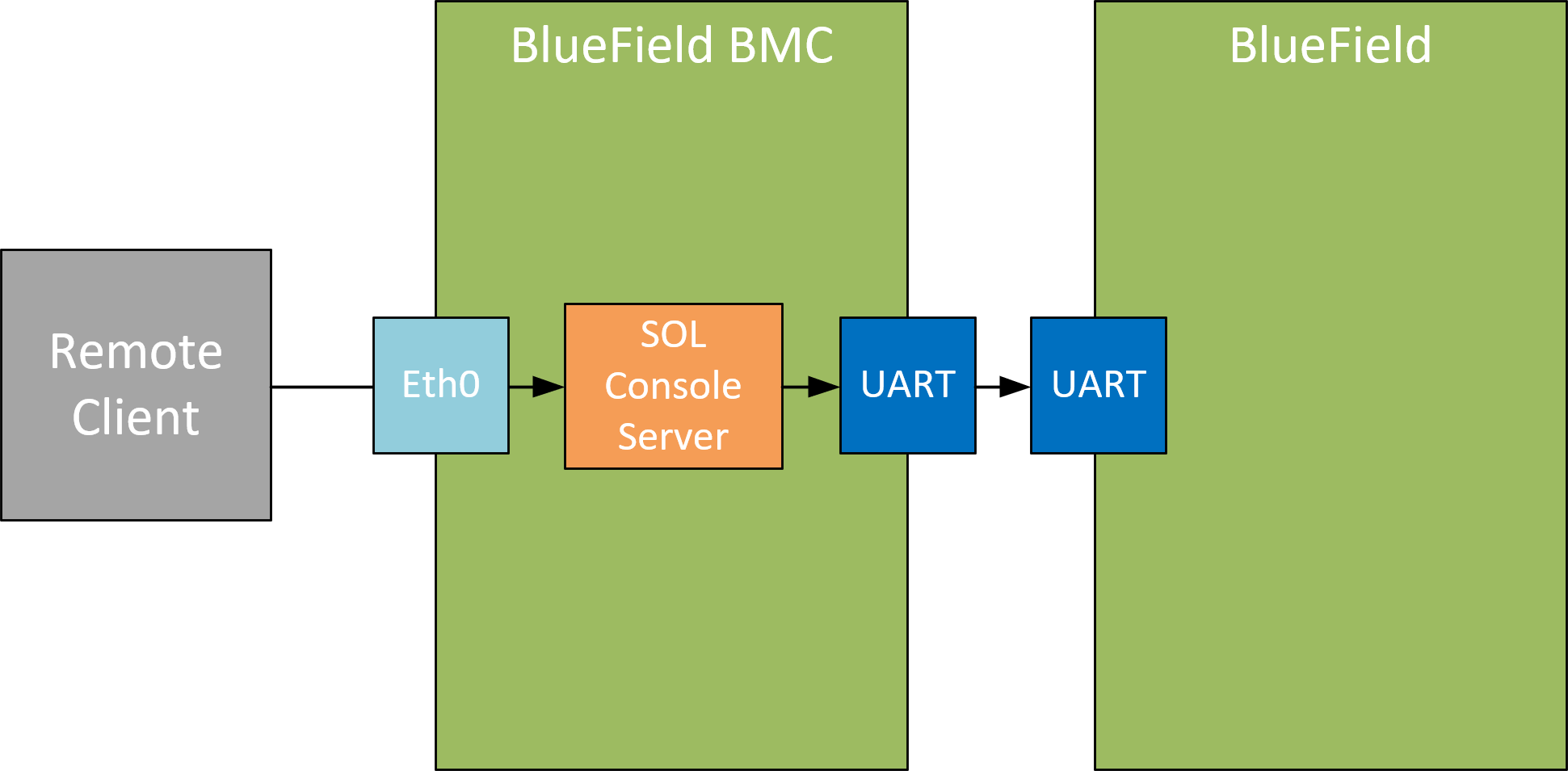
SOL Redfish Commands
To establish the SOL connection, users may retrieve information from the redfish/v1/Systems/Bluefield schema. Inside the SerialConsole properties (SSH, IPMI), there are various methods that a client can utilize to initiate a serial session with the host through its manager.
curl -k -u root:'<password>' -H 'Content-Type: application/json' -X GET https://<bmc_ip>/redfish/v1/Systems/Bluefield
Example output:
{
  ...
  "SerialConsole": {
    "IPMI": {
      "ServiceEnabled": true
    },
    "MaxConcurrentSessions": 15,
    "SSH": {
      "HotKeySequenceDisplay": "Press ~. to exit console",
      "Port": 2200,
      "ServiceEnabled": truethe
    }
  },
...
}
Based on the information provided, it is possible to establish a connection to the system's serial interface using the configured settings. In the following example, an SSH connection is utilized to connect to the system's serial interface:
ssh <bmc_ip> -p <port-number>
The port number can be obtain from the SerialConsole schema. In this example, that would be port 2200.
SOL IPMI Commands
To connect to serial-over-LAN use the following IPMI command from an external server:
ipmitool -C 17 -I lanplus -H <ip-address-of-bmc > -U ADMIN -P ADMIN sol activate
For example:
ipmitool -C 17 -I lanplus -H 10.10.10.10 -U ADMIN -P ADMIN sol activate
[SOL Session operational. Use ~? for help]

Poky (Yocto Project Reference Distro)

2.3.1 bluefield /dev/ttyAMA0

bluefield login:
The IPMI SOL commands are listed in the following table:
|
No. |
Function |
Command |
Description |
|---|---|---|---|
|
1 |
Get SOL info |
|
Get SOL configuration data |
|
2 |
Enable SOL access |
|
Enable the properties to be set via set-in-progress then enable SOL access |
|
3 |
Activate SOL |
Where:
|
Activate SOL access to the BlueField console |
|
4 |
Deactivate SOL |
|
Deactivate SOL access to the BlueField console |
SOL feature can be used even if BlueField is configured to use UART1/ttyAMA1.
SysRq Support in SOL
SysRq is a special key combination used by Linux to perform various low-level commands. SOL invokes the SysRq feature by sending a serial break signal, followed by the desired key. To enable SysRq, the user must issue the following command on the BlueField:
echo 1 > /proc/sys/kernel/sysrq
In the SOL of BMC, the break signal is generated by keys \n~B. So, in an SOL session, the user may enter the \n~B keys to trigger the break and then enter a keycode as the SysRq command.
For example, the following are the outputs when inputting h after generating a break signal in the SOL session:
-
For SOL over IPMI:
ipmitool -C 17 -I lanplus -H 10.10.10.10 -U ADMIN -P ADMIN sol activate
[SOL Session operational. Use ~? for help]

Poky (Yocto Project Reference Distro)

2.3.1 bluefield /dev/ttyAMA0

bluefield login:
bluefield login: ~B [send break]
[490472.371785] sysrq: HELP : loglevel(0-9) reboot(b) crash(c) terminate-all-tasks(e) memory-full-oom-kill(f) kill-all-tasks(i) thaw-filesystems(j) sak(k) show-backtrace-all-active-cpus(l) show-memory-usage(m) nice-all-RT-tasks(n) poweroff(o) show-registers(p) show-all-timers(q) unraw(r) sync(s) show-task-states(t) unmount(u) show-blocked-tasks(w) dump-ftrace-buffer(z)
-
For SOL over SSH (break signal generated with \n~~B):
ssh -p 2200 root@10.10.10.10
root@10.10.10.10's password:

bluefield login:
[490472.371785] sysrq: HELP : loglevel(0-9) reboot(b) crash(c) terminate-all-tasks(e) memory-full-oom-kill(f) kill-all-tasks(i) thaw-filesystems(j) sak(k) show-backtrace-all-active-cpus(l) show-memory-usage(m) nice-all-RT-tasks(n) poweroff(o) show-registers(p) show-all-timers(q) unraw(r) sync(s) show-task-states(t) unmount(u) show-blocked-tasks(w) dump-ftrace-buffer(z)
In the context of SOL over SSH connections, an additional tilde symbol ('
~') is used to navigate through multiple layers of SSH sessions to access the SOL session (e.g.,\n~~B).
Last updated: