
The Devices View presents network devices in a structured table format, allowing users to browse, filter, and select devices for detailed analysis.
Upon device selection, the interface provides detailed information through multiple tabs, including circuits, agent status, and device health metrics.
The system automatically refreshes device information and provides real-time status updates. Users can export device data, filter results, and navigate through different device details.
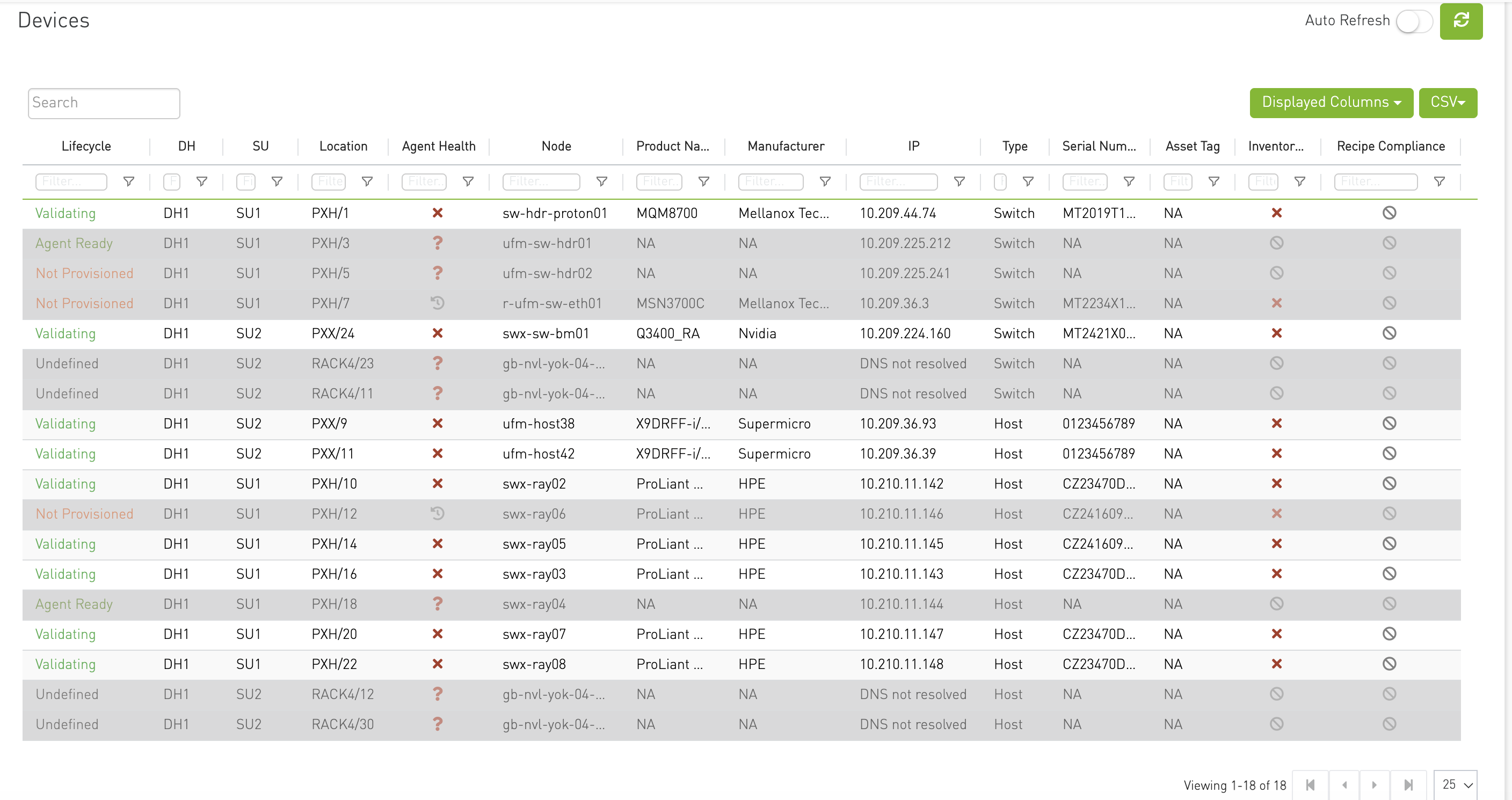
The main interface displays devices in a tabular format with the following columns:
|
Column |
Description |
|---|---|
|
Lifecycle |
The device's current lifecycle state. See Device Status for supported states and their meanings. |
|
DH |
The data hall identifier where the device is located. |
|
SU |
The scalable unit within the data hall. |
|
Location |
The rack name and rack unit, displayed as Rack/Unit when both values are available. |
|
Agent Health |
Agent availability and health based on whether the device is managed, whether an agent is installed, report freshness, and reported failures. See Agent Status. |
|
Node |
The device's display node name; the canonical node name is used when a display name is unavailable. |
|
Product Name |
The product name reported in the device's system information. |
|
Manufacturer |
The manufacturer reported in the device's system information. |
|
IP |
The device IP address. |
|
Type |
The device type. |
|
Serial Number |
The serial number reported in the device's system information. |
|
Asset Tag |
The device asset tag. |
|
Inventory Health |
The summarized hardware inventory state: Active, Failed, No Data, or Unmanaged. |
|
Recipe Compliance |
The device recipe-validation result: Pass, Fail, Not Validated, No Recipe Mapped, No Recipe File, No Data, or Invalid Recipe File. |
Agent Status
Agent status could be one of the following:
-
Unmanaged (🚫 Gray background): Agent installation is not supported on this device.
-
Agent Not Installed (❓ Gray background): No agent is installed.
-
Stale Agent (🕒 Gray background): No update has been received from the agent in the last 15 minutes.
-
Agent Reporting Failures (❌): The agent has reported either hardware issues (e.g., fans, power supplies) or port issues.
-
No Failures on Agent (✅): No hardware or port issues detected by the agent.
Device Selection and Navigation
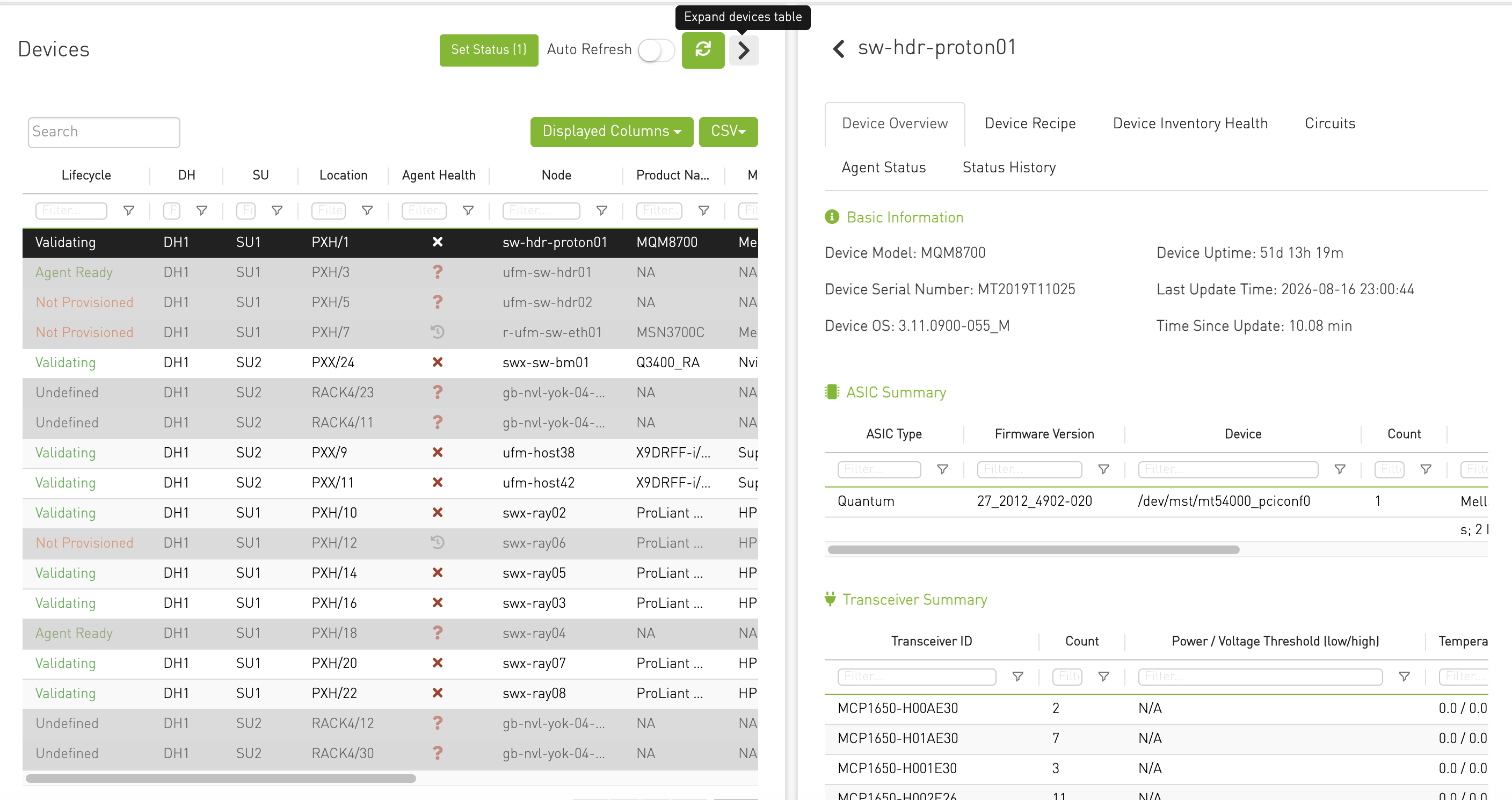
When a device is selected from the table, a details panel appears on the right side of the screen.
The selected device's information is highlighted in the device header, and the available tabs are dynamically determined based on the device's capabilities.
Expanding the Devices Table
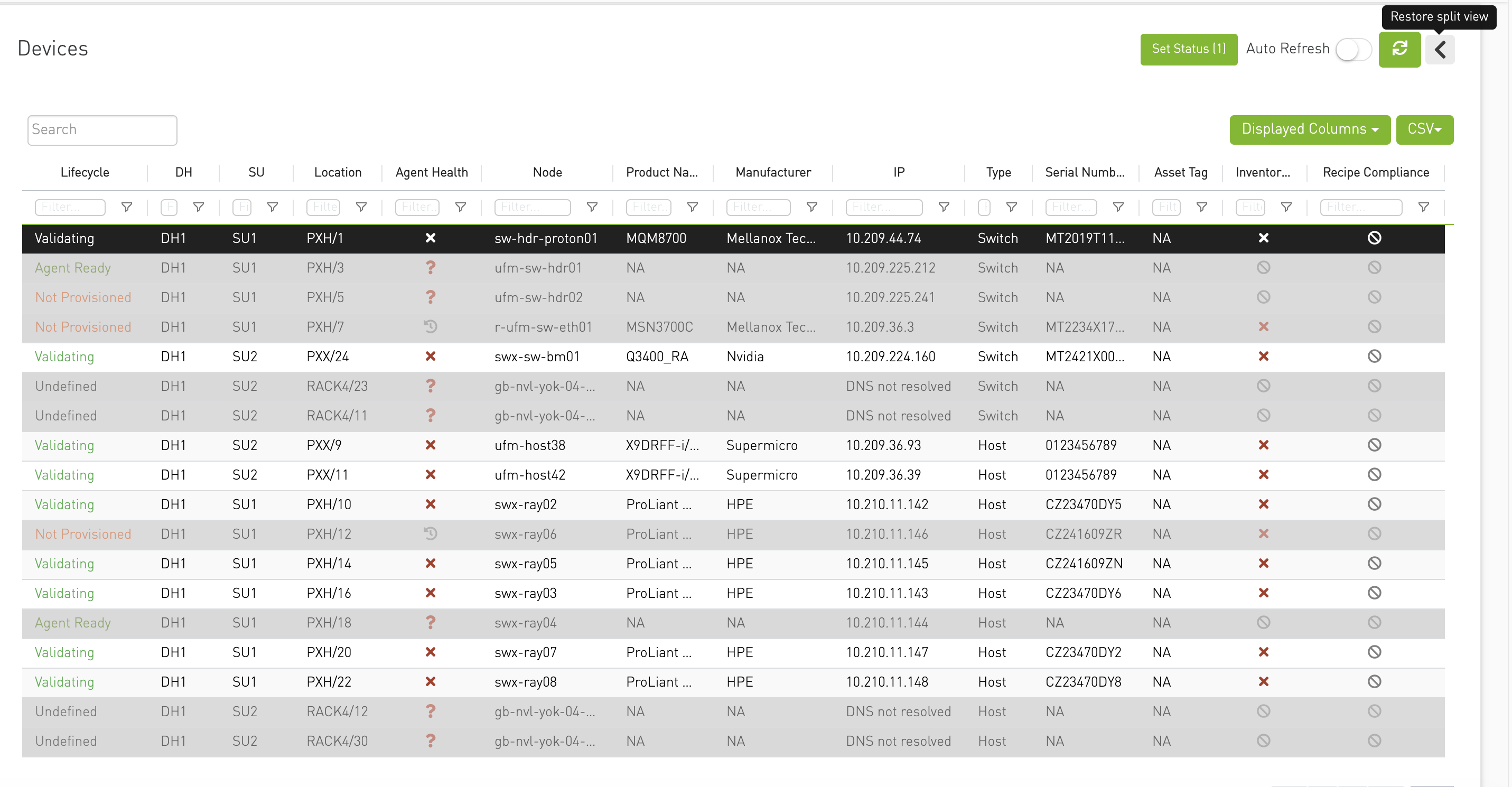
When exactly one device is selected, a chevron control appears on the right side of the Devices toolbar. Use it to give the table more horizontal space while keeping the selected row active.
-
Select one device row. The table and the selected device's details are displayed side by side.
-
Select the right chevron (Expand devices table). The details panel is hidden and the table expands to the right into the available space.
-
Select the left chevron (Restore split view) to display the selected device's details panel again.
The table-expansion control is available only when one device is selected. Clearing the selection or selecting multiple devices exits the expanded-table view.
Expanding the Device Details
The device header displays the device name with expand/collapse functionality on the left side of the name.
In expanded mode, the device details panel stretches to fit the page and displays the device's location hierarchy — Data Hall > Scalable Unit > Rack > Unit (when available).
It also includes information about the device type.
Device Tabs
Device Overview Tab
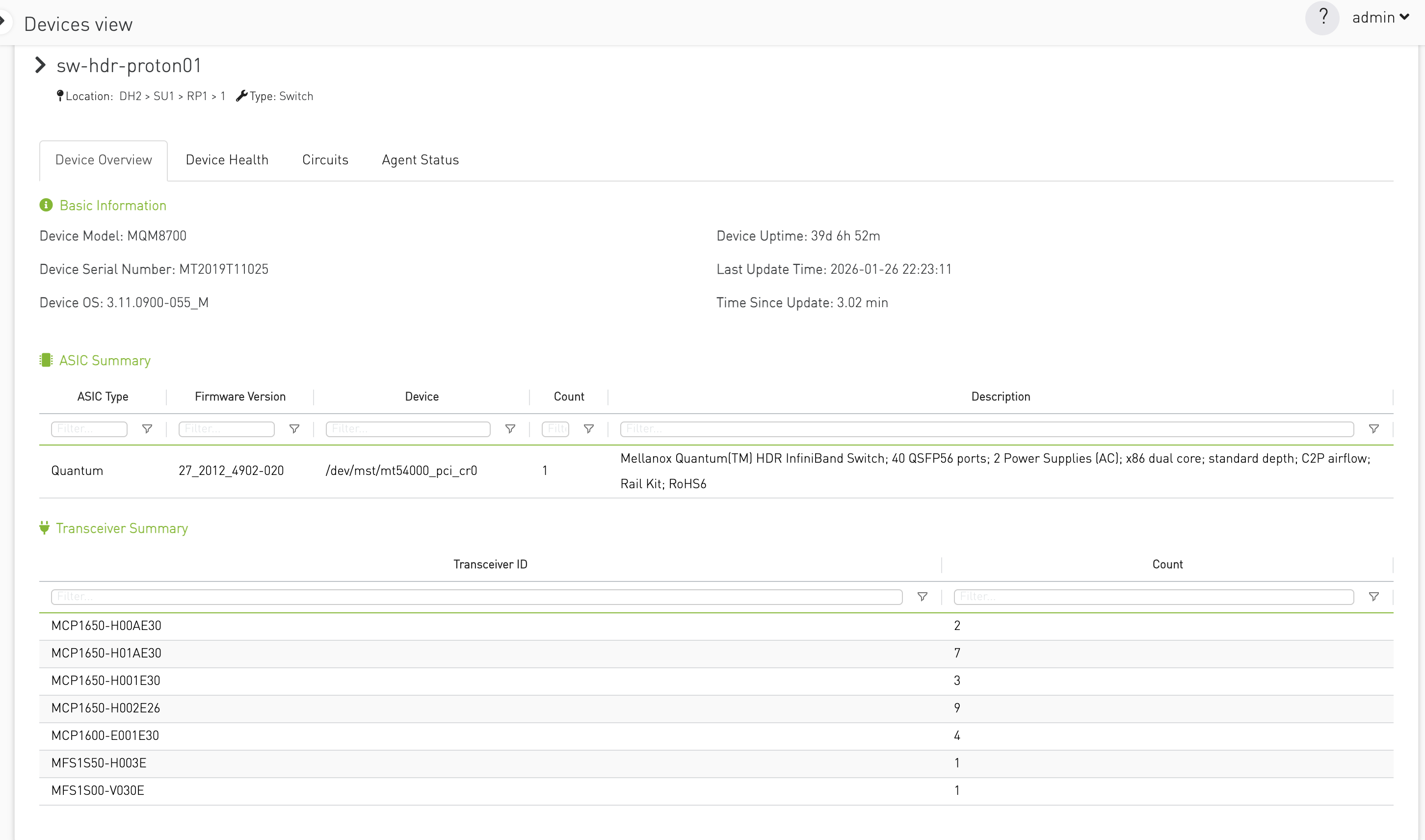
The Device Overview tab provides an overview of the physical aspects of the device like Device Model, OS, Serial Number, Uptime, ASIC Summary and the Transceiver models.
Device Health Tab
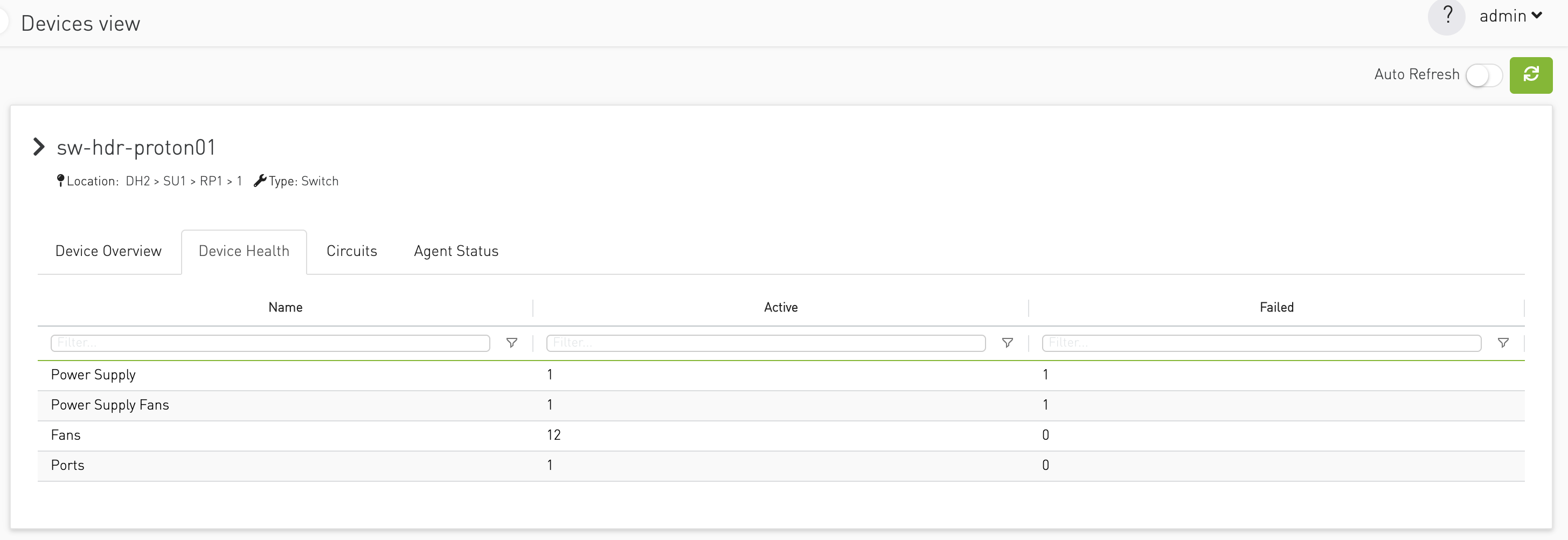
The Device Health tab provides an overview of the selected device’s health metrics in a tabular format.
Note: This tab is only visible for manageable devices.
Circuits Tab
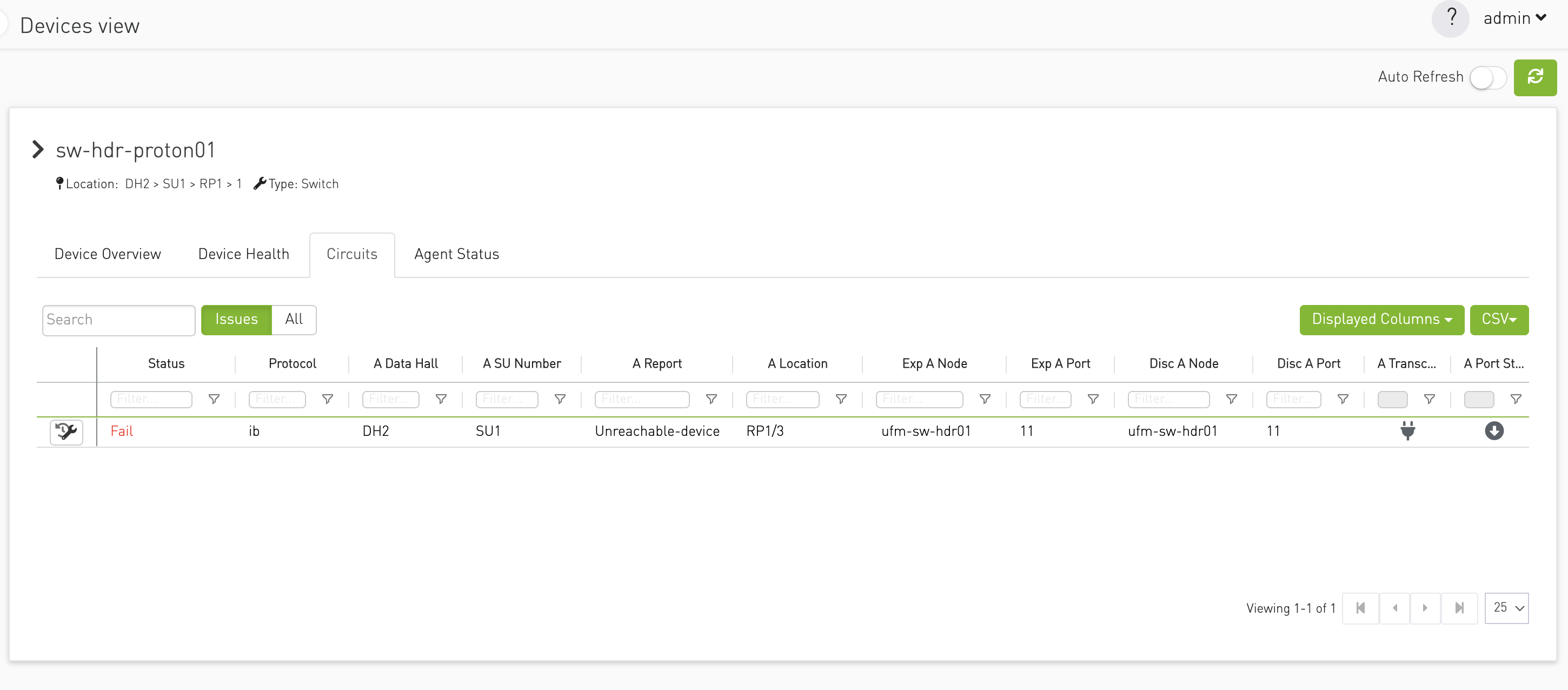
The Circuits tab displays all circuits related to the selected device.
Agent Status Tab
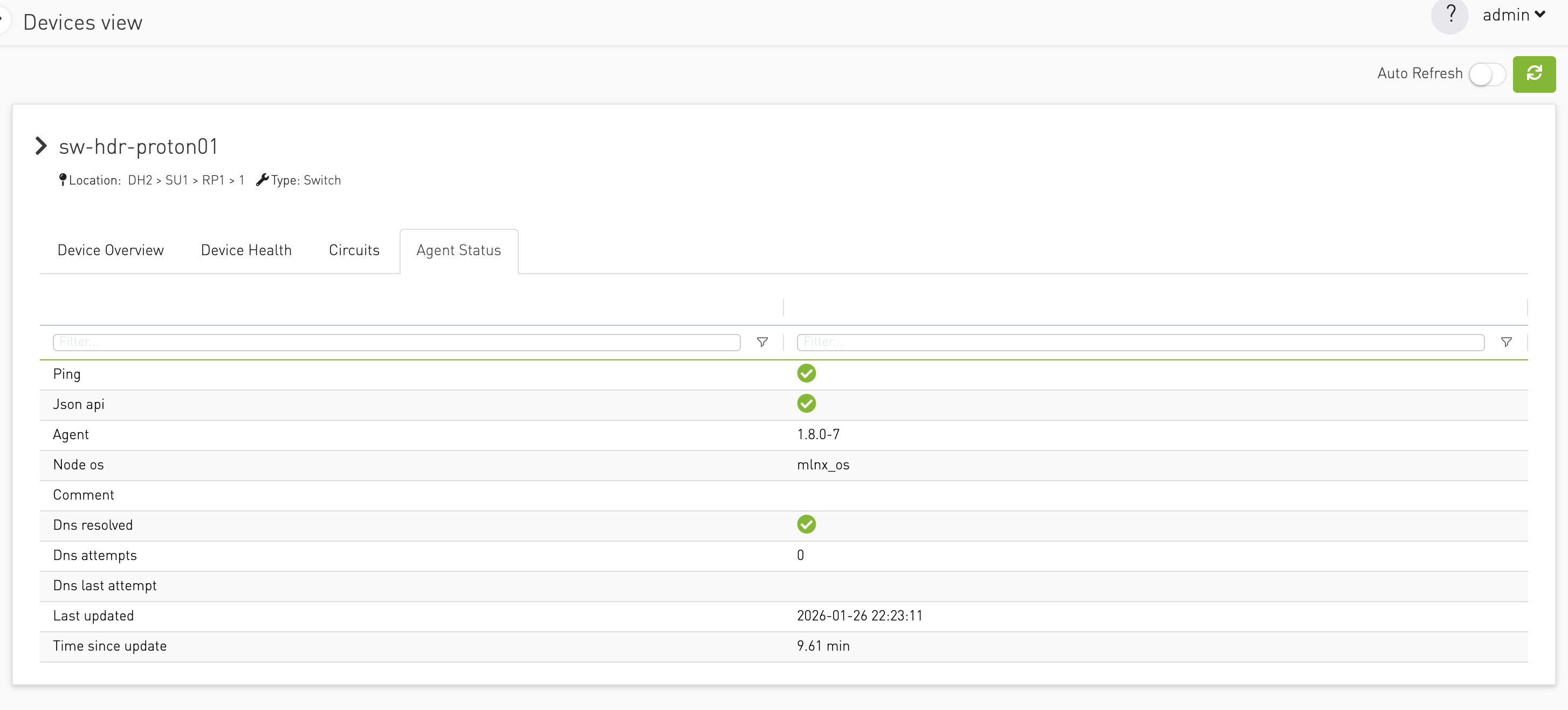
The Agent Status tab presents detailed information about the software agent running on managed devices. It includes the agent's connectivity status, version information, and the timestamp of the last communication.
Note: This tab is only visible for manageable devices and is accessible only to users with administrative privileges.
App Health Tab
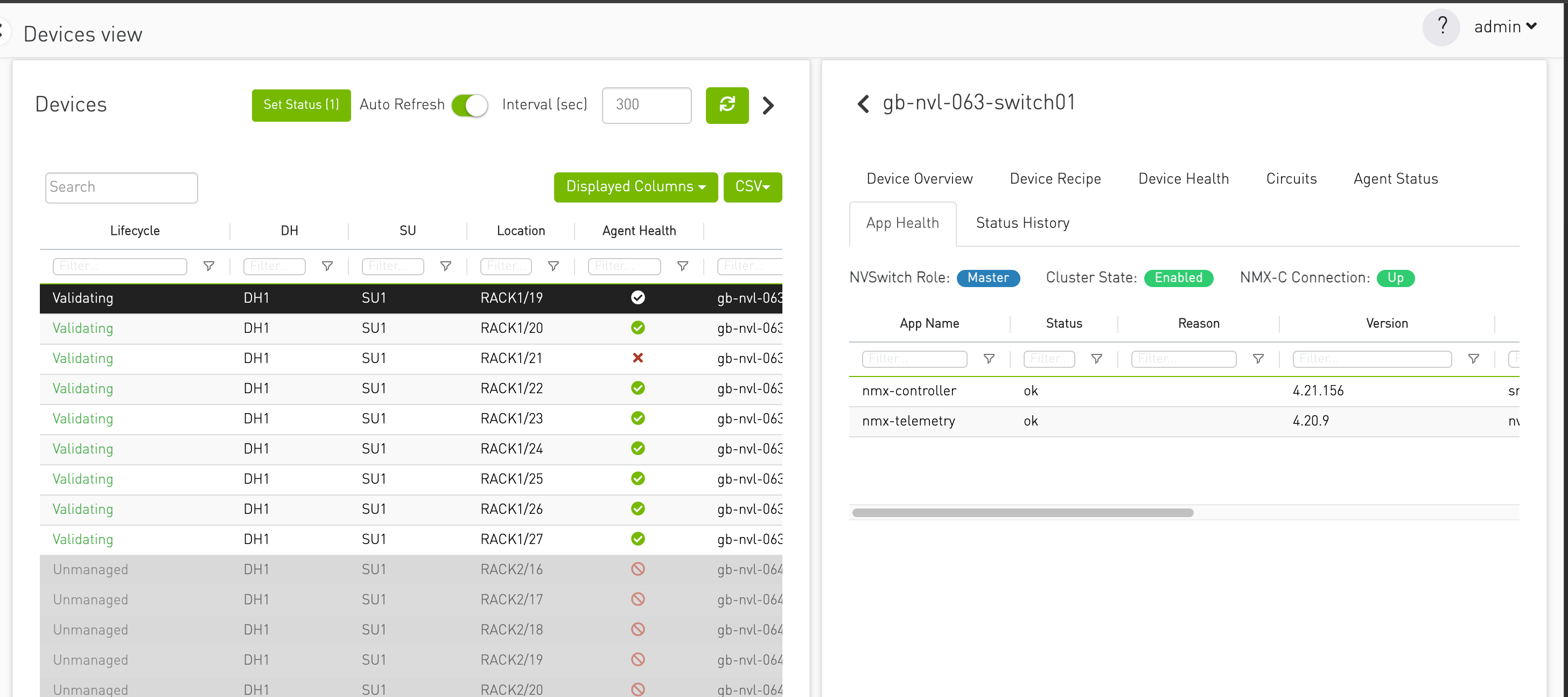
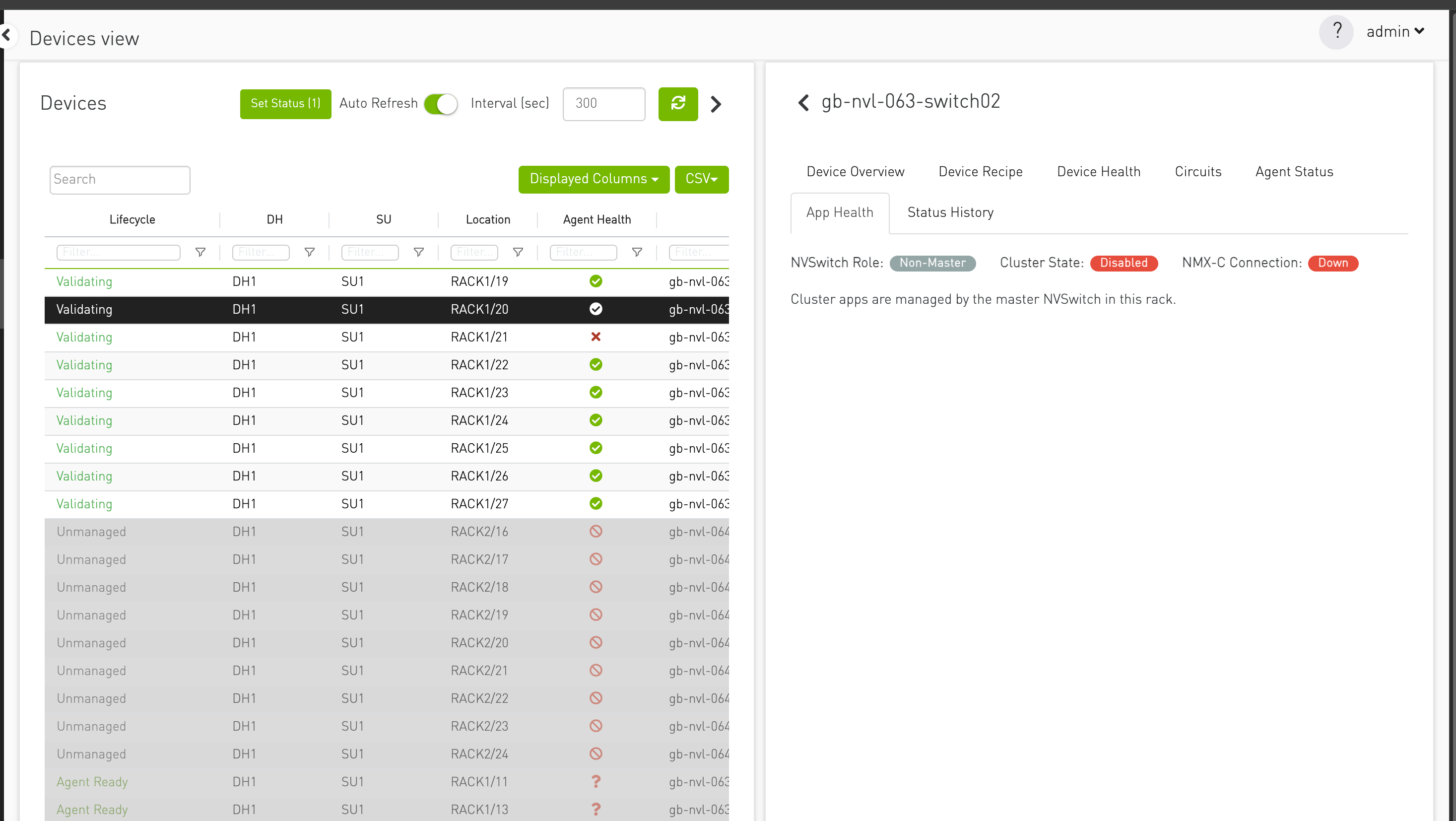
The App Health tab displays the NVSwitch role, cluster state, NMX-C
connection status, and cluster application information. This tab is available
for managed devices running NVOS. Cluster application details are shown on the
master NVSwitch; non-master devices indicate that the master manages them.
master role view:
non master role view:
Note: This tab is only visible for NVSwitch ,manageable devices and is accessible only to users with administrative privileges.
Device Recipe
Recipe validation lets CVT operators confirm that devices in a fabric are running the expected software and firmware versions defined in YAML recipe files. CVT compares actual versions reported by agents against expected versions in the recipe, and surfaces pass/fail status at the device and rack level.
How it works
-
Recipe files — YAML files listing expected software and firmware versions (e.g. switch image, ASIC firmware).
-
Mapping file — A YAML mapping assigns recipes to devices using rules (by data hall, scalable unit, rack, hostname pattern, role, etc.) or explicit per-device overrides. Resolution order is: override → rack → SU → DH → pattern → role → default.
-
Validation — When agent data is available, the collector compares each version field in the recipe to what the device reports and marks each field Pass or Fail. A device-level status is derived from those results.
Where it appears in the UI
|
Location |
Purpose |
|---|---|
|
System Admin → Agent Management → Recipe Management |
Upload/manage recipe and mapping YAML files |
|
Devices View → Device Recipe tab (described in this section) |
See assigned recipe, mapping rule, and field-level results; assign or override per device |
|
Devices View grid (described in this section) |
Recipe Compliance column for fleet-wide scanning |
|
Rack View |
Per-rack compliance summary and per-unit recipe badges |
Device statuses
-
Pass / Fail — All version fields match / at least one mismatch
-
No Recipe Mapped — No recipe assigned via rules or override
-
No Data — Recipe assigned but agent has not reported version info yet
-
Not Validated — Validation not yet run
Important notes
-
Recipe validation is additive — it runs alongside cable validation and does not gate validation cycles.
-
Mapping is re-resolved when topology is loaded or the mapping file changes; only affected devices are revalidated.
-
Per-device overrides from the UI are persisted in the mapping file and take highest priority over rules.
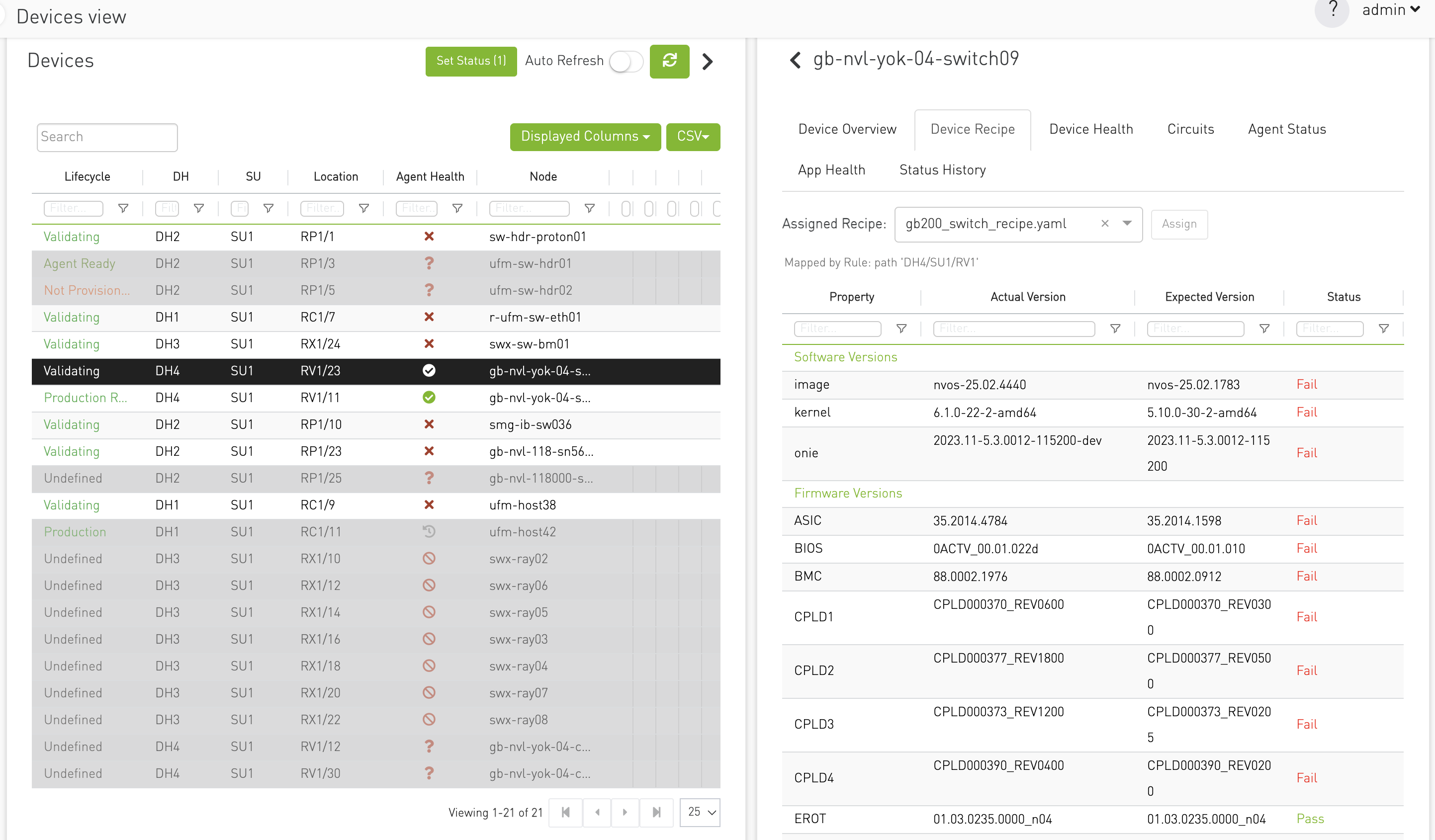
Recipe Assignment Row
|
Element |
Description |
|---|---|
|
Label |
"Assigned Recipe:" |
|
Dropdown |
Lists recipe files |
|
Assign button |
Enabled when selection differs from current assignment |
|
Spinner |
Shown while assignment request is in flight |
Assignment behavior:
-
Selecting a recipe and clicking Assign writes an entry to mapping
overridesand persists the mapping file. -
Clearing selection (empty recipe) removes the device from
overridesand re-resolves from rules/default if applicable. -
Backend immediately revalidates the device if
system_infois available.
Last updated: