

This guide explains how to use the DOCA Management Service (DMS) with the NVIDIA® BlueField® networking platform or NVIDIA® ConnectX® SmartNICs.
DOCA Management Service is currently in beta stage, with General Availability (GA) support for SPC-X use cases.
Follow the security best practices outlined in this guide to ensure proper protection when using this service.
Introduction
DOCA Management Service (DMS) is a centralized solution for configuring and operating BlueField and ConnectX devices.
Networking management in Cloud and AI Cloud environments is often fragmented, relying on incompatible tools and complex syntax. DMS addresses this by providing a unified API that simplifies secure local and remote configuration through intent-based models and standard protocols.
Data Modeling and Framework
DMS uses a methodical management framework inspired by OpenConfig. It provides a structured "dictionary" for device configurations, ensuring that diverse hardware features are managed through a consistent, hierarchical model rather than disparate scripts.
Unified Configuration Dictionary
DMS leverages YANG (Yet Another Next Generation) as its modeling language. This allows hardware parameters, firmware settings, and operational states to be mapped into a predictable, tree-like schema.
-
Logic-based abstraction: YANG abstracts the complexity of underlying tools (like
mlxconfigor OS scripts), representing them as intuitive paths (e.g.,/interfaces/interface/config/mtu). -
Structured paths: DMS follows the OpenConfig convention of separating Configuration (desired state) and State (actual operational data) into distinct branches.
-
Standardized transport: All interactions occur over gRPC, ensuring high-performance and secure communication.
DMS does not currently support telemetry streaming via the gNMI Subscribe mechanism.
Management Protocols
DMS implements two primary gRPC-based interfaces to handle different types of management tasks.
|
Interface |
Purpose |
Scope |
|---|---|---|
|
gNMI (network management) |
Data configuration |
Used for |
|
gNOI (network operations) |
System tasks |
Used for operational actions such as OS installation, reboots, and file transfers. |
-
DMS does not seek full OpenConfig alignment but uses it as a framework
-
Telemetry streaming via gNMI Subscribe is not supported
-
DMS can run on the host (managing BlueField/ConnectX) or directly on the BlueField Arm cores (DPU mode)
Security Considerations
DMS provides multiple layers of security to protect the infrastructure:
Architecture Security
Process Separation
DMS uses a two-process architecture to minimize security risks (detailed in the "DOCA Management Service Guide | id (3.3.0 LC)DOCAManagementServiceGuide ProcessSeparation" section):
-
dmsd (Frontend) – Handles client communication with limited privileges
-
dmspe (Backend) – Executes privileged operations in an isolated process
This separation ensures that even if the frontend is compromised, privileged operations remain protected. The frontend process runs with minimal permissions and only communicates with the backend through a controlled interface, limiting the attack surface.
User Group Authorization
Only users in the dmsgroup are authorized to execute DMS commands, providing an additional access control layer.
Authentication and Encryption
DMS supports multiple authentication methods with varying security levels. The table below provides a quick overview; for detailed configuration examples and usage, see section "Manual Launch & Authentication Modes".
|
Method |
Security Level |
Best For |
Description |
|---|---|---|---|
|
Local testing |
Low |
Development only |
No authentication. Server binds to localhost only. |
|
PAM |
Medium |
Unix user authentication |
Uses system user accounts. Requires |
|
Credentials |
Medium |
Simple deployments |
Static username/password authentication. |
|
Certificate (TLS) |
High |
Production deployments |
Mutual TLS with certificates. Provides encryption and strong authentication. |
TLS Encryption is strongly recommended for all production deployments to protect data in transit.
Network Exposure Risks and Mitigations
Risks
-
Exposing DMS on external networks without proper authentication may allow unauthorized access
-
Weak or default passwords can be exploited by attackers
-
Unencrypted traffic can be intercepted (man-in-the-middle attacks)
Mitigations
The following security mitigations are recommended. For practical command examples, refer to section "DOCA Management Service Guide | id (3.3.0 LC)DOCAManagementServiceGuide SecurityBestPractices".
-
Use Certificate (TLS) for production
-
Enable TLS encryption for all external interfaces (see section "Mode 4: TLS with Certificates" for TLS configuration)
-
For PAM authentication: use the
allowed_userslist to restrict which Unix users can connect (see section "Mode 2: PAM Authentication") -
Use strong, unique passwords or passfile instead of command-line passwords
-
Bind to
localhost(127.0.0.1) for local-only access -
Deploy DMS on the DPU for better isolation from the host network
Customer Responsibilities
To ensure secure DMS operation:
-
Use TLS in production – Always enable certificate-based authentication
-
Restrict network access – Configure firewall rules to restrict access to the dmsd listening port (configured via the
-bind_addressflag; see the "General Flags" section for port configuration details). Only allow connections from trusted management networks or specific client IP addresses. -
Limit user access – Add only necessary users to
dmsgroup(see the requirement to add user to dmsgroup) -
Secure credentials – Use
--passfileand restrict file permissions (chmod 600) -
Monitor logs – Regularly review dmsd logs for suspicious activity
-
Keep software updated – Apply DOCA updates to address security fixes
Refer to the "DOCA Management Service Guide | id (3.3.0 LC)DOCAManagementServiceGuide SecurityBestPractices" for more information.
Prerequisites
To operate the DMS, DOCA must be installed on the system where DMS will run.
-
DMS on Host – The DOCA for Host package must be installed on the host system. It should be installed using either the
doca-networkingordoca-allprofile. See the "DOCA Management Service Guide | id (3.3.0 LC)DOCAManagementServiceGuide HostDeployment(Non DPU)" section for full details. -
DMS on DPU (BlueField Arm) – A compatible DOCA image must be installed on the BlueField Arm processor. See the "Running on the DPU (Arm)" section for full details.
-
DMS in POD (Kubernetes) – Kubernetes must be installed and configured on the system. The system must have appropriate container runtime support (Docker or Kubelet). See the "DOCA Management Service Guide | id (3.3.0 LC)DOCAManagementServiceGuide PODDeployment(Kubernetes)" section for full details.
Consult the DOCA Installation Guide for Linux to correctly set up the required DOCA components prior to deploying DMS
Supported operating systems are Linux-based environments.
Service Deployment
DMS consists of the below components:
-
dmsd– Server (Frontend) – DMS server frontend that handles client communication. Can run on the BlueField Arm or on the host with an NVIDIA PCIe device. -
dmspe– Privileged Backend – Executes privileged operations in an isolated process for security (see the "Process Separation" section). -
dmsc– Client – DOCA-provided OpenConfig client. Customers can choose to use this client, any other open-source client, or develop their own (gRPC-based) client. -
Yang files – Yang model files contain the data model used to configure the device, using NVIDIA-specific extension to common OpenConfig YANG Models.
-
Configuration files - DMS uses configuration files for authentication (password files, user access lists), security (TLS certificates and keys), and service settings (YAML configuration files, service files). These files manage access control, encryption, and operational parameters.
DMS Operational Modes
DMS consists of two main processes that work together to provide secure management capabilities:
dmsd (Frontend Process)
Acts as the frontend service responsible for managing communication with clients. It handles incoming requests and prepares them for secure execution. The dmsd process is user-facing and responds to client requests, then communicates with the privileged backend when elevated permissions are required.
dmspe (Privileged Backend Process)
Responsible for executing privileged commands that require elevated permissions. These commands are executed securely to ensure system integrity. The dmspe process operates as a back-end service, silently executing commands on behalf of dmsd with the necessary privileges.
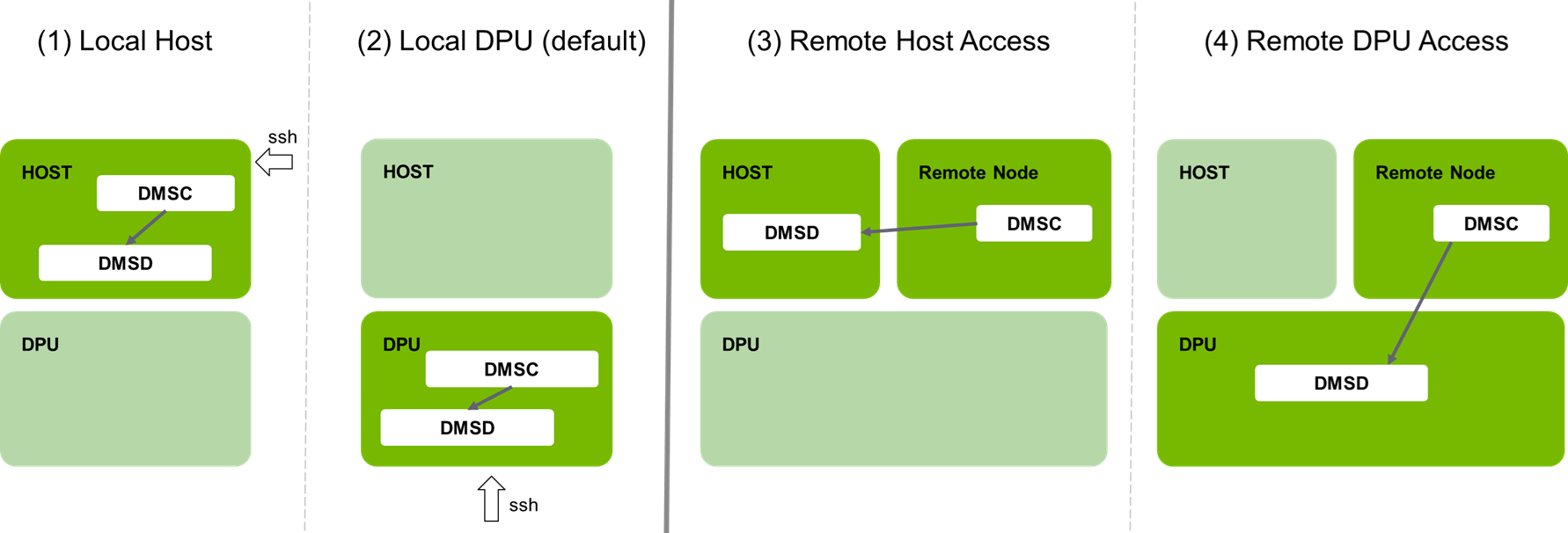
The following diagram illustrates the DMS architecture and component interactions:
.png?cb=89e1a78c285ff211b2bcb8b0d20e953d)
The DMS architecture supports flexible deployment.
The DMS client (Dmsc) can operate from various locations relative to the server components (Dmsd frontend and Dmspe backend).
The supported modes of operation are:
-
1. Local Host – Both the DMS client (
dmsc) and server components (dmsdfrontend withdmspebackend) are deployed on the Host. -
2. Local DPU (Default) – Both the DMS client and server components are deployed on the DPU (BlueField Arm).
-
3. Remote Client (Host Server) – The DMS server components are deployed on the Host, while the DMS client is deployed remotely, connecting over the management network.
-
4. Remote Client (DPU Server) – The DMS server components are deployed on the DPU, while the DMS client is deployed remotely.
-
5. Host with ConnectX NIC (non-DPU) – DMS server components run on the Host, managing a ConnectX NIC without a DPU.
-
6. Host with Multiple NICs/DPUs – A single DMS server on the Host manages multiple network devices simultaneously.
-
7. Containerized Deployment – DMS server components run in a container on the Host (see the DOCA Management Service Guide | id (3.3.0 LC)DOCAManagementServiceGuide Containerz deployment instructions).
-
8. POD Deployment – DMS server components run in a Kubernetes pod, enabling orchestrated deployment
Process Separation
DMS implements process separation to enhance security and performance by isolating privileged operations from client-facing services. This architecture ensures that:
-
Client-facing operations (handled by dmsd frontend) remain non-privileged and user-facing
-
Privileged operations (handled by dmspe backend) are executed in an isolated, secure process
-
System integrity is maintained by limiting the attack surface and preventing unauthorized access to elevated permissions
The detailed architecture and process descriptions are provided in section "DOCA Management Service Guide | id (3.3.0 LC)DOCAManagementServiceGuide DMSOperationalModes".
Running the DMS Server
Prerequisites
To operate the DMS, the underlying DOCA framework must be properly installed and configured based on your deployment target.
DMS is strictly supported on Linux-based environments.
Host Deployment (Non-DPU)
When running DMS on the host server to manage connected PCIe devices, the following setup is required:
-
The DOCA for Host package must be installed using either the
doca-networkingordoca-allprofile. -
You must execute the
install_dmspe.shscript to install the backend with the correct execution permissions. -
Only users within the
dmsgroupare authorized to execute DMS commands. Add your user and apply the changes:sudo usermod -a -G dmsgroup $USER newgrp dmsgroup
DPU Deployment (BlueField Arm)
When running DMS directly on the BlueField Arm cores, the necessary backend permissions are set automatically, so no installation script is required.
-
A compatible DOCA image must be installed on the BlueField Arm processor.
-
You must still ensure your user is a member of the
dmsgroupto execute commands.
POD Deployment (Kubernetes)
When orchestrating DMS via Kubernetes, the user group requirements are handled automatically within the container environment.
-
A Kubernetes cluster must be configured with a compatible container runtime (Docker or Kubelet).
-
The POD must be deployed using the provided
dms.yamlfile. -
The container requires privileged access to interact with the underlying hardware devices.
DMS Daemon Launch Options
The dmsd frontend server can be launched automatically via SystemD or manually from the command line for custom authentication testing.
Option 1: SystemD Service (Recommended)
On the DPU, dmsd comes pre-installed with the BlueField BFB-Bundle and runs automatically as a systemd service bound to localhost:9339.
It does not run as a SystemD service automatically on the host.
By default, the service uses PAM authentication. You can interact with it using the built-in dmscli wrapper, which defaults to the OS root password.
SystemD management commands:
-
View current configuration:
systemctl cat dmsd.service
-
Edit service flags (e.g., change auth mode):
sudo systemctl edit --full dmsd.service
-
Apply changes and restart:
sudo systemctl daemon-reload && sudo systemctl restart dmsd.service
-
Verify the process is running:
ps -ef | grep dms
The template service file is located at /opt/mellanox/doca/services/dms/dmsd.service/dmsd.service.
Option 2: Manual Launch & Authentication Modes
When launching dmsd manually, you must define the authentication mode using the --auth flag. Below are the four supported operational modes, ranging from local testing to production-grade security.
Authentication Modes Overview
|
Mode |
Security Level |
Best For |
Description |
|---|---|---|---|
|
Mode 1: Local Testing |
Low |
Development only |
No authentication. The server binds strictly to localhost ( |
|
Mode 2: PAM |
Medium |
Unix user authentication |
Uses the system's Pluggable Authentication Modules (PAM) to verify against local Unix accounts. Requires an |
|
Mode 3: Credentials |
Medium |
Simple deployments |
Authenticates using a predefined, static username and password configured on the server. |
|
Mode 4: Certificate (TLS) |
High |
Production deployments |
Uses mutual TLS (mTLS) with certificates. Provides full encryption and strong mutual authentication. |
For a complete breakdown of all dmsc client arguments and their default values, please refer to the "DOCA Management Service Guide | id (3.3.0 LC)DOCAManagementServiceGuide DMSClientFlags" section.
Important note on password handling:
-
Interactive prompt: By default, if a password is required, the client prompts the user to enter it interactively.
-
Passfile (
--passfile): For automation or secure deployments, passwords can be provided using the--passfile /path/to/fileparameter instead. -
Server requirement: If using a passfile on the server side, the
dmsdserver process must have read permissions to that specific file.
CLI Command Reference
Use the following server and client command templates to launch and interact with DMS in your chosen mode.
Replace <server_ip> with your actual target IP address. For PAM and Credentials modes, the client will be prompted interactively for the password unless --passfile is used.
|
Mode |
Target |
Execution Command |
|---|---|---|
|
Mode 1: Local Testing |
Server |
|
|
Client |
|
|
|
Mode 2: PAM |
Server |
|
|
Client |
|
|
|
Mode 3: Credentials |
Server |
|
|
Client |
|
|
|
Mode 4: Certificate |
Server |
|
|
Client |
|
Advanced Launch Configurations
The following examples demonstrate how to start the dmsd daemon manually for specialized environments, alternate authentication methods, and specific hardware targeting.
Shadow File Authentication (Remote Host)
This method allows for a zero-touch setup by reusing an existing OS user's credentials, reading the hashed password directly from the shadow file.
/opt/mellanox/doca/services/dms/dmsd \
  --bind_address <ip>:<port> \
  --auth shadow \
  --username my_username \
  --shadow /etc/shadow
Credentials with Inline Password (Localhost)
While standard credential modes prompt for a password interactively, you can explicitly pass it inline for automation scripts.
For production automation, using --passfile is recommended over plaintext inline passwords.
/opt/mellanox/doca/services/dms/dmsd \
  --bind_address localhost:9339 \
  --auth credentials \
  --username my_username \
  --password my_password
Targeting a Specific PCIe Device
If your host contains multiple NVIDIA DPUs or network devices, you must specify the exact PCIe address for the DMS daemon to bind to.
/opt/mellanox/doca/services/dms/dmsd \
  --bind_address localhost:9339 \
  --auth credentials \
  --username my_username \
  --password my_password \
  --target_pci 0000:08:00
Targeting Multiple PCIe Devices
You can manage multiple DPUs simultaneously from a single server instance by providing a comma-separated list of their PCIe addresses.
/opt/mellanox/doca/services/dms/dmsd \
  --bind_address localhost:9339 \
  --auth credentials \
  --username my_username \
  --password my_password \
  --target_pci 0000:08:00,0000:09:00
Security Best Practices
To ensure proper protection of your infrastructure, always adhere to the following guidelines:
|
Do |
Do Not |
|---|---|
|
Use Mode 4 (TLS with certificates) in all production environments. |
Use |
|
Use the |
Put plaintext passwords directly on the command line using the |
|
Restrict the |
Expose the server on |
DMS Server Flags (dmsd)
To view the complete list of flags dynamically, run dmsd --help.
General & Provisioning Flags
|
Flag |
Description |
Default |
|---|---|---|
|
|
Binds the server to an IP and port (e.g., |
|
|
|
Sets the log level for V logs. |
N/A |
|
|
Specifies target PCIe addresses. Auto-selects if only one device is present. |
N/A |
|
|
Defines the image installation directory for OS provisioning. |
|
|
|
Chunk size (in bytes) required to trigger a transfer response. |
|
|
|
Maximum execution timeout (in seconds) for unresponsive commands. |
|
|
|
Path to a JSON file containing gNMI requests to automatically run on startup. |
N/A |
Authentication & Security Flags
|
Flag |
Description |
|---|---|
|
|
Sets the authentication mode. Valid options: |
|
|
Disables authentication entirely (Requires |
|
|
Specifies the username (Required for |
|
|
Specifies the plaintext password (Used in |
|
|
Path to the system shadow file (Used in |
|
|
Path to the Certificate Authority (CA) validation certificate. |
|
|
Path to the server's public TLS certificate. |
|
|
Path to the server's private TLS key. |
Authentication Method Flags
The --auth <string> flag specifies one of the following three authentication methods, each with its own set of required flags:
Shadow
-
Zero-touch setup – no need to create a dedicated DMS user (reuses existing OS user)
-
The server reads the hashed password from the shadow file in real time for each client request
-
Required flags:
--username <string>and--shadow <string>-
Example:
--auth shadow --username root --shadow /etc/shadow
-
-
To disable authentication:
--noauth
Credentials
-
Requires the admin to define a strong password.
-
Required flags:
--username <string>and optionally--password <string>-
Example:
--auth credentials --username root --password 123456
-
-
To prompt for password input interactively at startup, leave the
--passwordflag empty. -
To disable authentication:
--noauth
Certificate (TLS)
-
The most secure option, using Transport Layer Security (TLS) for both encryption and mutual authentication.
-
Authentication is based on digital certificates, ensuring only trusted clients can connect.
-
Required flags:
--auth cert
--ca <path/to/ca.crt>
--tls_key_file <path/to/target.key>
--tls_cert_file <path/to/target.crt> -
Example:
--auth cert --ca /path/to/certs/ca.crt --tls_key_file /path/to/certs/target.key --tls_cert_file /path/to/certs/target.crt
-
-
To disable TLS:
--tls_enabled=false
Security Flags
TLS Encryption and Authentication
DMS uses TLS (Transport Layer Security) by default to secure communication. TLS is a widely adopted cryptographic protocol that provides the following guarantees:
-
Encryption – Protects transmitted data from eavesdropping.
-
Authentication – Verifies the identity of the server and optionally the client via digital certificates.
-
Integrity – Ensures transmitted data is not tampered with.
TLS relies on a public/private key pair and a digital certificate issued by a Certificate Authority (CA). These elements ensure secure, authenticated communication.
DMS supports TLS for both gNMI and gNOI interfaces, and works with either self-signed or CA-signed certificates.
To enable TLS, both server and client must provide:
-
--ca <string>– Path to the CA certificate used to validate the remote party’s certificate. -
--tls_cert_file <string>– Path to the public certificate presented during the TLS handshake. -
--tls_key_file <string>– Path to the corresponding private key used to sign the handshake and decrypt messages.The private key must be protected. If compromised, it can be used to impersonate the server or client.
TLS Communication Modes
Mutual TLS Authentication (mTLS)
Both the server and client present certificates and verify each other during the TLS handshake.
# Server:
/opt/mellanox/doca/services/dms/dmsd <flags> --auth cert \
  --ca /path/to/certs/client_ca.crt \
  --tls_cert_file /path/to/certs/target.crt \
  --tls_key_file /path/to/certs/target.key

# Client:
/opt/mellanox/doca/services/dms/dmsc <flags> \
  --tls-ca /path/to/certs/target_ca.crt \
  --tls-cert /path/to/certs/client.crt \
  --tls-key /path/to/certs/client.key <command>
Highlights:
-
Provides the highest level of security.
-
Ensures both sides are authenticated and trusted.
-
All traffic is encrypted.
TLS (Server Authentication Only)
Only the server presents its certificate during the handshake. The client verifies the server but does not present a certificate.
# Server:
/opt/mellanox/doca/services/dms/dmsd <flags> --auth cert \
  --tls_cert_file /path/to/certs/target.crt \
  --tls_key_file /path/to/certs/target.key

# Client:
/opt/mellanox/doca/services/dms/dmsc <flags> \
  --tls-ca /path/to/certs/target_ca.crt \
  --skip-verify <command>
Highlights:
-
Client authenticity is not verified.
-
Use
--skip-verifyif a root CA is not provided. -
Traffic remains encrypted.
Insecure Mode (No TLS)
TLS is disabled entirely on both server and client. No encryption or authentication is performed.
-
Server:
/opt/mellanox/doca/services/dms/dmsd <flags> --auth cert --tls_enabled=false
-
Client:
/opt/mellanox/doca/services/dms/dmsc <flags> --insecure <command>
To achieve insecure communication (no encryption), configure:
-
Server – use
--tls_enabled=falseparam -
Client – use
--insecureflag'
Highlights:
-
Not recommended for production.
-
Use only in fully isolated, trusted environments for testing or development.
Logging
DMS generates comprehensive logs for troubleshooting and system monitoring. Understanding exactly where these logs are stored and how they are generated is critical for maintaining system health.
DMS does not automatically rotate log files. By default, logging is enabled for all components, meaning these files will grow continuously over time. If you do not manually implement log rotation policies (e.g., using logrotate), DMS logs will eventually consume all available disk space, potentially causing system failure.
Log Components and Locations
There is no single "end-to-end" log file for DMS. You must check the specific component logs based on your deployment type:
|
Component |
Log Location / Command |
Deployment Type |
Description |
|---|---|---|---|
|
Wrapper Script |
|
Containerized / POD only |
Contains initialization messages from the |
|
|
|
Systemd |
Captured automatically by |
|
|
|
Containerized |
Logs are piped directly to standard out/error ( |
|
|
|
All (Recommended) |
The backend uses |
|
|
|
Legacy Systems |
If This file may not exist on modern systems using only journald. |
Example Log Rotation Configuration
To prevent the wrapper logs from filling your storage, save the following configuration to /etc/logrotate.d/dms:
/var/log/dms/*.log {
    daily
    rotate 7
    compress
    delaycompress
    missingok
    notifempty
    create 0644 root root
}
Configuration Persistency
DMS can automatically restore device configurations when the service restarts by utilizing the -init_config flag. This mechanism ensures that your infrastructure configurations persist reliably across service interruptions or scheduled restarts.
State Restoration Mechanism
-
When DMS receives gNMI
Setrequests, it automatically records the desired state to the specifiedinit_configfile.This behavior can be disabled using the
-disable_recording_init_configflag. -
On startup, the DMS daemon reads the
init_configfile and automatically applies all stored configurations.
This workflow ensures that device configurations are always restored to their last successfully configured state following a reboot or service restart.
Configuration File Characteristics
-
The configuration file stores gNMI
Setrequests in standard JSON format. -
If the specified file does not exist at startup, DMS will automatically generate an empty JSON file (
{}). -
The file is updated in real-time whenever a
Setrequest is processed, keeping the persistent state synchronized with runtime changes.
Disabling Automatic Recording
If you need strict, immutable control over your startup configurations, you can prevent DMS from automatically recording new Set requests by passing the -disable_recording_init_config flag at launch.
This is useful when administrators want to manually curate the JSON configuration file, and it prevents runtime changes from surviving a service reboot.
Execution Example
To set up configuration persistency, launch the dmsd server and point the -init_config flag to your desired JSON file path.
dmsd -bind_address 0.0.0.0:9339 -auth pam -init_config /opt/mellanox/doca/services/dms/dms_config.json
Upon any subsequent restart, DMS will automatically apply the configurations saved in dms_config.json.
Running the DMS Client
This guide references both dmsc and dmscli:
-
dmscis the core DMS client binary used for executing standard, single-line CLI commands (e.g.,dmsc <flags> get...). -
dmscliis a convenience wrapper script built arounddmsc. Runningdmscliautomatically drops you into the interactivepromptmode with built-in autocomplete functionality. It is equivalent to runningdmsc prompt.
To see the full list of flags, use the help flag (i.e., dmsc --help, dmsc -h).
DMS Client Flags (dmsc)
General and security flags:
|
Flag |
Description |
Default |
|---|---|---|
|
|
Address and port of the target |
|
|
|
Target PCIe address (Mandatory if the server manages multiple devices). |
N/A |
|
|
Username for authentication. |
N/A |
|
|
Password for authentication. |
N/A |
|
|
Enables debug mode output. |
Disabled |
|
|
Path to the server's CA certificate. |
N/A |
|
|
Path to the client's public TLS certificate. |
N/A |
|
|
Path to the client's private TLS key. |
N/A |
|
|
Skips verifying the server's certificate during handshake (Connection remains encrypted). |
Disabled |
|
|
Disables TLS entirely. Connects over plain, unencrypted TCP. |
Disabled |
gNMI Command
The gRPC Network Management Interface (gNMI) is a standardized protocol used to configure and monitor network devices via gRPC and Protocol Buffers. It enables structured interaction using standardized models like OpenConfig.
Supported Core Commands
-
Get – Retrieves real-time device data (e.g., operational state, configurations).
-
Set – Modifies device configurations immediately.
-
Capabilities – Queries the device’s capabilities, including supported models, versions, and encodings.
DMS does not currently support the gNMI
Subscribecommand (streaming telemetry data).
For an interactive shell experience with autocomplete, use the dmscli wrapper. Run dmscli prompt and authenticate using the dmsd user password (which defaults to the OS root password).
Executing Get Requests
Get requests retrieve data in real-time without relying on a cache. You must provide the specific YANG XPath for the parameter you wish to query.
You can query exact parameters or request an entire subtree.
If you fail to provide a mandatory parameter for decoding a leaf, that leaf is skipped. If the first leaf fails, the entire request fails.
Syntax (querying a specific interface MTU):
/opt/mellanox/doca/services/dms/dmsc <flags> get --path /interfaces/interface[name=p0]/config/mtu
Example JSON response:
[
  {
    "source": "localhost:9339",
    "timestamp": 1712485149723248511,
    "time": "2024-04-07T10:19:09.723248511Z",
    "updates": [
      {
        "Path": "interfaces/interface[name=p0]/config/mtu",
        "values": {
          "interfaces/interface/config/mtu": "1500"
        }
      }
    ]
  }
]
Executing Set Requests
Set requests execute immediately, invoking the underlying OS tools to apply the configuration.
When passing inline updates, you must separate the path, data type, and value using the ::: delimiter. Currently, only the --update flag is supported for Set operations.
Syntax (updating MTU to 9216):
/opt/mellanox/doca/services/dms/dmsc <flags> set --update /interfaces/interface[name=p0]/config/mtu:::int:::9216
Example JSON response:
{
  "source": "localhost:9339",
  "time": "1970-01-01T00:00:00Z",
  "results": [
    {
      "operation": "UPDATE",
      "path": "interfaces/interface[name=p0]/config/mtu"
    }
  ]
}
While most updates execute immediately, certain leaves require a system reboot to take effect. See the gNOI system reboot section for details.
Bulk Configurations via JSON
To apply multiple configurations simultaneously, you can pass a JSON file containing a list of commands using the --request-file flag.
/opt/mellanox/doca/services/dms/dmsc <flags> set --request-file req.json
Example req.json structure:
{
  "updates": [
    {
      "path": "/interfaces/interface[name=p0]/config/mtu",
      "value": 9216,
      "encoding": "uint"
    },
    {
      "path": "/interfaces/interface[name=p0]/config/enabled",
      "value": true,
      "encoding": "bool"
    }
  ]
}
Supported Get/Set Paths Reference
To dynamically list all supported paths on your specific device, run the following command:
/opt/mellanox/doca/services/dms/dmsc --file /opt/mellanox/doca/service/dms/yang path --types --descr
The table below indicates hardware compatibility for each path. These paths work across all DMS operational modes, provided the underlying hardware supports the feature:
-
Local Host: Client and server on Host
-
Local DPU (default): Client and server on DPU
-
Remote Client (Host Server): Server on Host, client remote
-
Remote Client (DPU Server): Server on DPU, client remote
-
Host with ConnectX NIC: Host managing ConnectX NIC without DPU
-
Host with Multiple NICs/DPUs: Single Host server managing multiple devices
-
Containerized Deployment: DMS in container on Host
-
POD Deployment: DMS in Kubernetes pod
The "Hardware" column indicates which hardware types support each path, regardless of the operational mode used.
The tables below outline the primary configuration paths available across DMS.
-
Configuration Paths (
/config/...): Support bothGetandSetoperations. -
State Paths (
/state/...): SupportGetonly (read-only operational data). -
Command Paths (
/nvidia/command/...): SupportGetonly to trigger execution.
Core Interface Settings
Base paths prefix: /interfaces/interface[name=*].
|
Configuration Path |
Type |
Description |
Hardware |
|---|---|---|---|
|
|
|
Enables or disables the interface administratively. |
All modes |
|
|
|
Sets the MTU size in octets. |
All modes |
|
|
|
Specifies the device-specific name of the interface. |
All modes |
|
|
|
Defines the specific type of the interface. |
All modes |
|
|
|
References the interface name. |
All modes |
|
|
|
Configures the inter-packet gap in 4-byte units. |
DPU only |
|
|
|
Sets the port bandwidth rate limit in permille units. |
DPU only |
|
|
|
Retrieves the desired administrative state of the interface. |
All modes |
|
|
|
Retrieves the current operational state of the interface. |
All modes |
Quality of Service (QoS)
Base paths prefix: /interfaces/interface[name=*]/nvidia/qos.
|
Configuration Path |
Type |
Description |
Hardware |
|---|---|---|---|
|
|
|
Enables Priority Flow Control (PFC). |
All modes |
|
|
|
Maps priorities to traffic classes (requires exactly 8 entries). |
All modes |
|
|
|
Sets the specific Priority ID (0-7). |
All modes |
|
|
|
Sets the interface QoS trust mode (PCP, DSCP). |
All modes |
RoCE Configuration
Base paths prefix: /interfaces/interface[name=*]/nvidia/roce (unless marked global).
|
Configuration Path |
Type |
Description |
Hardware |
|---|---|---|---|
|
|
|
Configures adaptive-retransmission timeouts via JSON. |
CX, DPU |
|
|
|
Enables RoCE adaptive retransmission. |
CX, DPU |
|
|
|
Forces adaptive routing even if not negotiated. |
CX, DPU |
|
|
|
Enables Congestion Control per plane. |
CX, DPU |
|
|
|
Defines the fixed DSCP value for RTT response packets. |
CX, DPU |
|
|
|
Defines the method for setting DSCP in RTT responses. |
CX, DPU |
|
|
|
Enables slow restart during network congestion. |
CX, DPU |
|
|
|
Enables slow restart when the network is idle. |
CX, DPU |
|
|
|
Sets the Type of Service (ToS) value for RoCE traffic. |
CX, DPU |
|
|
|
Enables the transmission window. |
CX, DPU |
|
(Global) |
|
Globally enables RoCE adaptive routing. |
CX, DPU |
|
(Global) |
|
Controls the 2-bit CC steering extension. |
CX, DPU |
|
(Global) |
|
Sets the DSCP bit for multipath on transmit. |
CX, DPU |
|
(Global) |
|
Configures the transmission scheduler adaptation to locality. |
CX, DPU |
Congestion Control (CC) Settings
Base paths prefix: /interfaces/interface[name=*]/nvidia/cc (unless marked global).
|
Configuration Path |
Type |
Description |
Hardware |
|---|---|---|---|
|
|
|
References the CC priority configuration entry ID. |
CX, DPU |
|
|
|
Enables CC Notification Point (NP) for the priority. |
CX, DPU |
|
|
|
Enables CC Reaction Point (RP) for the priority via DOCA SDK. |
CX, DPU |
|
|
|
Enables the counter for the specified CC algorithm slot. |
CX, DPU |
|
|
|
Enables execution of the CC algorithm slot. |
CX, DPU |
|
|
|
Sets the CC algorithm slot ID. |
CX, DPU |
|
|
|
References the CC algorithm slot ID. |
CX, DPU |
|
|
|
Sets the CC algorithm parameter ID. |
CX, DPU |
|
|
|
Sets the parameter value within the CC algorithm slot. |
CX, DPU |
|
|
|
References the CC algorithm parameter ID. |
CX, DPU |
|
(Global) |
|
Globally enables user-programmable CC functionality. |
CX, DPU |
System and Device Management
Base paths prefix: /nvidia.
|
Configuration Path |
Type |
Description |
Hardware |
|---|---|---|---|
|
|
|
Executes the specified command. |
All modes |
|
|
|
Retrieves the module ID for port splitting (read-only). |
DPU only |
|
|
|
Retrieves the port ID for port splitting (read-only). |
DPU only |
|
|
|
Sets or retrieves the lanes for port splitting. |
DPU only |
|
|
|
Sets the operational mode of the DPU (NIC, DPU, SEPARATED). |
DPU only |
|
|
|
Sets/gets the number of PFs for multiplane and port splitting. |
CX, DPU |
|
|
|
Enables data direct options for VFs. |
DPU only |
gNOI Commands
gNOI (gRPC Network Operations Interface) is a protocol for operational tasks such as installing software, managing certificates, and troubleshooting. It complements gNMI by focusing on administrative and system-level functions.
Within DMSc, gNOI support is provided by the GNOIC project. For full documentation, refer to the GNOIC project documentation.
To invoke a gNOI command, run:
/opt/mellanox/doca/services/dms/dmsc -a localhost --port 9339 --tls-cert client.crt --tls-key client.key <command>
To use interactive mode with autocompletion, enter:
/opt/mellanox/doca/services/dms/dmsc prompt
All commands are blocked by default unless explicitly enabled. gNOI commands are currently supported only on the host system—not on the BlueField.
OS Commands
The OS command suite facilitates the lifecycle management of device software, supporting the provisioning of DOCA images (BFB bundles) on BlueField DPUs and firmware updates for both DPUs and ConnectX NICs.
Install
This command transfers and authenticates the specified package file to the target device.
If the file already exists in the server’s image folder (default: /tmp/dms) with the expected version and extension, the server intelligently skips the transfer phase and proceeds directly to authentication.
Syntax examples:
-
Install a BFB image:
/opt/mellanox/doca/services/dms/dmsc <flags> os install --version 2_9_0 --pkg DOCA_2.9.0_Ubuntu.bfb
-
Install a configuration file:
/opt/mellanox/doca/services/dms/dmsc <flags> os install --version 0_0_1.cfg --pkg bf.cfg
-
Install firmware:
/opt/mellanox/doca/services/dms/dmsc <flags> os install --version 24_29_0046.fw --pkg fw-BlueField.bin
Activate
Deploys the staged BFB bundles or firmware to the active hardware.
The activate command deploys BFB bundles and/or firmware to the hardware.
/opt/mellanox/doca/services/dms/dmsc <flags> os activate --version <version_string>
Syntax examples:
-
Activate all files matching a version prefix:
/opt/mellanox/doca/services/dms/dmsc <flags> os activate --version 2_9_0
-
Activate specific files by name (semicolon-separated):
/opt/mellanox/doca/services/dms/dmsc <flags> os activate --version "2_9_0.bfb;0_0_1.cfg;24_29_0046.fw"
-
Auto-detect and install the appropriate firmware:
/opt/mellanox/doca/services/dms/dmsc <flags> os activate --version auto
Important activation behaviors:
-
Auto mode: Using
--version autoautomatically triggers themlnx-fw-updater.plscript, which detects the connected device type and installs the correct firmware version. -
Host requirement: Deploying BFB bundles is strictly supported only when the command is run from the host system.
-
Automatic reset: Activating firmware automatically triggers a firmware reset upon completion.
Verify
Retrieves the currently installed firmware and BFB bundle versions from the target device.
The BFB bundle version is only displayed if it was originally installed via DMS.
/opt/mellanox/doca/services/dms/dmsc <flags> os verify
The response includes the firmware and BFB versions, separated by a semicolon:
+-----------------+---------------------------------------------------------------+-----------------------------+
|   Target Name   |                          Version                              | Activation Fail Msg         |
+-----------------+---------------------------------------------------------------+-----------------------------+
| 127.0.0.1:19999 | FW: 32.42.1000;BFB: bf-bundle-2.8.0-98_24.07-ubuntu-22.04_dev |                             |
+-----------------+---------------------------------------------------------------+-----------------------------+
System
Manage system-level state transitions, such as rebooting the BlueField Arm or firmware.
Reboot Status
Queries the target to determine if a reboot is currently in progress.
/opt/mellanox/doca/services/dms/dmsc <flags> system reboot-status [--reboot_status_check <mode>]
Returns false if active, or true if rebooting.
Reboot status check modes:
|
Value |
Description |
|---|---|
|
|
Default. Performs a quick but imprecise check. Any configuration change may trigger a reboot response. |
|
|
Performs a slower but highly accurate status check. |
|
|
Skips the firmware reboot check entirely. |
Reboot
Triggers a reboot of the device. This command is non-blocking and returns immediately to the client.
/opt/mellanox/doca/services/dms/dmsc <flags> system reboot --delay <seconds> [--subcomponent <component>] [--method <type>]
This command is non-blocking and returns immediately after it is issued.
|
Flag |
Description |
|---|---|
|
|
Seconds to wait before executing the reset |
|
|
Specifies the component to reset (currently supports: |
|
|
Specifies the reset method (supported values: |
If subcomponent and method are not specified, the system executes the lowest-level reset available.
Factory-reset
Performs a factory reset on the target node by restoring all PFs to their default out-of-the-box configurations.
Standard execution:
/opt/mellanox/doca/services/dms/dmsc <flags> factory-reset start
Alias execution:
/opt/mellanox/doca/services/dms/dmsc <flags> reset start
Resetting to a "Golden Image" (a pre-configured, ideal-state version) is not currently supported.
File
The file command suite performs operational file transfers and metadata queries directly on the target device.
Stat
Retrieves metadata (such as permissions, size, and modification dates) for a specified file or directory.
-
Single file query:
Bash/opt/mellanox/doca/services/dms/dmsc <flags> file stat --path /path/to/file -
Directory query with recursive listing:
Bash/opt/mellanox/doca/services/dms/dmsc <flags> file stat --path /path/to/dir --recursive
Example output:
+----------------+---------------------+----------------------+------------+------------+------+
|  Target Name   |        Path         |     LastModified     |    Perm    |   Umask    | Size |
+----------------+---------------------+----------------------+------------+------------+------+
| 127.0.0.1:9339 | /path/to/dir/file_1 | 2025-04-10T09:05:37Z | -rw-r--r-- | -----w--w- | 0    |
|                | /path/to/dir/file_2 | 2025-04-10T09:05:37Z | -rw-r--r-- | -----w--w- | 0    |
+----------------+---------------------+----------------------+------------+------------+------+
Get
Streams the contents of a file from the remote target device down to the client.
The dmsd server must be explicitly started with the --allow_list_read flag specifying permitted directories.
/opt/mellanox/doca/services/dms/dmsd <flags> --allow_list_read <dir1>,<dir2>,<dir3>
Client command:
/opt/mellanox/doca/services/dms/dmsc <flags> file get --file /tmp/debug/<file_to_get>
Put
Streams a file from the client up to the remote target device.
The dmsd server must be explicitly started with the --allow_list_write flag specifying permitted directories.
/opt/mellanox/doca/services/dms/dmsd <flags> --allow_list_write <dir1>,<dir2>,<dir3>
Client command:
/opt/mellanox/doca/services/dms/dmsc <flags> file put --file /tmp/debug/file_to_send --dst /tmp/output/path_on_remote_host
mlxconfig
The mlxconfig suite enables deep hardware configuration by allowing administrators to set and retrieve native device parameters.
This feature is disabled by default for safety. To use it, the dmsd server daemon must be explicitly started with the --enable_mlxconfig flag.
Set
Applies KEY=VALUE parameter pairs to the target device.
Some commands may require a firmware reset or system reboot to take effect.
Examples:
-
Setting a single param:
/opt/mellanox/doca/services/dms/dmsc <flags> mlxconfig set LINK_TYPE_P1=1
-
Setting multiple parameters:
/opt/mellanox/doca/services/dms/dmsc <flags> mlxconfig set LINK_TYPE_P1=1 LINK_TYPE_P2=1
Query
Retrieves the configuration parameter values from the device.
Examples:
-
Standard query (returns the nextboot value):
/opt/mellanox/doca/services/dms/dmsc <flags> mlxconfig query LINK_TYPE_P1 LINK_TYPE_P2
-
Verbose query (Returns default, current, and nextboot values):
/opt/mellanox/doca/services/dms/dmsc <flags> mlxconfig query -v LINK_TYPE_P1
Reset
Restores all mlxconfig parameters to their default values.
/opt/mellanox/doca/services/dms/dmsc <flags> mlxconfig reset
To see the complete list of supported parameters dynamically, run /opt/mellanox/doca/services/dms/dmsc -a <server>:<port> --insecure mlxconfig query (requires that the server be started with the --enable_mlxconfig flag).
Containerz
The Containerz suite supports the remote management and monitoring of containers on either the host or the DPU. Behavior adapts automatically based on whether the server is using the Docker or Kubelet backend.
This deployment model follows the DOCA container methodology described in the DOCA Container Deployment Guide.
Container Lifecycle Management
These operations control the execution states of your containers.
-
Launch a container.
-
In Docker mode, the image must exist locally:
/opt/mellanox/doca/services/dms/dmsc <flags> containerz container start --image <image_name>
-
In Kubelet mode, provide the path to the pod's YAML manifest:
/opt/mellanox/doca/services/dms/dmsc <flags> containerz container start --image /path/to/yaml/file.yaml
-
-
Display all currently running containers:
/opt/mellanox/doca/services/dms/dmsc <flags> containerz container list -
Halt a running container but leave it available for restart:
/opt/mellanox/doca/services/dms/dmsc <flags> containerz container stop --instance <container_name>
In Kubelet mode, this deletes the manifest YAML from the directory.
-
Stop and permanently delete the specified container:
/opt/mellanox/doca/services/dms/dmsc <flags> containerz container remove --instance <container_name>
Image Management
These commands handle the staging, pushing, and removal of container images on the target device.
-
Download an image from a remote registry directly to the device:
/opt/mellanox/doca/services/dms/dmsc <flags> containerz image pull --image ubuntu
-
Stream a local container image (in
.tarformat) from the client to the target device over gRPC:/opt/mellanox/doca/services/dms/dmsc <flags> containerz image push --file /path/to/tarfile.tar
-
Display all container images currently stored on the device:
/opt/mellanox/doca/services/dms/dmsc <flags> containerz image list
-
Delete a specific container image from the device's storage:
/opt/mellanox/doca/services/dms/dmsc <flags> containerz image remove --image ubuntu
Volume Operations
Manages persistent storage volumes mapped to your containers.
In Kubelet mode, all volumes are strictly created under /var/dms/volume.
-
Create a new named storage volume:
/opt/mellanox/doca/services/dms/dmsc <flags> containerz volume create --name my_volume -
Display all named volumes and their current mount points:
/opt/mellanox/doca/services/dms/dmsc <flags> containerz volume list -
Delete a specific volume by its name:
/opt/mellanox/doca/services/dms/dmsc <flags> containerz volume remove --name my_volume
Last updated: