

This guide provides a secure channel implementation on top of NVIDIA® BlueField® DPU.
Introduction
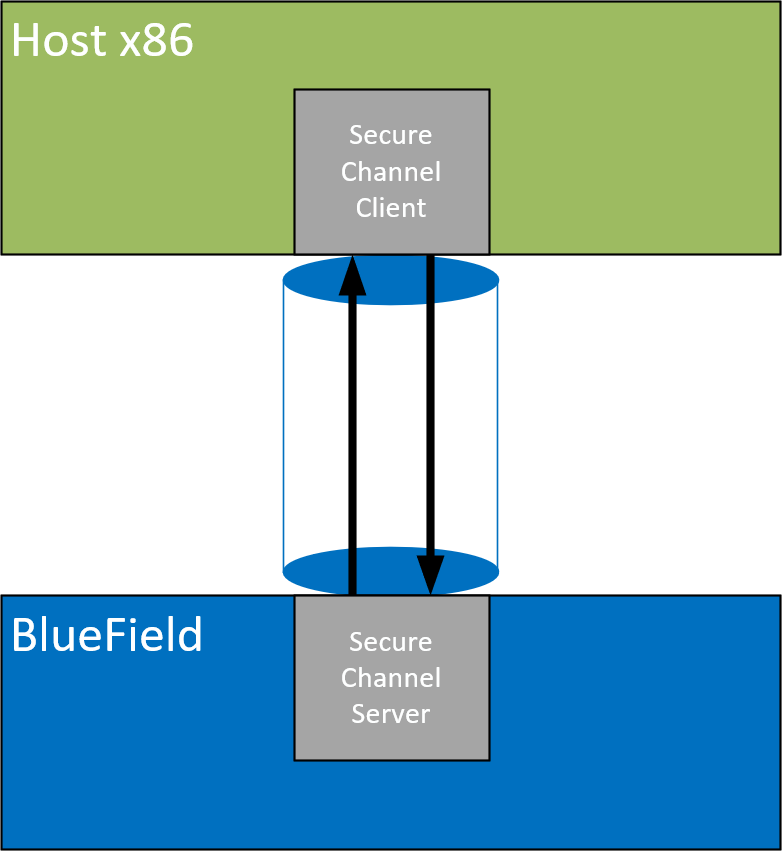
The DOCA Secure Channel reference application leverages the DOCA Comch API which creates a secure, network independent communication channel between the host and the NVIDIA BlueField DPU.
Comch allows the host to control services on the DPU, activate certain offloads, or exchange messages using client-server/producer-consumer framework.
The client (host) side can communicate only with one server at a time while the server side is able to communicate with multiple clients.
The API allows communication between any PF/VF/SF on the host to the server located on the DPU.
Once a client-server connection is established, multiple producer-consumer instances can be spawned to transfer large amount of data in a first-in-first-out (FIFO) style queue.
Secure channel allows the user to select the message size and amount to be exchanged between the client and the server to simulate heavy load on the channel.
System Design
A secure channel application runs on client mode (host) and server mode (DPU). Once a channel is open, messages can flow from both sides.
Application Architecture
The secure channel application runs on top of the DOCA Comch API.
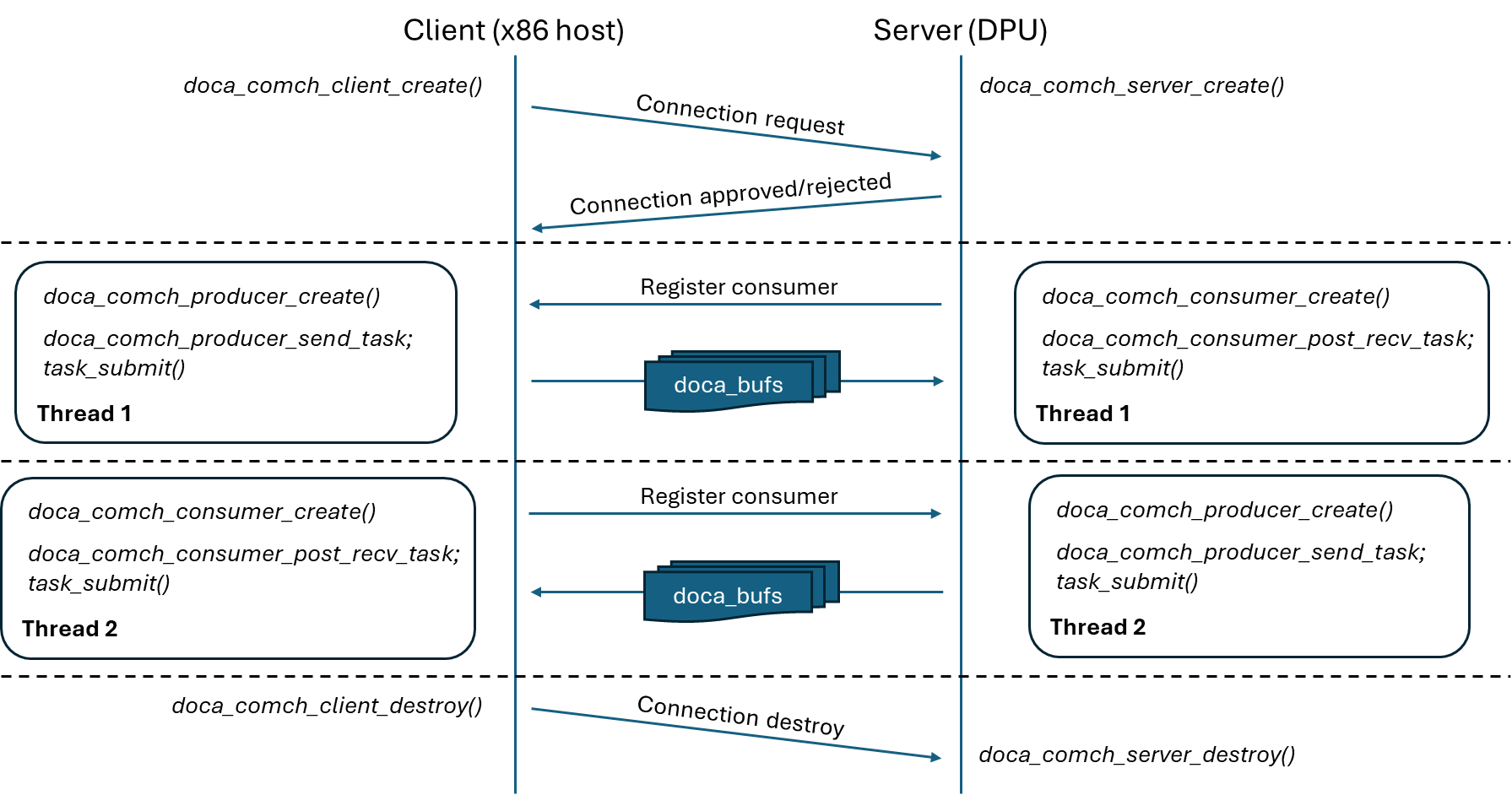
The application begins by establishing a client-server connection between host (client) and DPU (server). Once this connection is established, the application on both sides spawns two new threads:
-
Consumer – The consumer thread registers a number of
post_recvbuffers with the opposite end of the connection -
Producer – The producer thread, after it detects the consumer, populates these
post_recvbuffers with data that can then be read by the consumer
Once the consumer has processed a received buffer, the buffer is reposted (via task submit) to again be populated by the opposite producer.
When the producer has sent the requested number of messages, and the consumer has received the same amount, both threads exit and the main client-server connection is destroyed.
The flow is described in the following diagram:
DOCA Libraries
This application leverages the following DOCA library:
Refer to its respective programming guide for more information.
Compiling the Application
Please refer to the DOCA Installation Guide for Linux for details on how to install BlueField-related software.
DOCA reference applications are installed with full source code and build instructions. This allows you to compile them as-is or modify the source code to create custom versions.
For more information about the applications as well as development and compilation tips, refer to the DOCA Reference Applications page.
The source code for the application is located in the following directory:
/opt/mellanox/doca/applications/secure_channel/
Compiling All Applications
All DOCA applications are defined under a single meson project. So, by default, the compilation includes all of them.
To build all the applications together, run:
cd /opt/mellanox/doca/applications/
meson /tmp/build
ninja -C /tmp/build
doca_secure_channel is created under /tmp/build/secure_channel/.
Compiling Only the Current Application
To directly build only the secure channel application:
cd /opt/mellanox/doca/applications/
meson /tmp/build -Denable_all_applications=false -Denable_secure_channel=true
ninja -C /tmp/build
doca_secure_channel is created under /tmp/build/secure_channel/.
Alternatively, users can set the desired flags in the meson_options.txt file instead of providing them in the compilation command line:
-
Edit the following flags in
/opt/mellanox/doca/applications/meson_options.txt:-
Set
enable_all_applicationstofalse -
Set
enable_secure_channeltotrue
-
-
Run the following compilation commands:
cd /opt/mellanox/doca/applications/
meson /tmp/build
ninja -C /tmp/build
doca_secure_channelis created under/tmp/build/secure_channel/.
Running the Application
Application Execution
The secure channel application is provided in source form. Therefore, a compilation is required before the application can be executed.
-
Application usage instructions:
Usage: doca_secure_channel [DOCA Flags] [Program Flags]

DOCA Flags:
  -h, --help                        Print a help synopsis
  -v, --version                     Print program version information
  -l, --log-level                   Set the (numeric) log level for the program <10=DISABLE, 20=CRITICAL, 30=ERROR, 40=WARNING, 50=INFO, 60=DEBUG, 70=TRACE>
  --sdk-log-level                   Set the SDK (numeric) log level for the program <10=DISABLE, 20=CRITICAL, 30=ERROR, 40=WARNING, 50=INFO, 60=DEBUG, 70=TRACE>
  --log-filter                      Filter logs from specific modules, separated by comma
  -j, --json <path>                 Parse command line flags from an input json file

Program Flags:
  -s, --msg-size                    Message size to be sent
  -n, --num-msgs                    Number of messages to be sent
  -p, --pci-addr                    DOCA Comm Channel device PCI address
  -r, --rep-pci                     DOCA Comm Channel device representor PCI address (needed only on DPU)
This usage printout can be printed to the command line using the
-h(or--help) options:./doca_secure_channel -h
For additional information, refer to section "Command Line Flags".
-
CLI example for running the application on the BlueField:
./doca_secure_channel -s 256 -n 10 -p 03:00.0 -r 3b:00.0
Both the DOCA Comch device PCIe address (
03:00.0) and the DOCA Comch device representor PCIe address (3b:00.0) should match the addresses of the desired PCIe devices. Users may use the DOCA Capabilities Print Tool to find out their device and device representor PCIe addresses.
-
CLI example for running the application on the host:
./doca_secure_channel -s 256 -n 10 -p 3b:00.0
The DOCA Comch device PCIe address (
3b:00.0) should match the address of the desired PCIe device.
Command Line Flags
General Flags
|
Short Flag |
Long Flag |
Description |
|---|---|---|
|
|
|
Prints a help synopsis and exits |
|
|
|
Prints program version information and exits |
|
|
|
Sets the numeric log level for the application:
|
|
N/A |
|
Sets the SDK numeric log level using the same 10-70 scale as above |
|
N/A |
|
Filters logs from specific modules (comma-separated list) |
|
|
|
Parses command-line flags from a specified input JSON file |
Refer to DOCA Arg Parser for more information regarding the supported flags and execution modes.
Program Flags
|
Short Flag |
Long Flag |
Description |
|---|---|---|
|
|
|
Message size in bytes This is a mandatory flag.
|
|
|
|
Number of messages to send on both sides This is a mandatory flag.
|
|
|
|
DOCA Comch device PCIe address This is a mandatory flag.
|
|
|
|
DOCA Comch device representor PCIe address This is a mandatory flag only on the DPU.
|
Troubleshooting
Refer to the NVIDIA BlueField Platform Software Troubleshooting Guide for any issue encountered with the compilation, installation, or execution of the DOCA applications.
Application Code Flow
-
Parse application argument.
-
Initialize the arg parser resources and register DOCA general parameters.
doca_argp_init();
-
Register secure channel application parameters.
register_secure_channel_params();
-
Parse application parameters:
doca_argp_start();
-
Establish the client-server control path connection:
comch_utils_fast_path_init();-
Create a
doca_comch_clientordoca_comch_serverdepending on where the application is run (x86 host or DPU Arm cores). -
Register a callback which is triggered when new consumers are created on the opposite end.
-
Progress the connection until it becomes established.
-
-
-
Run main logic.
sc_start();-
Send a message on the control channel telling the opposite end how many fastpath messages it intends to send and their length.
-
Wait to receive a similar message from the opposite side.
-
Start a producer thread:
-
Create and starts a
doca_comch_producer. -
Wait until a consumer has been registered from the opposite end of the control channel.
-
Create a
doca_bufof input message length to send repeatedly. -
Submit the max number of
doca_comch_producer_task_sendtasks each containing thedoca_buf. -
Resubmit each task from its completion callback until the requested number of tasks are sent.
-
Destroy producer and ends thread.
-
-
Start a consumer thread
-
Create and starts a
doca_comch_consumer. -
Progress until consumer has been fully registered with the control channel connection.
-
Create
doca_bufs of negotiated size to receive data on. -
Submit the max number of
doca_comch_consumer_task_post_recvtasks with each of the allocateddoca_bufs. -
Resubmit each
post_recvbuffer from its callback when it has been populated by a producer. -
Destroy consumer and thread when it has received the communicated number of fastpath messages.
-
-
Sends (DPU) or waits (host) on a message to indicate that all fastpath messages have completed and the Comch control connection can be destroyed.
-
References
-
/opt/mellanox/doca/applications/secure_channel/
Last updated: