

This feature is supported on ConnectX-5 and ConnectX-6 adapter cards only.
ConnectX-4 and ConnectX-4 Lx adapter cards support 802.1Q double-tagging (C-tag stack- ing on C-tag), refer to "802.1Q Double-Tagging" section.
This section describes the configuration of IEEE 802.1ad QinQ VLAN tag (S-VLAN) to the hypervisor per Virtual Function (VF). The Virtual Machine (VM) attached to the VF (via SR- IOV) can send traffic with or without C-VLAN. Once a VF is configured to VST QinQ encapsulation (VST QinQ), the adapter's hardware will insert S-VLAN to any packet from the VF to the physical port. On the receive side, the adapter hardware will strip the S-VLAN from any packet coming from the wire to that VF.
Setup
The setup assumes there are two servers equipped with ConnectX-5/ConnectX-6 adapter cards.
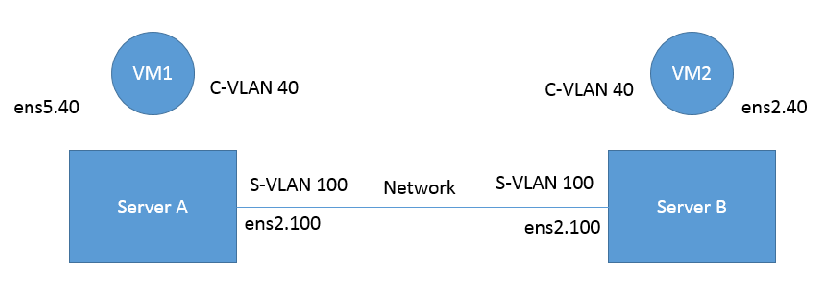
Prerequisites
-
Kernel must be of v3.10 or higher, or custom/inbox kernel must support vlan-stag
-
Firmware version 16/20.21.0458 or higher must be installed for ConnectX-5/ConnectX-6 HCAs
-
The server should be enabled in SR-IOV and the VF should be attached to a VM on the hypervisor.
-
In order to configure SR-IOV in Ethernet mode for ConnectX-5/ConnectX-6 adapter cards, please refer to "Configuring SR-IOV for ConnectX-4/ConnectX-5 (Ethernet)" section. In the following configuration example, the VM is attached to VF0.
-
-
Network Considerations - the network switches may require increasing the MTU (to support 1522 MTU size) on the relevant switch ports.
Configuring Q-in-Q Encapsulation per Virtual Function for ConnectX-5/ConnectX-6
-
Add the required S-VLAN (QinQ) tag (on the hypervisor) per port per VF. There are two ways to add the S-VLAN:
-
By using sysfs:
echo '100:0:802.1ad' > /sys/class/net/ens1f0/device/sriov/0/vlan -
By using the ip link command (available only when using the latest Kernel version):
ip link set dev ens1f0 vf 0 vlan 100 proto 802.1adCheck the configuration using the ip link show command:
# ip link show ens1f0
 ens1f0: <BROADCAST,MULTICAST,UP,LOWER_UP> mtu 1500 qdisc mq state UP mode DEFAULT qlen 1000
    link/ether ec:0d:9a:44:37:84 brd ff:ff:ff:ff:ff:ff
    vf 0 MAC 00:00:00:00:00:00, vlan 100, vlan protocol 802.1ad, spoof checking off, link-state auto, trust off
    vf 1 MAC 00:00:00:00:00:00, spoof checking off, link-state auto, trust off
    vf 2 MAC 00:00:00:00:00:00, spoof checking off, link-state auto, trust off
    vf 3 MAC 00:00:00:00:00:00, spoof checking off, link-state auto, trust off
    vf 4 MAC 00:00:00:00:00:00, spoof checking off, link-state auto, trust off
-
-
Optional: Add S-VLAN priority. Use the qos parameter in the ip link command (or sysfs):
ip link set dev ens1f0 vf 0 vlan 100 qos 3 proto 802.1adCheck the configuration using the ip link show command:
# ip link show ens1f0 ens1f0: <BROADCAST,MULTICAST,UP,LOWER_UP> mtu 1500 qdisc mq state UP mode DEFAULT qlen 1000 link/ether ec:0d:9a:44:37:84 brd ff:ff:ff:ff:ff:ff vf 0 MAC 00:00:00:00:00:00, vlan 100, qos 3, vlan protocol 802.1ad, spoof checking off, link-state auto, trust off vf 1 MAC 00:00:00:00:00:00, spoof checking off, link-state auto, trust off vf 2 MAC 00:00:00:00:00:00, spoof checking off, link-state auto, trust off vf 3 MAC 00:00:00:00:00:00, spoof checking off, link-state auto, trust off vf 4 MAC 00:00:00:00:00:00, spoof checking off, link-state auto, trust off -
Create a VLAN interface on the VM and add an IP address.
ip link add link ens5 ens5.40 type vlan protocol 802.1q id 40 ip addr add 42.134.135.7/16 brd 42.134.255.255 dev ens5.40 ip link set dev ens5.40 up -
To verify the setup, run ping between the two VMs and open Wireshark or tcpdump to capture the packet.
Last updated: