

Created on Nov 19, 2024
Introduction
This guide outlines configuring the NVIDIA® BlueField®-3 DPU to BlueField Mode on VMware ESXi version 8.0.
References
-
Enable SSH from the vSphere Client - Getting Started with ESXCLI 8.0 (vmware.com)
-
Using ESXi Shell in ESXi 6.x, 7.x and 8.x (2004746) (vmware.com)
Hardware and Software Requirements
-
A server platform with an adapter card utilizing an NVIDIA BlueField-3 device
-
Administrator privileges are necessary for installation on the target machine
Setup
The setup involves an ESXi 8.0 server with one or more BlueField-3 devices.
The setup includes:
VMware ESXi server, vSphere Cluster and vCenter install and configuration is out of the scope of this post.
Using the BIOS Menu on DELL and Lenovo Servers
On a Dell server:
-
-
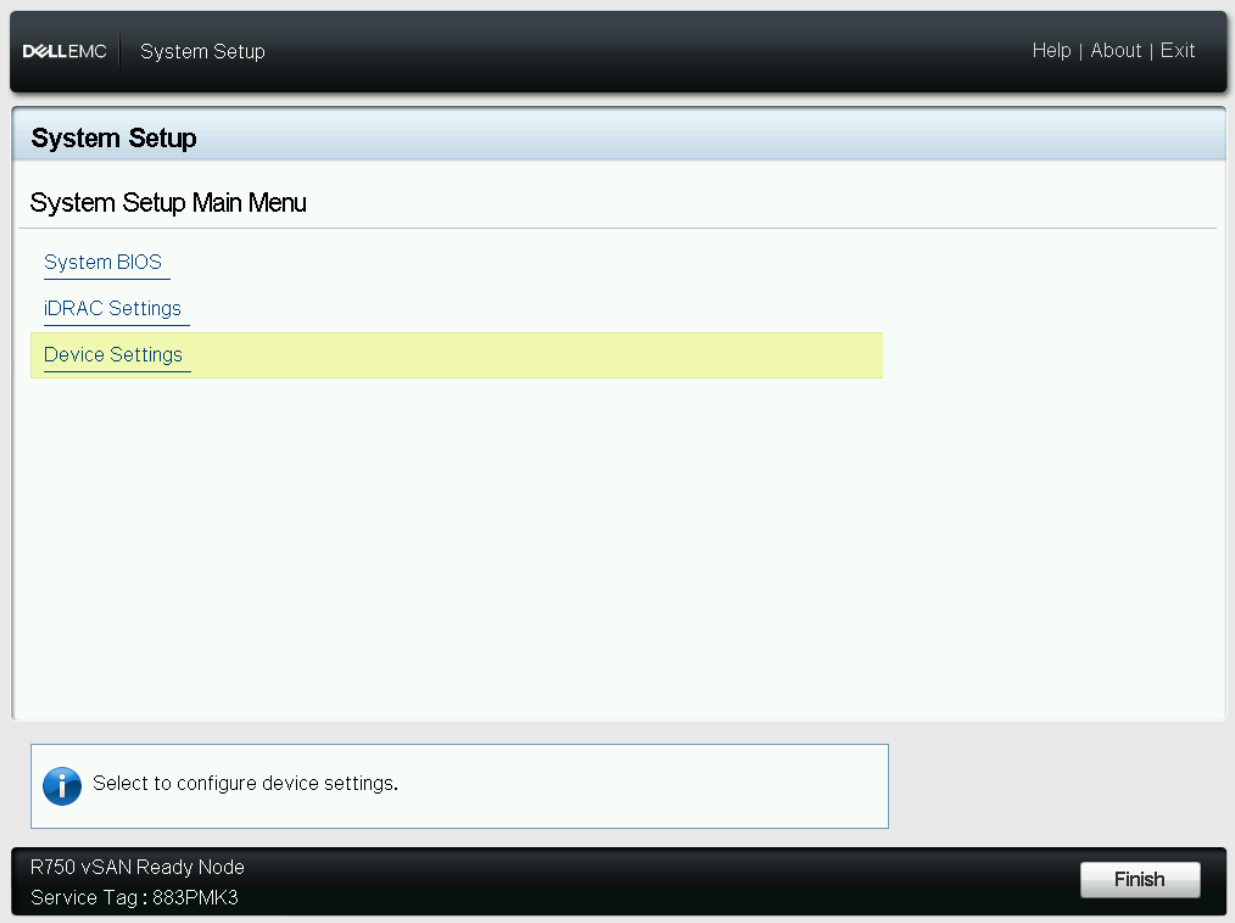
Enter the server's BIOS menu.
-
Click Device Settings:
-
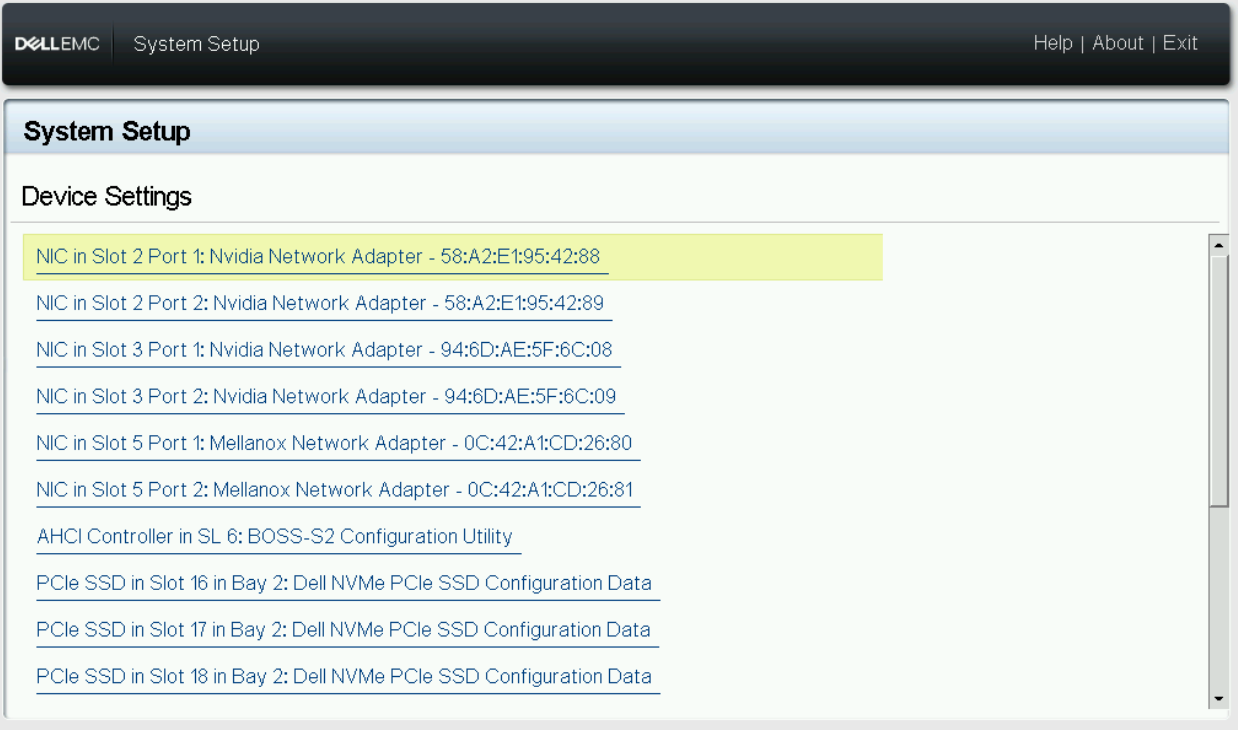
Select the desired BlueField device(s).
-
Verify that the Chip Type is a BlueField device (BlueField-3) and set the VMware Distributed Services Engine (DPU) to Disabled.
Click BlueField Internal Cpu Configuration.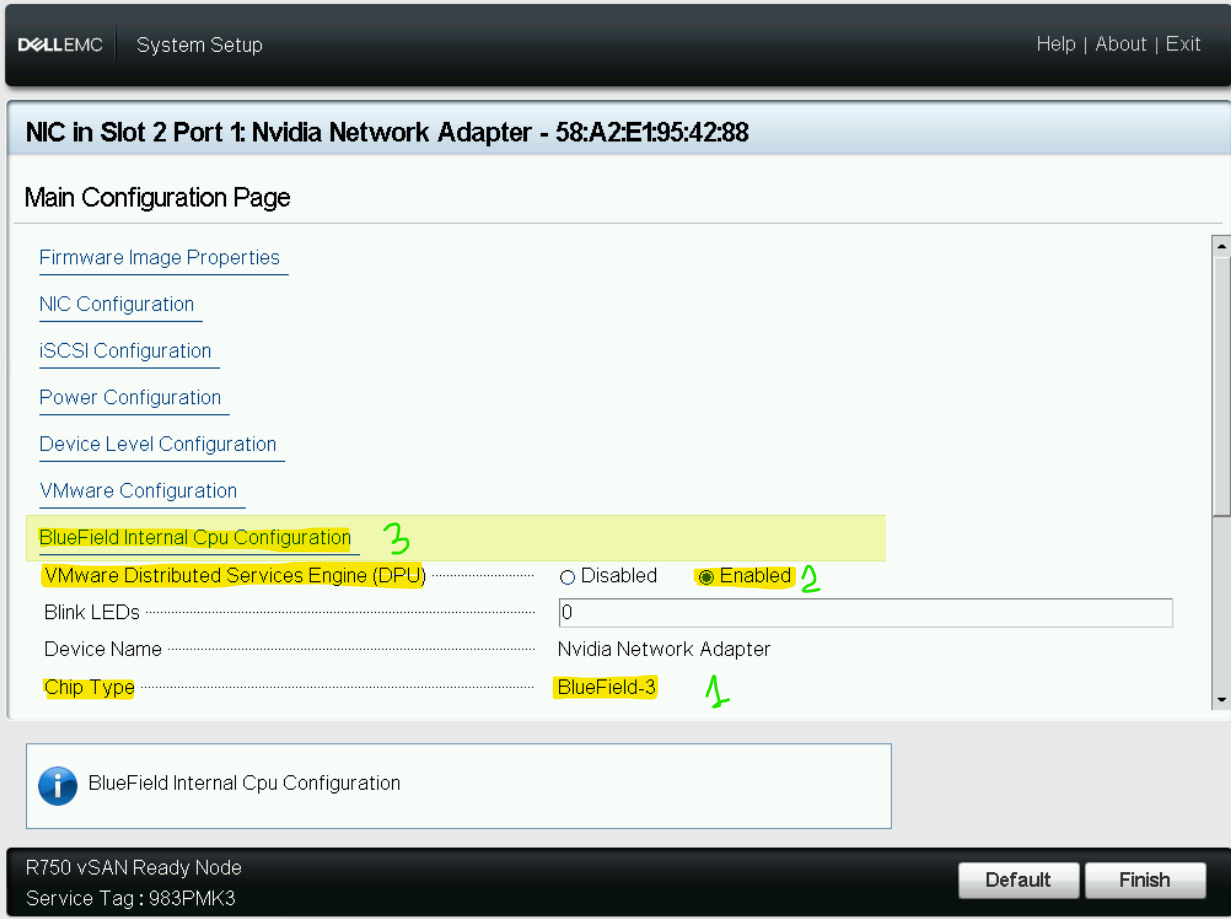
-
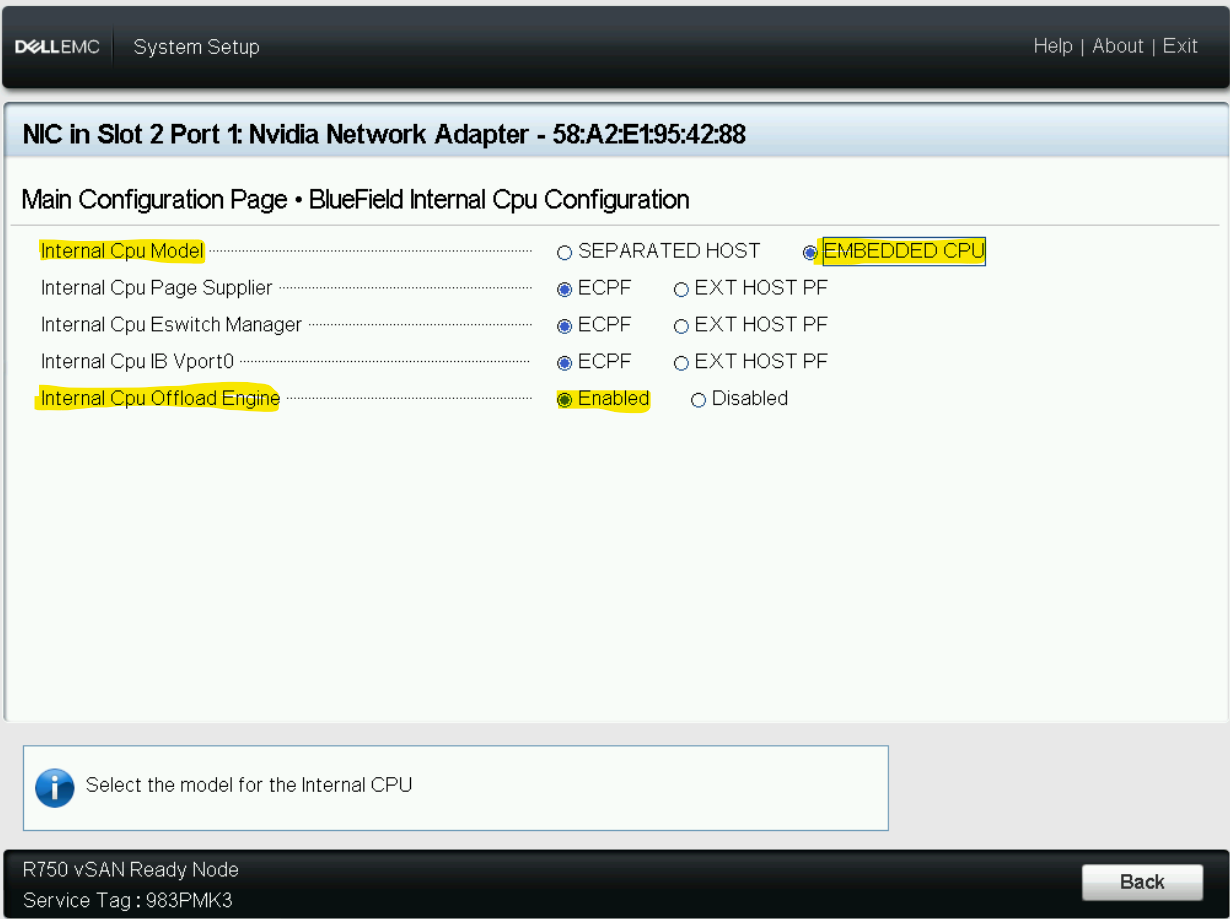
Set Internal Cpu Offload Engine to Enabled and Internal CPU Model to EMBEDDED CPU.
-
Click Back.
-
Click VMware Configuration.
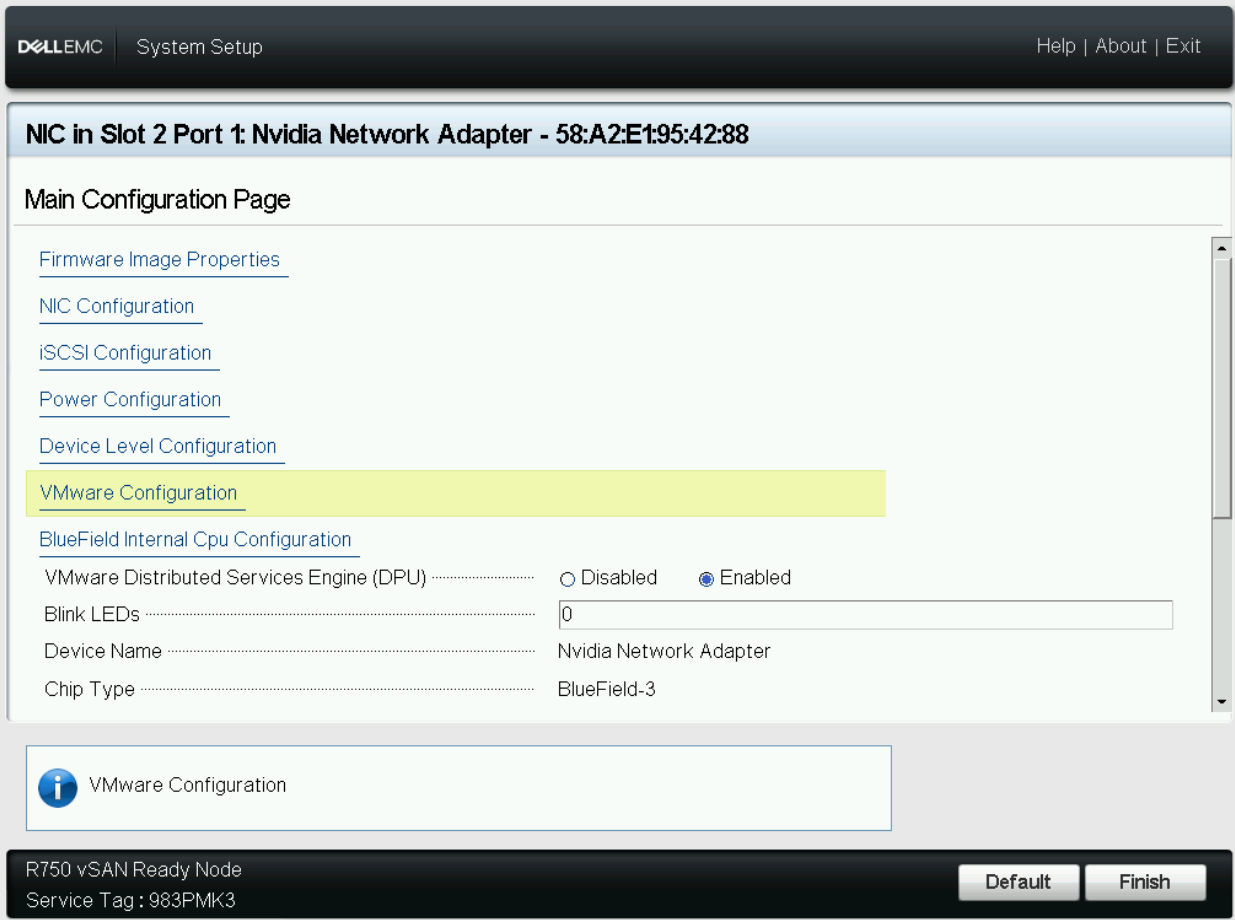
-
Set Management PF to Disabled.
-
Click Back.
-
Click Finish.
-
Repeat steps b-i for all necessary BlueField devices in the server.
-
Save BIOS settings.
-
Power cycle the server.
-
On a Lenovo server:
-
-
Enter the server's BIOS menu.
-
Select System Settings.
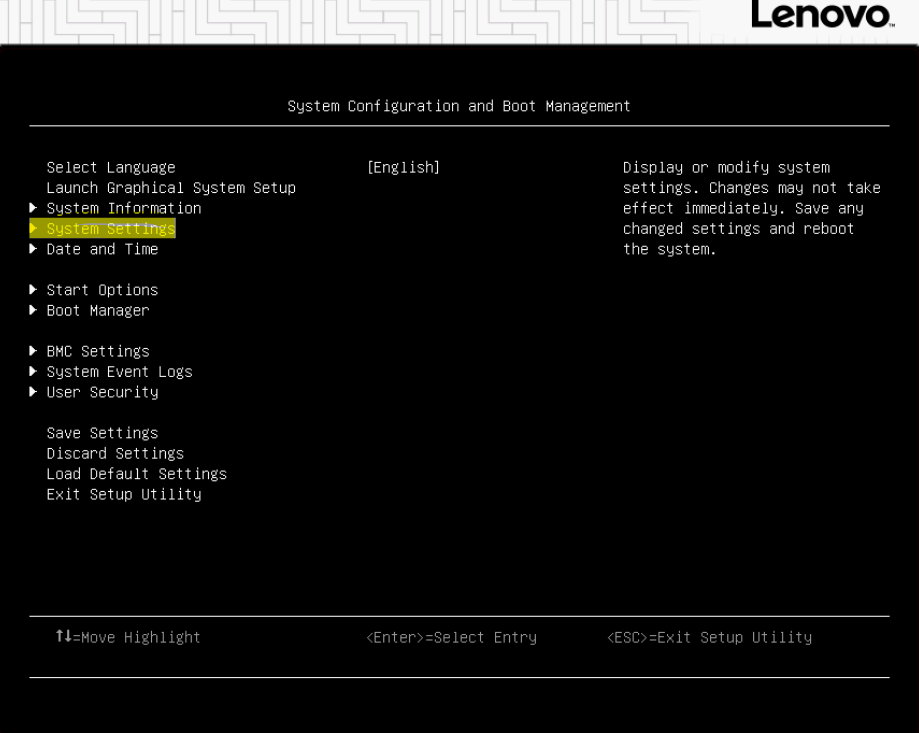
-
Select Network.
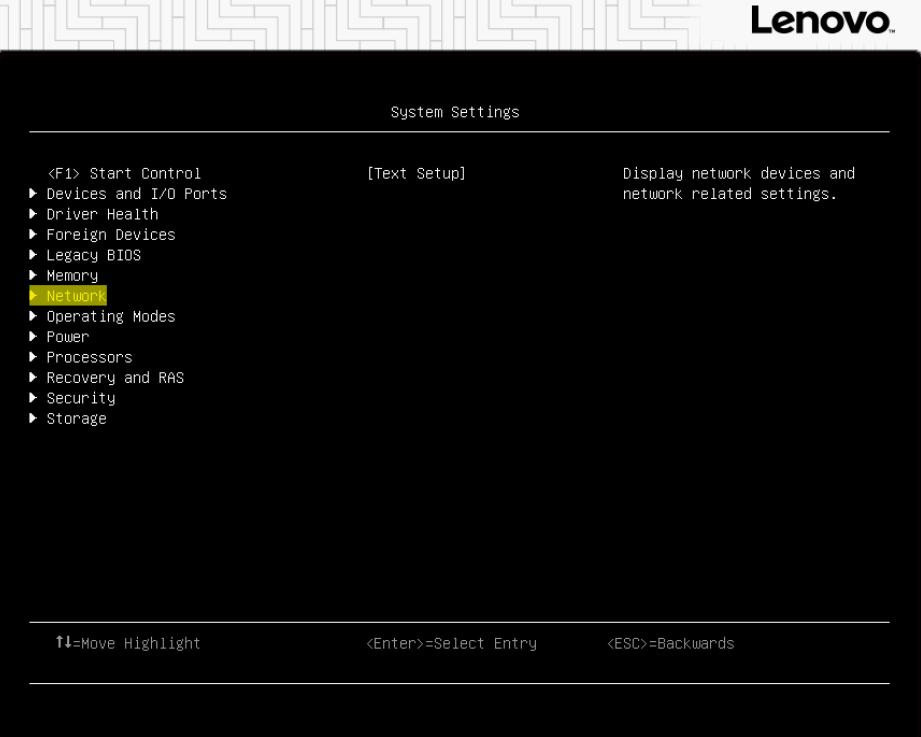
-
Select the desired BlueField device(s).
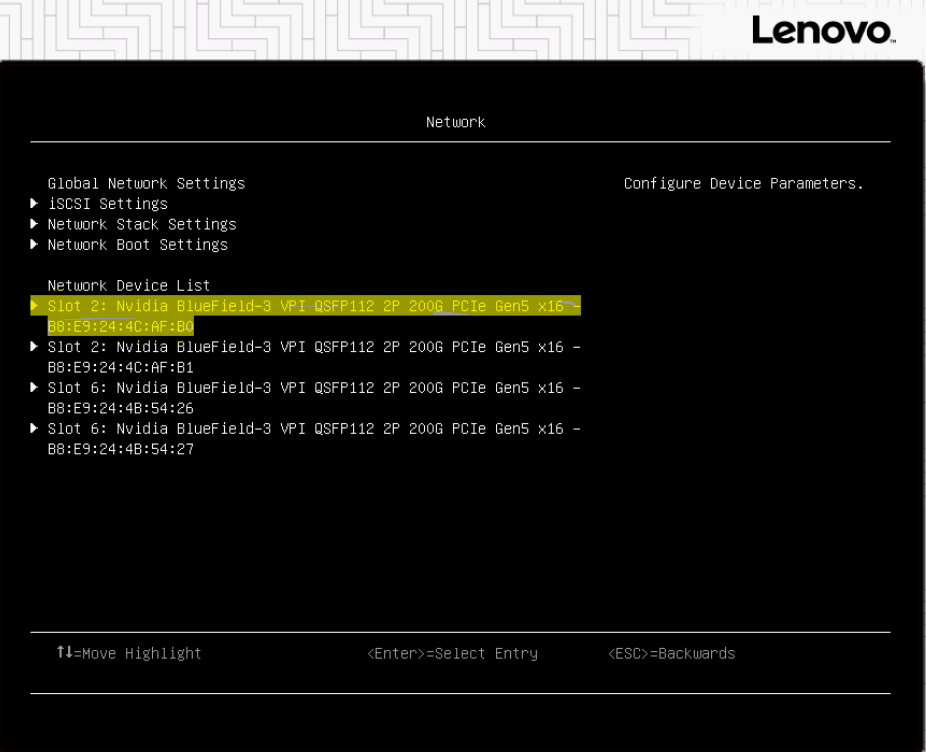
-
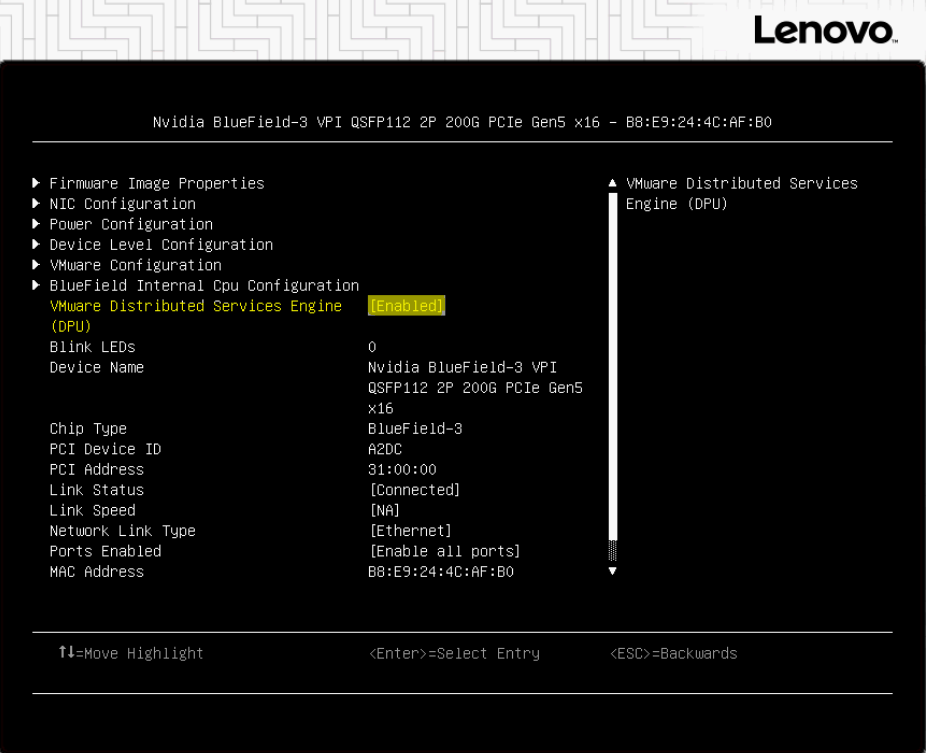
Verify that the Chip Type is a BlueField device (BlueField-3) and set the VMware Distributed Services Engine (DPU) to Disabled.
-
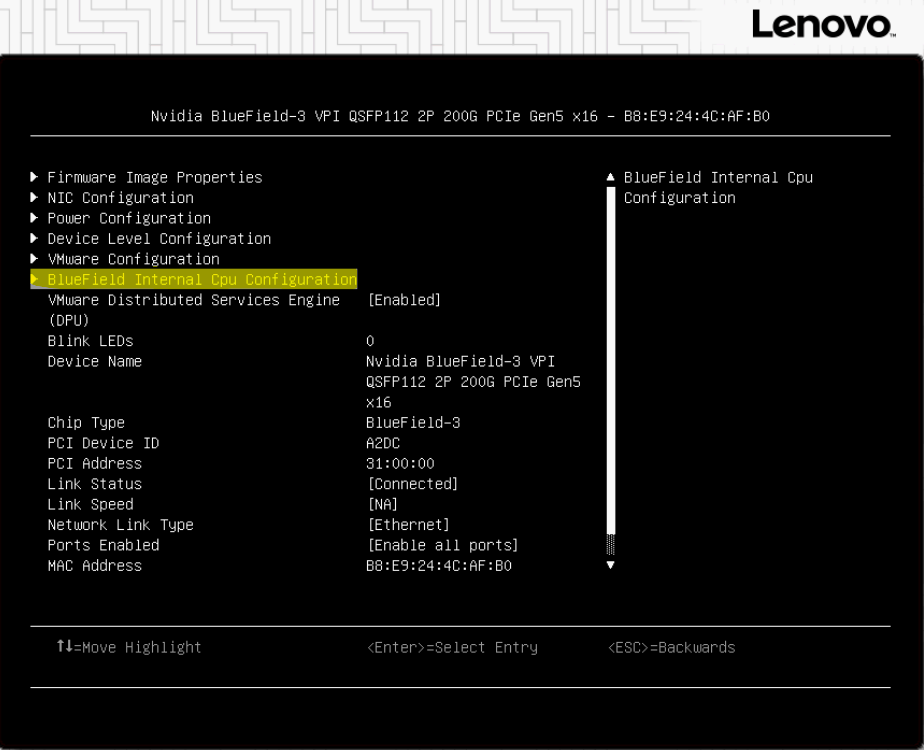
Click BlueField Internal Cpu Configuration.
-
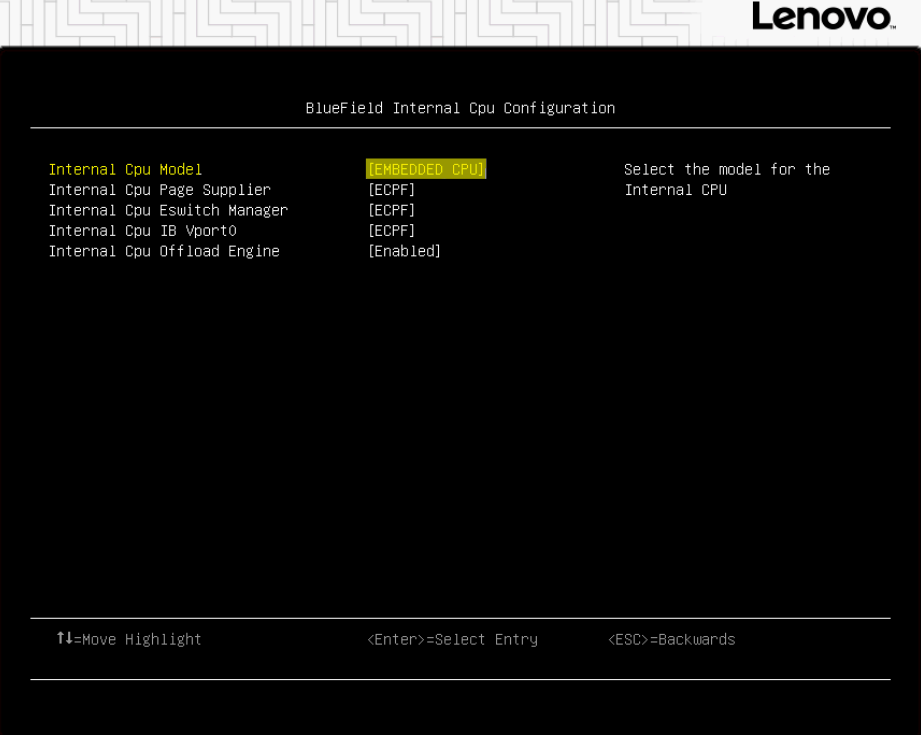
Set Internal Cpu Offload Engine to Enabled and Internal CPU Model to EMBEDDED CPU.
-
Click Back.
-
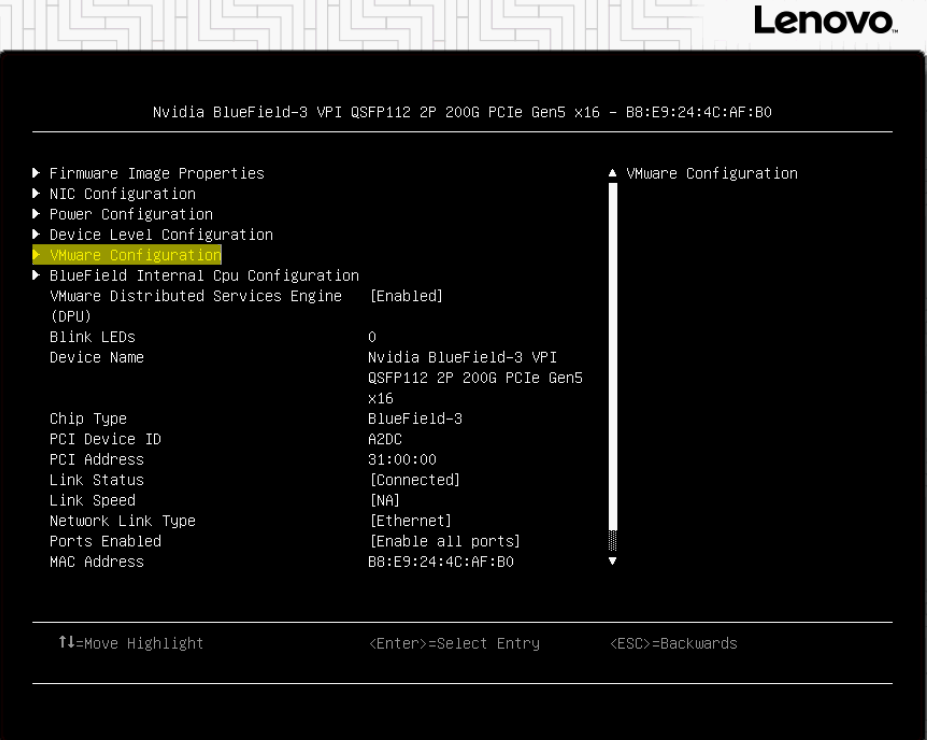
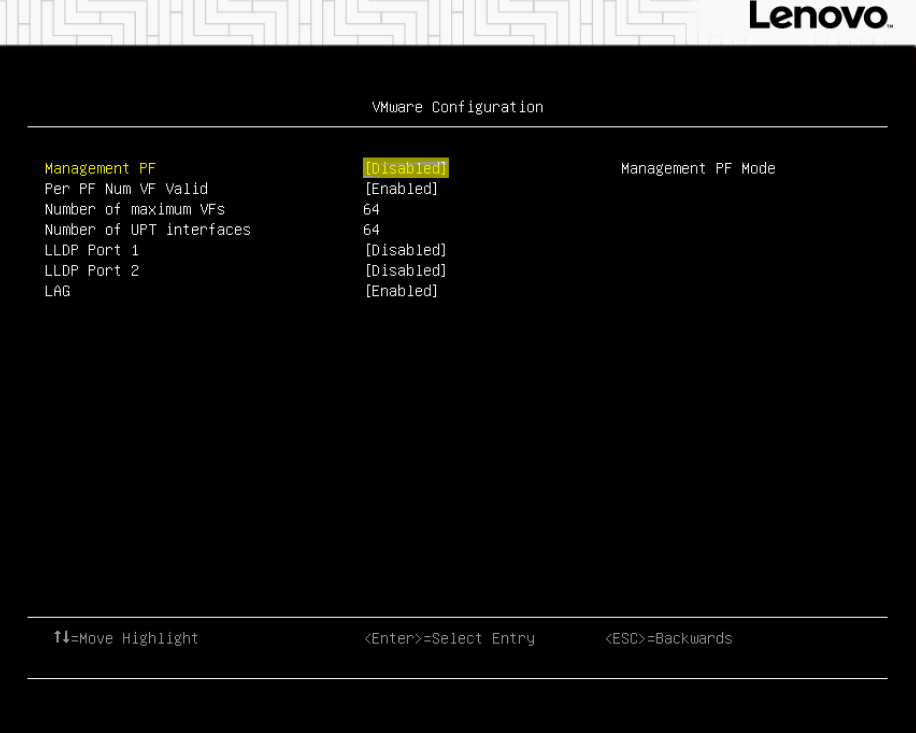
Click VMware Configuration.
-
Set Management PF to Disabled.
-
Click Back.
-
Click Finish.
-
Repeat steps c-k for all necessary BlueField devices in the server.
-
Save BIOS settings.
-
Power cycle the server.
-
Author
|
|
Boris Kovalev
Boris Kovalev has worked for the past several years as a Solutions Architect, focusing on NVIDIA Networking/Mellanox technology, and is responsible for complex machine learning, Big Data and advanced VMware-based cloud research and design. Boris previously spent more than 20 years as a senior consultant and solutions architect at multiple companies, most recently at VMware. He has written multiple reference designs covering VMware, machine learning, Kubernetes, and container solutions which are available at the NVIDIA Documents website. |

Last updated: