

Created on Jun 30, 2019
Updated on Sep 10, 2021
Introduction
This post describes the procedure of how to install and run NVIDIA® Firmware tools (MFT) v4.17.0 on VMware ESXi 6.7/7.0 versions.
References
-
ConnectX® Ethernet Driver for VMware® ESXi Server Product Page
-
VMware ESXi 7.0 U2 nmlx5_core 4.21.71.101 Driver CD for NVIDIA ConnectX-4/5/6 Ethernet Adapters
Overview
NVIDIA ConnectX®-5/6 NATIVE ESXi is a software stack which operates across all NVIDIA network adapter solutions supporting up to 100Gb/s Ethernet (ETH) and PCI Express 3.0 and 4.0 uplinks to servers.
Hardware and Software Requirements
1. A server platform with an adapter card based on one of the following NVIDIA Technologies’ HCA devices:
2. Installer Privileges: The installation requires administrator privileges on the target machine.
3. Device ID: For the latest list of device IDs, please visit NVIDIA website.
NVIDIA Firmware Tools (MFT)
The NVIDIA Firmware Tools (MFT) package is a set of firmware management tools used to:
-
Generate a standard or customized NVIDIA firmware image
-
Querying for firmware information
-
Burn a firmware image
Setup
The setup includes ESXi 6.7/7.0 server installed with ConnectX-5/6 adapter card.
Installation
1. Go to the MFT web page: http://www.NVIDIA.com/page/management_tools.
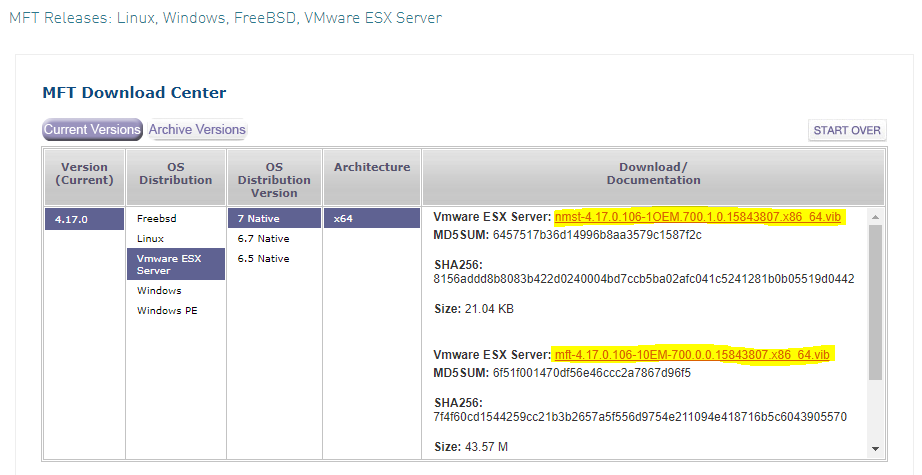
2. Enable SSH Access to ESXi server.
3. Log into ESXi vSphere Command-Line Interface with root permissions.
4. Download the MFT for VMware vib package to the "/tmp" directory.
5. Verify that the files are placed in the /tmp directory.
ESXi cli
cd /tmp
ls
ESXi cli Output
mft-4.17.0.106-10EM-700.0.0.15843807.x86_64.vib nmst-4.17.0.106-1OEM.700.1.0.15843807.x86_64.vib
5. Get the adapter list.
ESXi cli
esxcli network nic list
ESXi cli Output
Name     PCI Device    Driver      Admin Status  Link Status   Speed  Duplex  MAC Address         MTU  Description
-------  ------------  ----------  ------------  -----------  ------  ------  -----------------  ----  -----------
vmnic0   0000:39:00.0  nmlx5_core  Up            Up           100000  Full    0c:42:a1:24:04:ea  1600  Mellanox Technologies ConnectX-6 Dx EN NIC; 100GbE; dual-port QSFP56; PCIe4.0 x16; (MCX623106AC-CDA)
vmnic1   0000:39:00.1  nmlx5_core  Up            Down              0  Half    0c:42:a1:24:04:eb  1500  Mellanox Technologies ConnectX-6 Dx EN NIC; 100GbE; dual-port QSFP56; PCIe4.0 x16; (MCX623106AC-CDA)
vmnic10  0000:cc:00.0  nmlx5_core  Up            Up           100000  Full    ec:0d:9a:8a:27:62  9000  Mellanox Technologies ConnectX-5 Ex VPI adapter card EDR IB (100Gb/s) and 100GbE dual-port QSFP28 (MCX556A-EDAT)
vmnic11  0000:cc:00.1  nmlx5_core  Up            Up           100000  Full    ec:0d:9a:8a:27:63  1600  Mellanox Technologies ConnectX-5 Ex VPI adapter card EDR IB (100Gb/s) and 100GbE dual-port QSFP28 (MCX556A-EDAT)
vmnic12  0000:61:00.0  nmlx5_core  Up            Up            25000  Full    0c:42:a1:94:50:10  1500  Mellanox Technologies ConnectX-6 Lx EN NIC; 25GbE; dual-port SFP28; PCIe4.0 x8; (MCX631102AE-ADA)
vmnic13  0000:61:00.1  nmlx5_core  Up            Up            25000  Full    0c:42:a1:94:50:11  1500  Mellanox Technologies ConnectX-6 Lx EN NIC; 25GbE; dual-port SFP28; PCIe4.0 x8; (MCX631102AE-ADA)
vmnic4   0000:72:00.0  ixgben      Up            Up             1000  Full    18:c0:4d:00:c9:21  1500  Intel(R) Ethernet Controller 10G X550
vmnic5   0000:72:00.1  ixgben      Up            Down              0  Half    18:c0:4d:00:c9:22  1500  Intel(R) Ethernet Controller 10G X550
vmnic8   0000:cb:00.0  nmlx5_core  Up            Up           100000  Full    0c:42:a1:24:05:66  1500  Mellanox Technologies ConnectX-6 Dx EN NIC; 100GbE; dual-port QSFP56; PCIe4.0 x16; (MCX623106AC-CDA)
vmnic9   0000:cb:00.1  nmlx5_core  Up            Down              0  Half    0c:42:a1:24:05:67  1500  Mellanox Technologies ConnectX-6 Dx EN NIC; 100GbE; dual-port QSFP56; PCIe4.0 x16; (MCX623106AC-CDA)
ESXi cli
esxcli network nic get -n vmnic0
ESXi cli Output
 Advertised Auto Negotiation: true
   Advertised Link Modes: Auto, 1000BaseX/Full, 10000BaseX/Full, 40000XLPPI/Full, 25000BaseCR1/Full, 50000BaseKR2/Full, 100000BaseCR4/Full
   Auto Negotiation: true
   Cable Type:
   Current Message Level: -1
   Driver Info:
         Bus Info: 0000:39:00:0
         Driver: nmlx5_core
         Firmware Version: 22.29.1016
         Version: 4.19.71.1
   Link Detected: true
   Link Status: Up
   Name: vmnic0
   PHYAddress: 0
   Pause Autonegotiate: false
   Pause RX: false
   Pause TX: false
   Supported Ports: DA
   Supports Auto Negotiation: true
   Supports Pause: false
   Supports Wakeon: false
   Transceiver: internal
   Virtual Address: 00:50:56:5e:05:8a
   Wakeon: None
6. Install the vib package.
ESXi cli
esxcli software vib install -v /tmp/nmst-4.17.0.106-1OEM.700.1.0.15843807.x86_64.vib -f
ESXi cli Output
Installation Result
   Message: The update completed successfully, but the system needs to be rebooted for the changes to be effective.
   Reboot Required: true
   VIBs Installed: MEL_bootbank_nmst_4.17.0.106-1OEM.700.1.0.15843807
   VIBs Removed: MEL_bootbank_nmst_4.16.3.12-1OEM.700.1.0.15843807
   VIBs Skipped:
ESXi cli
esxcli software vib install -v /tmp/mft-4.17.0.106-10EM-700.0.0.15843807.x86_64.vib -f
ESXi cli Output
Installation Result
   Message: The update completed successfully, but the system needs to be rebooted for the changes to be effective.
   Reboot Required: true
   VIBs Installed: MEL_bootbank_mft_4.17.0.106-0
   VIBs Removed: MEL_bootbank_mft_4.16.3.12-0
   VIBs Skipped:
7. The MFT tools are not located in the default path. In order to run any MFT tool either:
-
Enter the full path. For example: /opt/mellanox/bin/flint
OR
-
Add MFT path to the default system path by running: export PATH=$PATH:/opt/mellanox/bin .
Please note, the path is temporary and will hold only until reboot.
8. Enter Maintenance Mode the ESXi host.
9. Reboot the server.
ESXi cli
reboot
10. Exit Maintenance Mode the ESXi host.
11. Start the mst driver. Run.
ESXi cli
cd /opt/mellanox/bin
./mst start
ESXi cli Output
Module mst is already loaded
12. To print the current status of NVIDIA devices.
ESXi cli
/opt/mellanox/bin/mst status
ESXi cli Output
MST devices:
------------
mt4125_pciconf6
mt4123_pciconf1
mt4127_pciconf2
mt4123_pciconf3
mt4125_pciconf4
mt4121_pciconf5
13. Show the devices status with detailed information.
ESXi cli
/opt/mellanox/bin/mst status -vv
ESXi cli Output
PCI devices:
------------
DEVICE_TYPE             MST                           PCI       RDMA            NET                       NUMA
ConnectX6DX(rev:0)      mt4125_pciconf6               39:00.0

ConnectX6DX(rev:0)      mt4125_pciconf0.1             39:00.1

ConnectX6(rev:0)        mt4123_pciconf1               3f:00.0

ConnectX6(rev:0)        mt4123_pciconf1.1             3f:00.1

ConnectX6LX(rev:0)      mt4127_pciconf2               61:00.0

ConnectX6LX(rev:0)      mt4127_pciconf2.1             61:00.1

ConnectX6(rev:0)        mt4123_pciconf3               c5:00.0

ConnectX6(rev:0)        mt4123_pciconf3.1             c5:00.1

ConnectX6DX(rev:0)      mt4125_pciconf4               cb:00.0

ConnectX6DX(rev:0)      mt4125_pciconf4.1             cb:00.1

ConnectX5(rev:0)        mt4121_pciconf5               cc:00.0

ConnectX5(rev:0)        mt4121_pciconf5.1             cc:00.1
14. Query the device.
ESXi cli
./mlxfwmanager --query
ESXi cli Output
Querying Mellanox devices firmware ...

Device #1:
----------

  Device Type:      ConnectX6DX
  Part Number:      MCX623106AC-CDA_Ax
  Description:      ConnectX-6 Dx EN adapter card; 100GbE; Dual-port QSFP56; PCIe 4.0 x16; Crypto and Secure Boot
  PSID:             MT_0000000436
  PCI Device Name:  mt4125_pciconf6
  Base GUID:        0c42a103002404ea
  Base MAC:         0c42a12404ea
  Versions:         Current        Available
     FW             22.30.1004     N/A
     PXE            3.6.0301       N/A
     UEFI           14.23.0017     N/A

  Status:           No matching image found

...
Appendix A
mst Synopsis
mst [switches]
Commands and Switches Description:
ESXi cli
mst start       						# Create special files that represent Mellanox devices in directory/dev. Load appropriate modules. After successfully completing this command, the mst driver will be ready to work.
mst stop       							# Stop Mellanox mst driver service and unload the kernel modules.
mst restart    							# "mst stop" followed by "mst start"
mst server start [-p|--port port]       # Start mst server to allow incoming connection. Default port is 23108.
mst server stop 						# Stop the mst server.
mst status 								# Print current status of Mellanox devices. Options: -v run with a high verbosity level (print more info on each device)
mst version 							# Print the version info
Done !
Authors
|
|
Boris Kovalev
Boris Kovalev has worked for the past several years as a Solutions Architect, focusing on NVIDIA Networking/Mellanox technology, and is responsible for complex machine learning, Big Data and advanced VMware-based cloud research and design. Boris previously spent more than 20 years as a senior consultant and solutions architect at multiple companies, most recently at VMware. He has written multiple reference designs covering VMware, machine learning, Kubernetes, and container solutions which are available at the NVIDIA Documents website. |

Last updated: