

Created on Mar 21, 2023
Introduction
This post describes the procedure of how to install and run NVIDIA® Firmware tools (MFT) on VMware ESXi 8.0 version.
References
Overview
The NVIDIA Firmware Tools (MFT) package is a set of firmware management tools used to:
-
Generate a standard or customized NVIDIA firmware image
-
Querying for firmware information
-
Burn a firmware image
Hardware and Software Requirements
-
A server platform with an ConnectX®-6 Dx adapter card.
-
Installer Privileges: The installation requires administrator privileges on the target machine.
Setup
The setup includes:
VMware ESXi server, vSphere Cluster and vCenter install and configuration is out of the scope of this post.
Installation
In first step we need to add additional Mellanox Firmware Tools depot to vSphere Cluster image in VMware Lifecycle Manager (vLCM).
To add the Mellanox Firmware Tools (MFT) depot to the image.
-
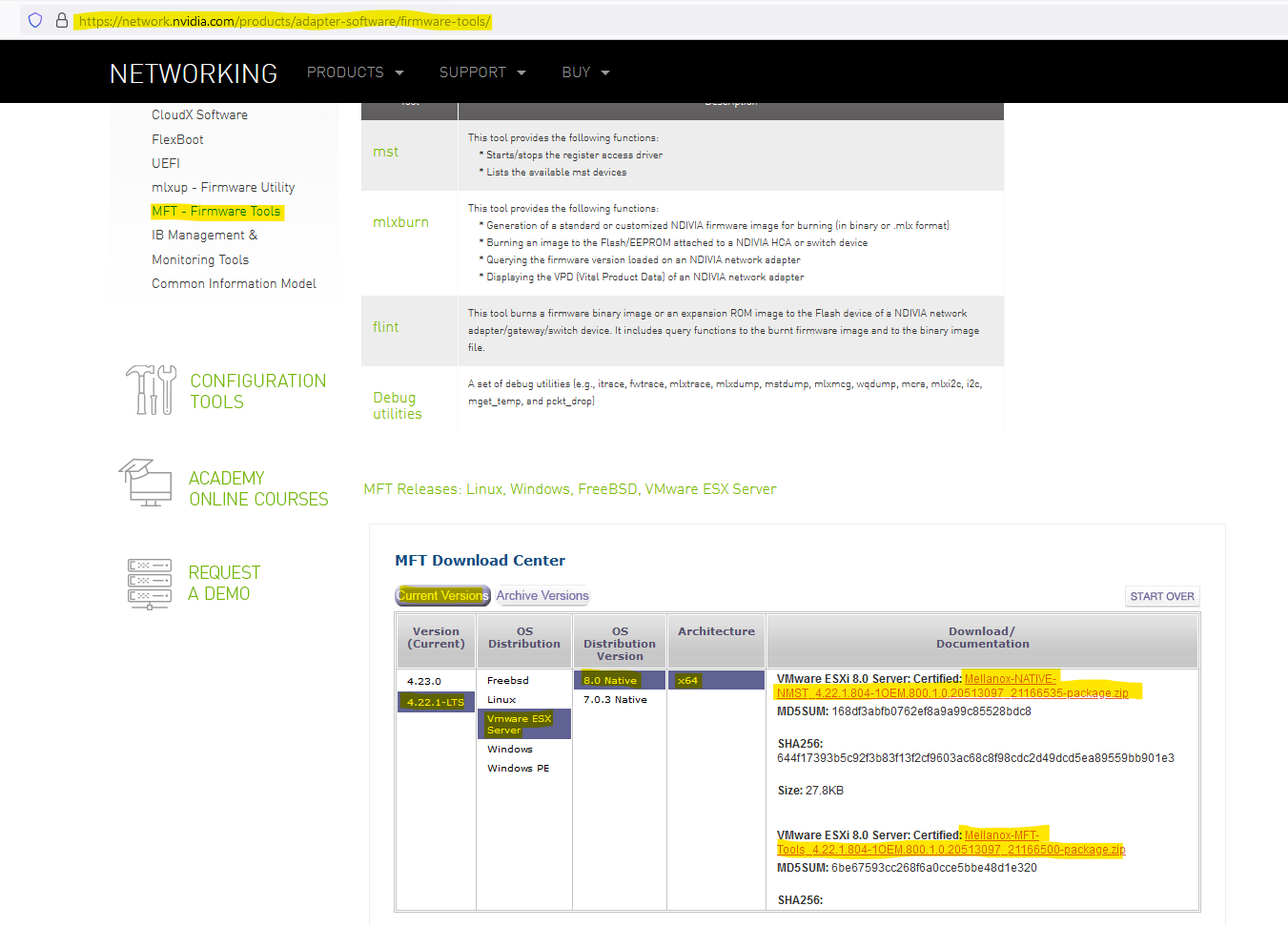
Download Mellanox Firmware Tools 4.22.1 version from the MFT web page: Mellanox Firmware Tools (MFT) (nvidia.com).
-
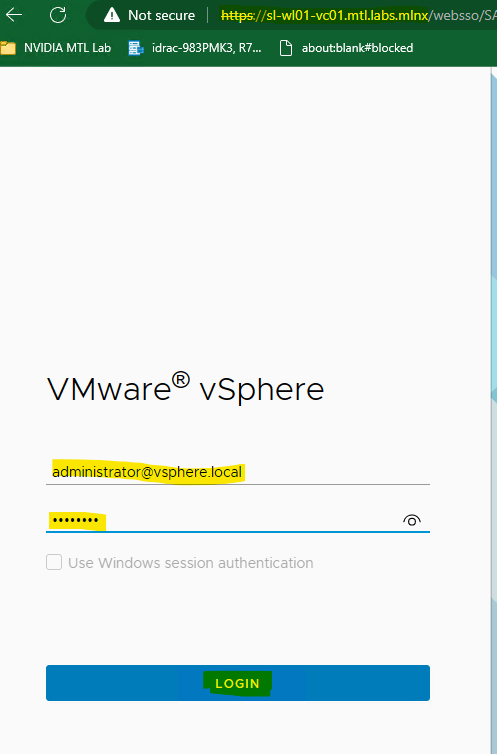
Open a browser, connect to vSphere web interface at https://<vcenter_fqdn>, and login with the administrator@vsphere.local account.
-
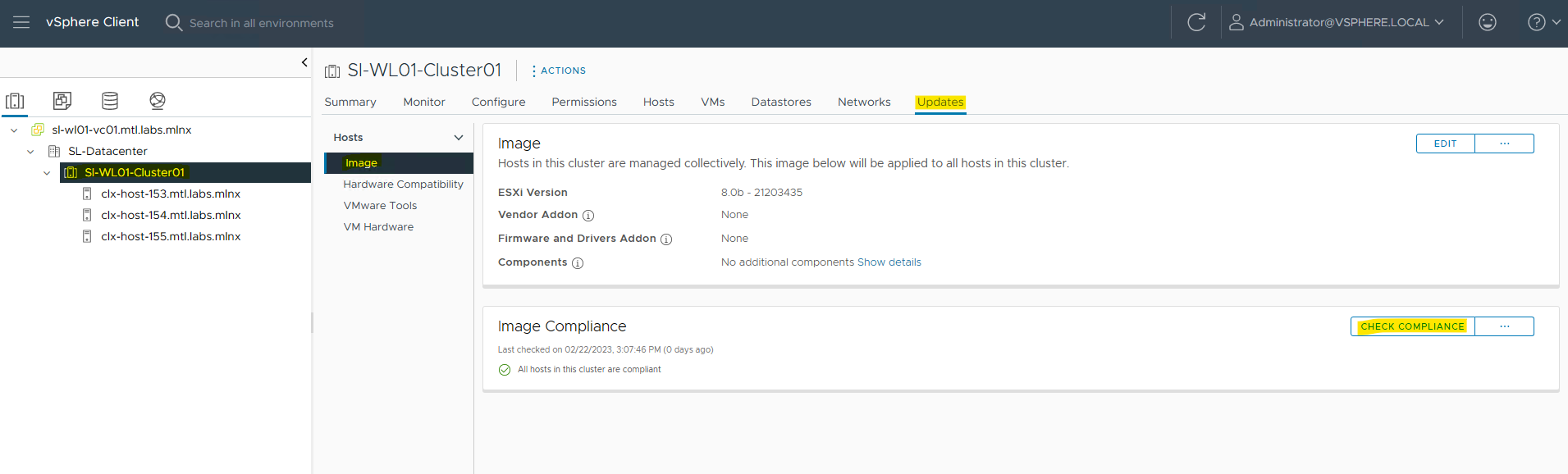
At the Inventory tab, select the cluster, then select the Updates tab. Select Image and check LCM compliance.
-
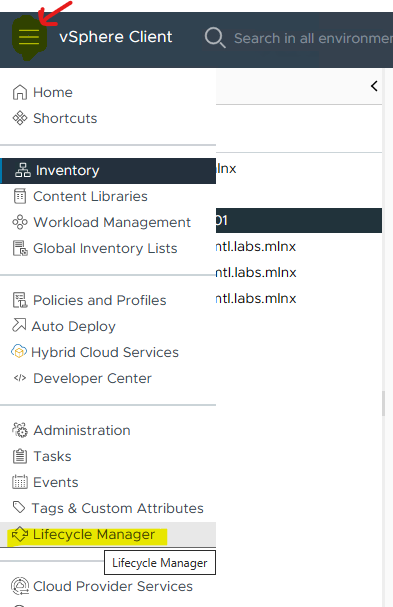
On the top left menu, click on the tree lines then select Lifecycle Manager.
-
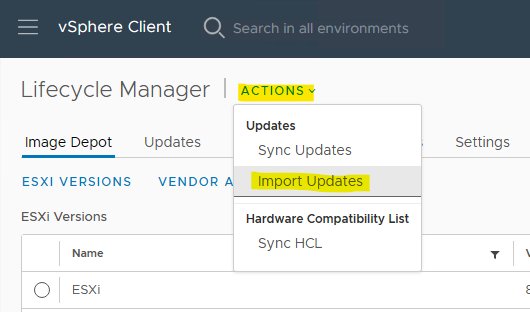
Click on Action, then select Import Updates.
-
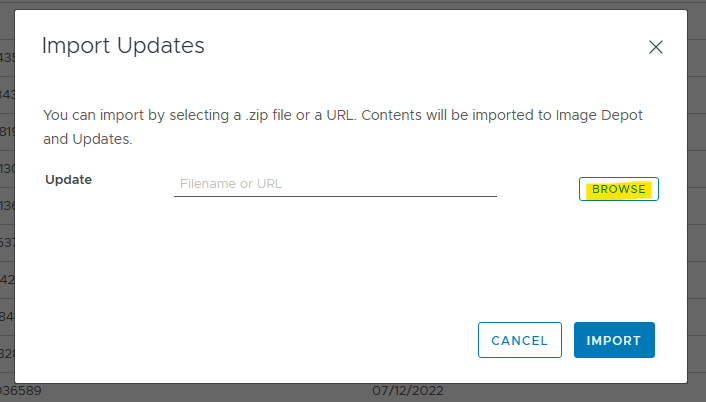
At the Import Updates popup, click on Browse.
-
At the Open popup, select the Mellanox depot, then click Open.

-
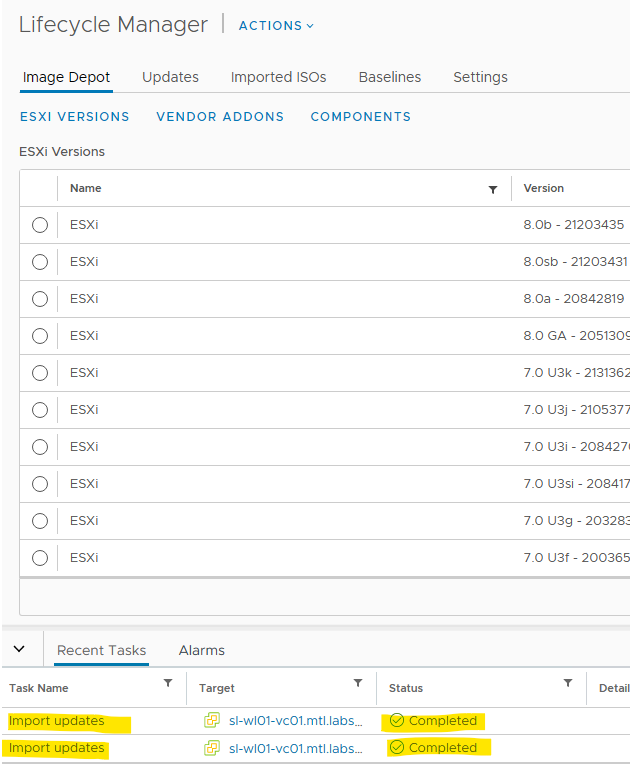
Repeat steps 5 to 7 for the second depot bundle.

-
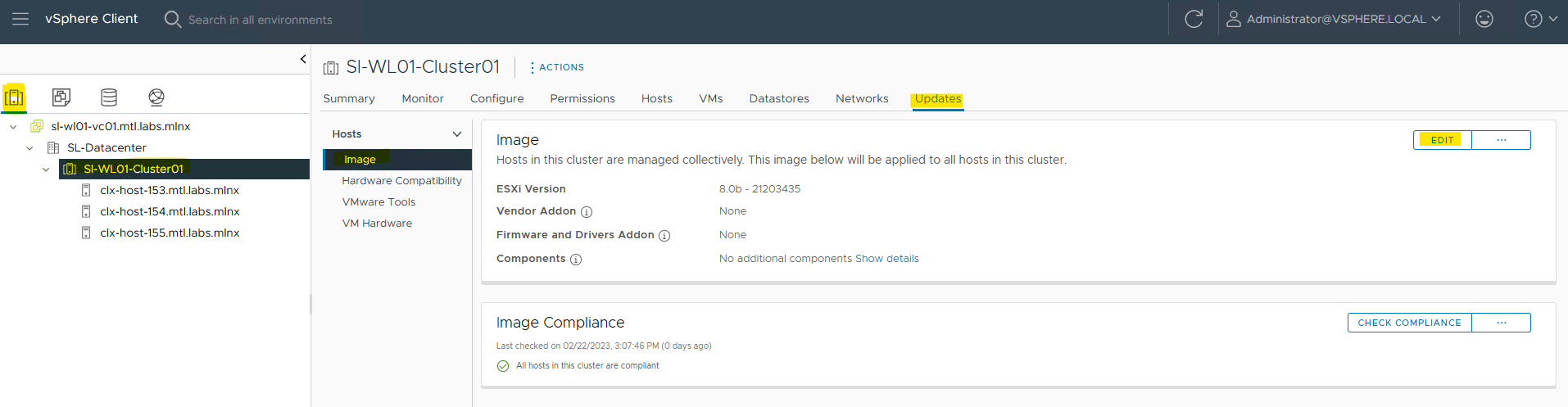
At the Inventory tab, select the cluster, then select the Updates tab. Select Image, then click on Edit.
-
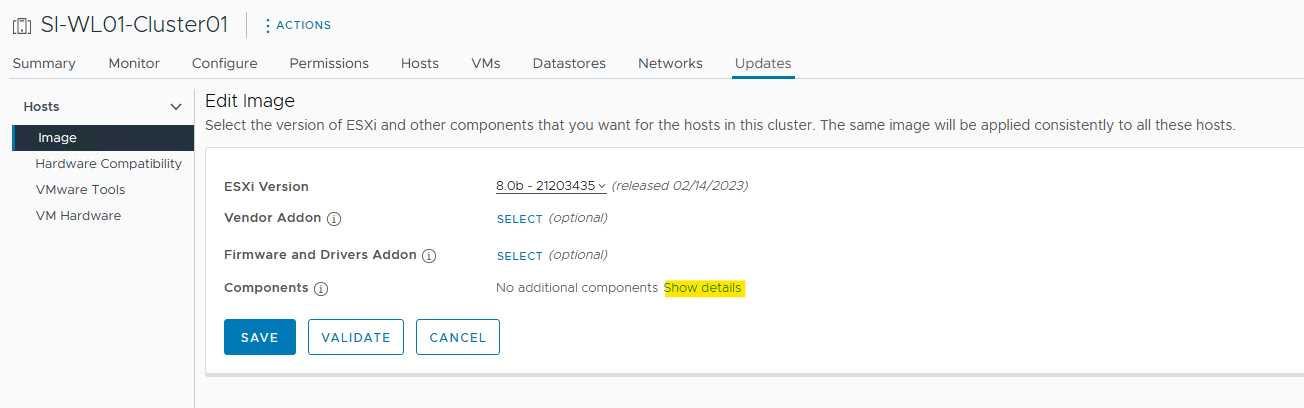
Click on Show details.
-
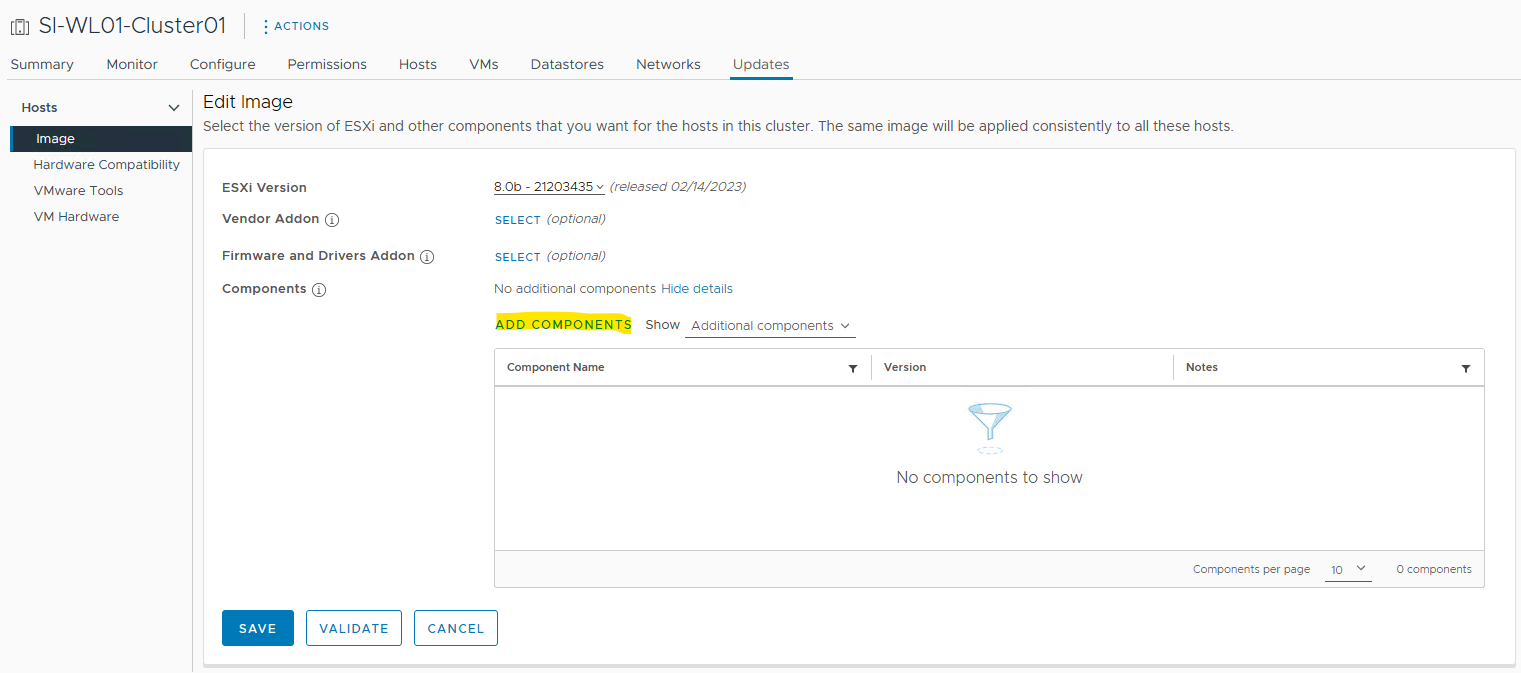
Click on ADD COMPONENTS.
-
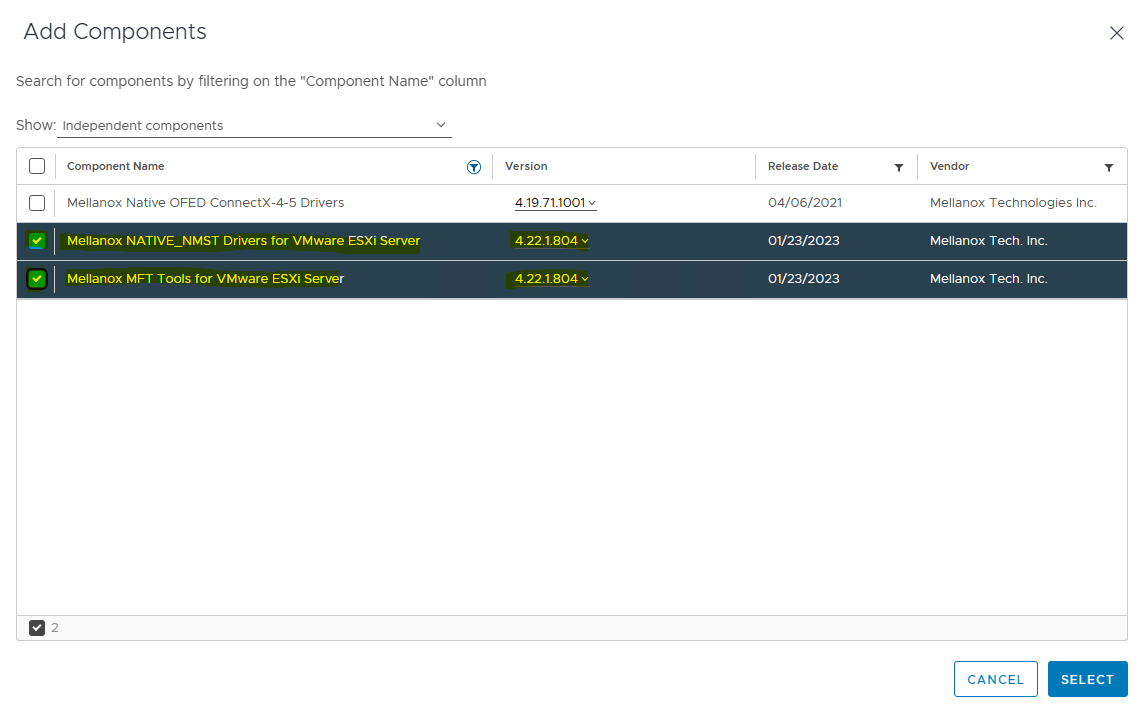
Select the Mellanox depots and click SELECT.
-
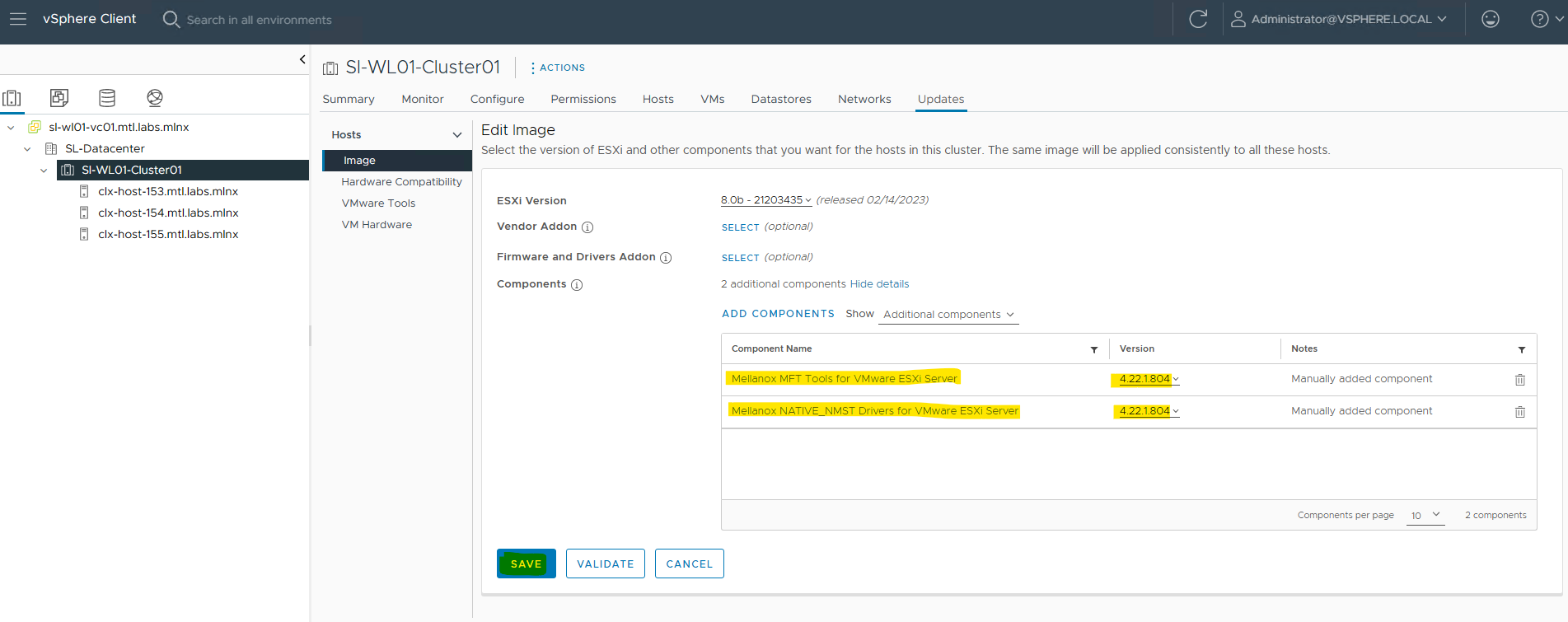
Click SAVE.
-
A compliancy check will starting automaticaly.
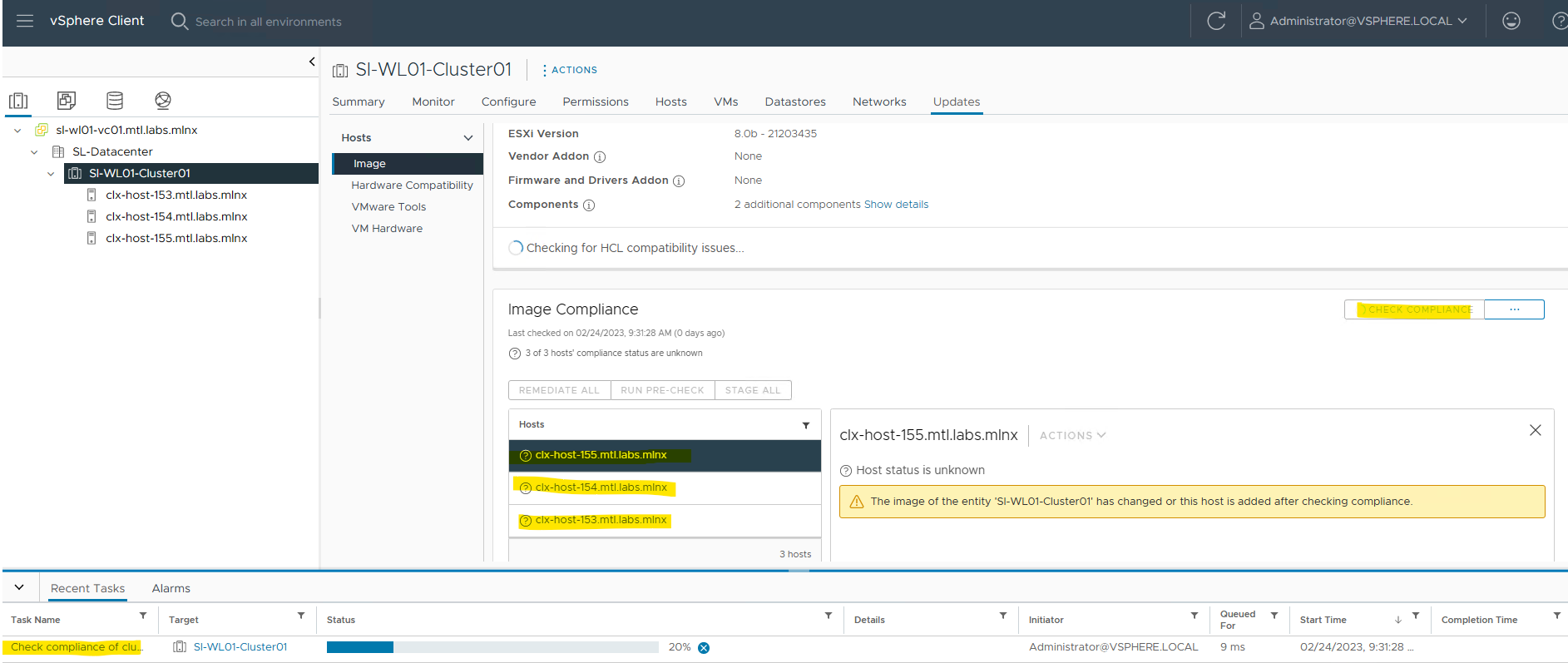
-
Click on REMEDIATE ALL to start MFT install on hosts.
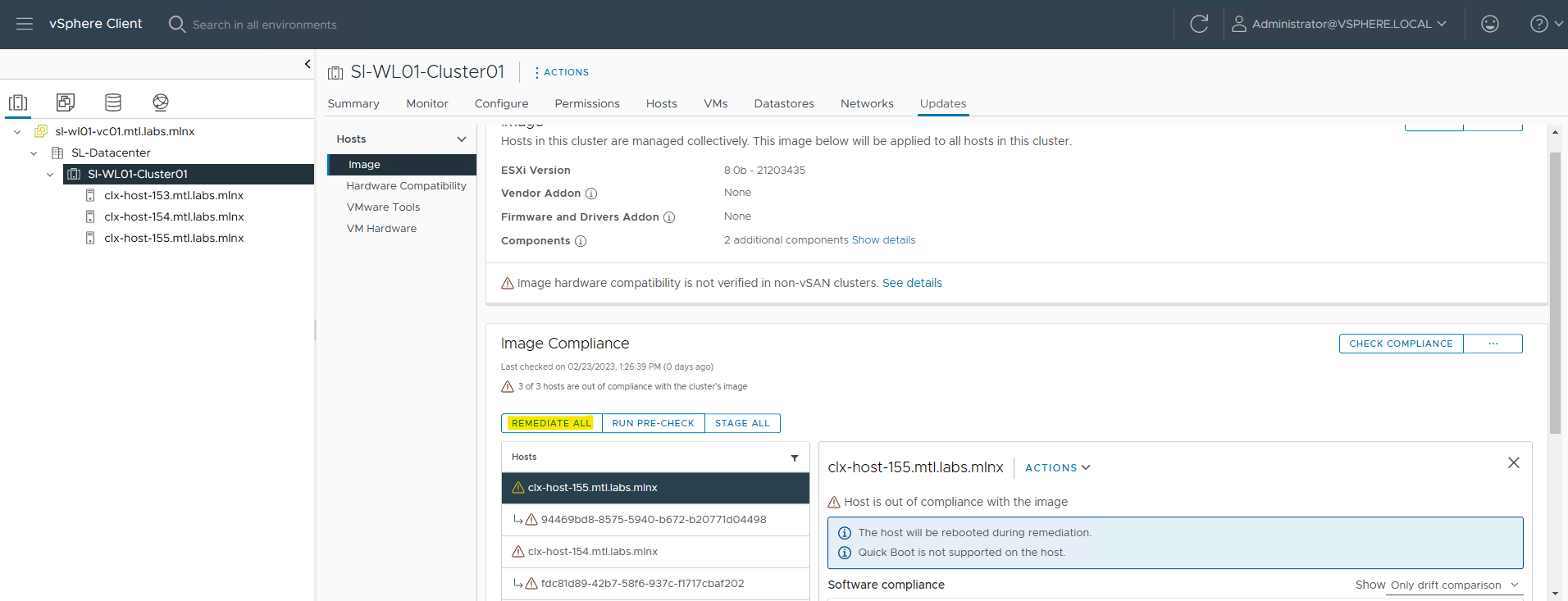
-
Click START REMEDIATION.
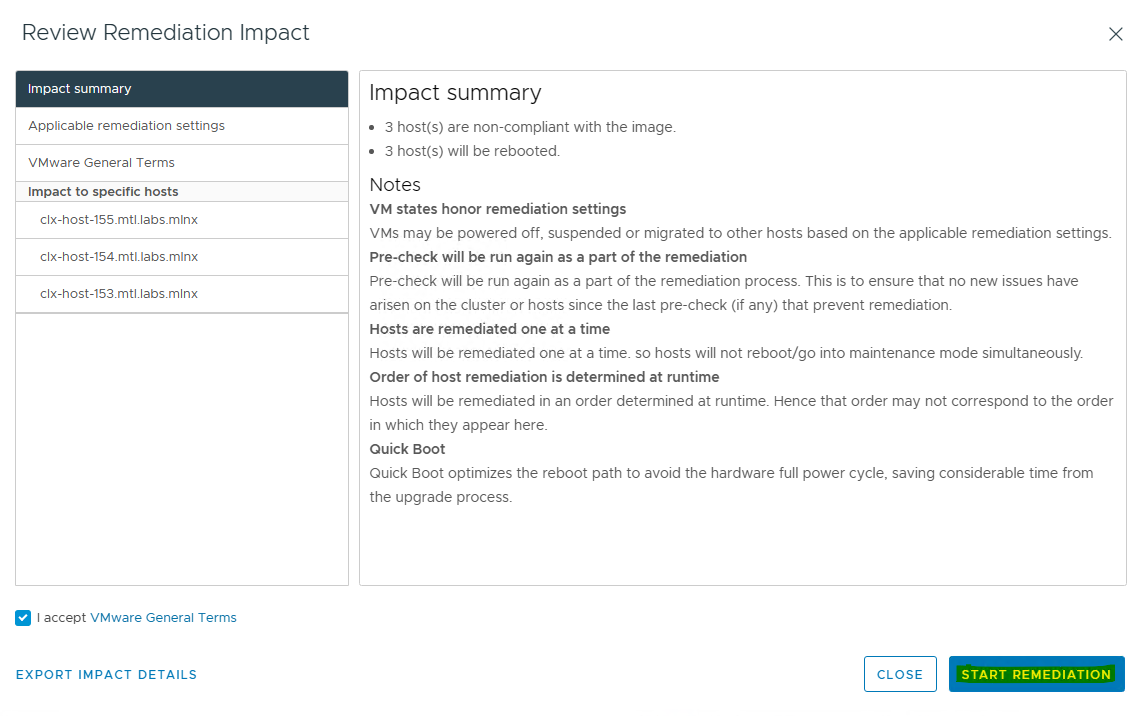
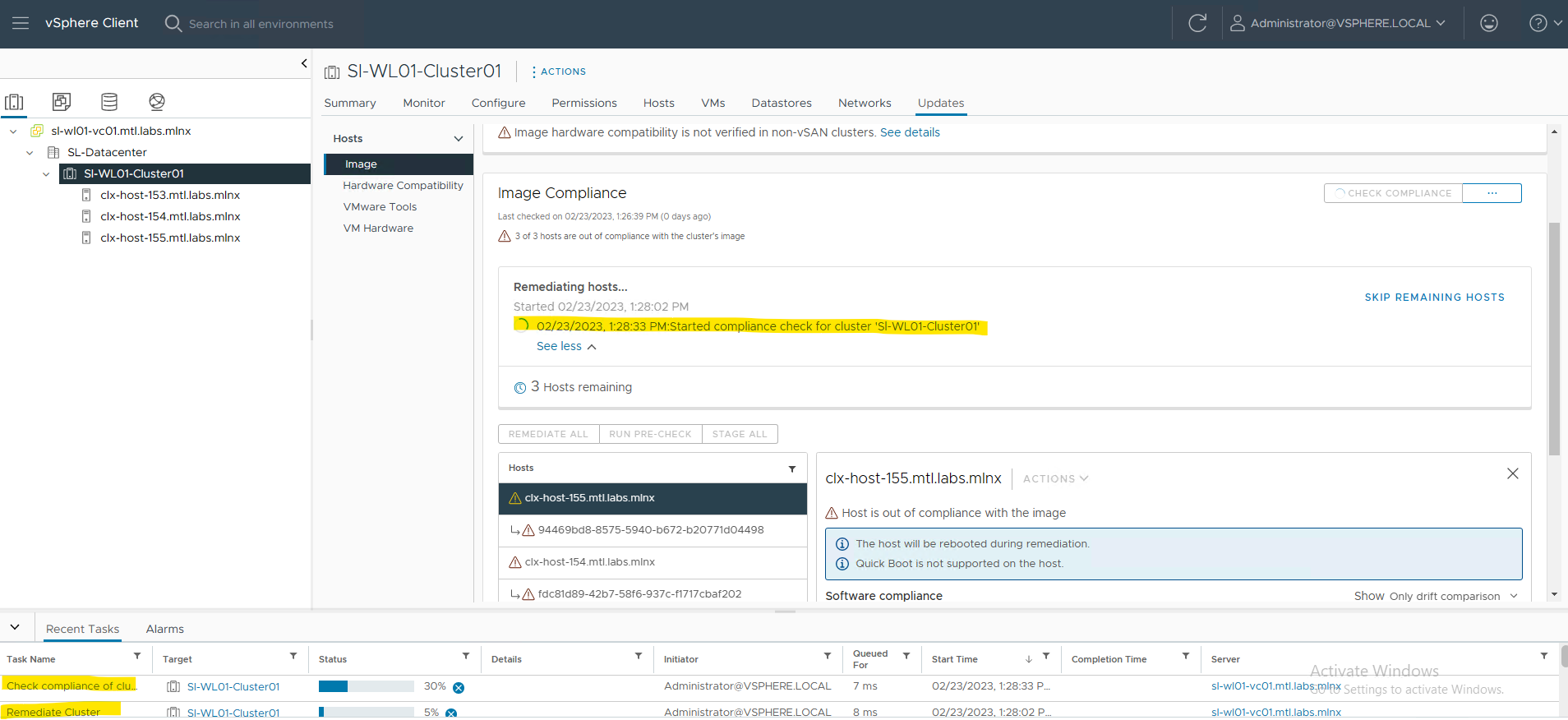
-
To Enter a host to Maintenance mode maybe you need to power off vCLS VMs on host manualy.
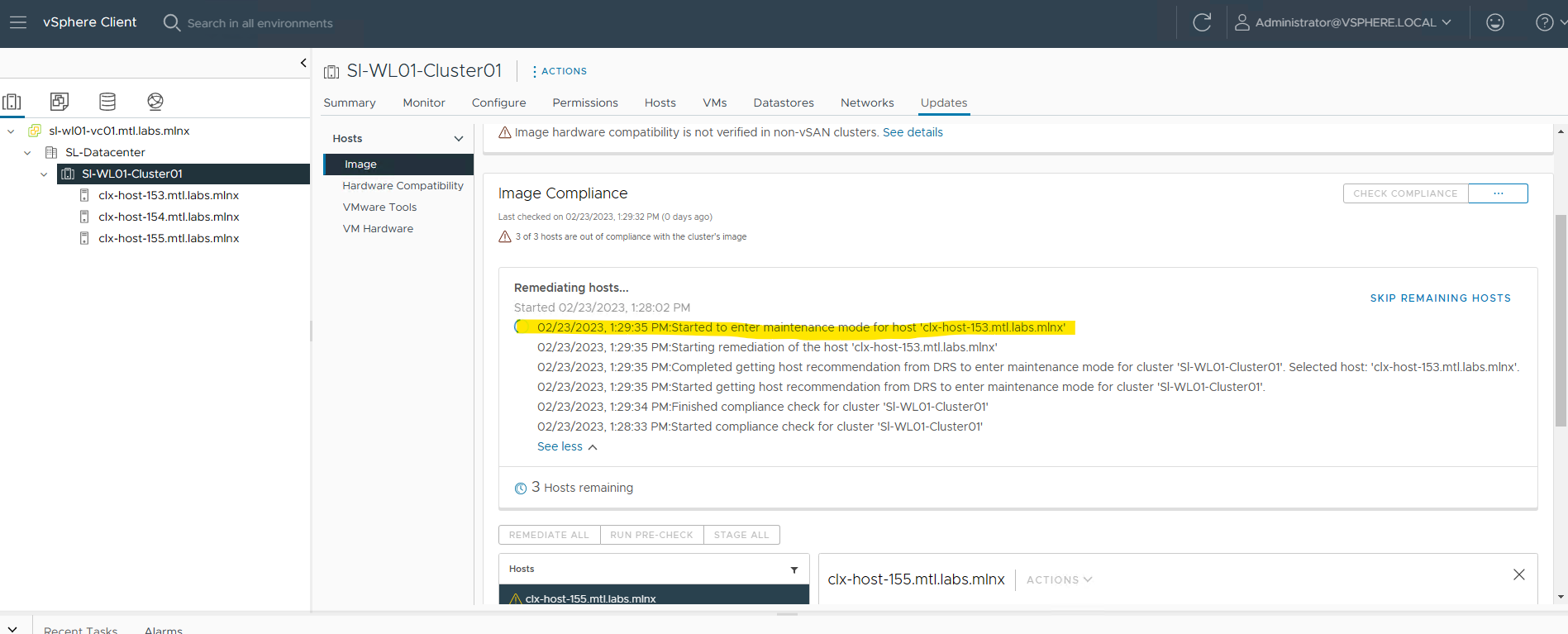
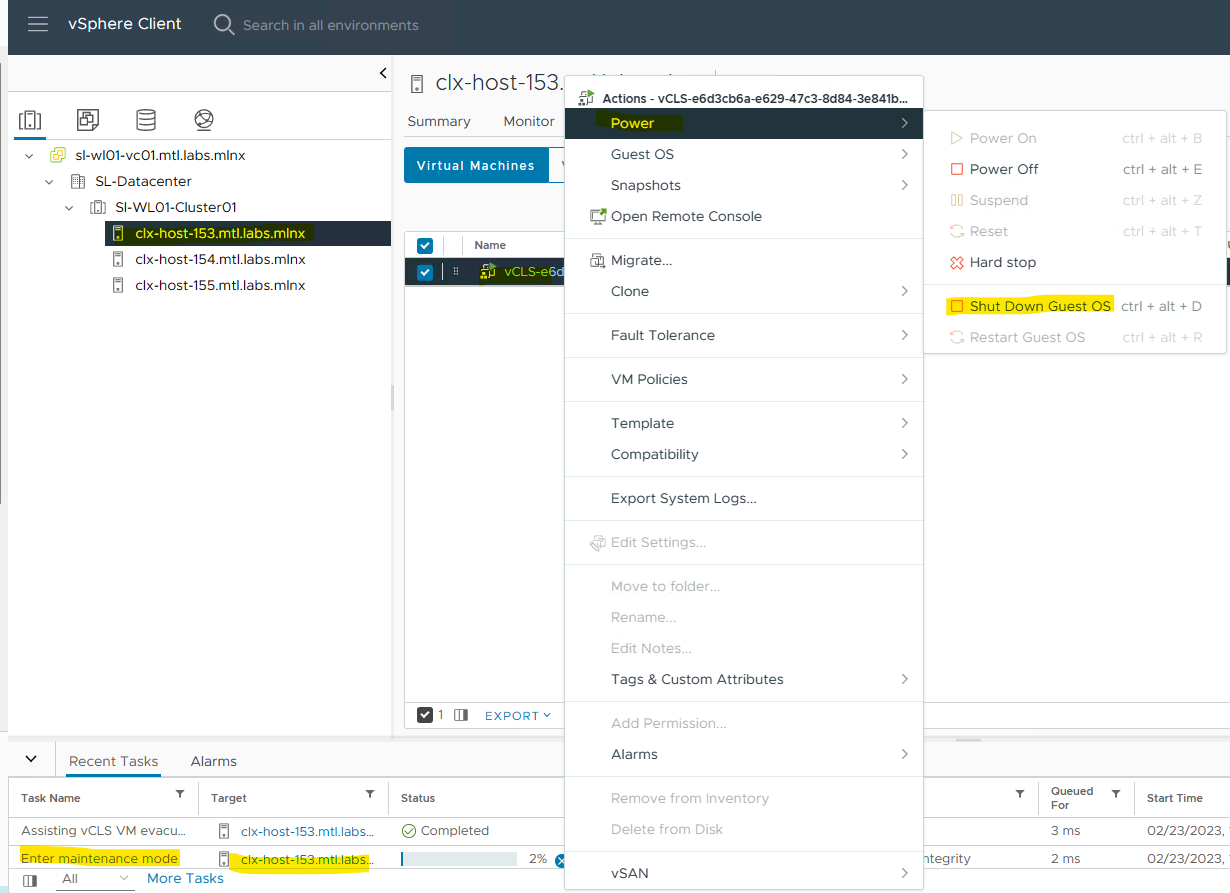
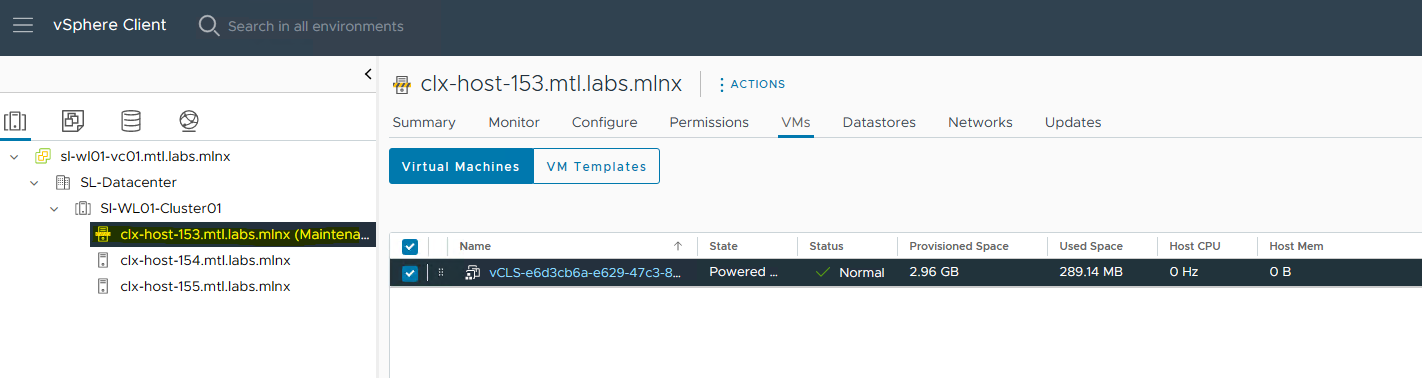
-
All host have now MFT tools installed.
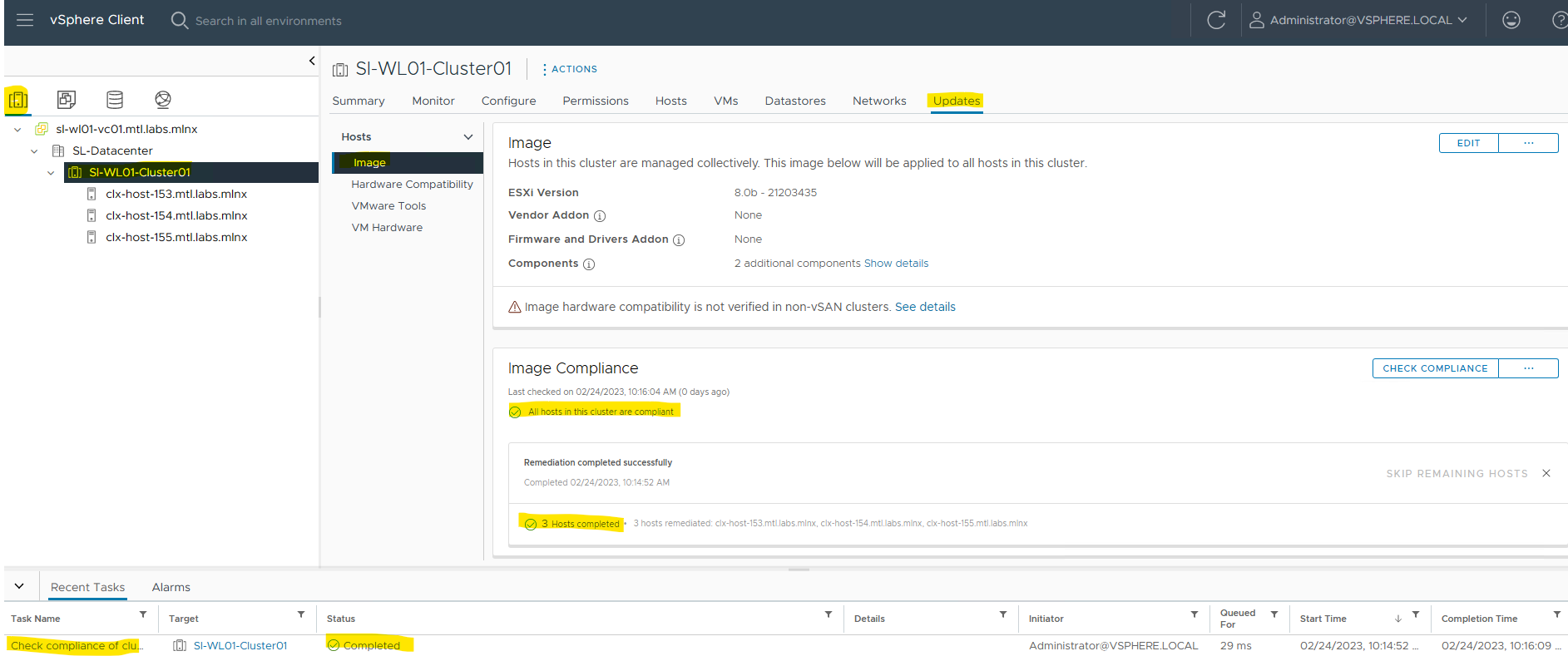
Verification
-
Enable SSH Access to ESXi server.
-
Log into ESXi console with root permissions.
-
Start the mst driver.
ESXi console
[root@clx-host-153:~] /opt/mellanox/bin/mst start Module mst is already loaded [root@clx-host-153:~] -
Check the current status of NVIDIA devices.
ESXi console
[root@clx-host-153:~] /opt/mellanox/bin/mst status PCI devices: ------------ DEVICE_TYPE MST PCI RDMA NET NUMA ConnectX6DX(rev:0) mt4125_pciconf0 39:00.0 ConnectX6DX(rev:0) mt4125_pciconf0.1 39:00.1 [root@clx-host-153:~] -
Query the device information.
ESXi console
[root@clx-host-153:~] /opt/mellanox/bin/mlxfwmanager --query
Querying Mellanox devices firmware ...

Device #1:
----------

  Device Type:      ConnectX6DX
  Part Number:      MCX623106AC-CDA_Ax
  Description:      ConnectX-6 Dx EN adapter card; 100GbE; Dual-port QSFP56; PCIe 4.0 x16; Crypto and Secure Boot
  PSID:             MT_0000000436
  PCI Device Name:  mt4125_pciconf6
  Base GUID:        0c42a103002404ea
  Base MAC:         0c42a12404ea
  Versions:         Current        Available
     FW             22.30.1004     N/A
     PXE            3.6.0301       N/A
     UEFI           14.23.0017     N/A

  Status:           No matching image found

[root@clx-host-153:~]
Appendix A
mst Synopsis
mst [switches]
Commands and Switches Description:
ESXi cli
mst start       						# Create special files that represent Mellanox devices in directory/dev. Load appropriate modules. After successfully completing this command, the mst driver will be ready to work.
mst stop       							# Stop Mellanox mst driver service and unload the kernel modules.
mst restart    							# "mst stop" followed by "mst start"
mst server start [-p|--port port]       # Start mst server to allow incoming connection. Default port is 23108.
mst server stop 						# Stop the mst server.
mst status 								# Print current status of Mellanox devices. Options: -v run with a high verbosity level (print more info on each device)
mst version 							# Print the version info
Done !
Authors
|
|
Boris Kovalev
Boris Kovalev has worked for the past several years as a Solutions Architect, focusing on NVIDIA Networking/Mellanox technology, and is responsible for complex machine learning, Big Data and advanced VMware-based cloud research and design. Boris previously spent more than 20 years as a senior consultant and solutions architect at multiple companies, most recently at VMware. He has written multiple reference designs covering VMware, machine learning, Kubernetes, and container solutions which are available at the NVIDIA Documents website. |

Last updated: