

Overview
The UFM Prime feature allows for the management of large fabrics, consisting of multiple sites, within a single product.
This feature is comprised of two layers: UFM Prime Provider and UFM Prime Consumer.
The UFM Provider functions as a UFM Prime Provider, exposing all local InfiniBand fabric information to the UFM consumer. On the other hand, the UFM Consumer acts as a UFM Prime Consumer, collecting and aggregating data from currently configured UFM Providers, enabling users to manage multiple sites in one place. While UFM Consumer offers similar functionality to regular UFM, there are several behavioral differences related to aggregation.
Setting Up UFM Prime
In /opt/ufm/files/conf/gv.cfg, fill in the section named [Multisubnet] for UFM Prime Provider and Consumer.
To set up UFM as a Prime Provider, perform the following:
-
Set
multisubnet_enabledtotrue -
Set
multisubnet_roletoprovider -
Set
multisubnet_site_name(optional, if not set, it will be randomly generated); e.g.,provider_1 -
Start UFM
To set up UFM as a Prime Consumer, perform the following:
-
Set
multisubnet_enabledtoTrue -
Set
multisubnet_roletoconsumer -
Start UFM
It is important to note that UFM Prime Consumer can be configured on a machine or VM without an established InfiniBand connectivity. Additionally, users may customize UFM Provider and Consumer using optional configuration parameters found in the [Multisubnet] section of /opt/ufm/files/conf/gv.cfg.
Network Configuration for UFM Prime Provider
For the UFM Consumer to successfully collect data from a UFM Provider, the following network prerequisites must be met on the provider machine.
Required Ports
The consumer connects to the provider over HTTP on two ports:
|
Port |
Purpose |
Configuration Parameter |
|---|---|---|
|
7102 (default) |
Topology data |
|
|
9001 (default) |
Telemetry data (Prometheus endpoint) |
|
Both ports must be open and reachable from the consumer machine. If your environment uses a firewall, ensure inbound traffic on these ports is allowed.
For UFM Appliance deployments, refer to the NVIDIA UFM Appliance User Manual for instructions on configuring firewall rules.
Telemetry Binding Address
By default, the telemetry endpoint (primary_ip_bind_addr in the [Telemetry] section of /opt/ufm/files/conf/gv.cfg) is bound to 127.0.0.1, which restricts it to local connections only. The topology provider (port 7102) already listens on all interfaces and requires no change, but the telemetry endpoint does. On the provider, change:
primary_ip_bind_addr = 0.0.0.0
This makes the telemetry endpoint listen on all network interfaces, allowing the consumer to connect remotely. Alternatively, you can set it to a specific IP address that is routable from the consumer.
Warning: Setting
primary_ip_bind_addrto0.0.0.0exposes the telemetry endpoint on all network interfaces. Ensure that appropriate firewall rules are in place to restrict access to trusted consumer machines only.
Functionality
-
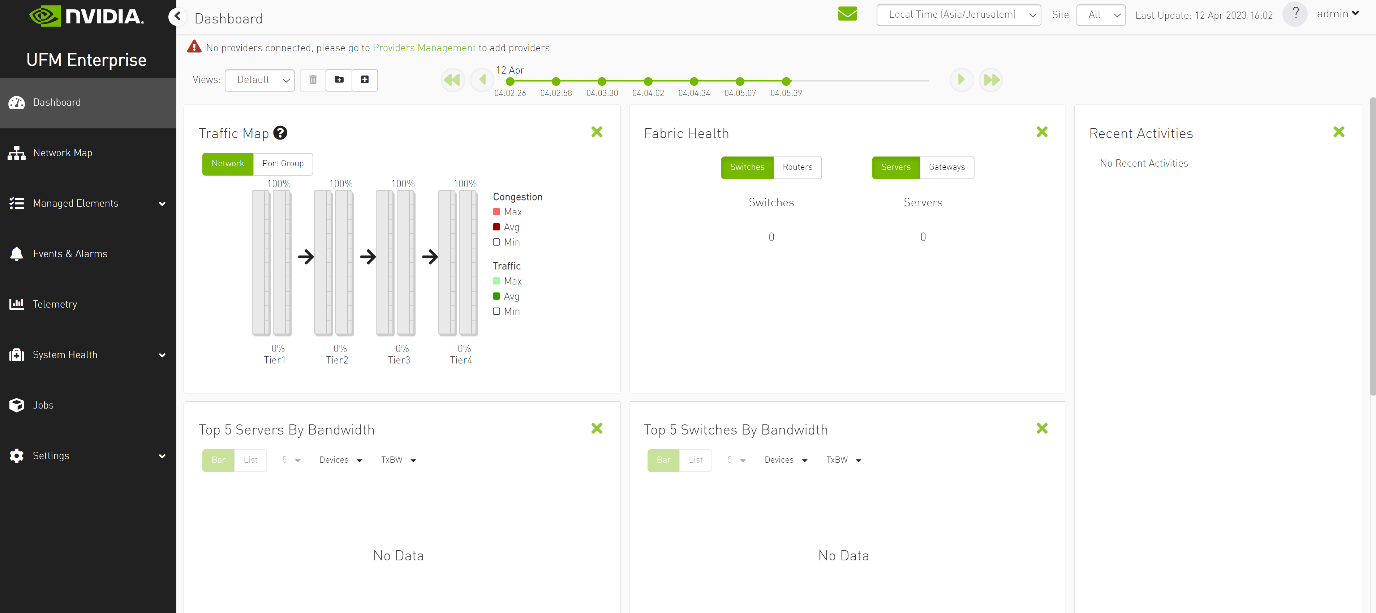
Following the initial launch of the Consumer (and if the consumer has no provider configured), the Dashboard view is devoid of data, and a message containing a hyperlink leading to the Provider Management section is displayed.

-
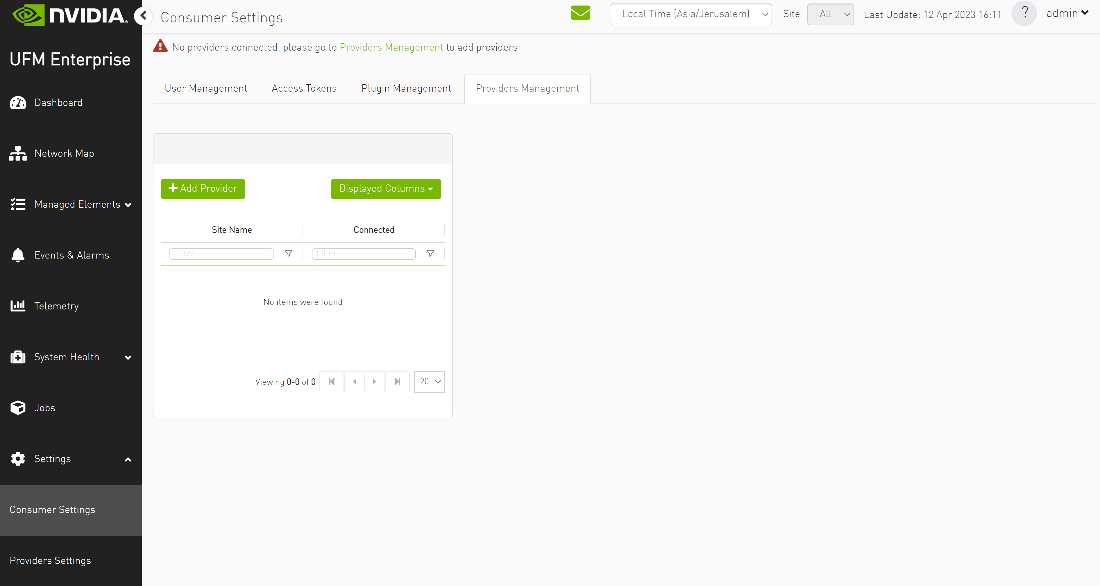
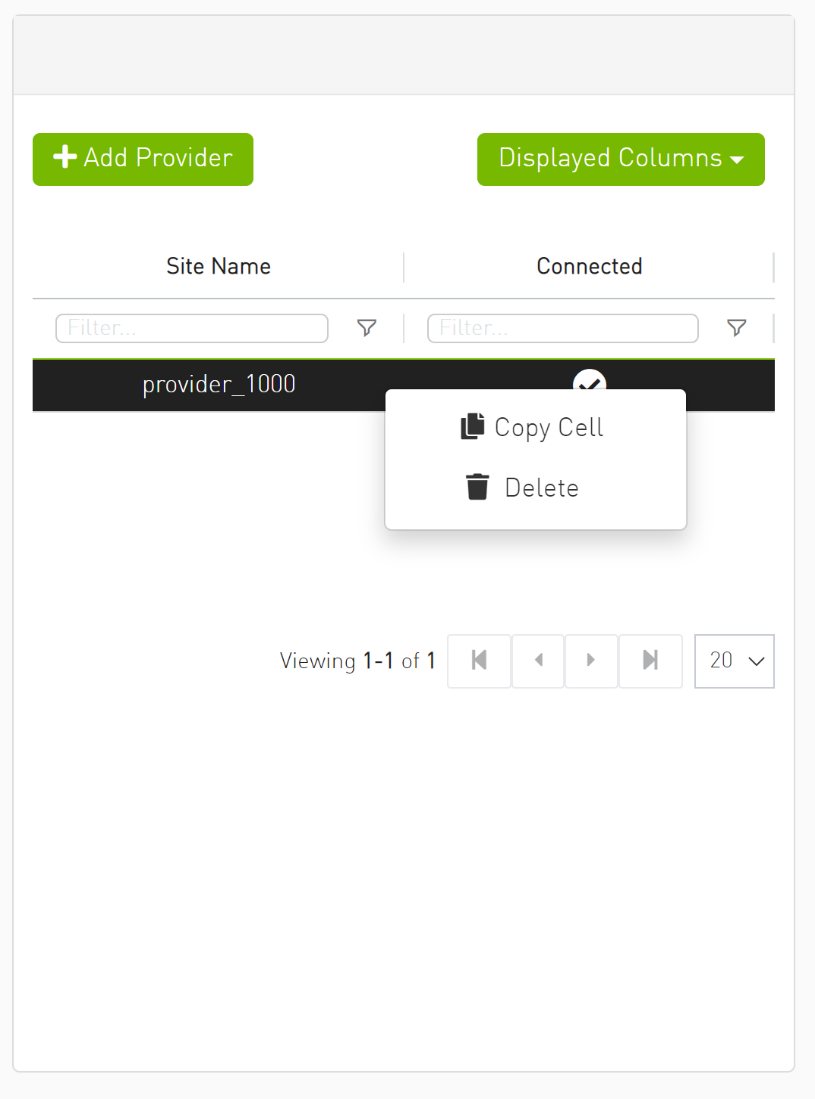
As shown in the below snapshot, a new section for Provider Management has been added, enabling users to configure UFM Providers.
-
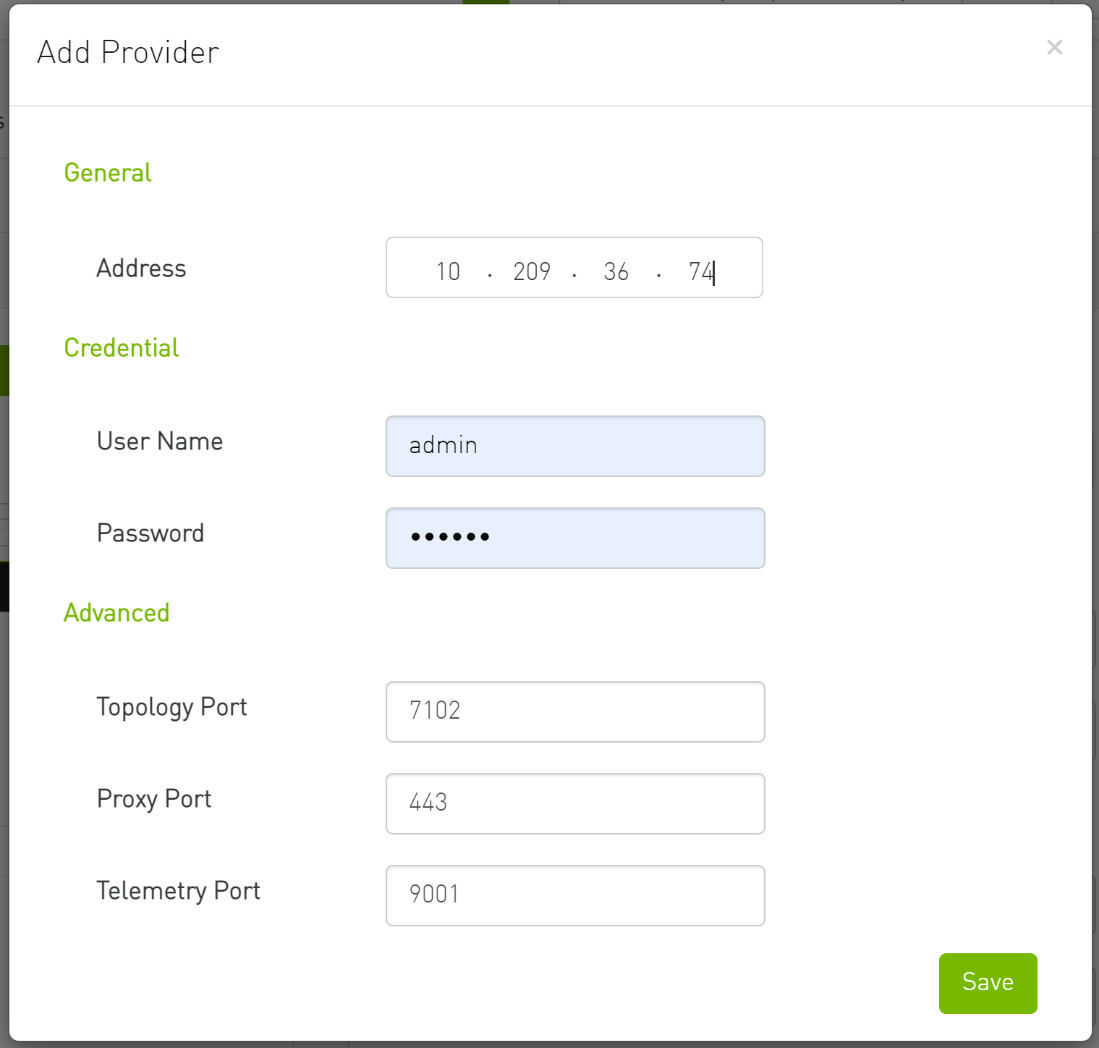
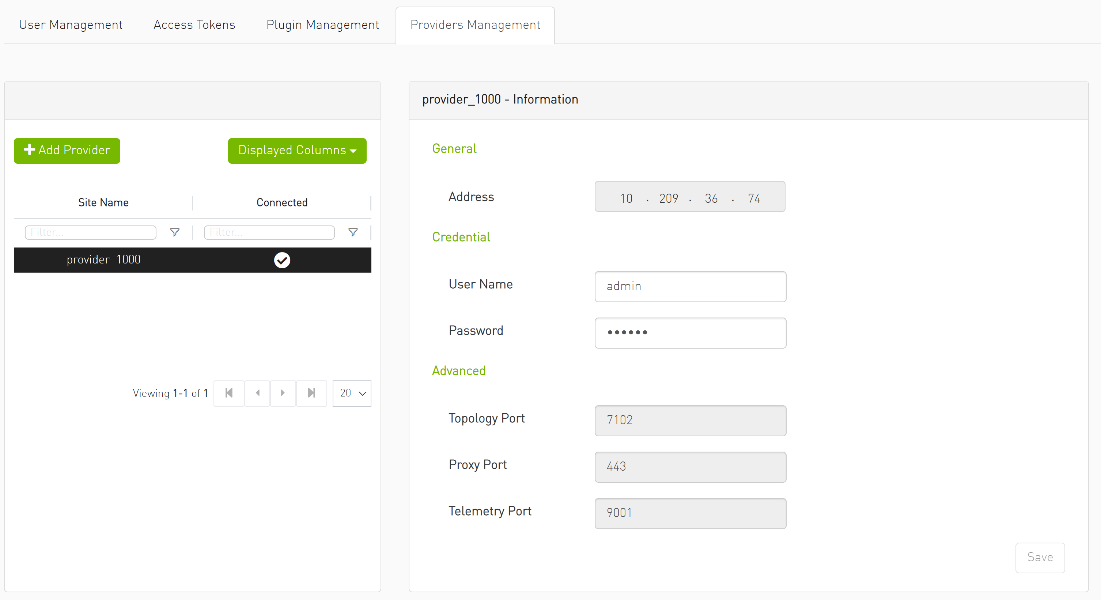
To add a provider, the user is required to enter its IP address and either the defined credentials or the pre-generated access token. Unless there are multiple instances of UFM providers on a single machine, the advanced section parameters should be set with default values. However, if there are multiple instances, the advanced parameters may be set per Provider and then be configured in the Providers Management view.
-
By editing the Provider view, you can change Provider's credentials.
-
The "Delete Provider" function removes the selected Provider from the Consumer. Please note that this action may take some time to complete, and changes may only be reflected in the view after approximately 30 seconds.
-
-
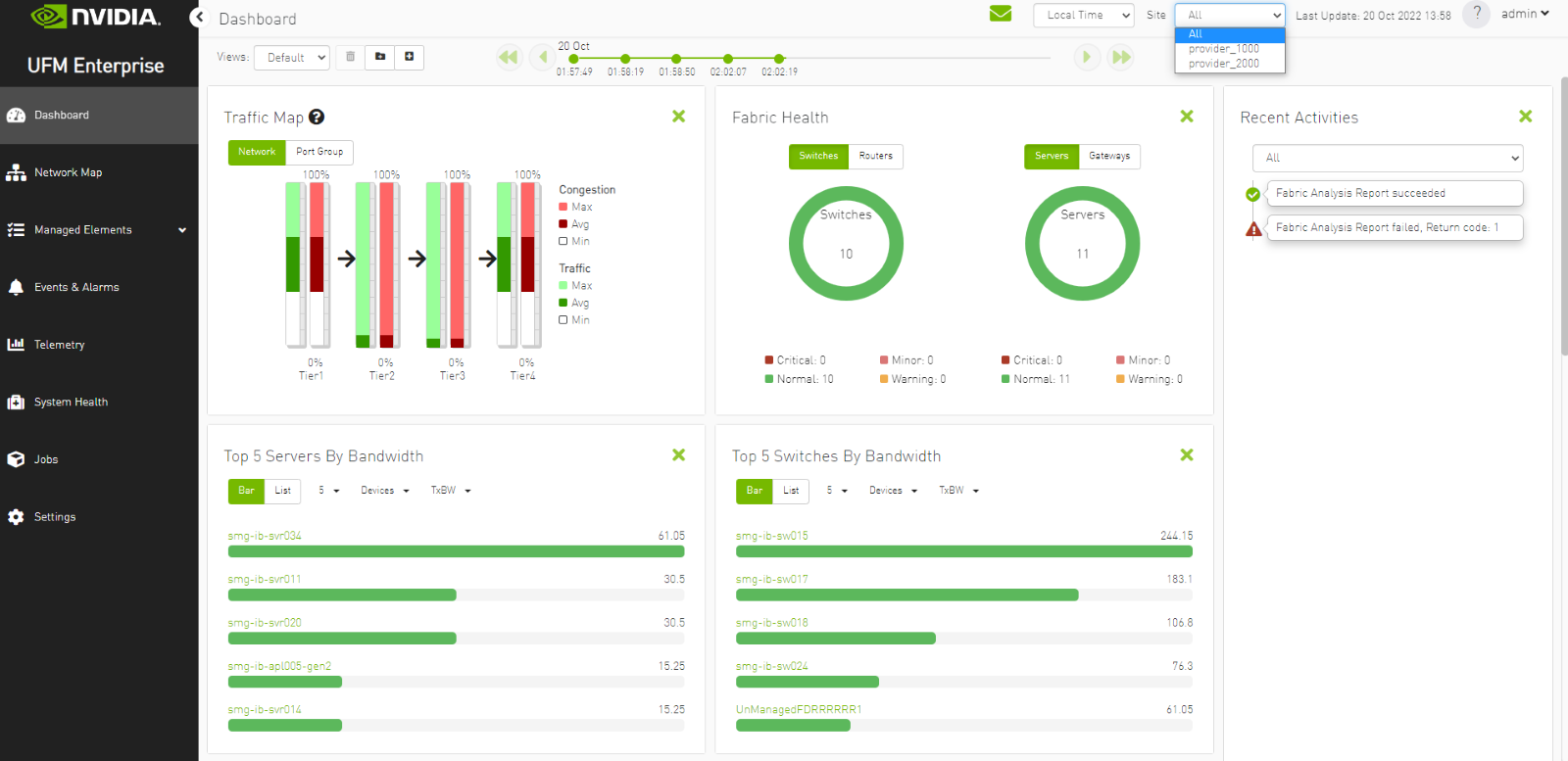
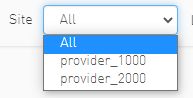
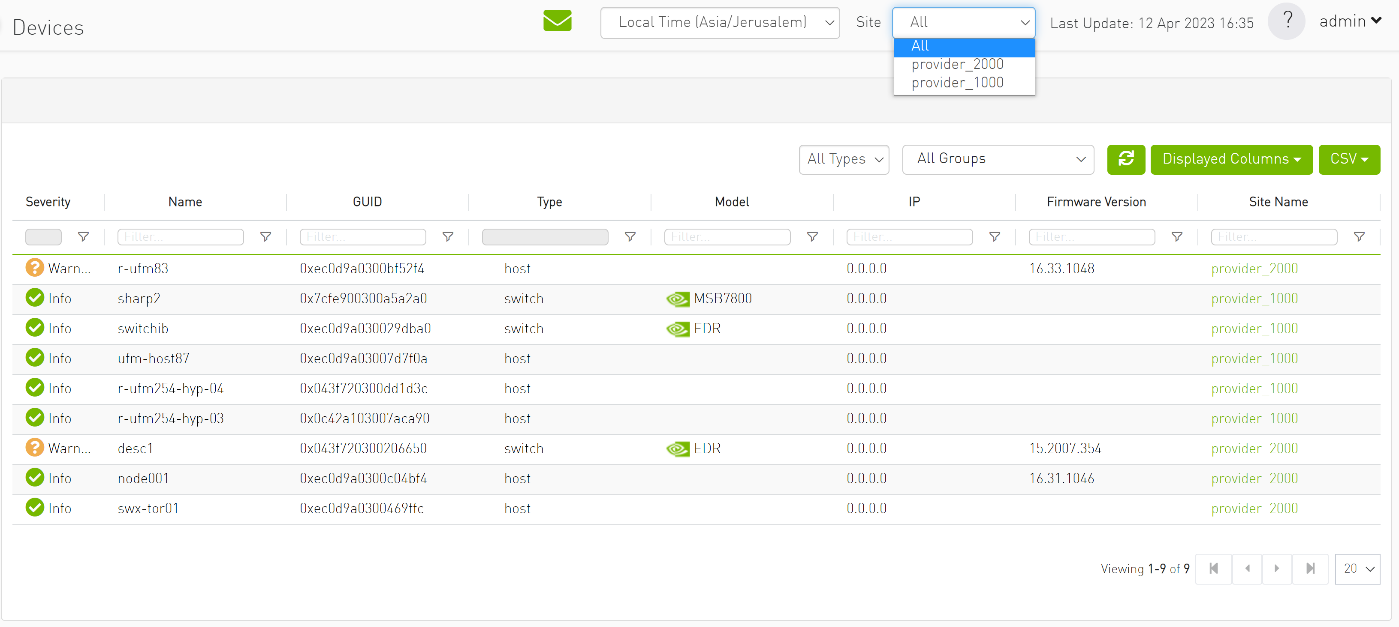
A general filter has been added to the top right corner of the page, enabling users to filter displayed data by site.
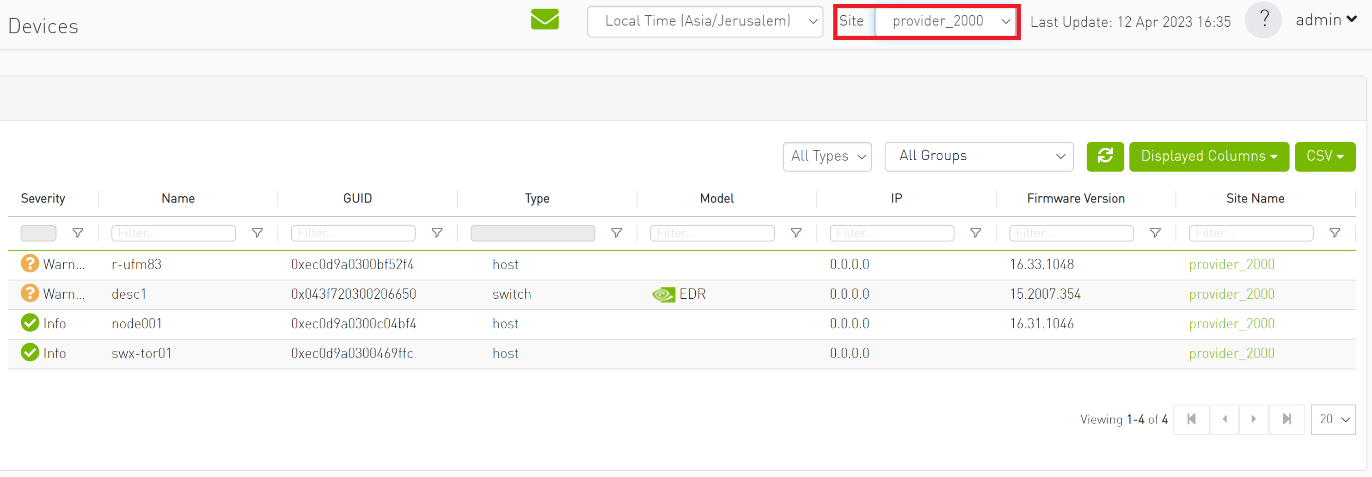
-
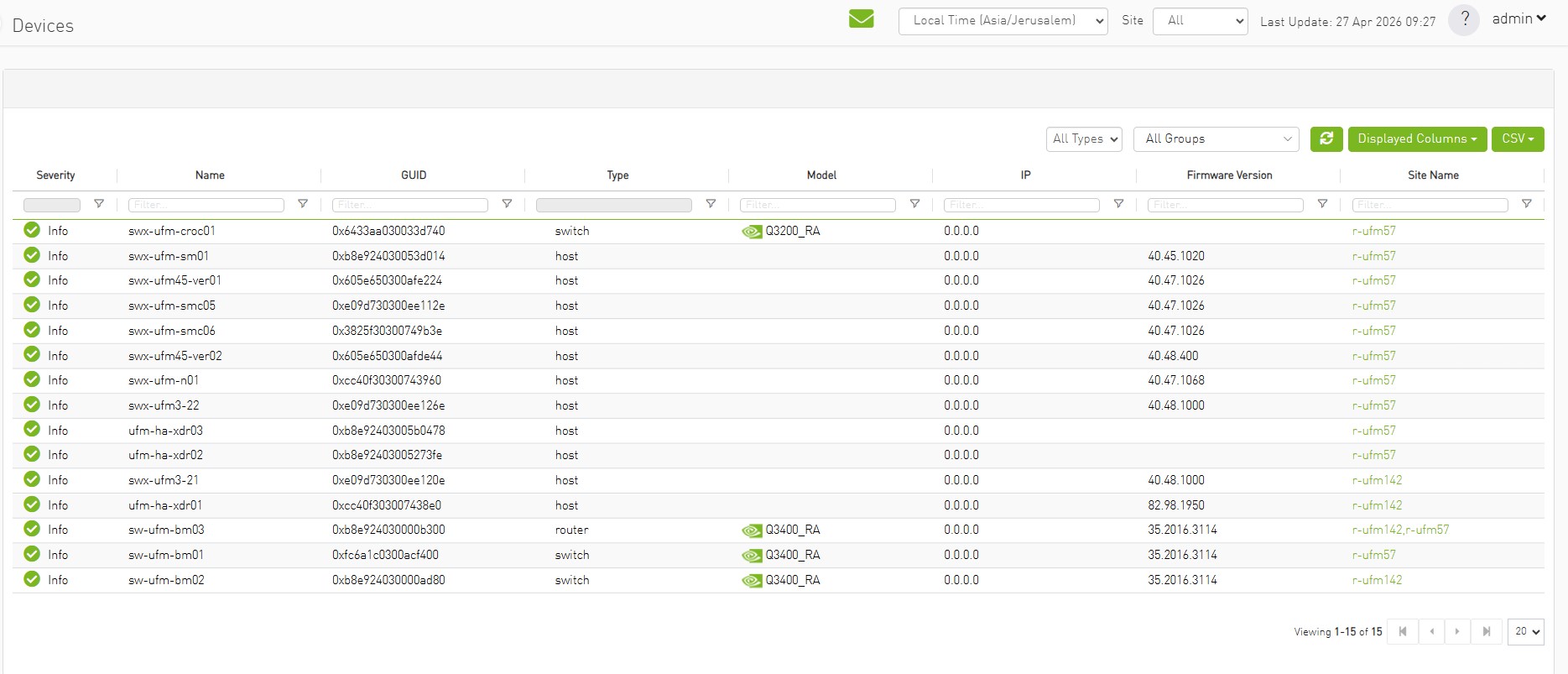
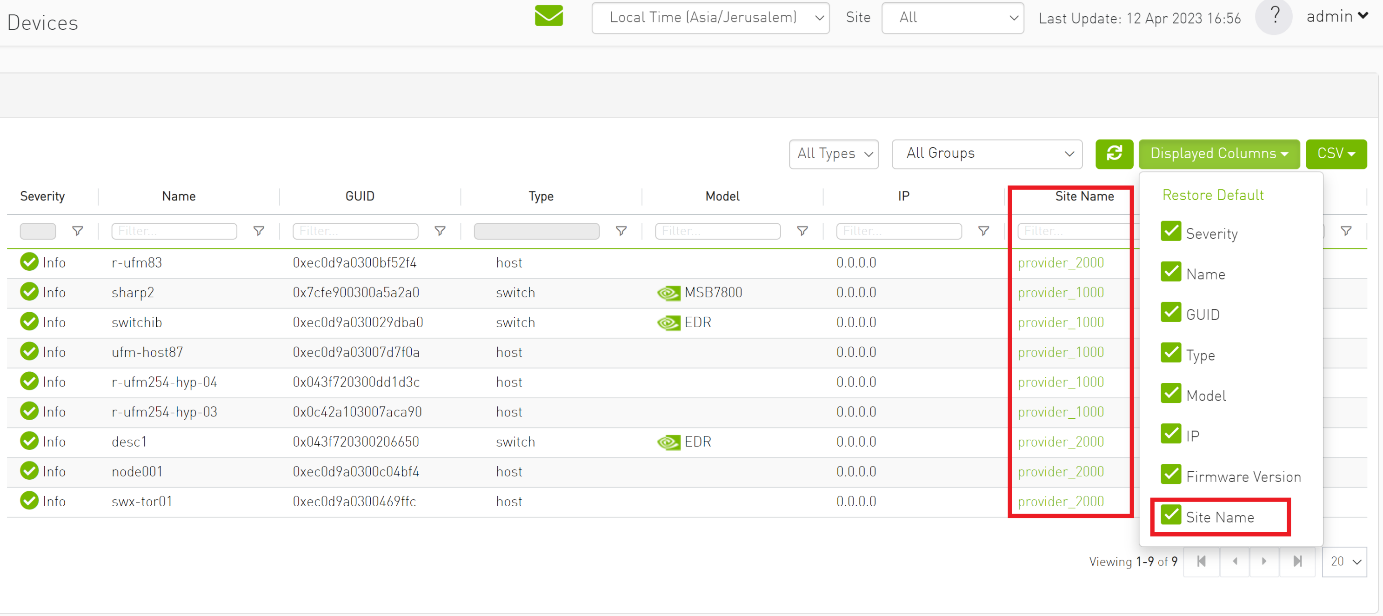
In case the XDR router is connecting subnets, the Site Name column will show all the sites connected to it.
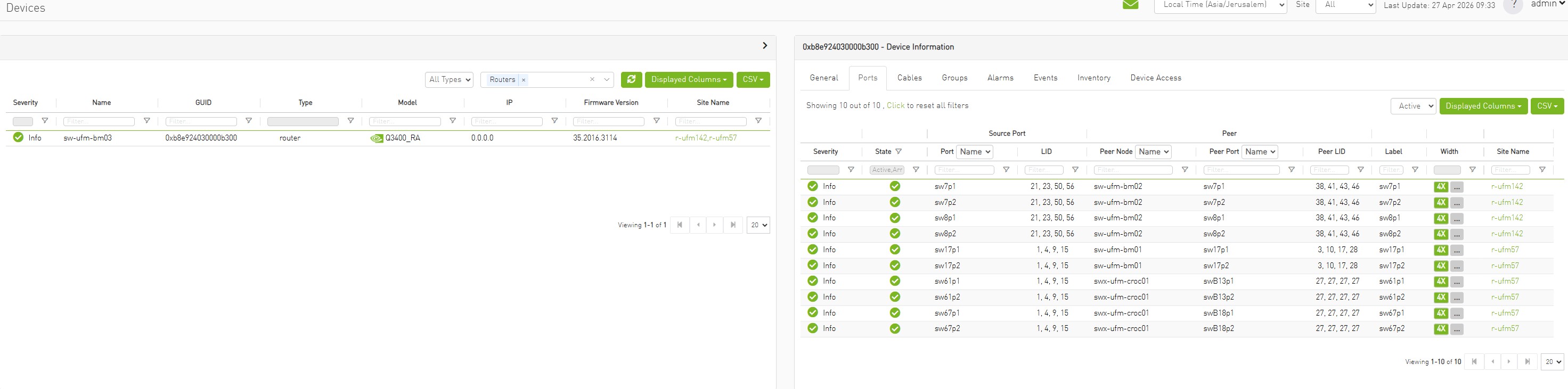
For router in ports view will appear in Site column name of site this port connected to
-
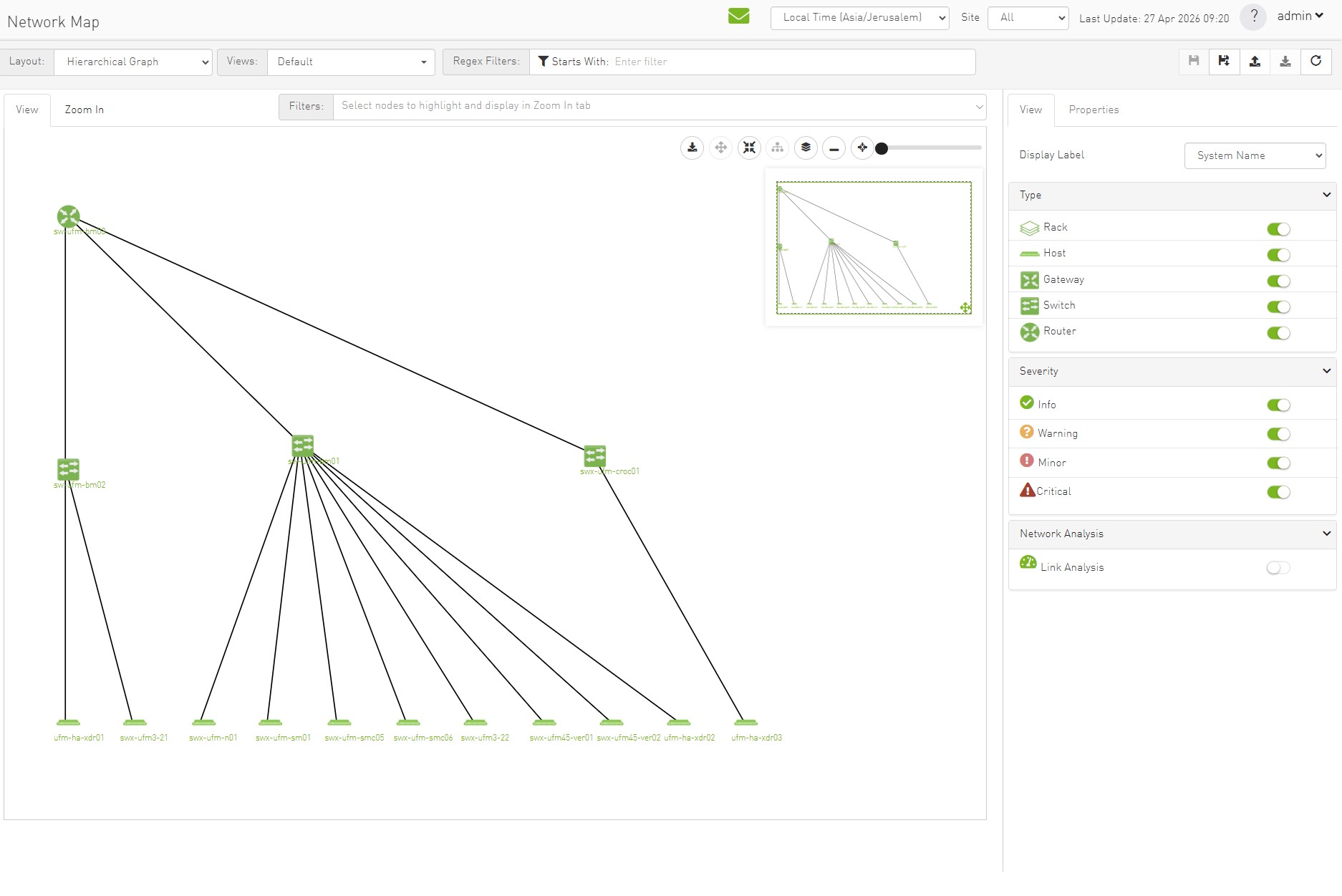
Network map contains “clouds” for each provider.
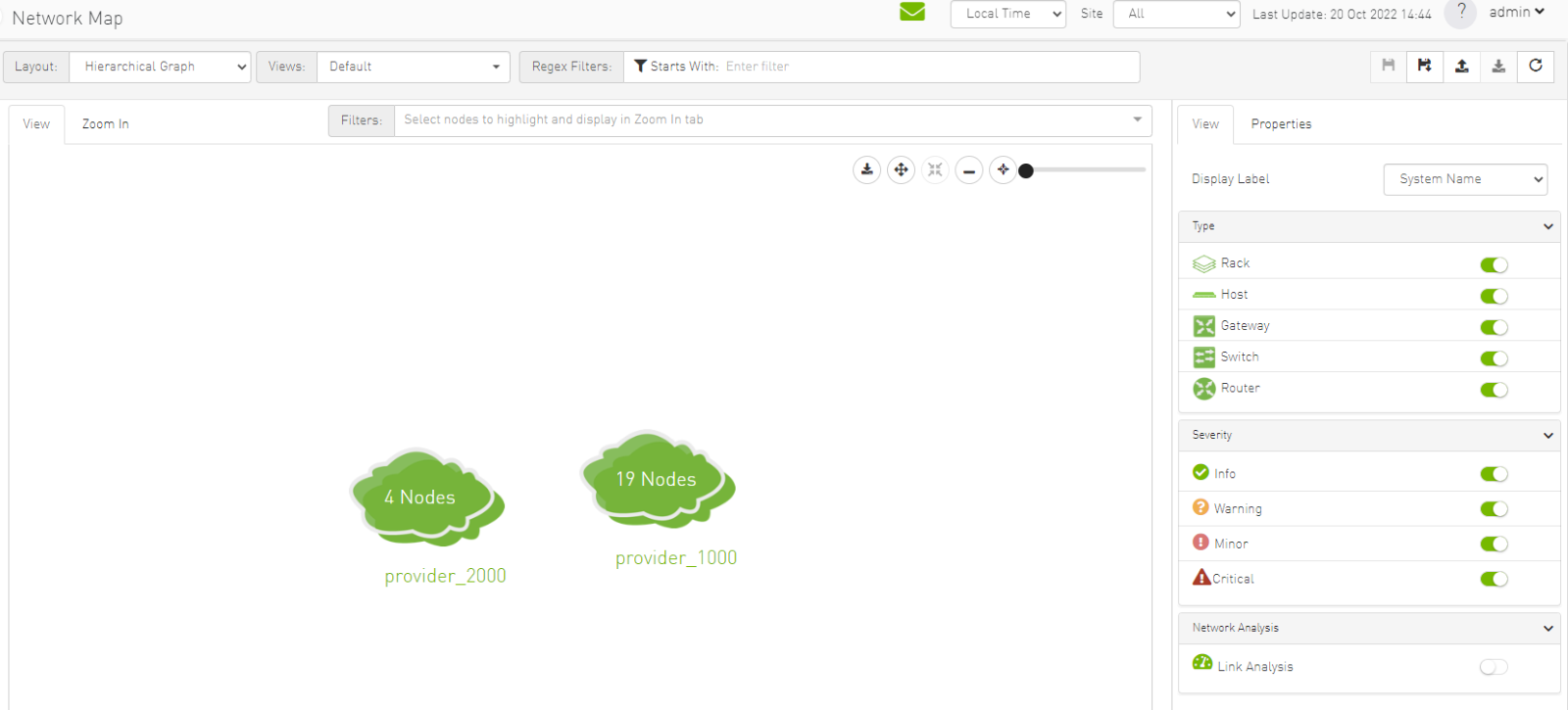
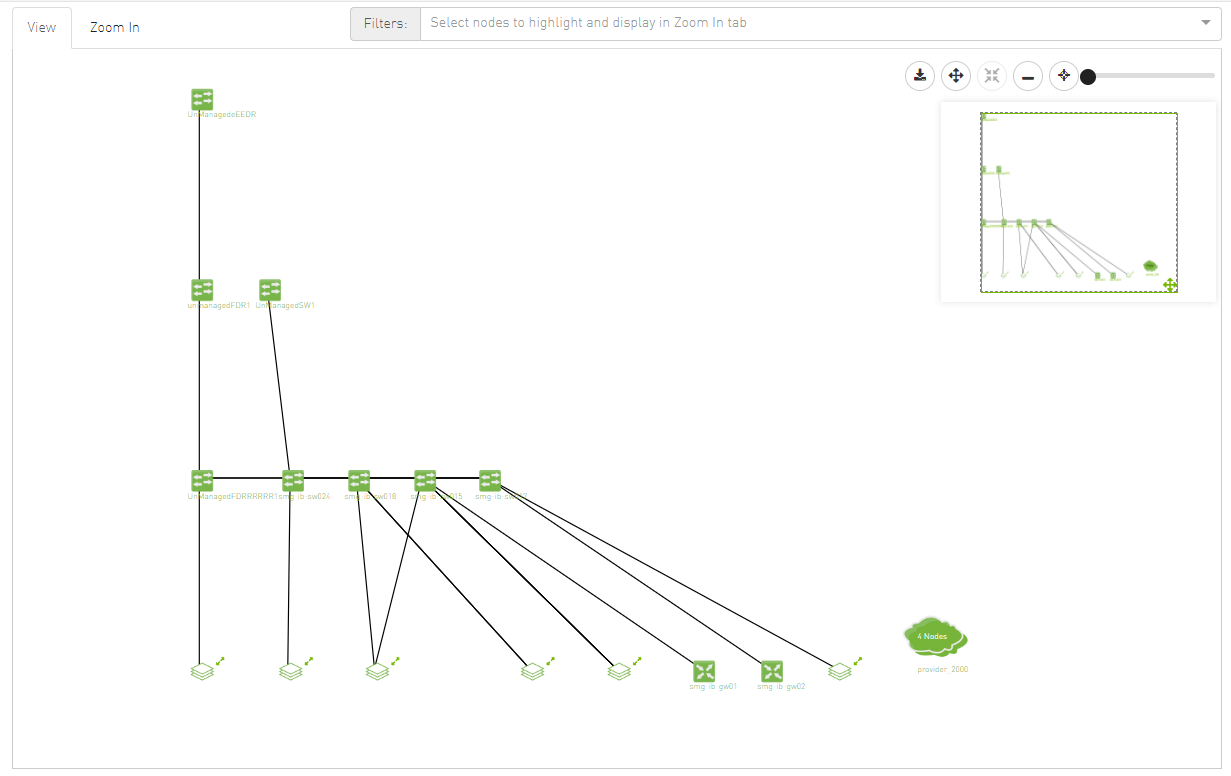
-
If an XDR router is connecting Sites, the map will include Router as separate entity.
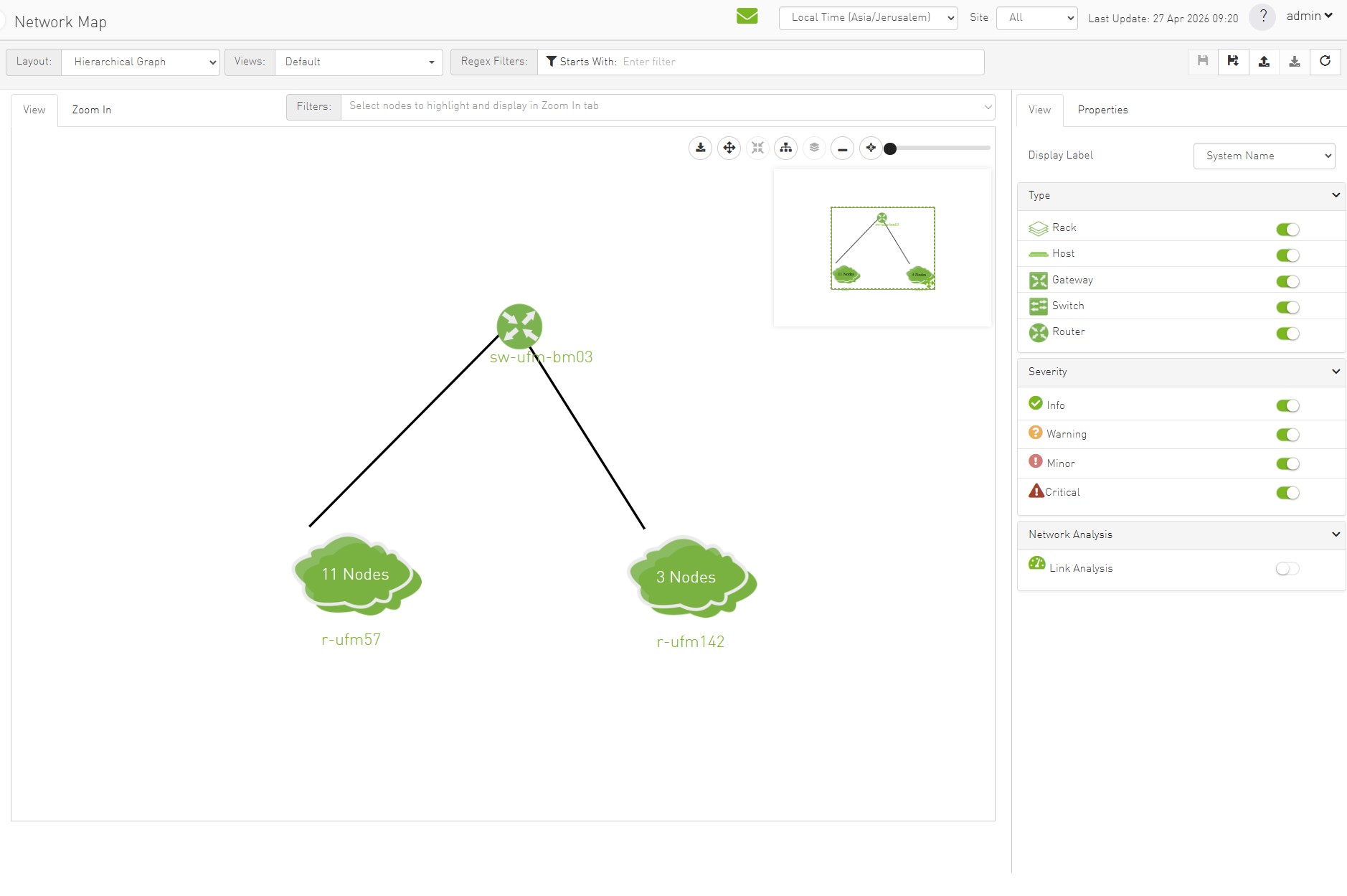
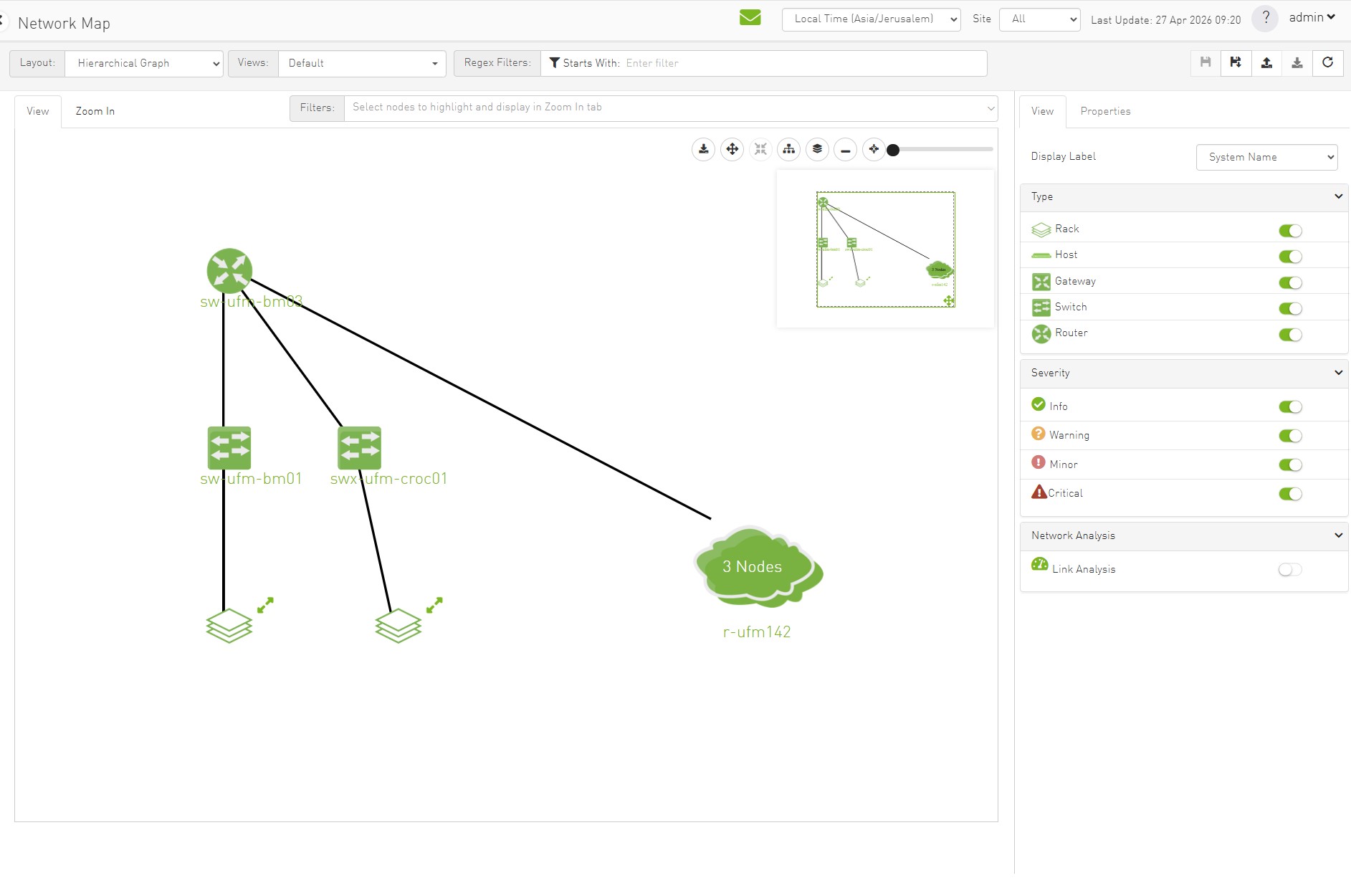
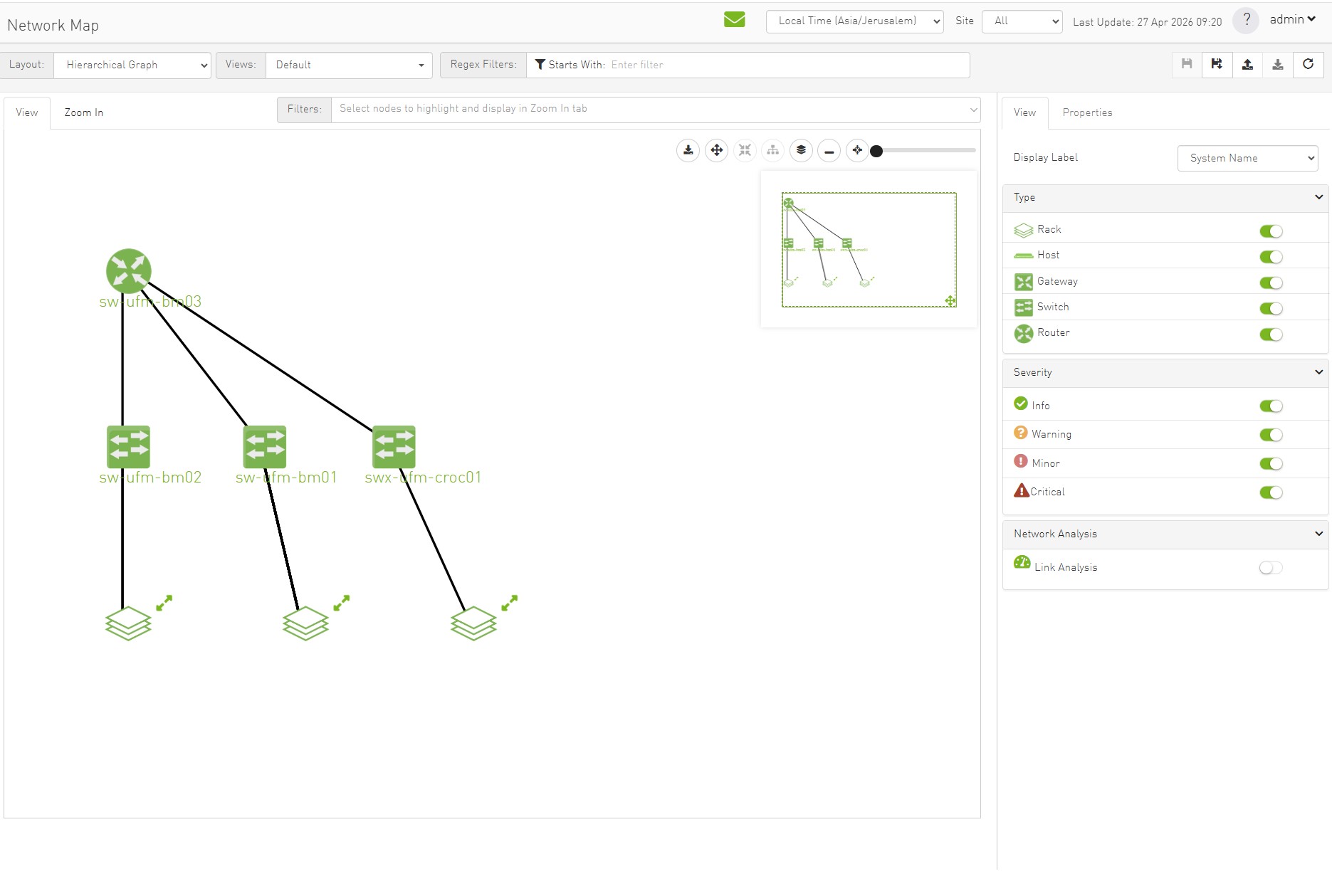
-
XDR Router In-Service Software Upgrade
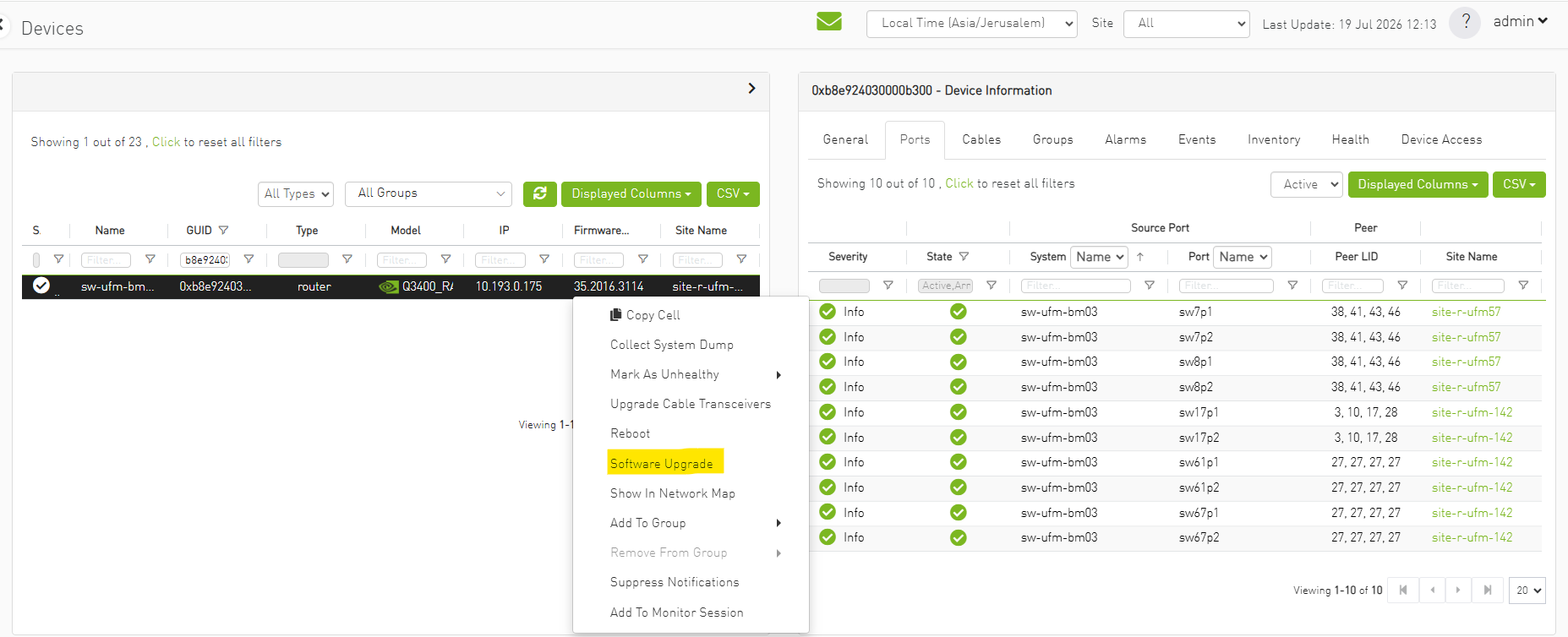
Added support for performing an in-service software upgrade on an XDR router connected to multiple providers/sites. The in-service software upgrade can be initiated from the Consumer side only.
The upgrade parameters are identical to those used for a regular switch software upgrade.
-
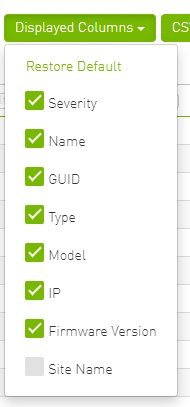
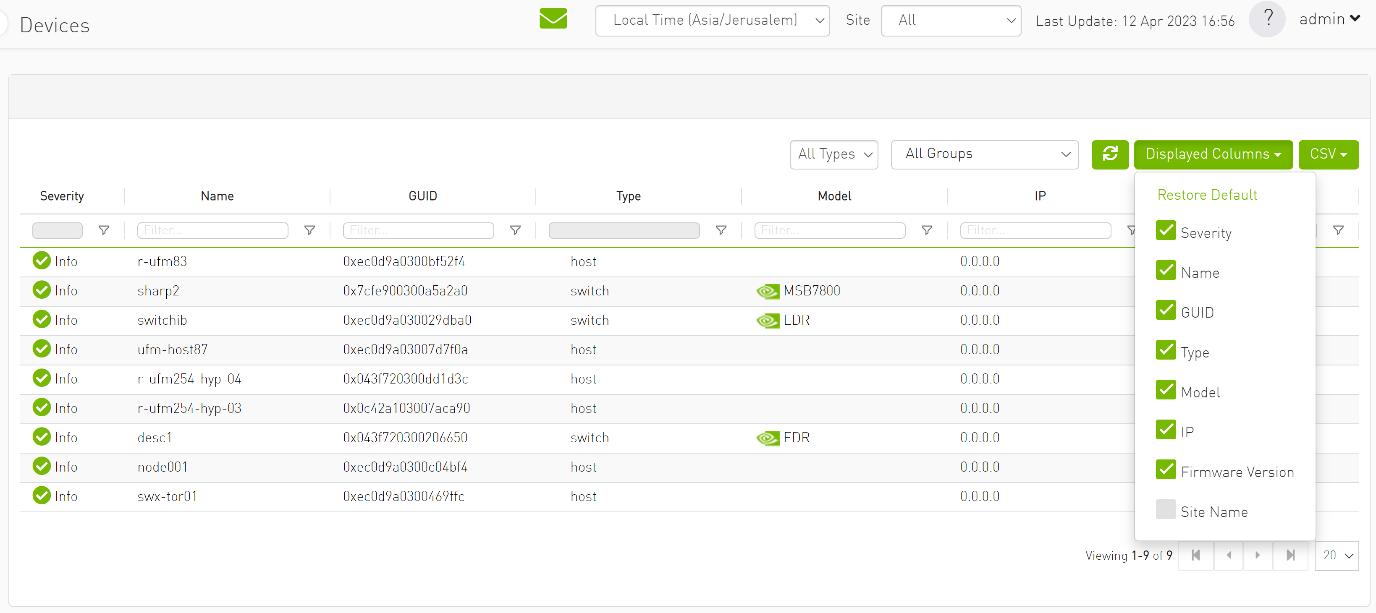
A "Site Name" column is present in all Managed Elements sections. The column is disabled (hidden) by default.
-
Shared (Multi-Site) Hosts
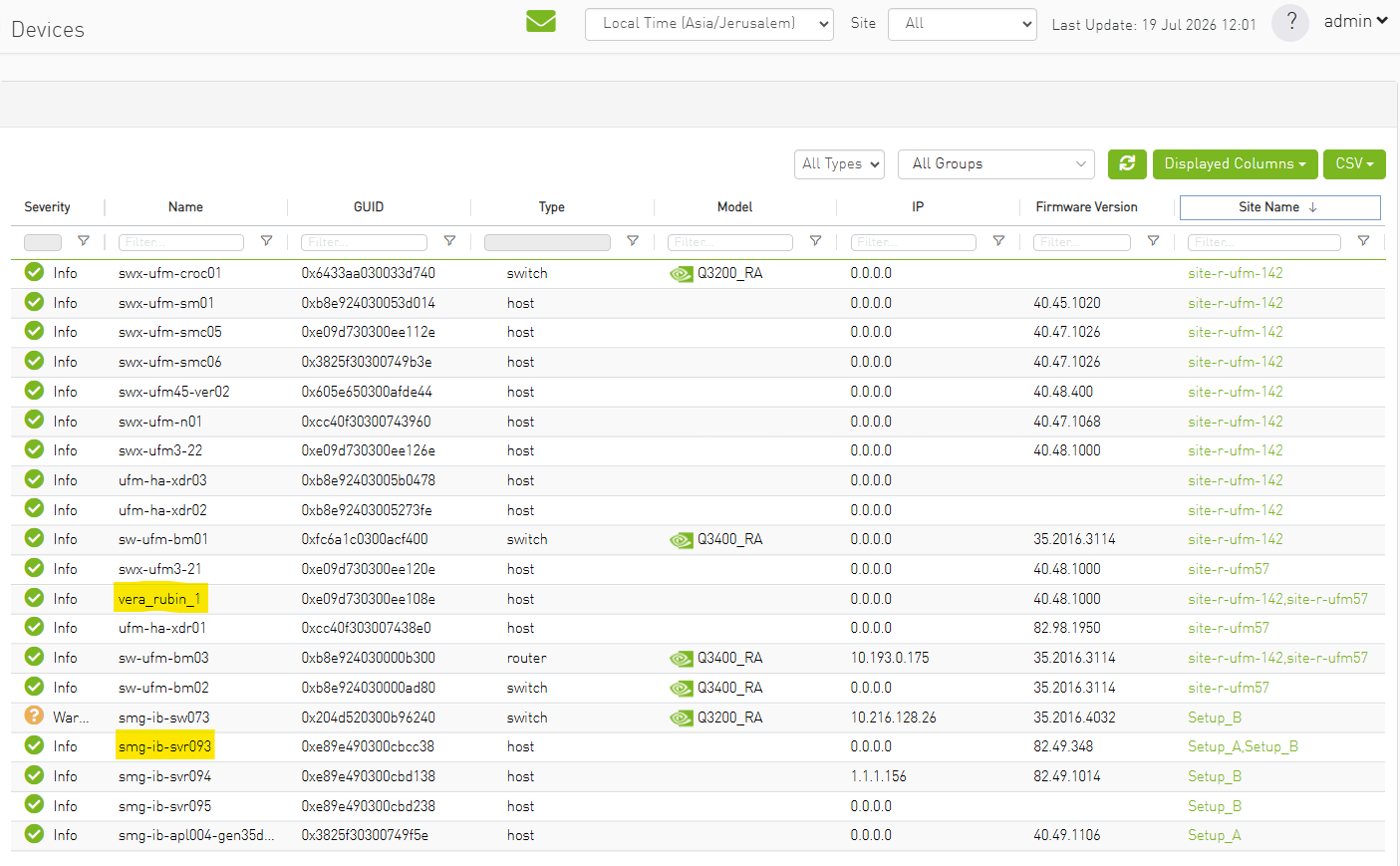
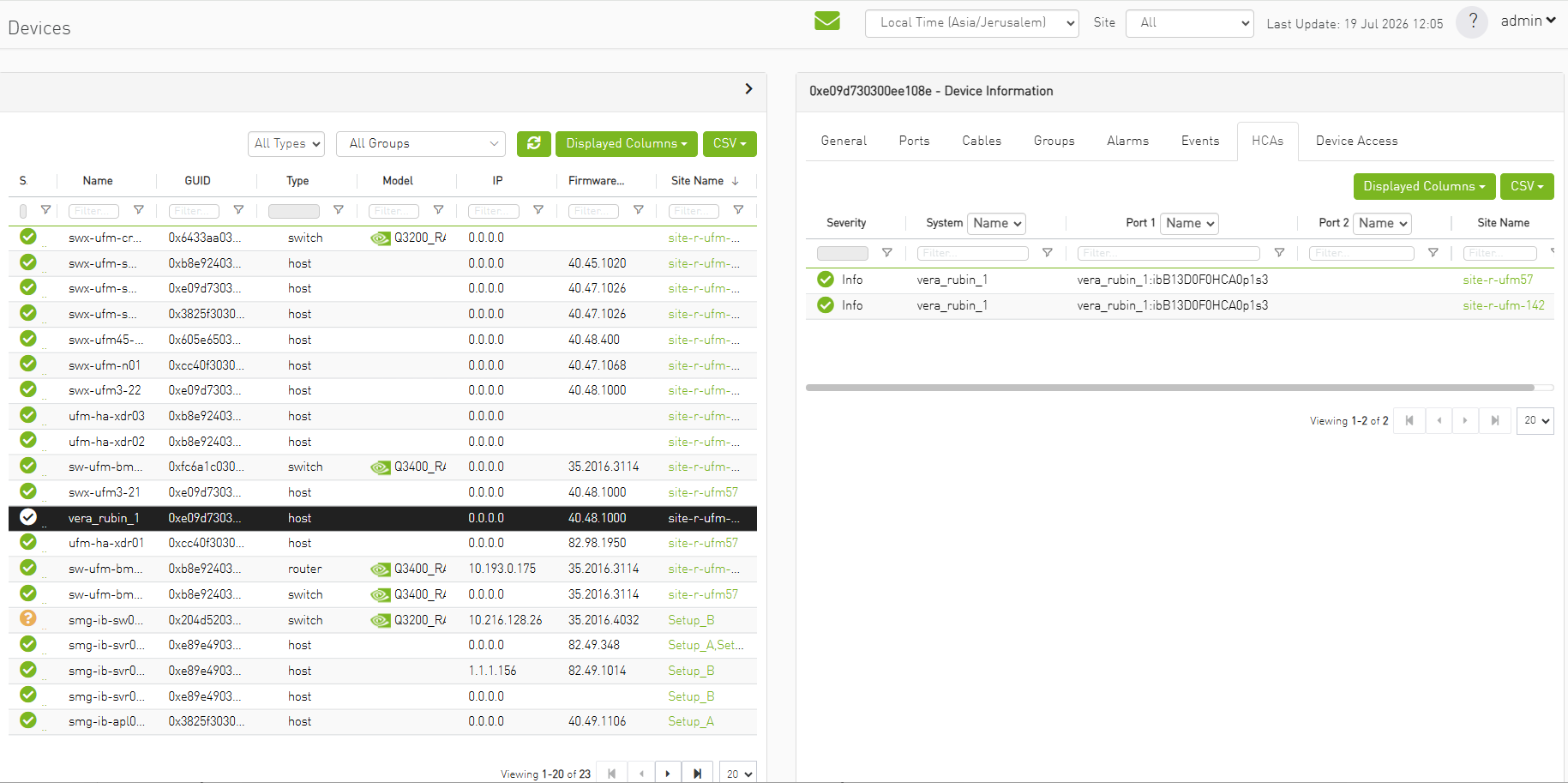
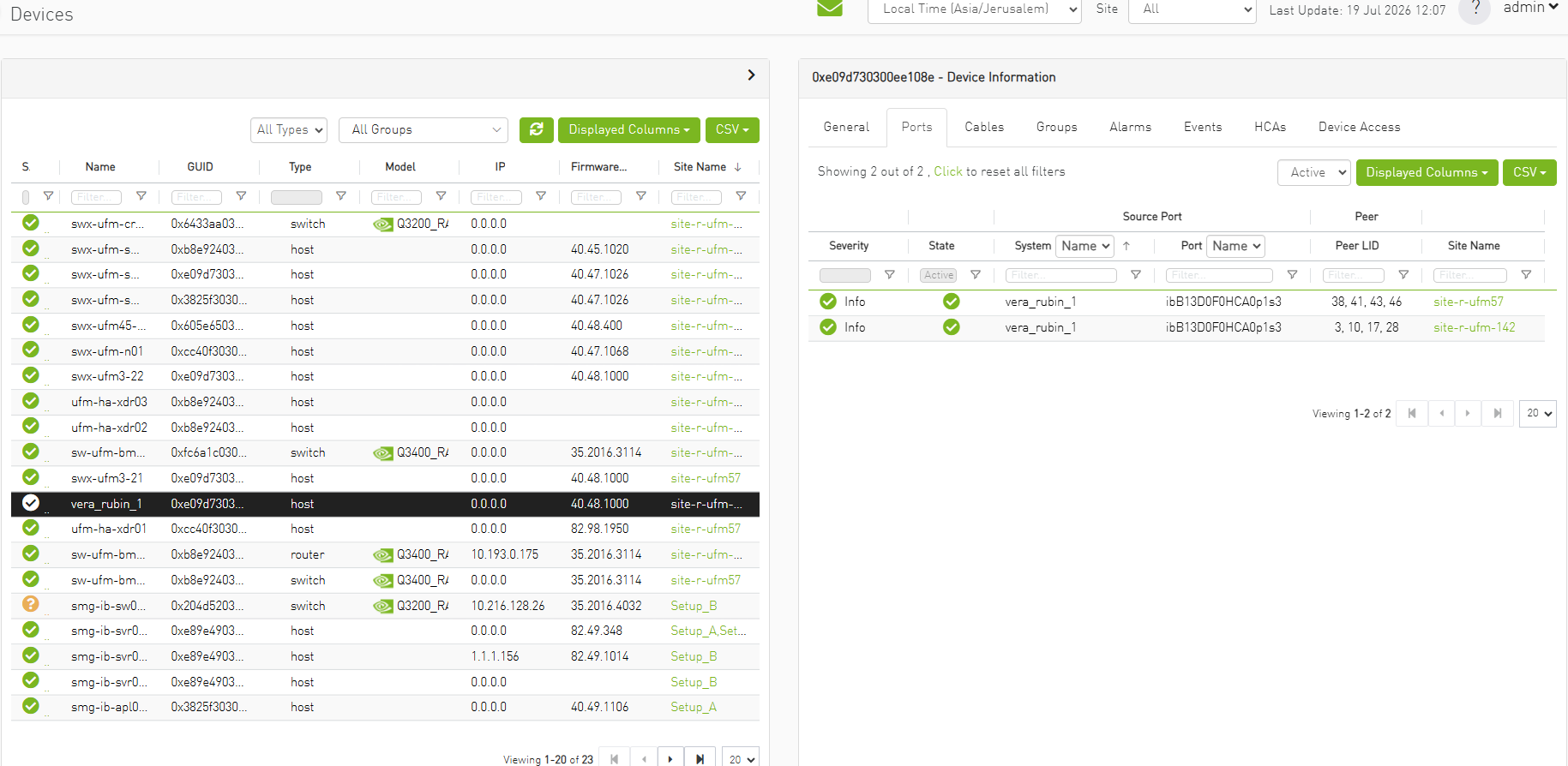
In a multi-subnet Consumer environment, a server whose HCAs are connected to different Providers is considered a shared (multi-site) host. In this configuration, the same physical host is discovered through multiple sites.-
The host's
site_namefield contains a comma-separated list of all sites to which the host belongs. -
Each HCA (module) and port of a shared host has its own
site_namevalue, identifying the site/Provider to which it is connected. -
-
-
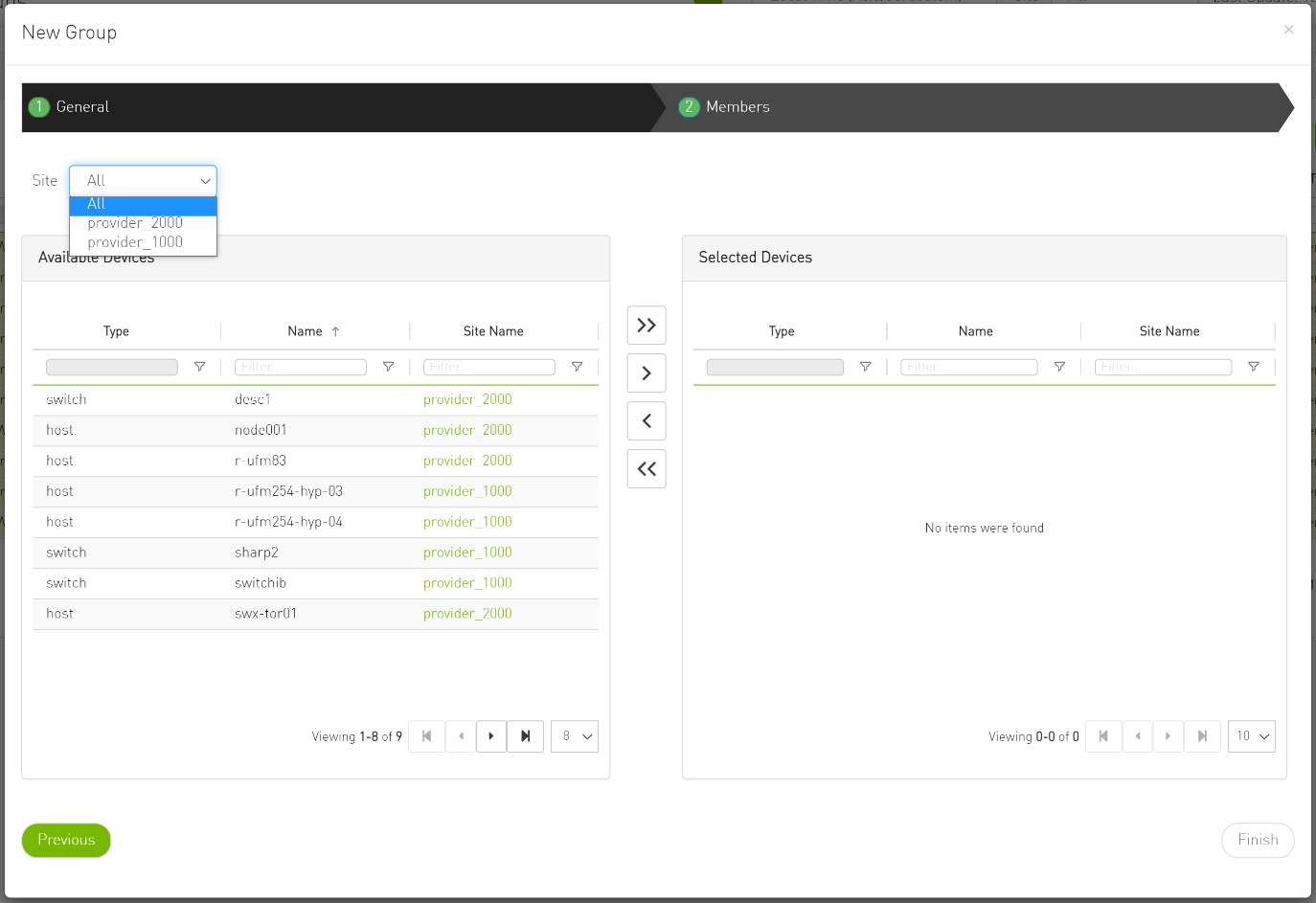
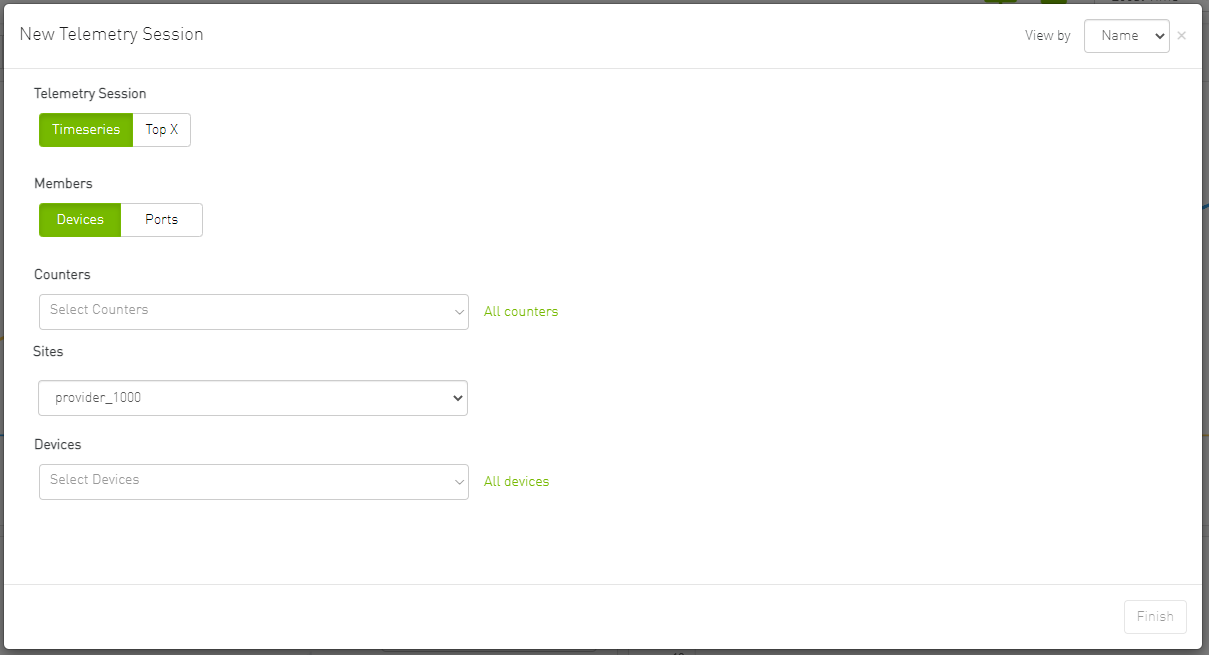
The "Group" and "Telemetry" sections include "Site" filters.
-
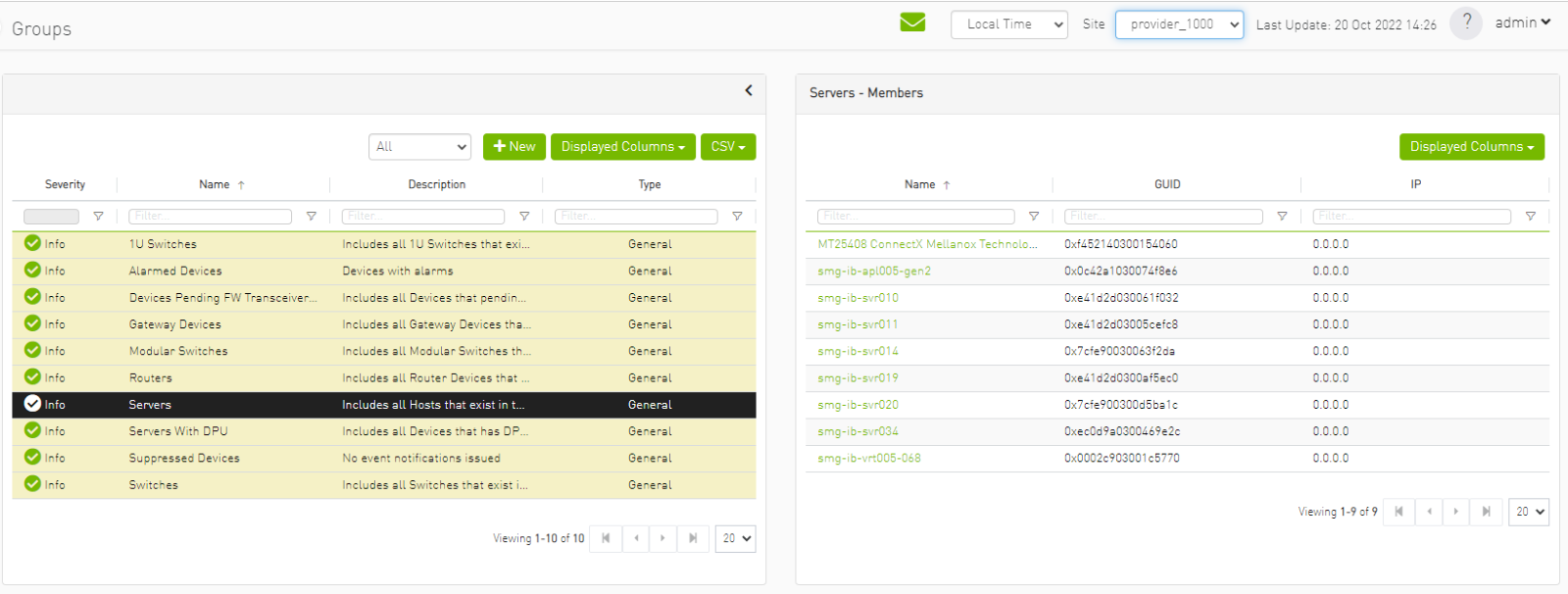
The filter in "Groups" impacts the Members table only.
-
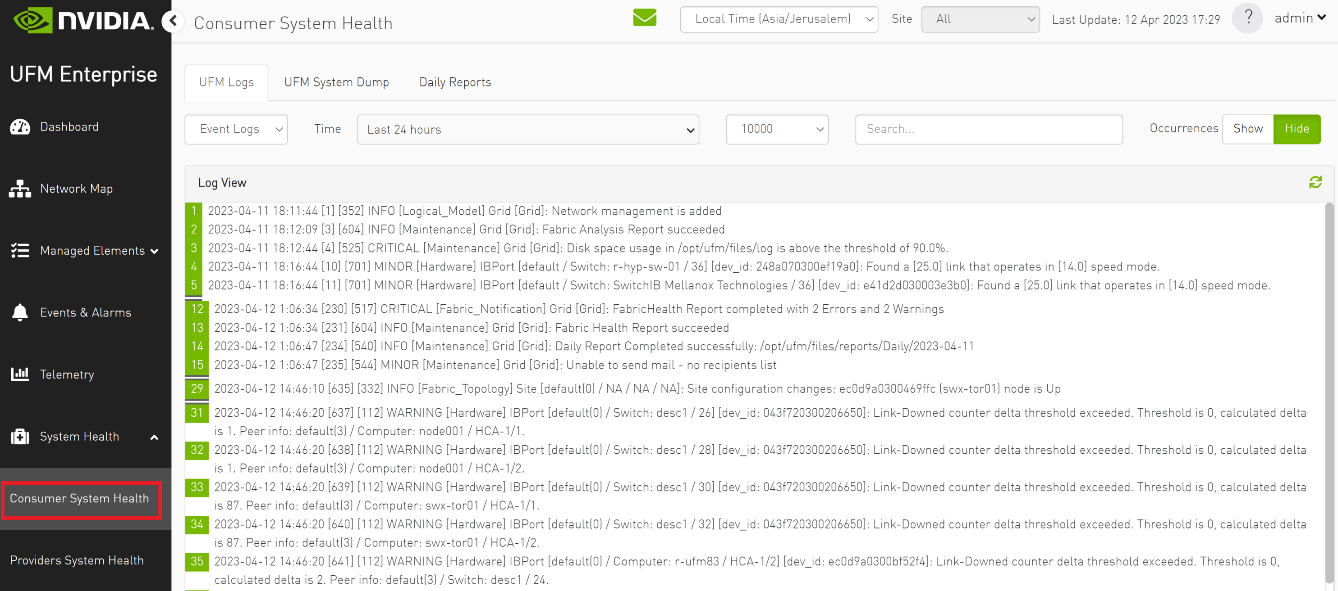
In the System Health tab, subsections for Consumer and Provider are available.
-
Consumer System Health tab contains sections applicable to Consumer UFM specifically (e.g., logs from Consumer UFM).
-
Provider System Health contains sections applicable to one or multiple providers (e.g., Fabric Health Report can be triggered on multiple Providers from the Consumer).
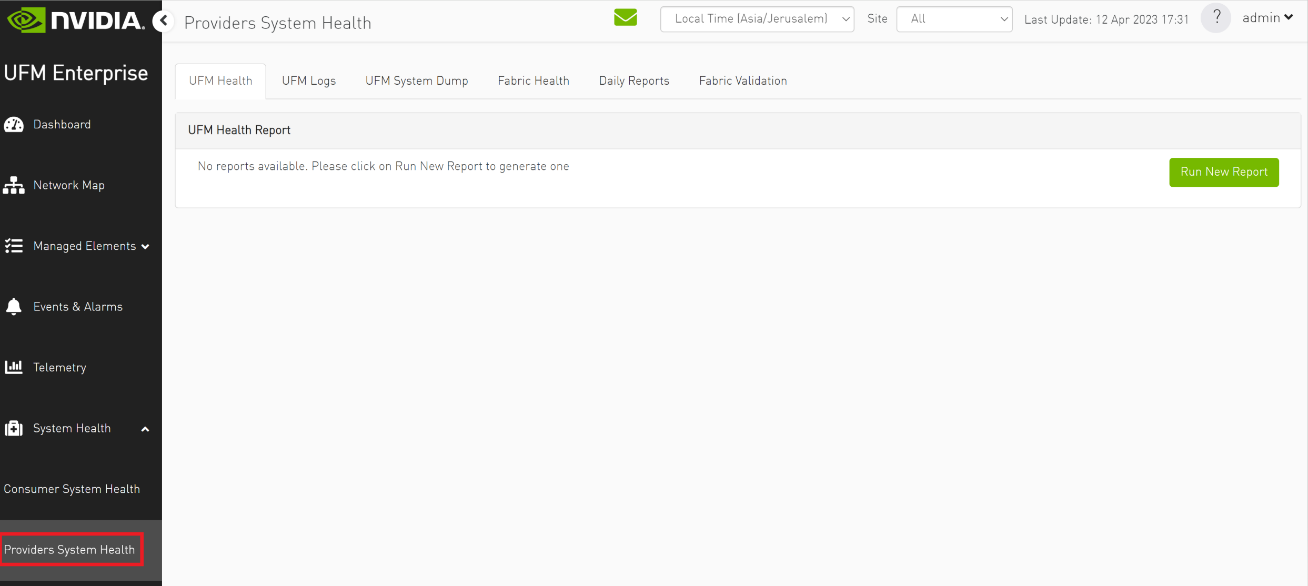
-
-
Topology compare view contains sub report tables for each provider.
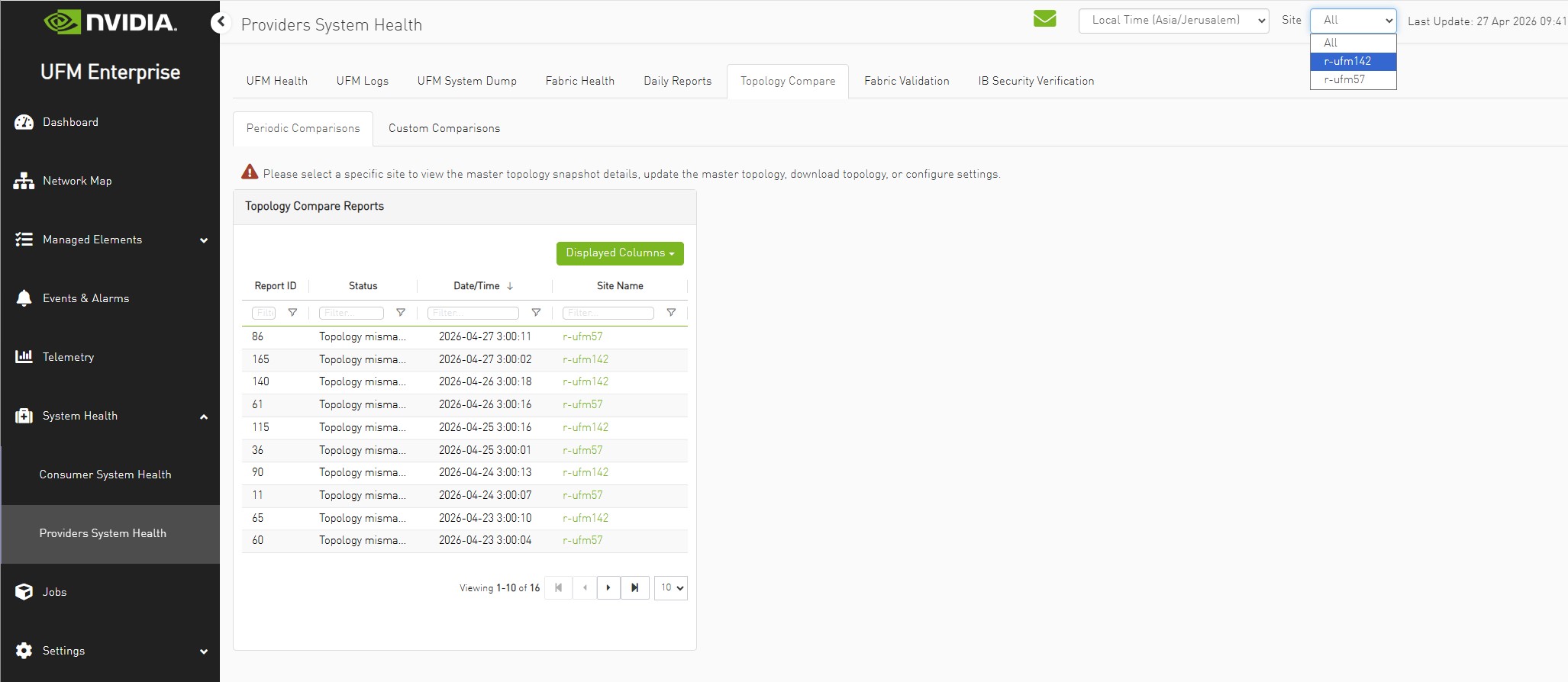
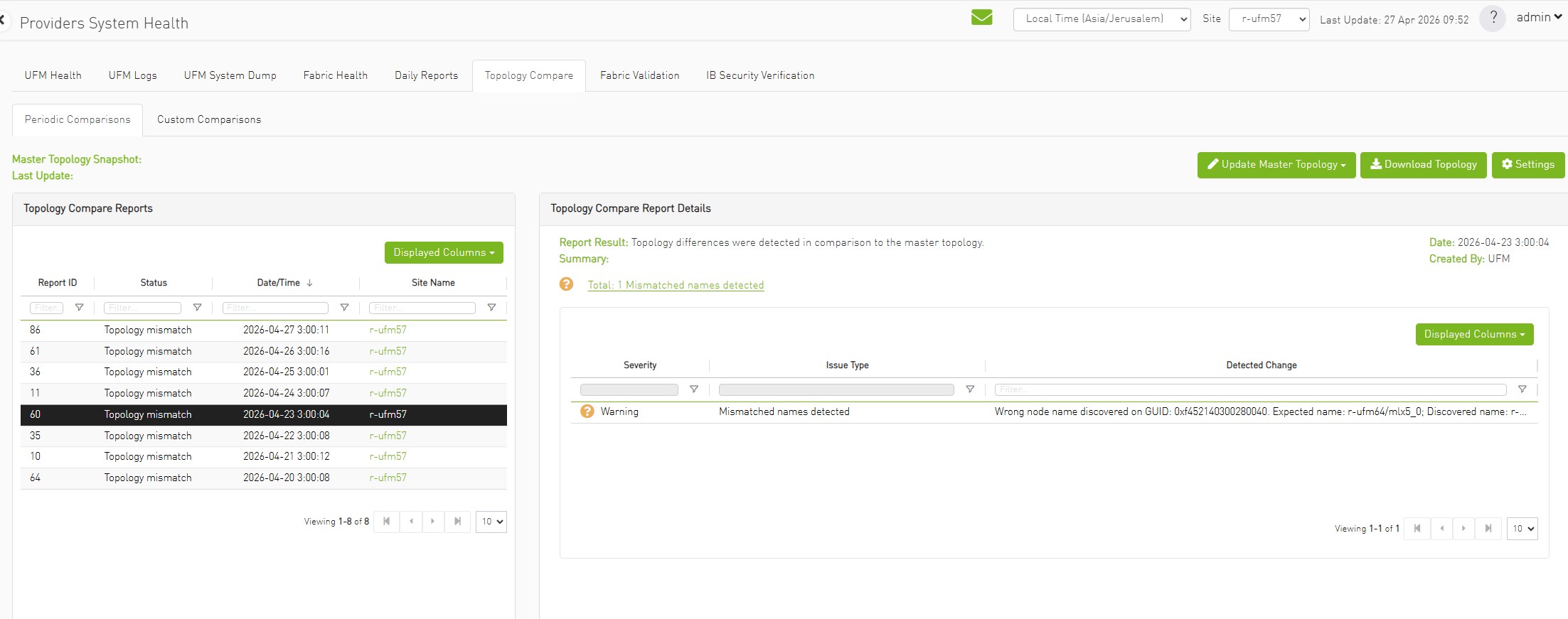
Click on a specific report in order to view its details
Custom topology comparison launch is available only when a single site view is selected.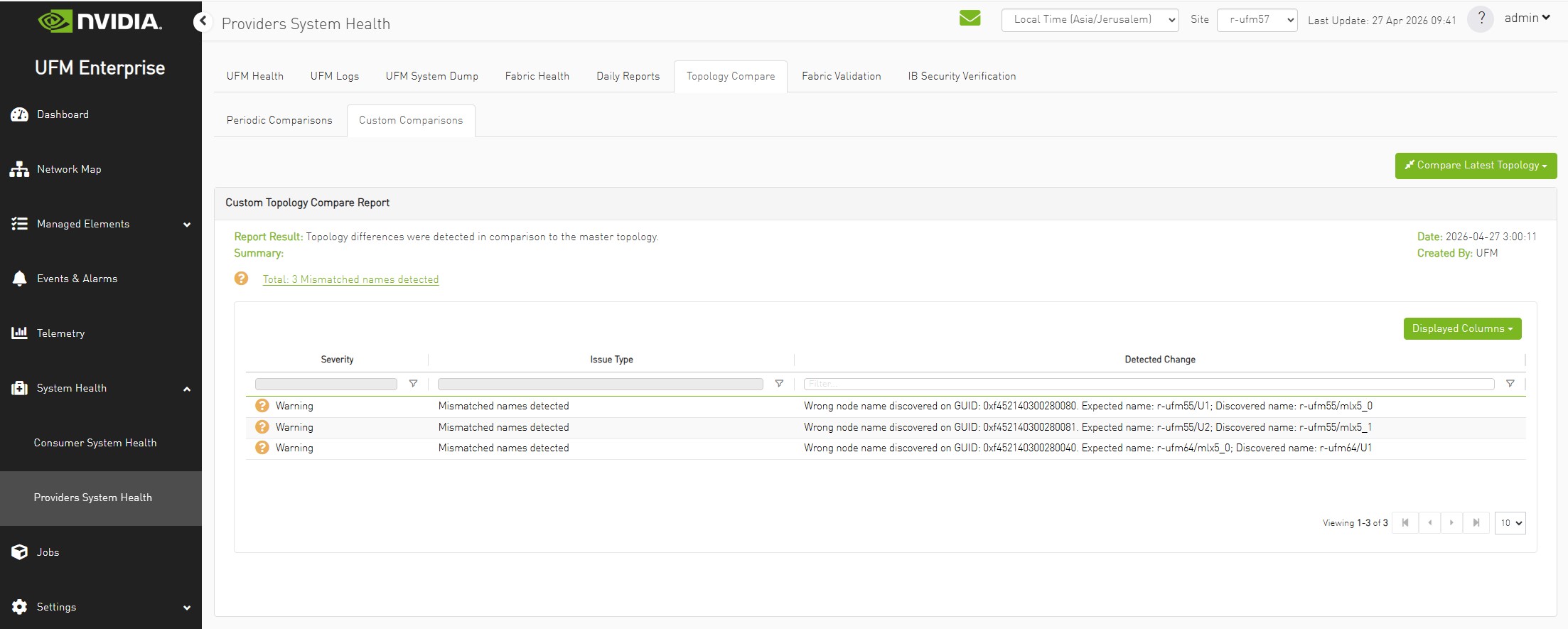
-
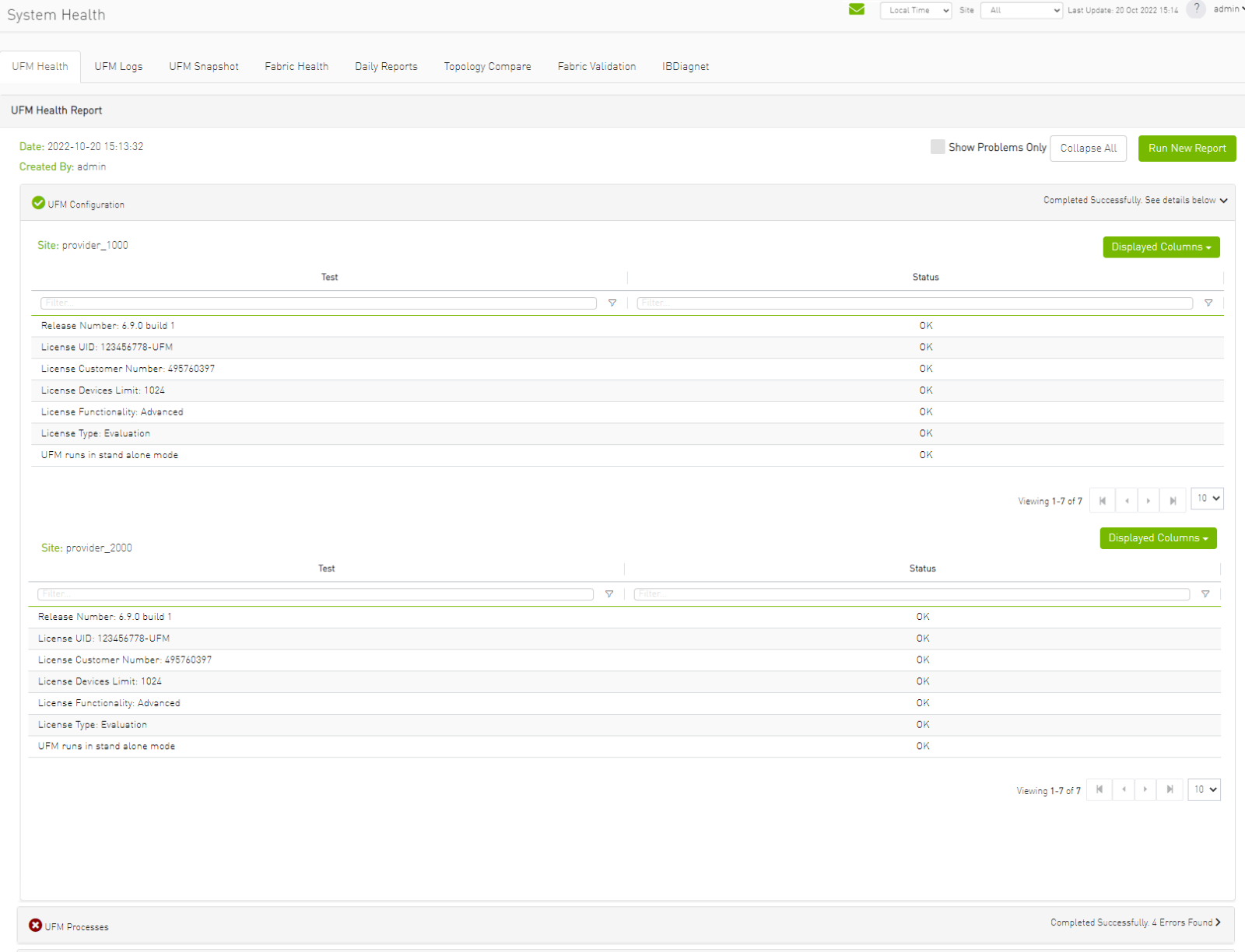
UFM Health tab contains sub report tables for each provider.
-
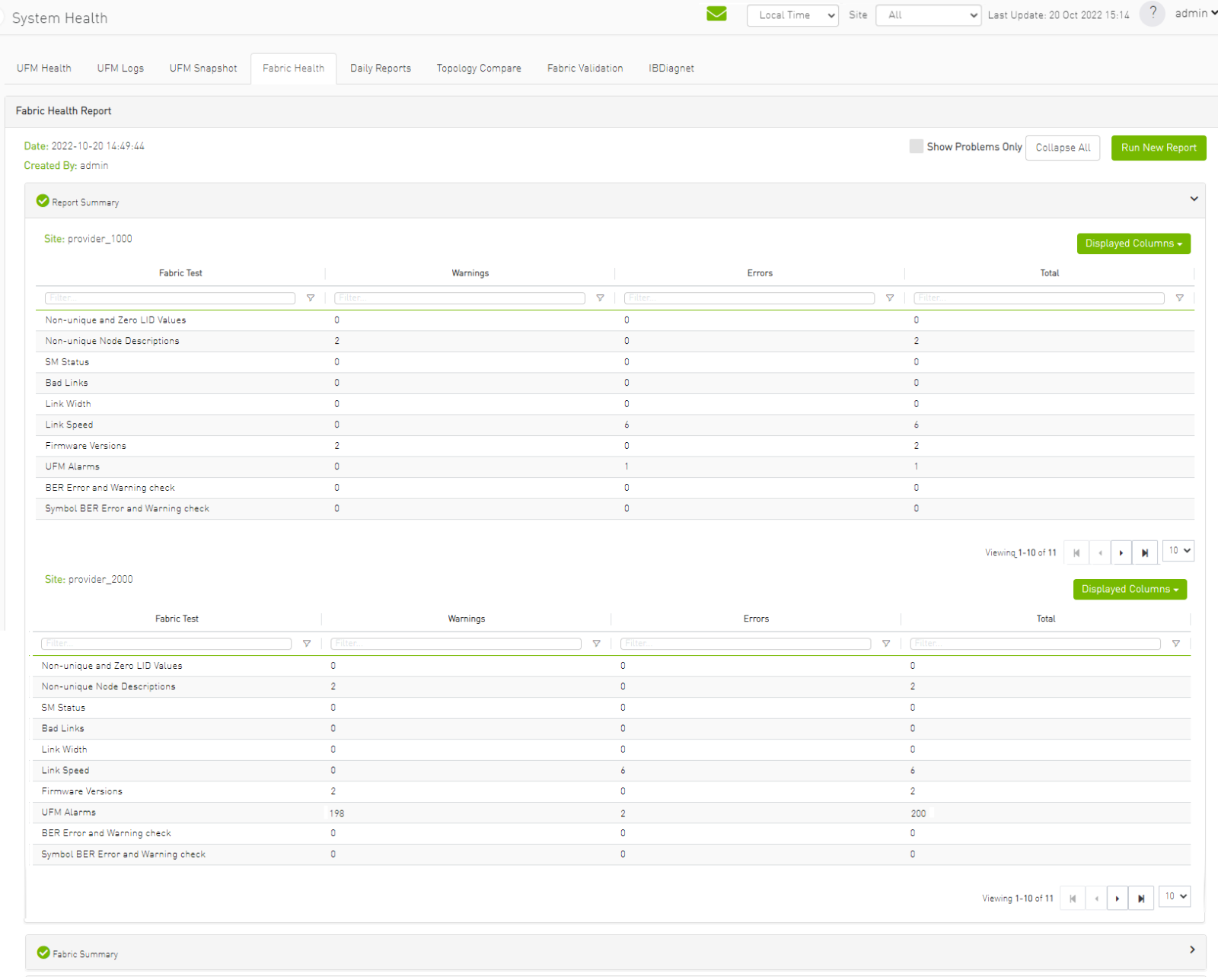
Fabric Health contains sub report tables for each provider.
-
Daily Reports:
-
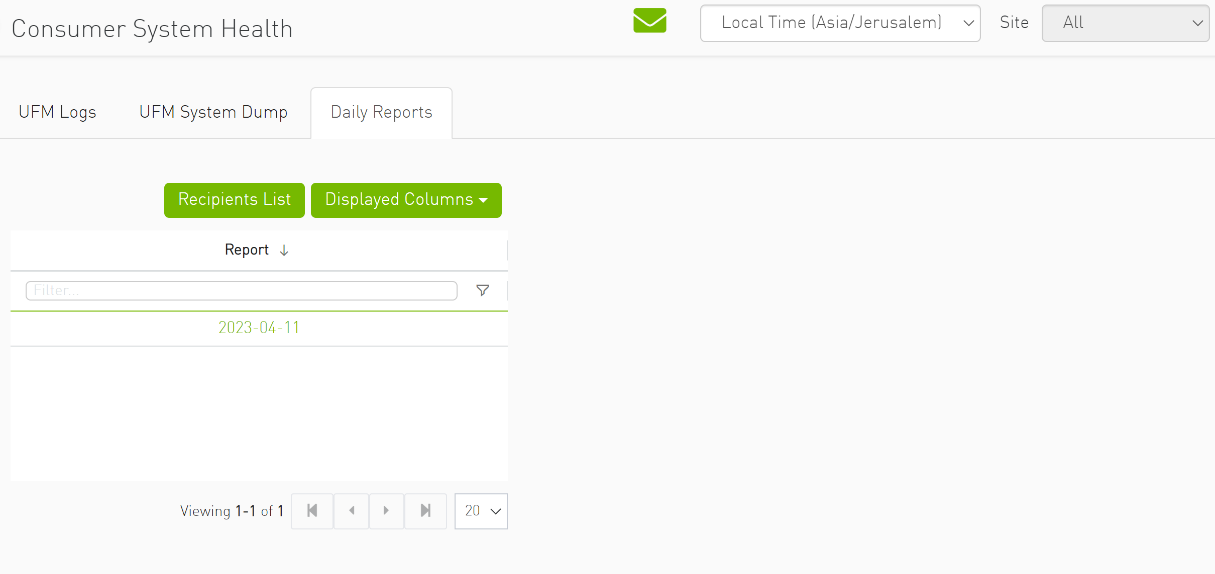
Consumer Daily reports display consumer reports.
-
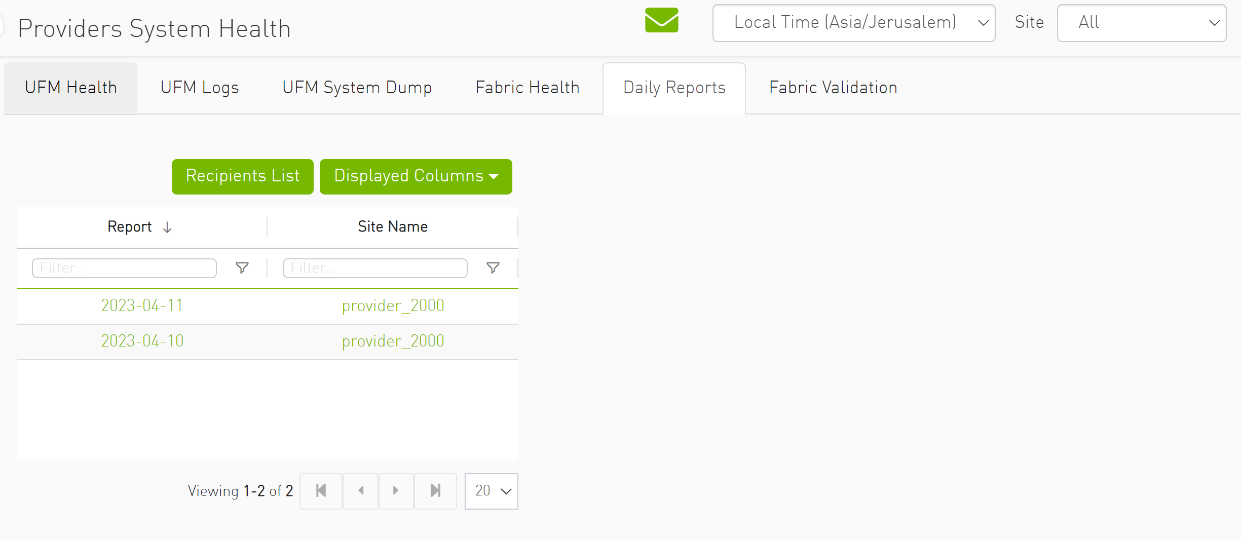
Providers Daily reports display reports from all providers.
-
-
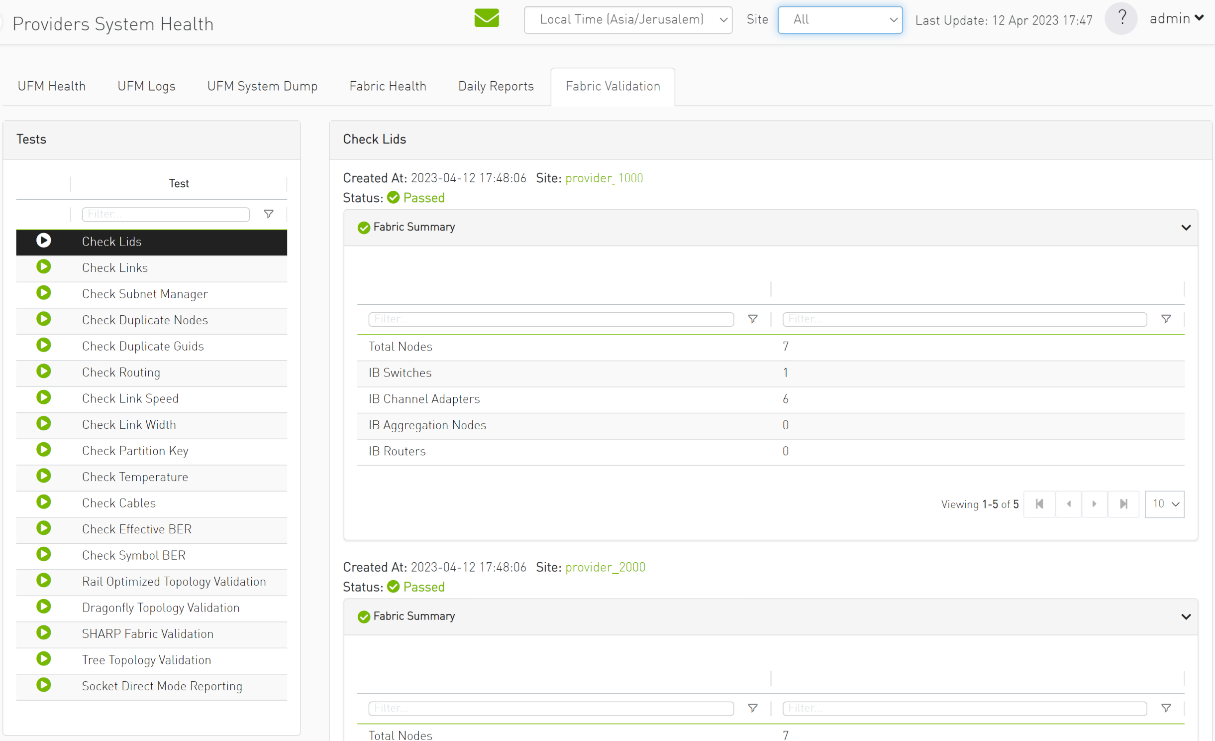
The "Fabric Validation" tab contains sub report tables for each provider.
-
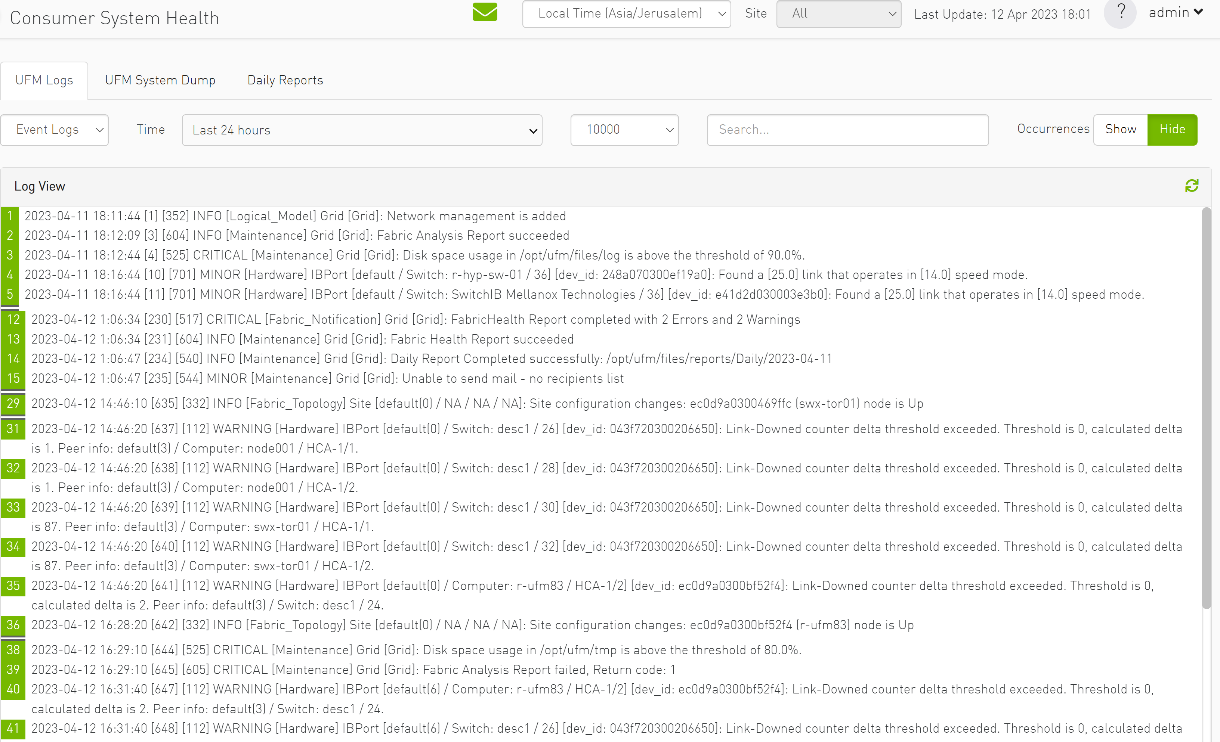
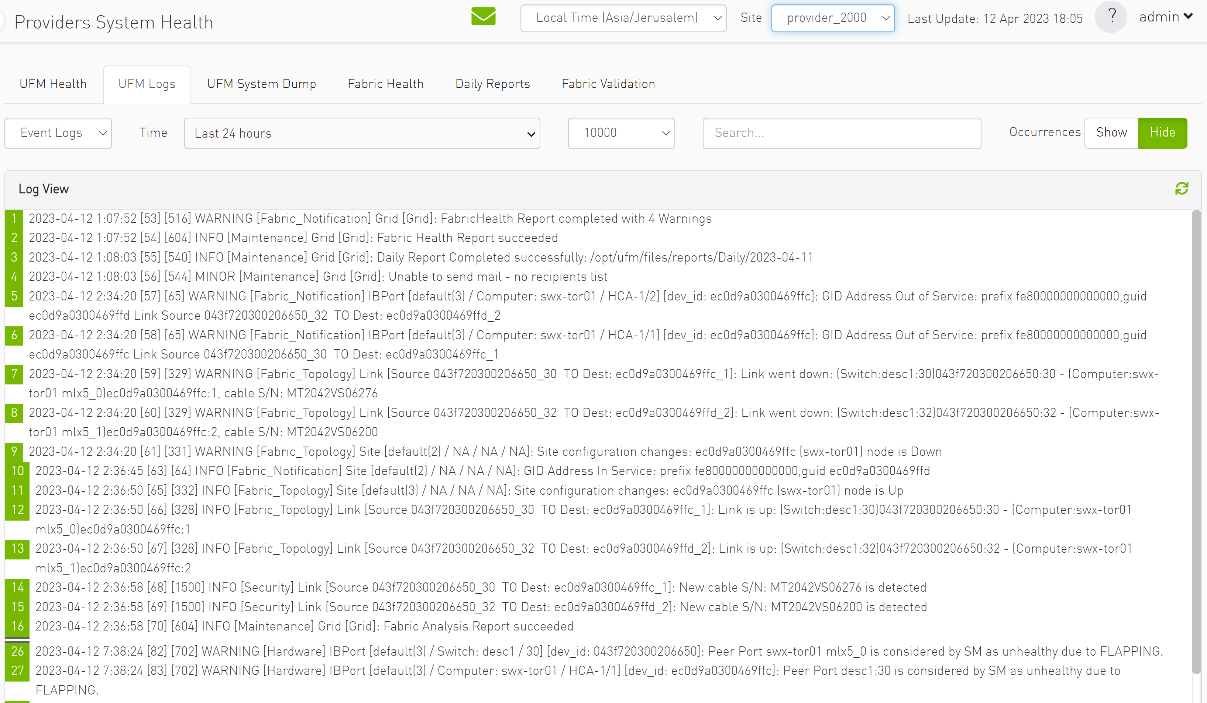
In "UFM Logs" Tab:
-
Consumer logs:
-
Providers logs display providers log separately, displaying logs for all providers is not supported.
-
-
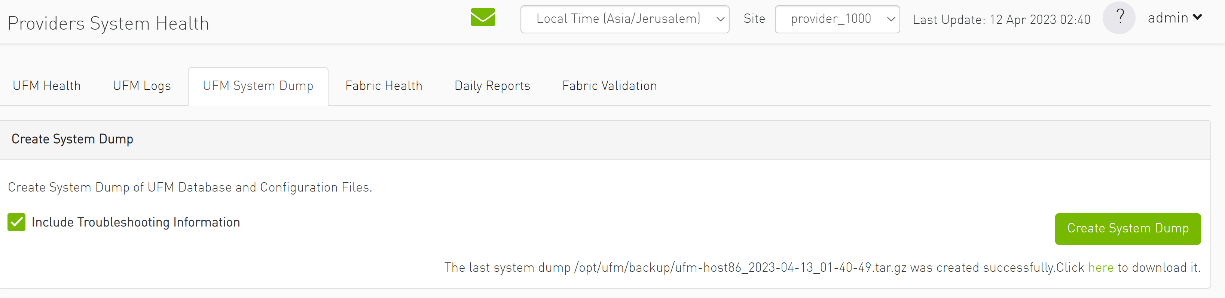
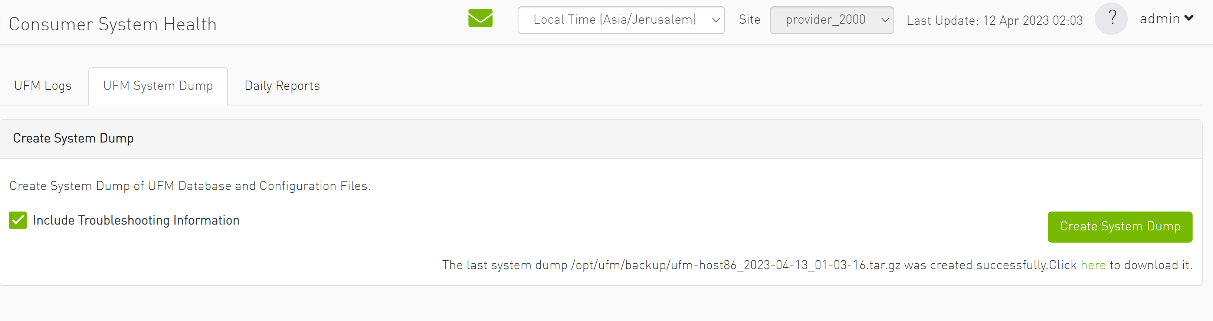
In the "System Dump" tab:
-
"Consumer System Dump" collects system dump for consumer
-
"Providers System Dump" collect system dumps for one or all providers and mergeS them into one folder
-
-
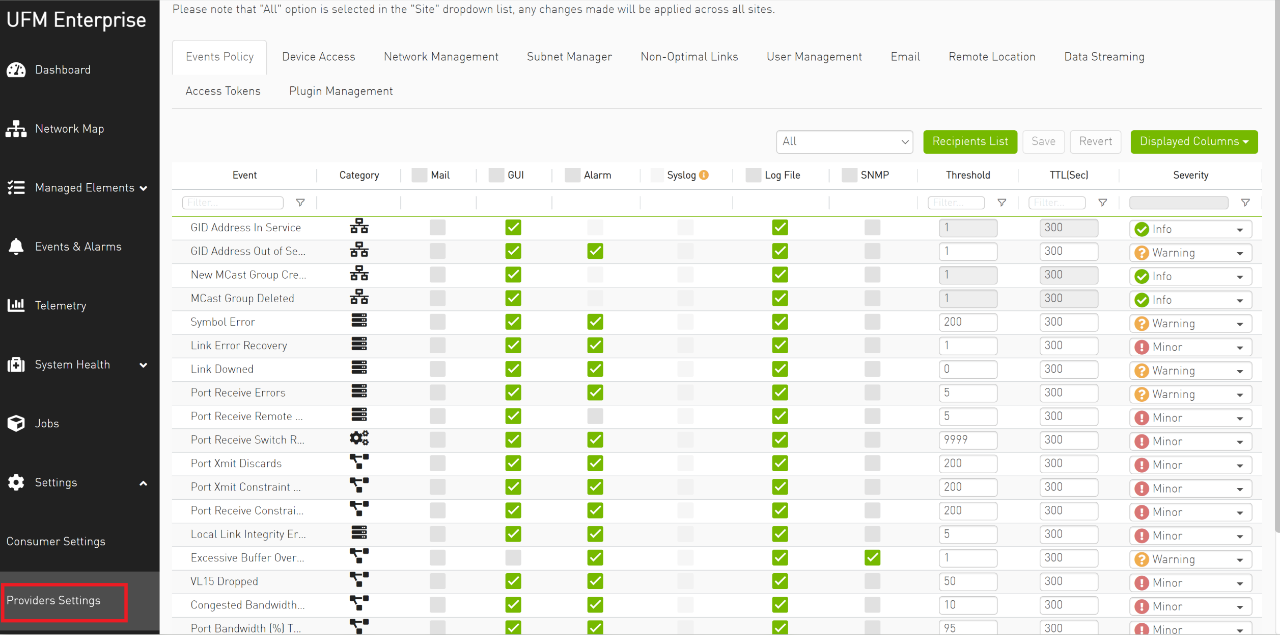
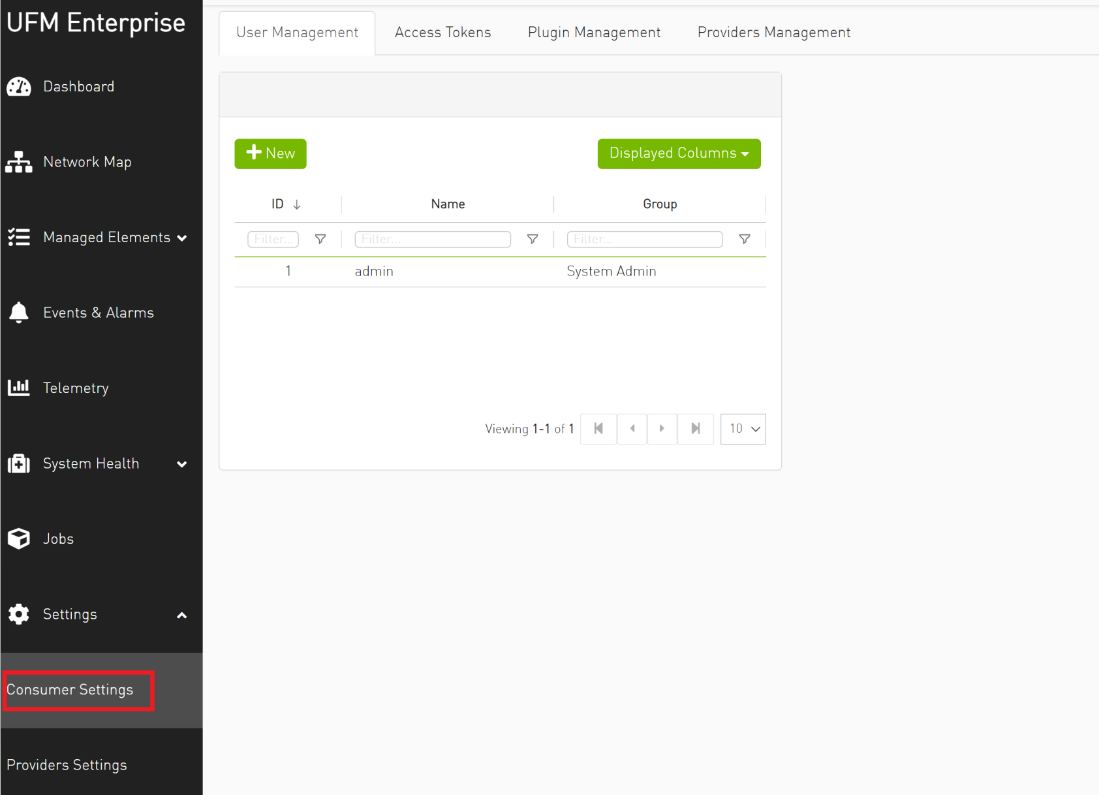
Under "Settings", subsections for Consumer and Provider are available.
-
"Consumer Settings" contain sections applicable to Consumer UFM specifically (e.g., creation of access tokens for UFM consumer authentication);
-
"Provider Settings" contain sections applicable to one or multiple providers (e.g., Event Policies can be changed for multiple Providers at once from the Consumer).
-
Last updated: