

The following figures describe various upgrade scenarios.
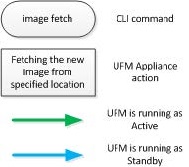
Legend
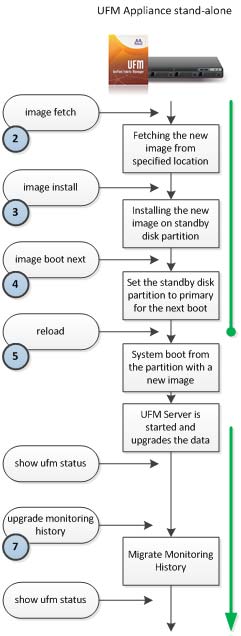
UFM-SDN Appliance Standalone Upgrade Flow
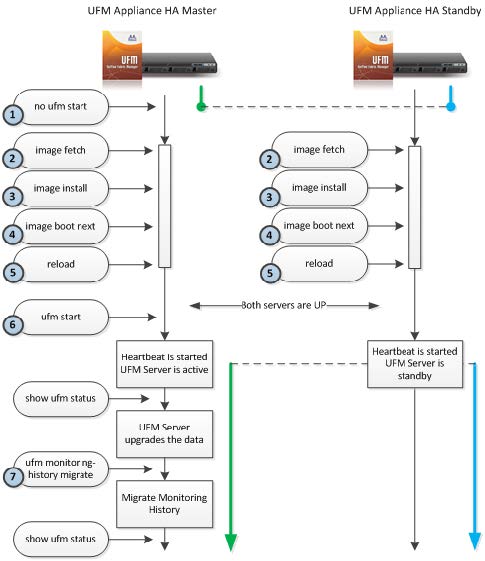
UFM-SDN Appliance High Availability Out-Of-Service Upgrade Flow
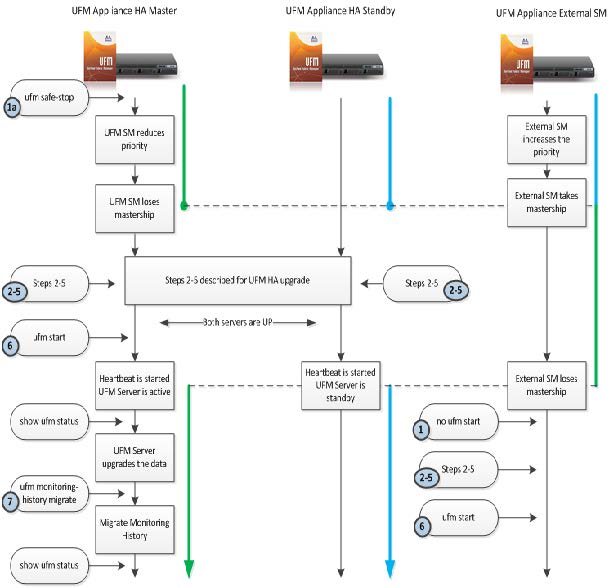
UFM-SDN Appliance High Availability External UFM-SM In-Service Upgrade Flow

Obtain the available image (.img file) and place it on either a USB storage device or an ftp/scp server and follow the steps below.
High Availability Out-Of-Service Upgrade
-
Stop UFM.
ufm-appliance [ mgmt-ha-active ] (config) # no ufm startAlternatively, if external UFM-SM is available, run:
ufm-appliance [ mgmt-ha-active ] (config) # ufm safe-stop -
Fetch the new software image.
ufm-appliance [ mgmt-ha-active ] (config) # image fetch scp://<username>@192.168.10.125/var/www/html/<image_name> Password ****** 100.0%[############################################################] -
Install the new image.
ufm-appliance [ mgmt-ha-active ] (config) # image install image-ufm_appliance-x86_64-x86_64-20121205-152024.img Step 1 of 4: Verify Image 100.0% [################################################################] Step 2 of 4: Uncompress Image 100.0% [################################################################] Step 3 of 4: Create Filesystems 100.0% [################################################################] Step 4 of 4: Extract Image 100.0% [################################################################] -
Set next boot location as the other slot.
ufm-appliance [ mgmt-ha-active ] (config) # image boot next -
Save configuration. Run:
ufm-appliance [ mgmt-ha-active ] (config) # configuration write -
Reload UFM-SDN Appliance.
ufm-appliance [ mgmt-ha-active ] (config) # reload -
Start UFM.
ufm-appliance [ mgmt-ha-active ] (config) # ufm start
High Availability In-Service Upgrade
-
Run on both master and standby:Fetch the new software image. Run: ufm-appliance [ mgmt-ha-active ] (config) # image fetch <download URL> Install the new image. Run: ufm-appliance [ mgmt-ha-active ] (config) # image install <image name> Set next boot location as the other slot. Run: ufm-appliance [ mgmt-ha-active ] (config) # image boot next Save the configuration changes. Run: ufm-appliance [ mgmt-ha-active ] (config) # configuration write
-
Reload the standby UFM-SDN Appliance. Run:
ufm-appliance [ ha-standby ] (config) # reload -
Once the standby is up and running, reload the master UFM-SDN Appliance. Run:
ufm-appliance [ mgmt-ha-active ] (config) # reloadAs a result, a failover will occur from the master node to the standby node.
Last updated: