

Preface
The goal of this page is to troubleshoot OP-TEE and/or fTPM should they be malfunctioning.
OP-TEE/fTPM functionality is available on the NVIDIA® BlueField®-3 networking platform only.
Issues in OP-TEE/fTPM typically occur at boot time. There are a variety of interrelated pieces which must be available to allow OP-TEE and fTPM to function properly. As fTPM is a trusted application (TA) which requires the OP-TEE transport, the entities are entirely dependent on one another. If fTPM is not working, then typically the reason is because OP-TEE is malfunctioning.
Command Cheat Sheet
The following commands assume you are logged in and have access to BlueField.
|
Command |
Description |
Example Output |
|---|---|---|
|
|
A DPU BMC program to access the BlueField console |
No output |
|
|
Set the RShim log debug level to 2 |
No output |
|
|
Dump the RShim log |
Please see section 3.2 for example output |
|
|
Verifies the OP-TEE driver has been loaded at boot time |
|
|
|
Verifies the 3 Kernel Load Modules required for OP-TEE/fTPM functionality are loaded |
|
|
|
Displays whether the 2 required TEE devices have been created |
|
|
|
Displays whether the 2 required TPM devices have been created |
|
|
|
Verifies the required TEE-supplicant process is running and the process which enumerates OP-TEE devices is running |
|
|
|
Verifies the TPM work queue thread is up and running |
|
|
|
Shows the replay-protected memory block device on the system. The RPMB is a dedicated partition available on the eMMC-flash-based storage device which stores and retrieves the TPM data with integrity and authenticity.
|
|
|
|
Verifies the RPMB device is present and functioning. This command outputs a number indicating the number of times the RPMB has been written to in a secure manner. A negative value here indicates the RPMB device has not been programmed. |
Counter value: |
Logging and Counters
Note there are NO counters involved for debugging the OP-TEE/fTPM feature.
However, OP-TEE/fTPM depends on the RPMB (Replay Protected Memory Block) device being programmed. Please refer to OP-TEE/fTPM | id (1.2)OP TEE/fTPM VerifyingRPMBDeviceisFunctioning , which is used to verify the RPMB device is programmed.
Console Output
The following messages are only available on the BlueField DPU console during boot.
-
Early in the boot-up process, the following message should be printed to the console, indicating that the BFB image you are running supports OP-TEE:
I/TC: OP-TEE version: 4.1.0-25-ga07c623 (gcc version 8.3.0 (GCC)) #1 Fri Apr 26 22:04:42 UTC 2024 aarch64
-
On bootup, the following message is printed to the console, indicating the RPMB device (crucial for OP-TEE/fTPM functionality) is functional:
I/TC: RPMB: Using generated keyIf the following message is printed, contact an NVIDIA FAE to help program the RPMB device:
NOTICE: RPMB Key NOT programmed
RShim Log Messages
Upon booting, the RPMB is checked if it has been programmed. An RShim Log message will only appear if an issue arises during this verification.
-
If you see the following RPMB message, it could indicate a problem with the board. Please reach out to an NVIDIA Field Application Engineer for assistance.
# cat /dev/rshim0/misc
DISPLAY_LEVEL   2 (0:basic, 1:advanced, 2:log)
BOOT_MODE       1 (0:rshim, 1:emmc, 2:emmc-boot-swap)
BOOT_TIMEOUT    150 (seconds)
DROP_MODE       0 (0:normal, 1:drop)
SW_RESET        0 (1: reset)
DEV_NAME        pcie-0000:ca:00.2
DEV_INFO        BlueField-3(Rev 1)
OPN_STR         N/A
UP_TIME         110(s)
SECURE_NIC_MODE 0 (0:no, 1:yes)
FORCE_CMD       0 (1: send Force command)
---------------------------------------
             Log Messages
---------------------------------------
INFO[PSC]: PSC BL1 START
INFO[BL2]: start
INFO[BL2]: boot mode (emmc)
INFO[BL2]: VDD_CPU: 851 mV
INFO[BL2]: VDDQ: 1120 mV
INFO[BL2]: DDR POST passed
INFO[BL2]: UEFI loaded
INFO[BL31]: start
INFO[BL31]: lifecycle GA Secured
INFO[BL31]: RPMB: Cannot read feature fuses    <<==== Indicates a potential Bluefield board issue
INFO[BL31]: runtime
INFO[BL31]: MB ping success
INFO[UEFI]: eMMC init
INFO[UEFI]: eMMC probed
INFO[UEFI]: UPVS valid
INFO[UEFI]: PCIe enum start
INFO[UEFI]: PCIe enum end
INFO[UEFI]: UEFI Secure Boot (disabled)
INFO[UEFI]: PK configured
INFO[UEFI]: Redfish enabled
INFO[UEFI]: DPU-BMC RF credentials found
INFO[UEFI]: exit Boot Service
INFO[MISC]: Linux up
INFO[MISC]: DPU is ready
-
If you see this RPMB message, please contact an NVIDIA Field Application Engineer for help programming the RPMB device:
# cat /dev/rshim0/misc
DISPLAY_LEVEL   2 (0:basic, 1:advanced, 2:log)
BOOT_MODE       1 (0:rshim, 1:emmc, 2:emmc-boot-swap)
BOOT_TIMEOUT    150 (seconds)
DROP_MODE       0 (0:normal, 1:drop)
SW_RESET        0 (1: reset)
DEV_NAME        pcie-0000:ca:00.2
DEV_INFO        BlueField-3(Rev 1)
OPN_STR         N/A
UP_TIME         110(s)
SECURE_NIC_MODE 0 (0:no, 1:yes)
FORCE_CMD       0 (1: send Force command)
---------------------------------------
             Log Messages
---------------------------------------
INFO[PSC]: PSC BL1 START
INFO[BL2]: start
INFO[BL2]: boot mode (emmc)
INFO[BL2]: VDD_CPU: 851 mV
INFO[BL2]: VDDQ: 1120 mV
INFO[BL2]: DDR POST passed
INFO[BL2]: UEFI loaded
INFO[BL31]: start
INFO[BL31]: lifecycle GA Secured
INFO[BL31]: RPMB Key NOT programmed            <<==== Please contact Nvidia to have your RPMB device programmed
INFO[BL31]: runtime
INFO[BL31]: MB ping success
INFO[UEFI]: eMMC init
INFO[UEFI]: eMMC probed
INFO[UEFI]: UPVS valid
INFO[UEFI]: PCIe enum start
INFO[UEFI]: PCIe enum end
INFO[UEFI]: UEFI Secure Boot (disabled)
INFO[UEFI]: PK configured
INFO[UEFI]: Redfish enabled
INFO[UEFI]: DPU-BMC RF credentials found
INFO[UEFI]: exit Boot Service
INFO[MISC]: Linux up
INFO[MISC]: DPU is ready
Debug Info Package
To effectively test and utilize the OP-TEE/fTPM functionality, it is recommended to install the TPM2 Tools, which are thoroughly documented here. This toolset enables users to verify the specific TPM features they need. If the TPM2 Tools function correctly, it confirms that your OP-TEE/fTPM setup is operational.
Installing TPM2 Tools on Ubuntu 22.04
Assuming you are logged in as root, run:
apt-get update
apt-get install tpm2-tools
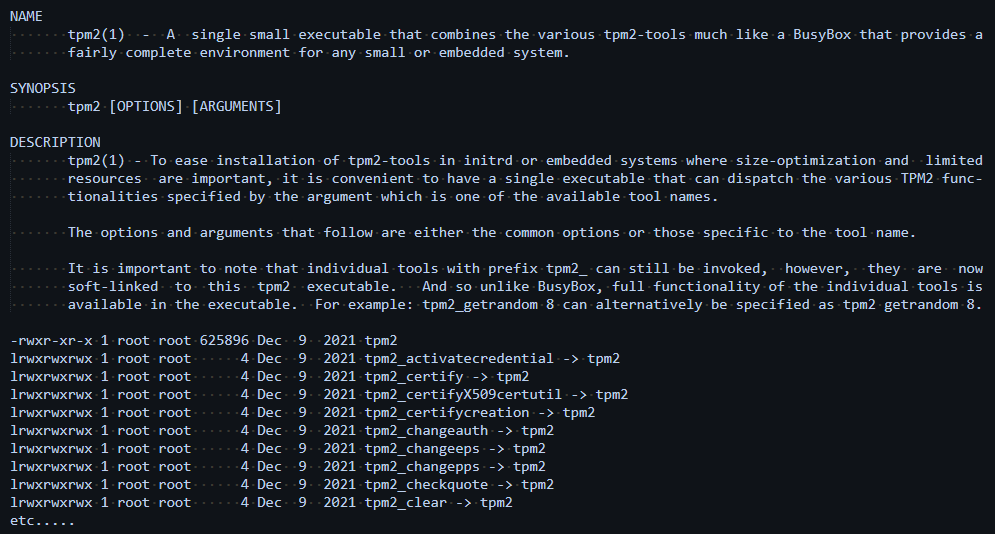
For the TPM2 tools on Ubuntu, you get a single executable, with links to all of the TPM 2 commands. Example:
Installing TPM2 Tools on OCI
Assuming you are logged in as root, run:
yum update
yum install tpm2-tools.aarch64
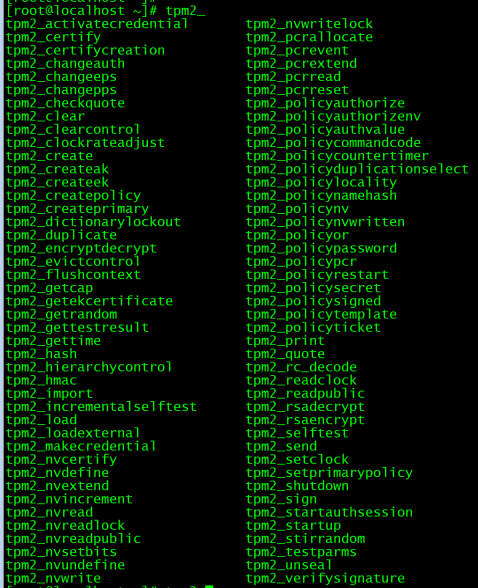
After installing TPM2 tools, to see a list of all the tool commands installed, run:
tpm2_ <TAB>
Example output:
Scenarios
OP-TEE/fTPM Not Functioning
Enabling OP-TEE on BlueField-3
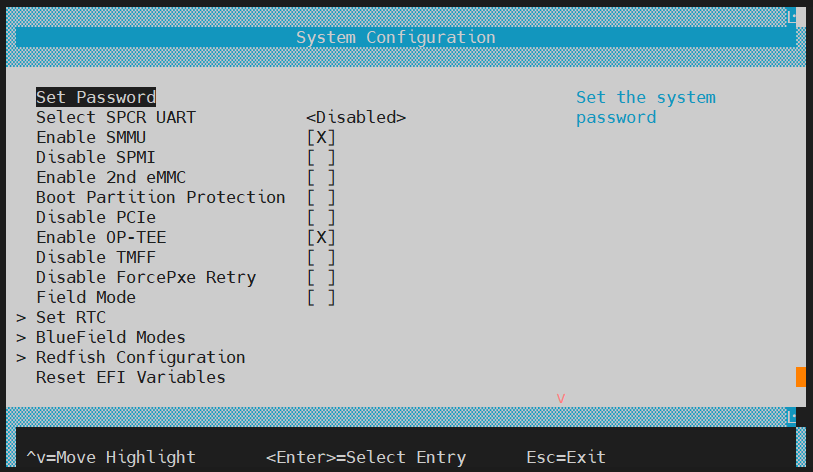
OP-TEE must be configured in the UEFI menu.
-
ESC into the UEFI on boot.
-
Navigate to Device Manager > System Configuration > Enable OP-TEE (make sure this item is checked).
-
Save the change and reset/reboot.
-
Upon reboot, OP-TEE is enable.
OP-TEE is essentially dormant (does not have an OS scheduler) and reacts to external inputs.
Verifying Required Elements for OP-TEE/fTPM are Running
The following indicators must all be present to have a functioning OP-TEE/fTPM setup.
-
Check
dmesgfor the OP-TEE driver initializing:Bashroot@localhost ~]# dmesg | grep optee [ 5.646578] optee: probing for conduit method. [ 5.653282] optee: revision 3.10 (450b24ac) [ 5.653991] optee: initialized driver
-
Verify the 3 Kernel modules
tee,optee, andtpm_ftpm_teeare loaded:Bash[root@localhost ~]# lsmod | grep tee tpm_ftpm_tee 16384 0 optee 49152 1 tee 49152 3 optee,tpm_ftpm_tee
-
Verify the required devices are created/available (there should be 4 in total):
Bash[root@localhost ~]# ls -l /dev/tee* crw------- 1 root root 234, 0 Sep 8 18:24 /dev/tee0 crw------- 1 root root 234, 16 Sep 8 18:24 /dev/teepriv0 [root@localhost ~]# ls -l /dev/tpm* crw-rw---- 1 tss root 10, 224 Sep 8 18:24 /dev/tpm0 crw-rw---- 1 tss tss 252, 65536 Sep 8 18:24 /dev/tpmrm0
-
Verify the required processes are running (there should be 3 in total):
Bash[root@localhost ~]# ps axu | grep tee root 707 0.0 0.0 76208 1372 ? Ssl 14:42 0:00 /usr/sbin/tee-supplicant root 715 0.0 0.0 0 0 ? I< 14:42 0:00 [optee_bus_scan] [root@localhost ~]# ps axu | grep tpm root 124 0.0 0.0 0 0 ? I< 18:24 0:00 [tpm_dev_wq]
Verifying RPMB Device is Functioning
-
Identify your RPMB device:
Bash[root@localhost ~]# ls -l /dev/mmc* | grep rpmb crw------- 1 root root 238, 0 Jun 7 14:25 /dev/mmcblk0rpmb
-
Verify your RPMB is functional:
Bash[root@localhost ~]# mmc rpmb read-counter /dev/mmcblk0rpmb Counter value: 0x0004fb3f
A positive number indicates the RPMB is functional, a negative number indicates the RPMB has not been programmed.
RPMB is Not Functioning
If you execute the command mmc rpmb read-counter /dev/mmcblk0rpmb and it returns error code 0x0007, this means that the RPMB on your BlueField-3 device has never been programmed. Refer to your NVIDIA FAE contact to solve this for you via a BFB which would program the authentication key required to make the RPMB functional.
If the first 3 scenarios above are verified/functional, then you should have a 100% functioning OP-TEE/fTPM setup.
Verifying OP-TEE/fTPM Functionality Using TPM2 Tool
Install the TPM2 tools (mentioned earlier) and execute the following simple TPM2 command. This command goes through the fTPM TA, TEE-supplicant, and OP-TEE which verifies the entire data path for OP-TEE/fTPM.
-
Example of successful operation:
Bash[root@localhost ~]# tpm2_getrandom 41 | xxd -p10d0a24d0128bc2e80f01fddca83a2714895e099de3d455c31d72203a140 2199a9e230ad532e8abb76
-
Example of failed operation:
Bash[root@localhost ~]# tpm2_getrandom 41 | xxd -p E/TC:?? 0 get_rpc_alloc_res:646 RPC allocation failed. Non-secure world result: ret=0xffff000c ret_origin=0x2 E/TC:?? 0 get_rpc_alloc_res:646 RPC allocation failed. Non-secure world result: ret=0xffff000c ret_origin=0x2 E/TC:?? 0 E/TC:?? 0 TA panicked with code 0xffff000c E/LD: Status of TA bc50d971-d4c9-42c4-82cb-343fb7f37896 E/LD: arch: aarch64 E/LD: region 0: va 0xc0005000 pa 0x81601000 size 0x002000 flags rw-s (ldelf) E/LD: region 1: va 0xc0007000 pa 0x81603000 size 0x008000 flags r-xs (ldelf) E/LD: region 2: va 0xc000f000 pa 0x8160b000 size 0x001000 flags rw-s (ldelf) E/LD: region 3: va 0xc0010000 pa 0x8160c000 size 0x004000 flags rw-s (ldelf) E/LD: region 4: va 0xc0014000 pa 0x81610000 size 0x001000 flags r--s E/LD: region 5: va 0xc0015000 pa 0x81697000 size 0x011000 flags rw-s (stack) E/LD: region 6: va 0xc0026000 pa 0x81e00000 size 0x003000 flags rw-- (param) E/LD: region 7: va 0xc0078000 pa 0x00001000 size 0x067000 flags r-xs [0] E/LD: region 8: va 0xc00df000 pa 0x00068000 size 0x01f000 flags rw-s [0] E/LD: [0] bc50d971-d4c9-42c4-82cb-343fb7f37896 @ 0xc0078000 E/LD: Call stack: E/LD: 0xc00b5a24 E/LD: 0xc0078ba4 E/LD: 0xc0079228 E/LD: 0xc0097a18 E/LD: 0xc00b0ce4 E/LD: 0xc0079ad8 E/LD: 0xc00bba6c E/LD: 0xc00b0e80 [ 7802.822441] tpm tpm0: ftpm_tee_tpm_op_send: SUBMIT_COMMAND invoke error: 0xffff3024 [ 7802.830122] tpm tpm0: tpm_try_transmit: send(): error -53212 ERROR:tcti:src/tss2-tcti/tcti-dev[ 7802.836246] tpm tpm0: ftpm_tee_tpm_op_send: SUBMIT_COMMAND invoke error: 0xffff3024 ice.c:486:Tss2_Tcti_Device_Init([ 7802.846418] tpm tpm0: tpm_try_transmit: send(): error -53212 ) Failed to read response header fd 3, got errno 2: No such file or directory ERROR:tcti:src/tss2-tcti/tctildr-dl.c:154:tcti_from_file() Could not initialize TCTI file: libtss2-tcti-device.so.0 ERROR:tcti:src/tss2-tcti/tcti-device.c:486:Tss2_Tcti_Device_Init() Failed to read response header fd 3, got errno 2: No such file or directory ERROR:tcti:src/tss2-tcti/tctildr-dl.c:154:tcti_from_file() Could not initialize TCTI file: libtss2-tcti-device.so.0 WARNING:tcti:src/util/io.c:262:socket_connect() Failed to connect to host 127.0.0.1, port 2321: errno 111: Connection refused ERROR:tcti:src/tss2-tcti/tcti-swtpm.c:614:Tss2_Tcti_Swtpm_Init() Cannot connect to swtpm TPM socket ERROR:tcti:src/tss2-tcti/tctildr-dl.c:154:tcti_from_file() Could not initialize TCTI file: libtss2-tcti-swtpm.so.0 WARNING:tcti:src/util/io.c:262:socket_connect() Failed to connect to host 127.0.0.1, port 2321: errno 111: Connection refused ERROR:tcti:src/tss2-tcti/tctildr-dl.c:154:tcti_from_file() Could not initialize TCTI file: libtss2-tcti-mssim.so.0 ERROR:tcti:src/tss2-tcti/tctildr-dl.c:254:tctildr_get_default() No standard TCTI could be loaded ERROR:tcti:src/tss2-tcti/tctildr.c:428:Tss2_TctiLdr_Initialize_Ex() Failed to instantiate TCTI ERROR: Could not load tcti, got: "(null)"
Debugging TPM2 Failure
Executing TPM2 commands (or any commands interfacing to fTPM, whether they be user written TA applications or otherwise) must go between the Unsecure World (i.e., TEE-supplicant) and the Secure World (OP-TEE/fTPM).
The first thing to check here is whether something happened to the TEE-supplicant as that acts as a proxy between the Secure/Unsecure worlds:
[root@localhost ~]# ps axu | grep tee
root       51380  0.0  0.0   6416  1860 ttyAMA0  S+   16:51   0:00 grep --color=auto tee

As you can see the tee-supplicant is no longer running.

Now lets take a look at the tee-supplicant itself, as it's a service started at boot time.

[root@localhost ~]#journalctl -xefu tee-supplicant -b
Jun 07 14:25:54 localhost systemd[1]: Starting TEE Supplicant...
░░ Subject: A start job for unit tee-supplicant.service has begun execution
░░ Defined-By: systemd
░░ Support: http://www.ubuntu.com/support
░░
░░ A start job for unit tee-supplicant.service has begun execution.
░░
░░ The job identifier is 231.
Jun 07 14:25:54 localhost systemd[1]: Started TEE Supplicant.
░░ Subject: A start job for unit tee-supplicant.service has finished successfully
░░ Defined-By: systemd
░░ Support: http://www.ubuntu.com/support
░░
░░ A start job for unit tee-supplicant.service has finished successfully.
░░
░░ The job identifier is 231.
Jun 07 16:35:44 bu-lab106-oob systemd[1]: tee-supplicant.service: Main process exited, code=killed, status=9/KILL
░░ Subject: Unit process exited
░░ Defined-By: systemd
░░ Support: http://www.ubuntu.com/support
░░
░░ An ExecStart= process belonging to unit tee-supplicant.service has exited.
OP-TEE/fTPM Not Functioning Recommendations
-
Verify OP-TEE is enabled in your UEFI Menu as described in section "OP-TEE/fTPM | id (1.2)OP TEE/fTPM EnablingOP TEEonBlueField 3".
-
Gather the output as described in sections "OP-TEE/fTPM | id (1.2)OP TEE/fTPM VerifyingRequiredElementsforOP TEE/fTPMareRunning" and "OP-TEE/fTPM | id (1.2)OP TEE/fTPM VerifyingRPMBDeviceisFunctioning".
-
Provide the above information to an NVIDIA Support Engineer.
-
Reboot (if possible).
Regardless of whether step 4 fixes the issue, an NVIDIA SE should be notified with the information from steps 1 and 2.
Last updated: