

Contents:
DPU mode is the default mode for BlueField DPUs, while BlueField SuperNICs are shipped with NIC mode as their default. To switch between the modes, see NVIDIA BlueField Modes of Operation. To check which mode your BlueField is currently running:
-
Using RedFish on the 1GbE interface, refer to NVIDIA BlueField BMC Software Documentation
-
From the host server, refer to "Enabling NIC Mode on BlueField-3 from Linux"
-
From the host server's UEFI BIOS menu, refer to "Configuring NIC Mode on BlueField-3 from Host BIOS HII UEFI Menu"
In the out-of-box state of the BlueField the host is assumed to be trusted. Later in this procedure, after performing BFB Bundle update, a step is provided to disable the host RShim which the user must perform to protect the BlueField from potential security threats from the host.
The following diagram illustrates the sequence of events and actions from first time power-up of the NVIDIA® BlueField® networking platform (DPU or SuperNIC) in the data center environment through provisioning and maintenance.
The numbers indicated in the sequence diagram correspond to the steps that follow it.
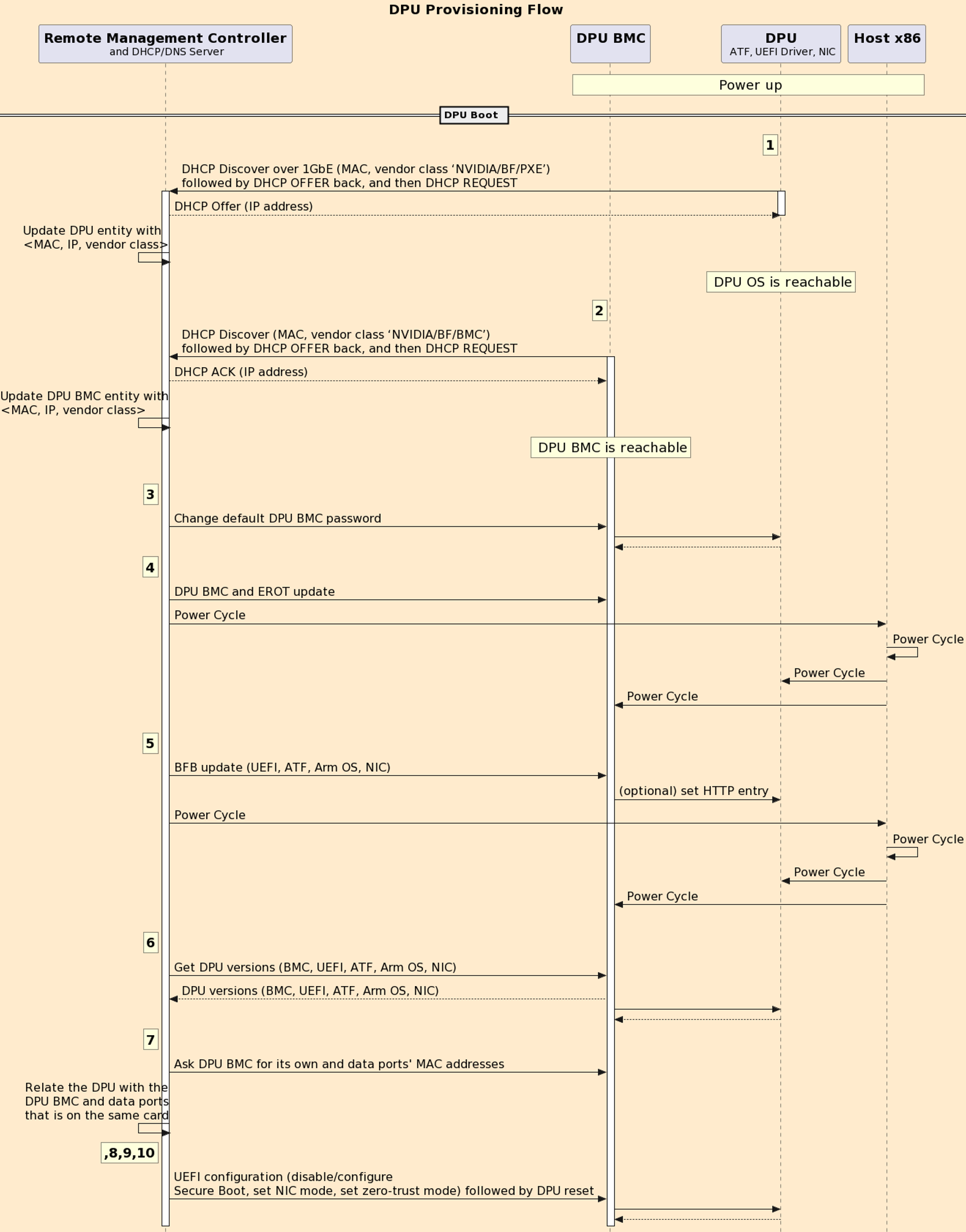
At the end of this procedure, the BlueField should be configured with an IP address, all required settings, has up-to-date software component versions, and is ready to use.
Step 1 – BlueField SoC Boots
The BlueField SoC boots to the UEFI BIOS and DHCP DISCOVER is sent
-
BlueField SoC runs UEFI/PXE which sends a DHCP DISCOVER over the 1GbE OOB interface, including vendor class (
"NVIDIA/BF/PXE") for BlueField SoC (to allow customer's server to differentiate between BlueField SoC and BlueField BMC), and MAC for identification and discovery. See Appendix B for more information. -
A customer's DHCP server inspects the MAC address and the vendor class, allocates IP, and continues the standard DHCP.
-
DHCP server updates RMC of the new BlueField discovered with detailed information (e.g., MAC, IP address, vendor class).
Step 2 – BlueField BMC Boots
BlueField BMC issues DHCP DISCOVER over the 1GbE OOB interface, including vendor class ("NVIDIA/BF/BMC") for BlueField-BMC, and MAC for identification and discovery. Example of BlueField BMC DHCP DISCOVER packet structure (note "NVIDIA/BF/BMC" in line 13):
root@bf-bmc:~# 18:18:10.563269 IP (tos 0xc0, ttl 64, id 0, offset 0, flags [none], proto UDP (17), length 320)
0.0.0.0.bootpc > 255.255.255.255.bootps: [udp sum ok] BOOTP/DHCP, Request from b8:3f:d2:ca:4b:26 (oui Unknown), length 292, xid 0xfc2acdec, secs 1, Flags [none] (0x0000)
Client-Ethernet-Address b8:3f:d2:ab:cd:ef (oui Unknown)
Vendor-rfc1048 Extensions
Magic Cookie 0x63825363
DHCP-Message (53), length 1: Discover
Client-ID (61), length 7: ether b8:3f:d2:ab:cd:ef
Parameter-Request (55), length 9:
Subnet-Mask (1), Default-Gateway (3), Domain-Name-Server (6), Hostname (12)
Domain-Name (15), Static-Route (33), NTP (42), Unknown (120)
Classless-Static-Route (121)
MSZ (57), length 2: 576
Hostname (12), length 7: "bf-bmc" Vendor-Class (60), length 13: "NVIDIA/BF/BMC" END (255), length 0
18:18:10.565261 IP (tos 0x0, ttl 63, id 0, offset 0, flags [DF], proto UDP (17), length 353)
(example) dhcp01.XX.YY > ldev-platform-13-043-bmc.bootpc: [no cksum] BOOTP/DHCP, Reply, length 325, hops 1, xid 0xfc2acdec, secs 1, Flags [none] (0x0000)
(example) Your-IP ldev-platform-13-043-bmc.XX.YY
(example) Server-IP l-pxe02.XX.YY
Gateway-IP 10.237.0.255
Client-Ethernet-Address b8:3f:d2:ab:cd:ef (oui Unknown)
file "pxelinux.0" Vendor-rfc1048 Extensions
Magic Cookie 0x63825363
DHCP-Message (53), length 1: Offer
Server-ID (54), length 4: (example) dhcp01.XX.YY
Lease-Time (51), length 4: 43200
Subnet-Mask (1), length 4: 255.255.0.0
Default-Gateway (3), length 4
(example) GW.XX.YY
Hostname (12), length 24: "ldev-platform-13-043-bmc" Domain-Name (15), length 13: "<local domain name>" NTP (42), length 4: (example) NTP.XX.YY
END (255), length 0
18:18:10.565261 IP (tos 0x0, ttl 62, id 0, offset 0, flags [DF], proto UDP (17), length 353)
dhcp01.XX.YY > ldev-platform-13-043-bmc.<local domain name>: [no cksum] BOOTP/DH
-
DHCP server inspects the MAC address and the vendor class, allocates IP and continues the standard DHCP flow.
-
DHCP server updates RMC of the new BlueField BMC discovered with detailed information: MAC, IP address, vendor classes, etc.
Step 3 – Change Default Password
To communicate with the BlueField BMC, change the default password (0penBmc) by sending the following Redfish schema to the BlueField BMC:
curl -k -u root:0penBmc -H "Content-Type: application/json" -X PATCH https://<BF-BMC-IP>/redfish/v1/AccountService/Accounts/root -d '{"Password" : "<user-password>"}'
Where <BF-BMC-IP> is the IP address for the BlueField BMC (e.g., 10.10.1.2), and <user-password> is the chosen password to log into the BlueField BMC with root privileges.
The BMC password must comply with the following policy parameters:
-
Using ASCII and Unicode characters is permitted
-
Minimum length: 12
-
Maximum length: 20
-
Maximum number of consecutive character pairs: 4
Two characters are consecutive if
|hex(char_1)-hex(char_2)|=1.Examples of passwords with 5 consecutive character pairs (invalid):
DcBa123456AbCd!;ab1XbcYcdZdeGef!;Testing_123abcgh!.
The following is a valid example password:
-
HelloNvidia3D!
A user account is locked for 10 minutes after 10 consecutive failed attempts.
For example:
[redfish_scripts] $ curl -k -u root:0penBmc -H "Content-Type: application/json" -X PATCH https://<BF-BMC-IP>/redfish/v1/AccountService/Accounts/root -d '{"Password" : "HelloNvidia3D!"}'
Response:
{
  "@Message.ExtendedInfo": [
    {
      "@odata.type": "#Message.v1_1_1.Message",
      "Message": "The request completed successfully.",
      "MessageArgs": [],
      "MessageId": "Base.1.15.0.Success",
      "MessageSeverity": "OK",
      "Resolution": "None"
    }
  ]
}
Step 4 – Upgrade BlueField BMC Firmware
Upgrade BlueField BMC firmware via the Redfish "update service schema" through the 1GbE OOB.
-
If a BlueField-2 is in your possession and it is the first time you are upgrading BlueField BMC, follow Appendix A.
-
If a BlueField-3 is in your possession, follow the instructions in the following subsections
Make sure to download the latest BlueField BMC image available from the BlueField Runtime and Driver Downloader.
Update BMC Firmware
-
Run the following Redfish command over the 1GbE out-of-band interface on the BlueField BMC to trigger a secure BlueField BMC firmware update:
curl -k -u root:'<password>' -H "Content-Type: application/octet-stream" -X POST -T <package_path> https://<BF-BMC-IP>/redfish/v1/UpdateService/updateWhere:
-
<password>– BlueField BMC password -
<package_path>– BMC firmware update package path pointing to BMC*.fwpkgbinary (e.g.,bf3-bmc-23.09-6_opn.fwpkg) -
<BF-BMC-IP>– BMC IP addressAfter pushing the image to the BlueField BMC, a new task is created. Example:
{
  "@odata.id": "/redfish/v1/TaskService/Tasks/0",
  "@odata.type": "#Task.v1_4_3.Task",
  "Id": "0",
  "TaskState": "Running"
}
BMC firmware update takes ~12 minutes.
-
-
To track the progress of the update, use the task
Idreceived in the response above (i.e., 0) in your query and monitor the value of the task’sPercentCompletefield:curl -k -u root:'<password>' -X GET https://<BF-BMC-IP>/redfish/v1/TaskService/Tasks/<task_id> | jq -r ' .PercentComplete'Where:
-
<password>– BlueField BMC password -
<BF-BMC-IP>– BMC IP address -
<task_id>– task ID of the update process as received in the response under theIdvalueExample output:
  % Total    % Received % Xferd  Average Speed   Time    Time     Time  Current Dload  Upload   Total   Spent    Left  Speed
100  2123  100  2123    0     0  38600      0 --:--:-- --:--:-- --:--:-- 37910
20
See
PercentCompleteis at 20 percent.
-
-
Proceed to the next step when the process reaches 100%.
Update eROT Firmware
-
Trigger a secure firmware update:
curl -k -u root:'<password>' -H "Content-Type: application/octet-stream" -X POST -T <package_path> https://<BF-BMC-IP>/redfish/v1/UpdateService/updateWhere:
-
<password>– BlueField BMC password -
<package_path>– eROT firmware update package path pointing to eROT*.fwpkgbinary (e.g.cec1736-ecfw-00.02.0127.0000-n02-rel-prod.fwpkg) -
<BF-BMC-IP>– BMC IP addressAfter initiating the eROT secure update, a new task is created. Example:
{
  "@odata.id": "/redfish/v1/TaskService/Tasks/0",
  "@odata.type": "#Task.v1_4_3.Task",
  "Id": "0",
  "TaskState": "Running"
}
eROT firmware update takes ~20 seconds.
-
-
To track the progress of the update, use the task
Idreceived in the response above (i.e., 0) in your query and monitor the value of the task’sPercentCompletefield:curl -k -u root:'<password>' -X GET https://<BF-BMC-IP>/redfish/v1/TaskService/Tasks/<task_id> | jq -r ' .PercentComplete'
Run this command several times until
PercentCompleteshows 100 before proceeding to other operations.Where:
-
<password>– BlueField BMC password -
<BF-BMC-IP>– BMC IP address -
<task_id>– task ID of the update process as received in the response under theIdvalue
-
For the firmware of the BMC and CEC to apply and to allow new Redfish APIs which are required for the following steps, a power cycle of the BlueField is required. The BlueField-3 is installed in the host's PCIe slot. To initiate the power cycle sequence for the BlueField, the entire server on which it is installed must be power cycled.
Possible Error Codes During BMC/eROT Upgrade
|
Fault |
Diagnosis and Possible Solution |
|---|---|
|
Connection to BMC breaks during firmware package transfer |
A new firmware update can be attempted by the Redfish client. |
|
Connection to BMC breaks during firmware update |
A new firmware update can be attempted by the Redfish client. |
|
Two firmware update requests are initiated |
The Redfish server blocks the second firmware update request and returns the following:
Check the status of the ongoing firmware update by looking at the TaskCollection resource. |
|
Redfish task hangs |
A new firmware update can be attempted by the Redfish client. |
|
BMC-EROT communication failure during image transfer |
The Redfish task monitoring the firmware update indicates a failure:
The Redfish client may retry the firmware update. |
|
Firmware update fails |
The Redfish task monitoring the firmware update indicates a failure:
The Redfish client may retry the firmware update. |
|
ERoT failure (not responding) |
The Redfish task monitoring the firmware update indicates a failure:
The Redfish client may retry the firmware update. |
|
Firmware image validation failure |
The Redfish task monitoring the firmware update indicates a failure:
The Redfish client might retry the firmware update. |
|
Power loss before activation command is sent |
A new firmware update can be attempted by the Redfish client. |
|
Firmware activation failure |
The Redfish task monitoring the firmware update indicates a failure:
The Redfish client may retry the firmware update. |
|
Push to BMC firmware package greater than 200 MB |
|
Step 5 – Upgrade BlueField Firmware Components and BSP
Upgrade the BlueField firmware components (i.e., ATF, UEFI, NIC-firmware) and the BSP using the BFB image.
Make sure to download the latest DOCA image (BFB file) available from the BlueField Runtime and Driver Downloader.
The BFB installation procedure consists of the following main stages:
-
Disabling RShim on the server.
-
Initiating the BFB update procedure by transferring the BFB image using one of the following options:
-
Redfish interface
–
SimpleUpdatewithSCP
,
HTTP
, or
HTTPS
-
Confirming the identity of the host and BMC—required only for SCP, during first-time setup or after BMC factory reset.
-
Sending a
SimpleUpdaterequest.
-
- Installation for DPU Mode | id (25.01)InstallationforDPUMode DirectSCP
-
While the BlueField Bundle (BFB) contains NIC firmware images, it does not automatically install them. To automatically install the NIC firmware during BFB upgrade, generate the configuration file bf.cfg and combine it with the BFB file:
# echo WITH_NIC_FW_UPDATE=yes > bf.cfg
# cat <path_to_bfb> bf.cfg > new.bfb
Upgrading the BlueField networking platform using BFB Bundle updates the NIC firmware by default. NIC firmware upgrade triggers a NIC reset flow via mlxfwreset in the BlueField Arm.
If this reset flow cannot complete or is not supported on your setup, bfb-install alerts about it at the end of the installation. In this case, perform a BlueField system-level reset.
To skip NIC firmware upgrade during BFB Bundle installation, provide the parameter WITH_NIC_FW_UPDATE=no in the bf.cfg text file when running bfb-install.
Transferring BFB File
Since the BFB is too large to store on the BMC flash or tmpfs, the image must be written to the RShim device. This can be done by either running SCP directly or using the Redfish interface.
Redfish Interface
Installing BFB File Using SCP Protocol
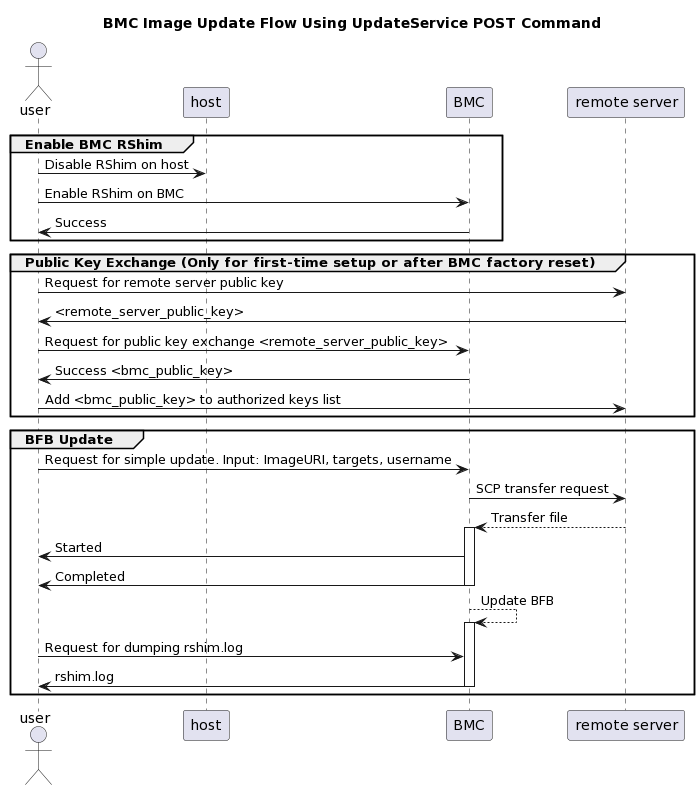
The following are the detailed instructions outlining each step in the diagram above:
-
Prepare secure file transfer of BFB:
The following is an example for how to generate the server public key on Ubuntu 22.04 and it may be different on other OS distributions/versions.
-
Gather the public SSH host keys of the server holding the
new.bfbfile. Run the following against the server holding thenew.bfbfile ("Remote Server"):OpenSSH is required for this step.
ssh-keyscan -t <key_type> <remote_server_ip>Where:
-
key_type– the type of key associated with the server storing the BFB file (e.g., ed25519) -
remote_server_ip– the IP address of the server hosting the BFB file
-
-
Retrieve the remote server's public key from the response, and send the following Redfish command to the BlueField BMC:
curl -k -u root:'<password>' -H "Content-Type: application/json" -X POST -d '{"RemoteServerIP":"<remote_server_ip>", "RemoteServerKeyString":"<remote_server_public_key>"}' https://<bmc_ip>/redfish/v1/UpdateService/Actions/Oem/NvidiaUpdateService.PublicKeyExchangeWhere:
-
password– BlueField BMC password -
remote_server_ip– the IP address of the server hosting the BFB file -
remote_server_public_key– remote server's public key from thessh-keyscanresponse, which contains both the type and the public key with one space between the two fields (i.e., "<type> <public_key>") -
bmc_ip– BMC IP address
-
-
Extract the BMC public key information (i.e., "
<type> <bmc_public_key> <username>@<hostname>") from thePublicKeyExchangeresponse and append it to theauthorized_keysfile on the remote server holding the BFB file. This enables password-less key-based authentication for users.{ "@Message.ExtendedInfo": [ { "@odata.type": "#Message.v1_1_1.Message", "Message": "Please add the following public key info to ~/.ssh/authorized_keys on the remote server", "MessageArgs": [ "<type> <bmc_public_key> root@dpu-bmc" ] }, { "@odata.type": "#Message.v1_1_1.Message", "Message": "The request completed successfully.", "MessageArgs": [], "MessageId": "Base.1.15.0.Success", "MessageSeverity": "OK", "Resolution": "None" } ] }
-
-
Initiate image transfer. Run the following Redfish command:
curl -k -u root:'<password>' -H "Content-Type: application/json" -X POST -d '{"TransferProtocol":"SCP", "ImageURI":"<image_uri>","Targets":["redfish/v1/UpdateService/FirmwareInventory/DPU_OS"], "Username":"<username>"}' https://<bmc_ip>/redfish/v1/UpdateService/Actions/UpdateService.SimpleUpdate
This command uses SCP for the image transfer, initiates a soft reset on the BlueField, and then pushes the boot stream. For NVIDIA-supplied BFBs, the eMMC is flashed automatically once the boot stream is pushed. Upon success, a
runningmessage is received.
After the BMC boots, it may take a few seconds (6-8 seconds for NVIDIA® BlueField®-2, and 2 seconds for BlueField-3) until the BlueField BSP (
DPU_OS) is up.Where:
-
image_uri– contains both the remote server IP address and the full path to the.bfbfile on the remote server, with one slash between the two fields (i.e.,<remote_server_ip>/<full_path_of_bfb>).For example, if
<remote_server_ip>is10.10.10.10and<full_path_of_bfb>is/tmp/file.bfbthen"ImageURI":"10.10.10.10//tmp/file.bfb".
-
username– username on the remote server -
bmc_ip– BMC IP addressResponse/error messages:
-
If RShim is disabled:
{
  "error": {
    "@Message.ExtendedInfo": [
      {
        "@odata.type": "#Message.v1_1_1.Message",
        "Message": "The requested resource of type Target named '/dev/rshim0/boot' was not found.",
        "MessageArgs": [
          "Target",
          "/dev/rshim0/boot"
        ],
        "MessageId": "Base.1.15.0.ResourceNotFound",
        "MessageSeverity": "Critical",
        "Resolution": "Provide a valid resource identifier and resubmit the request."
      }
    ],
    "code": "Base.1.15.0.ResourceNotFound",
    "message": "The requested resource of type Target named '/dev/rshim0/boot' was not found."
}
-
If a username or any other required field is missing:
{
  "Username@Message.ExtendedInfo": [
    {
      "@odata.type": "#Message.v1_1_1.Message",
      "Message": "The create operation failed because the required property Username was missing from the request.",
      "MessageArgs": [
        "Username"
      ],
      "MessageId": "Base.1.15.0.CreateFailedMissingReqProperties",
      "MessageSeverity": "Critical",
      "Resolution": "Correct the body to include the required property with a valid value and resubmit the request if the operation failed."
    }
  ]
}
-
Success message if the request is valid and a task is created:
{
  "@odata.id":
   "/redfish/v1/TaskService/Tasks/<task_id>",
  "@odata.type": "#Task.v1_4_3.Task",
  "Id": "<task_id>",
  "TaskState": "Running",
  "TaskStatus": "OK"
}
-
-
-
Run the following Redfish command to track the SCP image's transfer status (percentage is not updated until it reaches 100%):
curl -k -u root:'<password>' -X GET https://<bmc_ip>/redfish/v1/TaskService/Tasks/<task_id>
During the transfer, the
PercentCompletevalue remains at 0. If no errors occur, theTaskStateis set toRunning, and a keep-alive message is generated every 5 minutes with the content "Transfer is still in progress (X minutes elapsed). Please wait". Once the transfer is completed, thePercentCompleteis set to 100, and theTaskStateis updated toCompleted.Upon failure, a message is generated with the relevant resolution.
Where:
-
-
bmc_ip– BMC IP address -
task_id– task ID received by theUpdateServicecommand responseExamples:
-
-
-
-
Response/error messages:
-
If host identity is not confirmed or the provided host key is wrong:
{
      "@odata.type": "#MessageRegistry.v1_4_1.MessageRegistry",
      "Message": "Transfer of image '<file_name>' to '/dev/rshim0/boot' failed.",
      "MessageArgs": [
        "<file_name>,
        "/dev/rshim0/boot"
      ],
      "MessageId": "Update.1.0.TransferFailed",
      "Resolution": " Unknown Host: Please provide server's public key using PublicKeyExchange ",
      "Severity": "Critical"
    }
…
"PercentComplete": 0,
  "StartTime": "<start_time>",
  "TaskMonitor": "/redfish/v1/TaskService/Tasks/<task_id>/Monitor",
  "TaskState": "Exception",
  "TaskStatus": "Critical"
In this case, revoke the remote server key using the following Redfish command:
curl -k -u root:'<password>' -H "Content-Type: application/json" -X POST -d '{"RemoteServerIP":"<remote_server_ip>"}' https://<bmc_ip>/redfish/v1/UpdateService/Actions/Oem/NvidiaUpdateService.RevokeAllRemoteServerPublicKeysWhere:
-
remote_server_ip– remote server's IP address -
bmc_ip– BMC IP address
Then repeat steps 1 and 2.
-
-
-
-
-
-
-
-
If the BMC identity is not confirmed:
{
      "@odata.type": "#MessageRegistry.v1_4_1.MessageRegistry",
      "Message": "Transfer of image '<file_name>' to '/dev/rshim0/boot' failed.",
      "MessageArgs": [
        "<file_name>",
        "/dev/rshim0/boot"
      ],
      "MessageId": "Update.1.0.TransferFailed",
      "Resolution": "Unauthorized Client: Please use the PublicKeyExchange action to receive the system's public key and add it as an authorized key on the remote server",
      "Severity": "Critical"
      }
…
"PercentComplete": 0,
  "StartTime": "<start_time>",
  "TaskMonitor": "/redfish/v1/TaskService/Tasks/<task_id>/Monitor",
  "TaskState": "Exception",
  "TaskStatus": "Critical"
In this case, verify that the BMC key has been added correctly to the
authorized_keyfile on the remote server.
-
-
-
-
-
-
-
If SCP fails:
{
      "@odata.type": "#MessageRegistry.v1_4_1.MessageRegistry",
      "Message": "Transfer of image '<file_name>' to '/dev/rshim0/boot' failed.",
      "MessageArgs": [
        "<file_name>",
        "/dev/rshim0/boot"
      ],
      "MessageId": "Update.1.0.TransferFailed",
      "Resolution": "Failed to launch SCP",
      "Severity": "Critical"
      }
…
"PercentComplete": 0,
  "StartTime": "<start_time>",
  "TaskMonitor": "/redfish/v1/TaskService/Tasks/<task_id>/Monitor",
  "TaskState": "Exception",
  "TaskStatus": "Critical"
-
-
-
-
-
-
-
Success/status messages:
-
The keep-alive message:
{
      "@odata.type": "#MessageRegistry.v1_4_1.MessageRegistry",
      "Message": " <file_name>' is being transferred to '/dev/rshim0/boot'.",
      "MessageArgs": [
        " <file_name>",
        "/dev/rshim0/boot"
      ],
      "MessageId": "Update.1.0.TransferringToComponent",
      "Resolution": "Transfer is still in progress (5 minutes elapsed): Please wait",
      "Severity": "OK"
    }
…
"PercentComplete": 0,
  "StartTime": "<start_time>",
  "TaskMonitor": "/redfish/v1/TaskService/Tasks/<task_id>/Monitor",
  "TaskState": "Running",
  "TaskStatus": "OK"
-
Upon successful completion of SCP BFB transfer:
{
      "@odata.type": "#MessageRegistry.v1_4_1.MessageRegistry",
      "Message": "Device 'DPU' successfully updated with image '<file_name>'.",
      "MessageArgs": [
        "DPU",
        "<file_name>"
      ],
      "MessageId": "Update.1.0.UpdateSuccessful",
      "Resolution": "None",
      "Severity": "OK"
    },
…
"PercentComplete": 100,
  "StartTime": "<start_time>",
  "TaskMonitor": "/redfish/v1/TaskService/Tasks/<task_id>/Monitor",
  "TaskState": "Completed",
  "TaskStatus": "OK"
-
-
-
-
Applying New BFB Image
BlueField must be restarted to apply the new firmware. To restart BlueField:
-
Perform a graceful shutdown of the BlueField Arm OS.
-
Power cycle the server to complete the restart.
Alternatively, a server reboot may be done instead of power cycle by following these steps:
-
Graceful shutdown the BlueField Arm OS.
Without graceful shutdown of BlueField Arm OS during server reboot, the BlueField Arm side does not undergo a restart process (so only NIC firmware is applied).
-
Wait until completed.
-
Reboot the server (ATF, UEFI, BlueField Arm OS, NIC firmware is applied).
Server reboot will not restart the BlueField BMC (CEC not applied).
-
Log into BlueField BMC via Redfish and issue a restart (BlueField BMC and CEC is applied).
-
Verify that the new BFB is running by checking its version:
curl -k -u root:'<password>' -H "Content-Type: application/json" -X GET https://<bmc_ip>/redfish/v1/UpdateService/FirmwareInventory/DPU_OS
Installing BFB File with HTTP Protocol
-
Make sure the BFB file,
new.bfb, is available on HTTP server -
Initiate image transfer. Run the following Redfish command:
curl -k -u root:'<password>' -H "Content-Type: application/json" -X POST -d '{"TransferProtocol":"HTTP", "ImageURI":"<image_uri>","Targets":["redfish/v1/UpdateService/FirmwareInventory/DPU_OS"]}' https://<bmc_ip>/redfish/v1/UpdateService/Actions/UpdateService.SimpleUpdate
This command uses HTTP to download the image, initiates a soft reset on the BlueField, and pushes the boot stream. For NVIDIA-supplied BFBs, the eMMC is flashed automatically once the boot stream is pushed. Upon success, a
runningmessage is received.
After the BMC boots, it may take a few seconds (6-8 seconds in BlueField-2 and 2 seconds in BlueField-3) until the BlueField BSP (
DPU_OS) is up.Where:
-
-
image_uri– contains both the HTTP server address and the exported path to the.bfbfile on the server, with one slash between the two fields (i.e.,<http_server>/<exported_path_of_bfb>).For example, if
<http_server>is10.10.10.10and<exported_path_of_bfb>is/tmp/new.bfbthen"ImageURI":"10.10.10.10//tmp/new.bfb".
-
bmc_ip– BMC IP addressResponse/error messages:
-
If RShim is disabled:
{
  "error": {
    "@Message.ExtendedInfo": [
      {
        "@odata.type": "#Message.v1_1_1.Message",
        "Message": "The requested resource of type Target named '/dev/rshim0/boot' was not found.",
        "MessageArgs": [
          "Target",
          "/dev/rshim0/boot"
        ],
        "MessageId": "Base.1.15.0.ResourceNotFound",
        "MessageSeverity": "Critical",
        "Resolution": "Provide a valid resource identifier and resubmit the request."
      }
    ],
    "code": "Base.1.15.0.ResourceNotFound",
    "message": "The requested resource of type Target named '/dev/rshim0/boot' was not found."
}
-
If the HTTPS server address is wrong or the HTTPS service is not stated, an "Unknown Host" error is expected:
    {
      "@odata.type": "#MessageRegistry.v1_4_1.MessageRegistry",
      "Message": "Transfer of image 'new.bfb' to '/dev/rshim0/boot' failed.",
      "MessageArgs": [
        "new.bfb",
        "/dev/rshim0/boot"
      ],
      "MessageId": "Update.1.0.TransferFailed",
      "Resolution": "Unknown Host: Please provide server's public key using PublicKeyExchange (for SCP download) or  Check and restart server's web service (for HTTP/HTTPS download)",
      "Severity": "Critical"
    },
-
If
TransferProtocolor any other required field are wrong:{ "@Message.ExtendedInfo": [ { "@odata.type": "#Message.v1_1_1.Message", "Message": "The parameter TransferProtocol for the action UpdateService.SimpleUpdate is not supported on the target resource.", "MessageArgs": [ "TransferProtocol", "UpdateService.SimpleUpdate" ], "MessageId": "Base.1.16.0.ActionParameterNotSupported", "MessageSeverity": "Warning", "Resolution": "Remove the parameter supplied and resubmit the request if the operation failed." } ] }
-
If
Targetsor any other required field are missing:{ "Targets@Message.ExtendedInfo": [ { "@odata.type": "#Message.v1_1_1.Message", "Message": "The create operation failed because the required property Targets was missing from the request.", "MessageArgs": [ "Targets" ], "MessageId": "Base.1.16.0.CreateFailedMissingReqProperties", "MessageSeverity": "Critical", "Resolution": "Correct the body to include the required property with a valid value and resubmit the request if the operation failed." } ] }
-
Success message if the request is valid and a task is created:
{
  "@odata.id":
   "/redfish/v1/TaskService/Tasks/<task_id>",
  "@odata.type": "#Task.v1_4_3.Task",
  "Id": "<task_id>",
  "TaskState": "Running",
  "TaskStatus": "OK"
}
-
-
Installing BFB File with HTTPS Protocol
-
Make sure the BFB file,
new.bfb, is available on HTTPS server -
Make sure the BMC has certificate to authenticate the HTTPS server. Or install a valid certificate to authenticate:
curl -c cjar -b cjar -k -u root:'<password>' -X POST https://$bmc/redfish/v1/Managers/Bluefield_BMC/Truststore/Certificates -d @CAcert.json
-
Initiate image transfer. Run the following Redfish command:
curl -k -u root:'<password>' -H "Content-Type: application/json" -X POST -d '{"TransferProtocol":"HTTPS", "ImageURI":"<image_uri>","Targets":["redfish/v1/UpdateService/FirmwareInventory/DPU_OS"]}' https://<bmc_ip>/redfish/v1/UpdateService/Actions/UpdateService.SimpleUpdate
This command uses HTTPS for the image download, initiates a soft reset on the BlueField, and then pushes the boot stream. For NVIDIA-supplied BFBs, the eMMC is flashed automatically once the boot stream is pushed. Upon success, a
runningmessage is received.
After the BMC boots, it may take a few seconds (6-8 seconds in BlueField-2 and 2 seconds in BlueField-3) until the BlueField BSP (
DPU_OS) is up.Where:
-
-
image_uri– contains both the HTTPS server address and the exported path to the.bfbfile on the server, with one slash between the two fields (i.e.,<https_server>/<exported_path_of_bfb>).For example, if
<https_server>is urm.nvidia.com and<exported_path_of_bfb>is artifactory/sw-mlnx-bluefield-generic/Ubuntu22.04/new.bfb then"ImageURI":"10.126.206.42/artifactory/sw-mlnx-bluefield-generic/Ubuntu22.04/new.bfb".
-
bmc_ip– BMC IP addressResponse / error messages:
-
-
-
-
If RShim is disabled:
{
  "error": {
    "@Message.ExtendedInfo": [
      {
        "@odata.type": "#Message.v1_1_1.Message",
        "Message": "The requested resource of type Target named '/dev/rshim0/boot' was not found.",
        "MessageArgs": [
          "Target",
          "/dev/rshim0/boot"
        ],
        "MessageId": "Base.1.15.0.ResourceNotFound",
        "MessageSeverity": "Critical",
        "Resolution": "Provide a valid resource identifier and resubmit the request."
      }
    ],
    "code": "Base.1.15.0.ResourceNotFound",
    "message": "The requested resource of type Target named '/dev/rshim0/boot' was not found."
}
-
If the HTTPS server address is wrong or the HTTPS service is not stated, an "Unknown Host" error is expected:
    {
      "@odata.type": "#MessageRegistry.v1_4_1.MessageRegistry",
      "Message": "Transfer of image 'new.bfb' to '/dev/rshim0/boot' failed.",
      "MessageArgs": [
        "new.bfb",
        "/dev/rshim0/boot"
      ],
      "MessageId": "Update.1.0.TransferFailed",
      "Resolution": "Unknown Host: Please provide server's public key using PublicKeyExchange (for SCP download) or  Check and restart server's web service (for HTTP/HTTPS download)",
      "Severity": "Critical"
    },
-
If
TransferProtocolor any other required field are wrong:{ "@Message.ExtendedInfo": [ { "@odata.type": "#Message.v1_1_1.Message", "Message": "The parameter TransferProtocol for the action UpdateService.SimpleUpdate is not supported on the target resource.", "MessageArgs": [ "TransferProtocol", "UpdateService.SimpleUpdate" ], "MessageId": "Base.1.16.0.ActionParameterNotSupported", "MessageSeverity": "Warning", "Resolution": "Remove the parameter supplied and resubmit the request if the operation failed." } ] }
-
-
-
-
-
If
Targetsor any other required field are missing:{ "Targets@Message.ExtendedInfo": [ { "@odata.type": "#Message.v1_1_1.Message", "Message": "The create operation failed because the required property Targets was missing from the request.", "MessageArgs": [ "Targets" ], "MessageId": "Base.1.16.0.CreateFailedMissingReqProperties", "MessageSeverity": "Critical", "Resolution": "Correct the body to include the required property with a valid value and resubmit the request if the operation failed." } ] }
-
-
-
-
-
If the HTTPS server fails to authenticate the current installed certificate:
     {
      "@odata.type": "#MessageRegistry.v1_4_1.MessageRegistry",
      "Message": "Transfer of image 'new.bfb' to '/dev/rshim0/boot' failed.",
      "MessageArgs": [
        "new.bfb",
        "/dev/rshim0/boot"
      ],
      "MessageId": "Update.1.0.TransferFailed",
      "Resolution": "Bad Certificate: Please check the remote server certification, correct and replace the current installed one",
      "Severity": "Critical"
    },
-
-
-
-
-
Success message if the request is valid and a task is created:
{
  "@odata.id":
   "/redfish/v1/TaskService/Tasks/<task_id>",
  "@odata.type": "#Task.v1_4_3.Task",
  "Id": "<task_id>",
  "TaskState": "Running",
  "TaskStatus": "OK"
}
-
-
Tracking Image Transfer Status and Progress for HTTP/HTTPS Protocols
The following section is relevant for HTTP/HTTPS protocols which received a success message of a valid SimpleUpdate request and a running task state.
Run the following Redfish command to track image transfer status and progress:
curl -k -u root:'<password>' -X GET https://<bmc_ip>/redfish/v1/TaskService/Tasks/<task_id>
Example:
    {
      "@odata.type": "#MessageRegistry.v1_4_1.MessageRegistry",
      "Message": "Image 'new.bfb' is being transferred to '/dev/rshim0/boot'.",
      "MessageArgs": [
        "new.bfb",
        "/dev/rshim0/boot"
      ],
      "MessageId": "Update.1.0.TransferringToComponent",
      "Resolution": "Transfer started",
      "Severity": "OK"
    },
  …

  "PercentComplete": 60,
  "StartTime": "2024-06-10T19:39:03+00:00",
  "TaskMonitor": "/redfish/v1/TaskService/Tasks/1/Monitor",
  "TaskState": "Running",
  "TaskStatus": "OK"
Direct SCP
scp <path_to_bfb> root@<bmc_ip>:/dev/rshim0/boot
If bf.cfg is required as part of the boot process, run:
cat <path_to_bfb> bf.cfg > new.bfb
scp <path to new.bfb> root@<bmc_ip>:/dev/rshim0/boot
Tracking Installation Progress and Status
After image transfer is complete, users may follow the installation progress and status with the help of a dump of current the RShim miscellaneous messages log.
-
Initiate request for dump download:
sudo curl -k -u root:'<password>' -d '{"DiagnosticDataType": "Manager"}' -X POST https://<ip_address>/redfish/v1/Managers/Bluefield_BMC/LogServices/Dump/Actions/LogService.CollectDiagnosticDataWhere:
-
<ip-address>– BMC IP address -
<password>– BMC password
-
-
Use the received task ID to poll for dump completion:
sudo curl -k -u root:'<password>' -H 'Content-Type: application/json' -X GET https://<ip_address>/redfish/v1/TaskService/Tasks/<task_id>Where:
-
<ip-address>– BMC IP address -
<password>– BMC password -
<task_id>– Task ID received from the first command
-
-
Once dump is complete, download and review the dump:
sudo curl -k -u root:'<password>' -H 'Content-Type: application/json' -X GET https://<ip_address>/redfish/v1/Managers/Bluefield_BMC/LogServices/Dump/Entries/<entry_id>/attachment --output </path/to/tar/log_dump.tar.xz>Where:
-
<ip-address>– BMC IP address -
<password>– BMC password -
<entry_id>– The entry ID of the dump inredfish/v1/Managers/Bluefield_BMC/LogServices/Dump/Entries -
</path/to/tar/log_dump.tar.xz>– path to download the log dumplog_dump.tar.xz
-
-
Untar the file to review the logs. For example:
tar xvfJ log_dump.tar.xz
-
The log is contained in the
rshim.logfile. The log displaysReboot,finished,DPU is ready, orIn Enhanced NIC modewhen BFB installation completes.If the downloaded log file does not contain any of these strings, keep downloading the log file until they appear.
-
When installation is complete, you may crosscheck the new BFB version against the version provided to verify a successful upgrade:
curl -k -u root:"<PASSWORD>" -H "Content-Type: application/json" -X GET https://<bmc_ip>/redfish/v1/UpdateService/FirmwareInventory/DPU_OSExample response:
"@odata.id": "/redfish/v1/UpdateService/FirmwareInventory/DPU_OS",
 "@odata.type": "#SoftwareInventory.v1_4_0.SoftwareInventory",
 "Description": "Host image",
 "Id": "DPU_OS",
 "Members@odata.count": 1,
 "Name": "Software Inventory",
 "RelatedItem": [
   {
     "@odata.id": "/redfish/v1/Systems/Bluefield/Bios"
   }
 ],
 "SoftwareId": "",
 "Status": {
   "Conditions": [],
   "Health": "OK",
   "HealthRollup": "OK",
   "State": "Enabled"
 },
 "Updateable": true,
 "Version": "DOCA_2.2.0_BSP_4.2.1_Ubuntu_22.04-8.23-07"
Step 6 – Verify Software Component Versions
Verify BlueField BSP, BlueField BMC and BlueField NIC firmware versions are up to date according to the NVIDIA BlueField BMC Software User Manual and NVIDIA BlueField BSP Release Notes.
-
Use the Redfish
FirmwareInventoryschema over the 1GbE OOB interface to the BlueField's BMC:[redfish_scripts] $ curl -k -u root:<password> -H "Content-Type: application/octet-stream" -X GET https://<BF-BMC-IP>/redfish/v1/UpdateService/FirmwareInventory { "@odata.id": "/redfish/v1/UpdateService/FirmwareInventory", "@odata.type": "#SoftwareInventoryCollection.SoftwareInventoryCollection", "Members": [ { "@odata.id": "/redfish/v1/UpdateService/FirmwareInventory/9f7ec75a_BMC_Firmware" }, { "@odata.id": "/redfish/v1/UpdateService/FirmwareInventory/Bluefield_FW_ERoT" }, { "@odata.id": "/redfish/v1/UpdateService/FirmwareInventory/DPU_ATF" }, { "@odata.id": "/redfish/v1/UpdateService/FirmwareInventory/DPU_BOARD" }, { "@odata.id": "/redfish/v1/UpdateService/FirmwareInventory/DPU_BSP" }, { "@odata.id": "/redfish/v1/UpdateService/FirmwareInventory/DPU_NIC" }, { "@odata.id": "/redfish/v1/UpdateService/FirmwareInventory/DPU_NODE" }, { "@odata.id": "/redfish/v1/UpdateService/FirmwareInventory/DPU_OFED" }, { "@odata.id": "/redfish/v1/UpdateService/FirmwareInventory/DPU_OS" }, { "@odata.id": "/redfish/v1/UpdateService/FirmwareInventory/DPU_SYS_IMAGE" }, { "@odata.id": "/redfish/v1/UpdateService/FirmwareInventory/DPU_UEFI" } ], "Members@odata.count": 11, "Name": "Software Inventory Collection" }Response example for
DPU_ATF:> curl -k -u root:<password> -H "Content-Type: application/octet-stream" -X GET https://<BF-BMC-IP>/redfish/v1/UpdateService/FirmwareInventory/DPU_ATF { "@odata.id": "/redfish/v1/UpdateService/FirmwareInventory/DPU_ATF", "@odata.type": "#SoftwareInventory.v1_4_0.SoftwareInventory", "Description": "Host image", "Id": "DPU_ATF", "Members@odata.count": 1, "Name": " "Software Inventory", "RelatedItem": [ { "@odata.id": "/redfish/v1/Systems/Bluefield/Bios" } ], "SoftwareId": "", "Status": { "Health": "OK", "HealthRollup": "OK", "State": "OK", }, "Updateable": true, "Version": "v2.2(release):4.0.2-33-gd9f4ad5"
This request may also be used to query some of the other previously mentioned components (e.g.,
9f7ec75a_BMC_Firmware,Bluefield_FW_ERoT).
-
If the versions are not as expected, upgrade as needed:
-
Download the latest DOCA (BFB file) versions from the downloader at the bottom of the DOCA product page.
-
DOCA (BFB) upgrade options (upgrading UEFI, ATF, Arm OS, NIC firmware components):
-
Recommended—BFB upgrade from remote management controller using Redfish
UpdateServiceschema over 1GbE to BlueField BMC:export token=`curl -k -H "Content-Type: application/json" -X POST https://<bmc_ip>/login -d '{"username":"root", "password":"<password>"}' | grep token | awk '{print $2;}' | tr -d '"'`For more information on deploying BlueField software from the BMC, refer to the "Deploying BlueField Software Using BFB from BMC" page of the NVIDIA BlueField BSP document.
-
-
Step 7 – Relate BlueField to BlueField BMC and NIC Data Ports on Same Machine
-
Get the BlueField's BMC MAC address using the following Redfish command over the 1GbE OOB port to the BlueField BMC:
curl -k -u root:<password> -H 'Content-Type: application/json' -X GET https://<BF-BMC-IP>/redfish/v1/Managers/Bluefield_BMC/EthernetInterfaces/eth0
 {
   "@odata.id": "/redfish/v1/Managers/Bluefield_BMC/EthernetInterfaces/eth0",
   "@odata.type": "#EthernetInterface.v1_6_0.EthernetInterface",
   "DHCPv4": {
     "DHCPEnabled": true,
     "UseDNSServers": true,
     "UseDomainName": true,
     "UseNTPServers": true
   },
   "DHCPv6": {
     "OperatingMode": "Stateful",
     "UseDNSServers": true,
     "UseDomainName": true,
     "UseNTPServers": true
   },
   "Description": "Management Network Interface",
   "FQDN": "dpu-bmc",
   "HostName": "BlueField-bmc",
   "IPv4Addresses": [
     {
       "Address": "10.237.40.179",
       "AddressOrigin": "DHCP",
       "Gateway": "0.0.0.0",
       "SubnetMask": "255.255.0.0"
     }
   ],
   "IPv4StaticAddresses": [],
   "IPv6AddressPolicyTable": [],
   "IPv6Addresses": [
     {
       "Address": "fdfd:fdfd:10:237:966d:aeff:fe17:9f5f",
       "AddressOrigin": "DHCPv6",
       "AddressState": null,
       "PrefixLength": 64
     },
     {
       "Address": "fe80::966d:aeff:fe17:9f5f",
       "AddressOrigin": "LinkLocal",
       "AddressState": null,
       "PrefixLength": 64
     }
   ],
   "IPv6DefaultGateway": "fe80::445b:ed80:5f97:8900",
   "IPv6StaticAddresses": [],
   "Id": "eth0",
   "InterfaceEnabled": true,
   "LinkStatus": "LinkUp",
   "MACAddress": "94:6d:ae:17:9f:5f",
   "MTUSize": 1500,
   "Name": "Manager Ethernet Interface",
   "NameServers": [
     "fdfd:fdfd:7:77:250:56ff:fe8b:e4f9"
   ],
   "SpeedMbps": 0,
   "StaticNameServers": [],
   "Status": {
     "Health": "OK",
     "HealthRollup": "OK",
     "State": "Enabled"
   },
   "VLANs": {
     "@odata.id": "/redfish/v1/Managers/Bluefield_BMC/EthernetInterfaces/eth0/VLANs"
   }
 }
-
Get the BlueField's high-speed port's MAC addresses using the following Redfish command over the 1GbE OOB port to the BlueField BMC:
curl -k -u root:<password> -H "Content-Type: application/octet-stream" -X GET https://<bmc_ip>/redfish/v1/Chassis/Card1/NetworkAdapters/NvidiaNetworkAdapter/NetworkDeviceFunctions/eth0f0
{
  "@odata.id": "/redfish/v1/Chassis/Card1/NetworkAdapters/NvidiaNetworkAdapter/NetworkDeviceFunctions/eth0f0",
  "@odata.type": "#NetworkDeviceFunction.v1_9_0.NetworkDeviceFunction",
  "Ethernet": {
    "MACAddress": "02:b1:b6:12:39:05",
    "MTUSize": 1500
  },
  "Id": "eth0f0",
  "Links": {
    "OffloadSystem": {
      "@odata.id": "/redfish/v1/Systems/Bluefield"
    },
    "PhysicalPortAssignment": {
      "@odata.id": "/redfish/v1/Chassis/Card1/NetworkAdapters/NvidiaNetworkAdapter/Ports/eth0"
    }
  },
  "Name": "NetworkDeviceFunction",
  "NetDevFuncCapabilities": [
    "Ethernet"
  ],
  "NetDevFuncType": "Ethernet"
}
Step 8 – Change Mode of Operation to Zero-trust Mode
Unless it is explicitly desired for the host to be trusted, make sure to disable the host PCIe RShim to protect the BlueField from potential security threats from the host:
-
Use Redfish BIOS settings schema over the 1GbE OOB to the BlueField BMC:
curl -k -X PATCH -d '{"Attributes":{"Internal CPU Model": "Restricted"}}' -u root:<password> https://<BF-BMC-IP>/redfish/v1/Systems/<SystemID>/Bios/Settings | python3 -m json.toolThe available BlueField host privilege levels are
RestrictedandPrivileged. The default isPrivileged, where the host has access to BlueField. -
Change the privilege level to
Restricted.
Changing host privilege level requires BlueField reset for the change to take effect.
For more information on BlueField modes of operation, refer to this page.
Step 9 – (Optional) Change Mode of Operation from DPU Mode to NIC Mode
To change from DPU mode to NIC mode (or vice versa):
-
To enable NIC mode:
curl -k -u root:<password> -H 'content-type: application/json' -d '{ "Attributes": { "NicMode": "NicMode" } }' -X PATCH https://<BF-BMC-IP>/redfish/v1/Systems/Bluefield/Bios/Settings
-
To disable NIC mode:
curl -k -u root:<password> -H 'content-type: application/json' -d '{ "Attributes": { "NicMode": "DpuMode" } }' -X PATCH https://<BF-BMC-IP>/redfish/v1/Systems/Bluefield/Bios/Settings
-
To check that the BMC recorded the change for the next UEFI reboot to apply it:
curl -k -u root:<password> -H 'content-type: application/json' -X GET https://<BF-BMC-IP>/redfish/v1/Systems/Bluefield/Bios/Settings
Reset the BlueField (Arm and NIC) for the mode change to take effect.
-
To verify that the NIC mode has updated accordingly:
curl -k -u root:<password> -H 'content-type: application/json' -X GET https://<BF-BMC-IP>/redfish/v1/Systems/Bluefield/Bios/
Step 10 – (Optional) Disable Secure Boot
As part of the default settings of the BlueField, UEFI Secure Boot is enabled and requires no special configuration to use it with the bundled Ubuntu OS shipped with the BlueField device. Disabling UEFI Secure Boot may be necessary when running an unsigned Arm OS image, such as a customer OS. Using Redfish Secure Boot schema over 1GbE to BlueField BMC, run:
curl -k -u root:<password> -H "Content-Type: application/octet-stream" -X GET https://<BF-BMC-IP>/redfish/v1/Systems/Bluefield/SecureBoot
{
  "@odata.id": "/redfish/v1/Systems/Bluefield/SecureBoot",
  "@odata.type": "#SecureBoot.v1_1_0.SecureBoot",
  "Description": "The UEFI Secure Boot associated with this system.",
  "Id": "SecureBoot",
  "Name": "UEFI Secure Boot",
  "SecureBootCurrentBoot": "Enabled",
  "SecureBootEnable": true,
  "SecureBootMode": "SetupMode"
}
curl -k -u root:<BF-BMC-PASSWORD> -X PATCH https://<BF-BMC-IP>/redfish/v1/Systems/Bluefield/SecureBoot -H 'Content-Type: application/json' -d '{"SecureBootEnable": false}'
After running this command, the BlueField Arm OS must be rebooted twice. The first reboot is for the UEFI redfish client to read the request from the BMC and apply it; the second reboot is for the setting to take effect.
-
From the BlueField BMC using Redfish:
curl -k -u root:<BF-BMC-PASSWORD> -X POST https://<BF-BMC-IP>/redfish/v1/Systems/Bluefield/Actions/ComputerSystem.Reset -H 'Content-Type: application/json' -d '{"ResetType":"ForceRestart"}'
-
From RShim:
echo 'SW_RESET 1' > /dev/rshim0/misc
-
From the BlueField Arm OS:
reboot
For more information on user management, review this page.
Last updated: