

Layout Manager
The Layout Manager lets you save and reuse a table configuration. Use layouts to create focused views for troubleshooting or monitoring and to switch between them without manually reconfiguring the table each time.
A layout can save the following table settings:
-
Column width and order
-
Visible and hidden columns
-
Pinned columns
-
Column sorting
Supported Tables
The Layout Manager is available in the following views:
-
Circuits
-
Flapping Circuits
-
Golden BER and other test circuit details
-
Amber test details
The Layout Manager may not be available in other tables.
Layout Controls
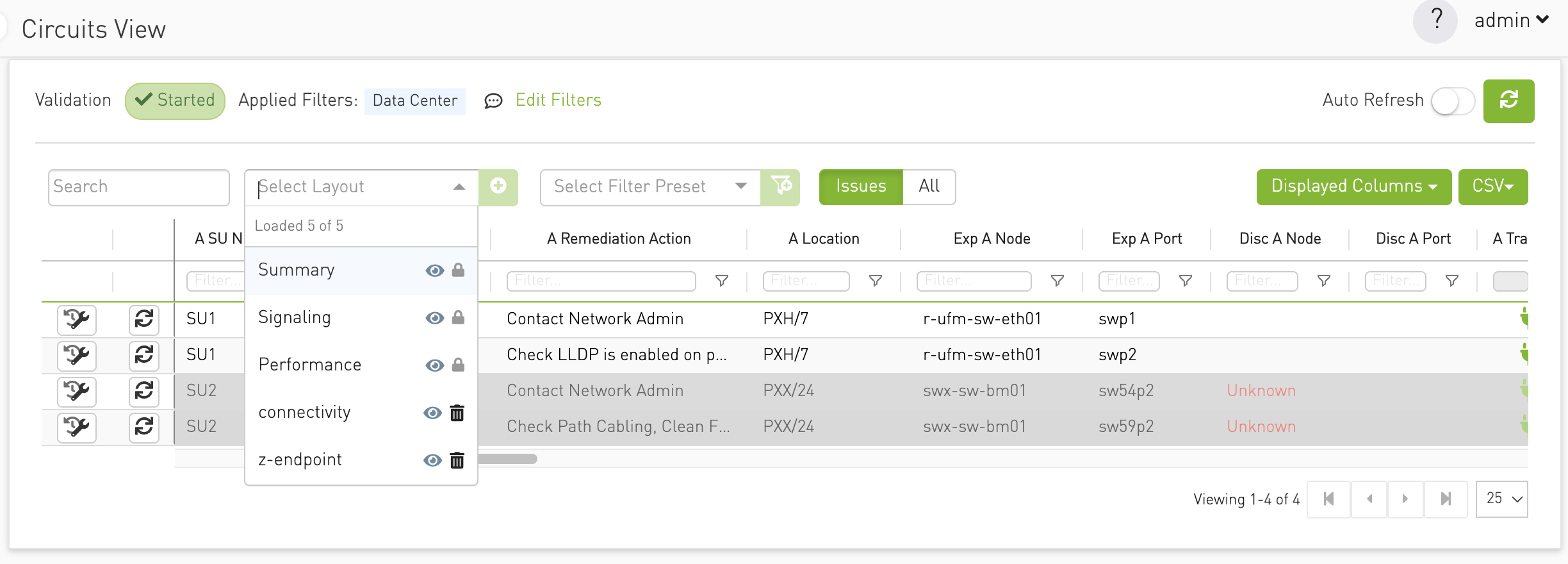
The table toolbar contains a layout list and a control for creating a layout. Depending on the selected layout and its current state, the following actions are available:
|
Action |
Description |
|---|---|
|
Select a layout |
Applies the saved table configuration. |
|
Create |
Saves the current table configuration as a new layout. |
|
Save |
Updates the selected personal layout with your current changes. |
|
Reset |
Discards unsaved changes and restores the last loaded or saved state. |
|
View summary |
Displays the settings stored in the layout. |
|
Delete |
Removes a personal layout. |
Layout Types
The layout list can contain the following types:
-
Personal layouts are created by you and are visible only to your user account. You can update and delete them.
-
Predefined layouts, when available, are provided by the system. A lock icon identifies them. You can apply and inspect predefined layouts, but you cannot update or delete them.
Layouts are kept separately for each table. A layout created in one view does not appear in another view.
Creating a Layout
-
Configure the table as needed. You can resize, move, show, hide, or pin columns and change sorting.
-
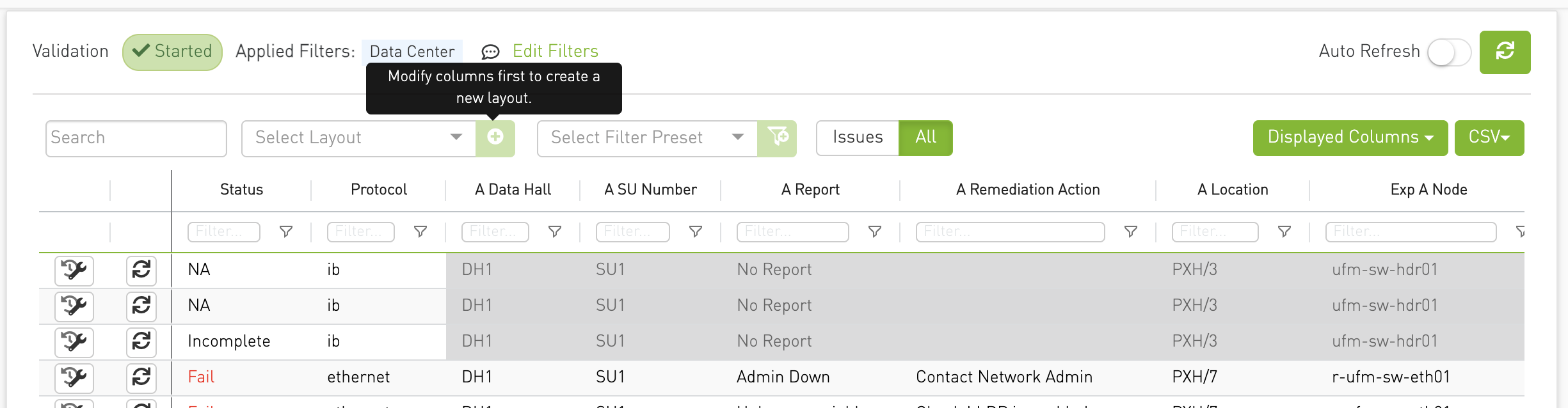
Select the Create control in the table toolbar.
-
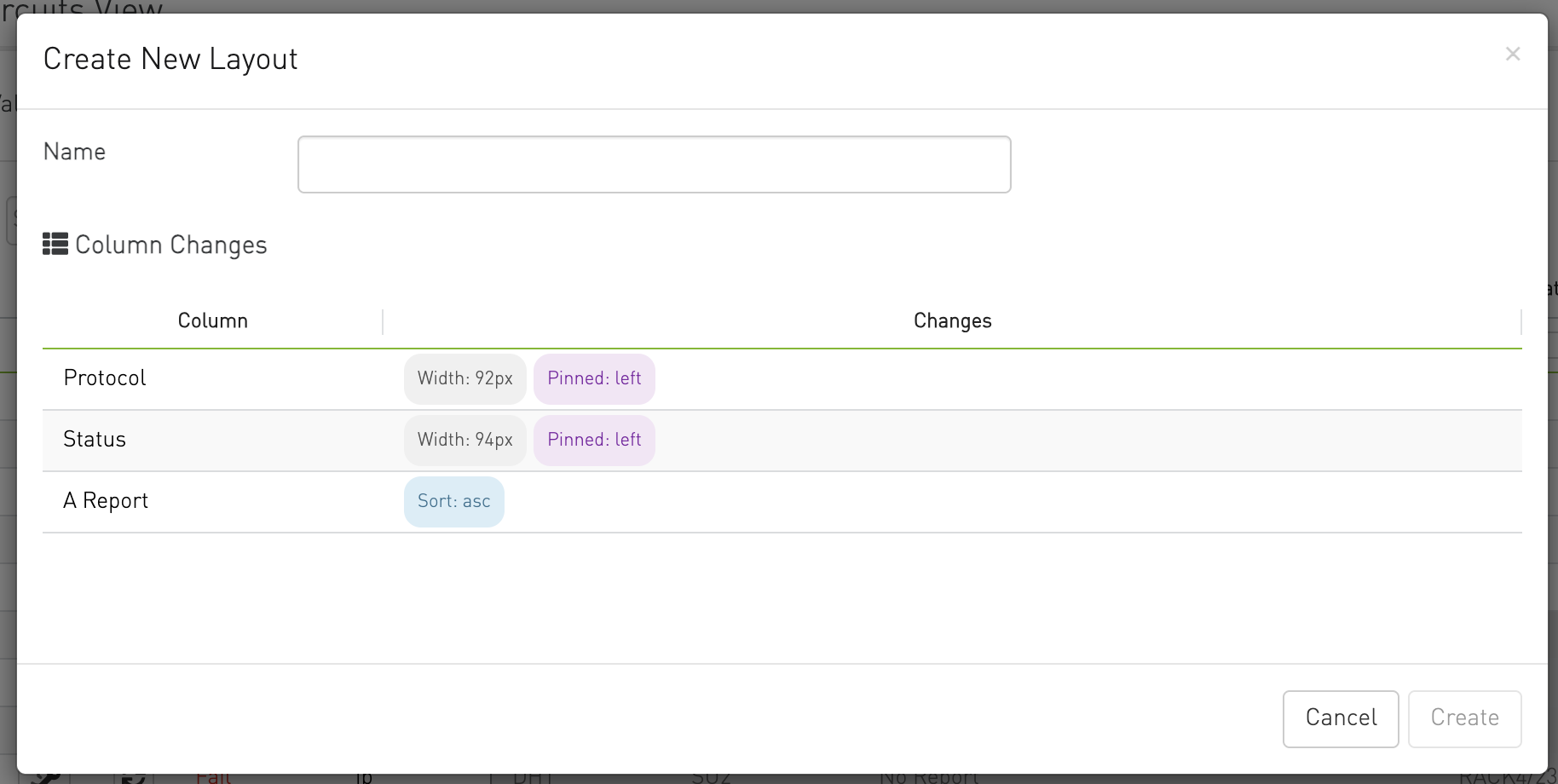
Enter a unique layout name.
-
Review the layout summary to verify the settings that will be saved.
-
Confirm the action.
The new layout is added to the layout list and selected automatically.
A layout must contain at least one table change or filter. Layout names must:
-
Start with a letter or number.
-
Contain only letters, numbers, hyphens (-), underscores (_), or periods (.).
-
Be unique among your layouts for the current table.
-
Not contain spaces, slashes, backslashes, or two consecutive periods (..).
Applying or Switching Layouts
Open the layout list and select a layout. The saved column settings are applied immediately.
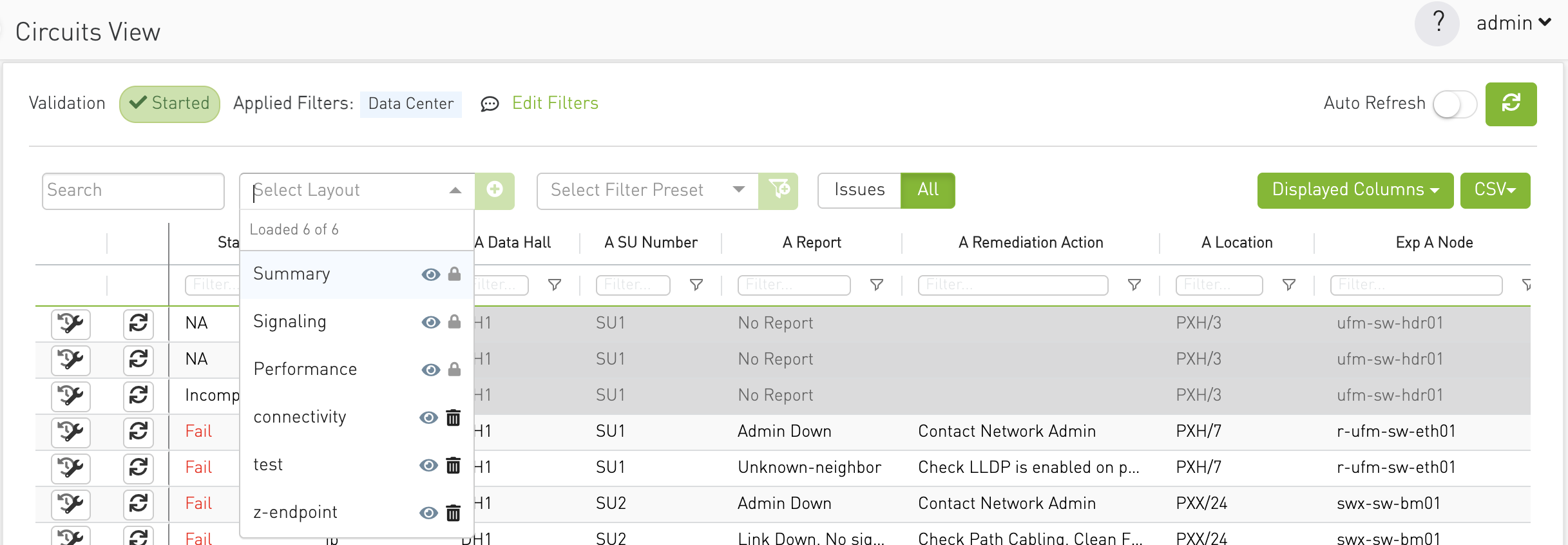
The selected layout is remembered for the current table. When you return to the table or refresh the browser, CVT reapplies it if the layout still exists. If it is no longer available, CVT uses a default predefined layout when one is configured; otherwise, the table opens in its default state.
To return to the table's default configuration, clear the selected layout.
Updating a Personal Layout
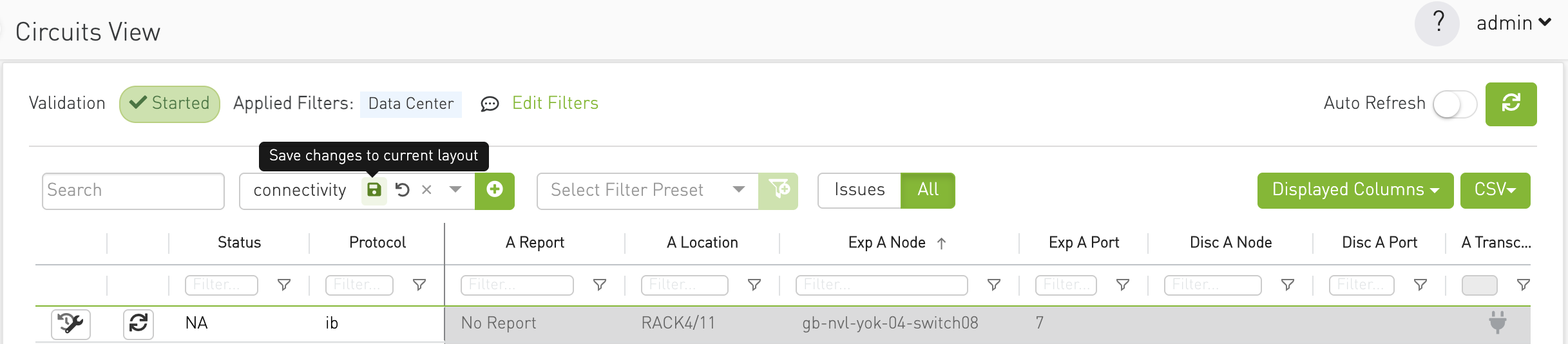
When you change the table after selecting a personal layout, Save and Reset actions appear.
-
Modify the table configuration.
-
Select Save.
-
Confirm the update.
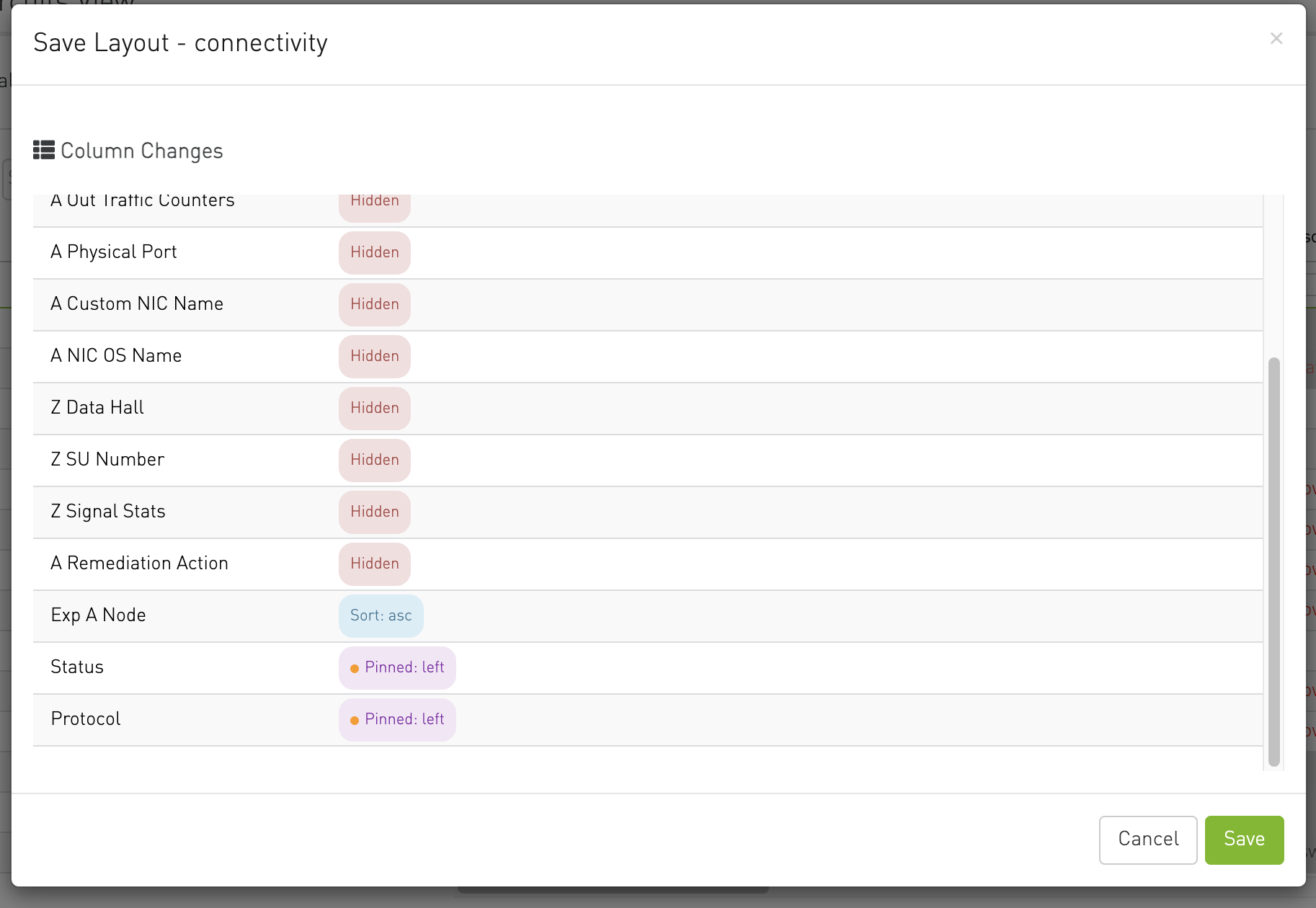
The current table settings replace the previously saved settings for that layout.
Predefined layouts cannot be updated. To preserve changes based on a predefined layout, create a new personal layout.
Resetting Changes
Use Reset to discard changes that have not been saved:
-
If a layout is selected, the table returns to that layout's last loaded or saved state.

-
If no layout is selected, the table returns to its initial default state.

Resetting does not delete the layout.
Viewing a Layout Summary
Select the View summary icon next to a layout to review its saved settings.

The summary can include:
-
Quick-filter text
-
Column filters
-
Sorting
-
Column width and order
-
Pinned columns
-
Visible and hidden columns
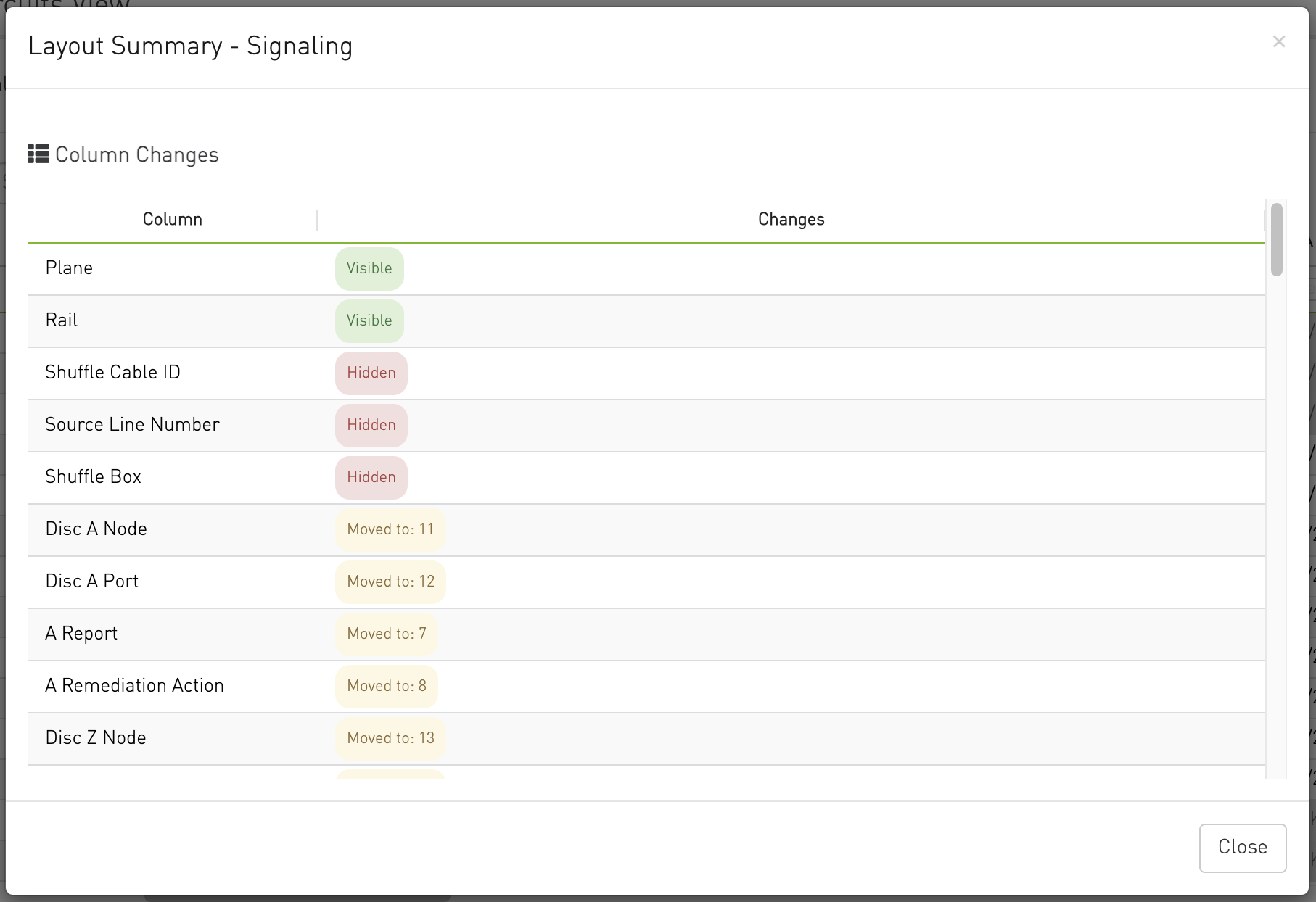
You can view the summary for both personal and predefined layouts.
Deleting a Personal Layout
-
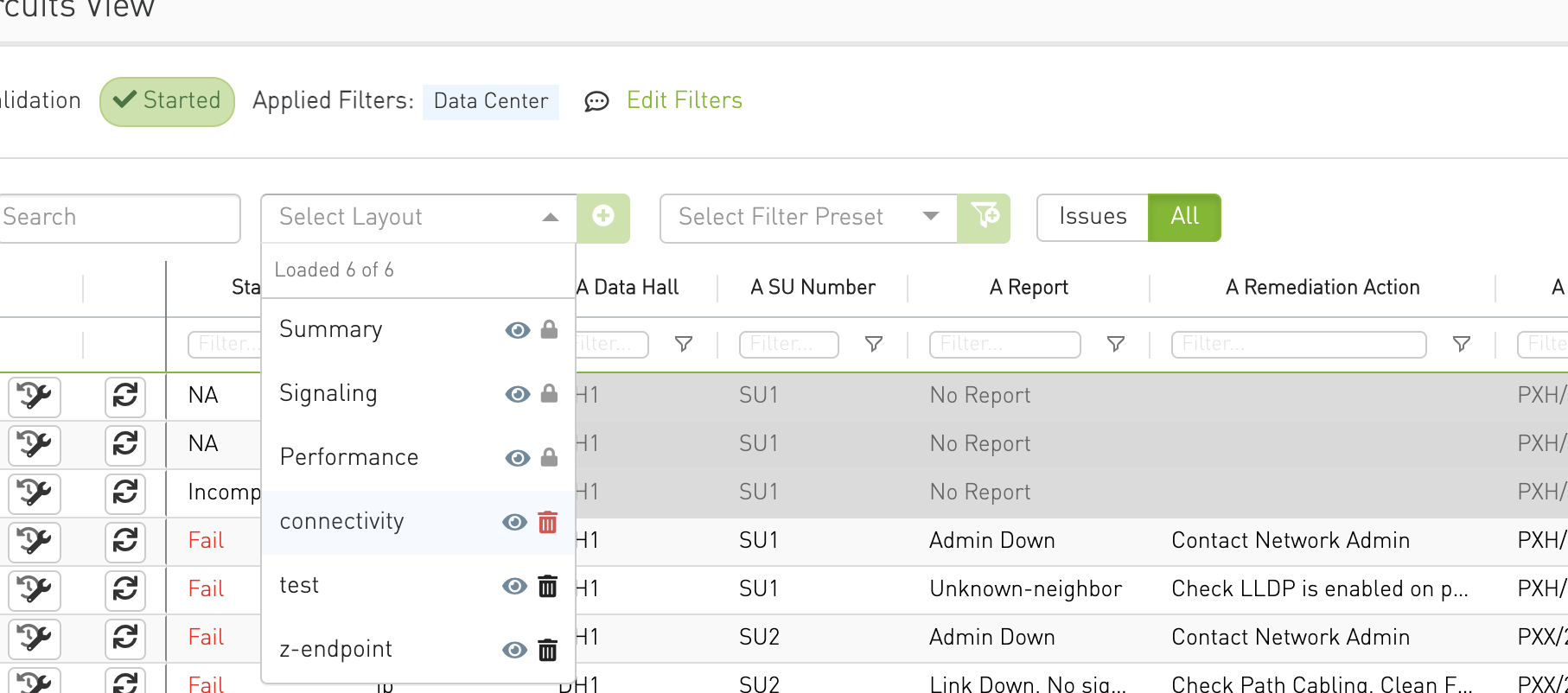
Open the layout list.
-
Select the Delete icon next to the personal layout.
-
Confirm the deletion.
Deleting a layout cannot be undone. If the deleted layout is currently selected, CVT clears the selection and returns the table to its default state.
Additional Notes
-
Personal layouts are private to your user account. Other users cannot view, update, or delete them.
-
Different users can use the same layout name.
-
Layouts are independent for each supported table.
-
CSV export follows the table's current visible column order.
-
In the save layout modal the new changes will be marked with an amber dot
Last updated: