

A group of links may contain upstream links and downstream links. When all upstream links in a group are down, Link State Tracking (LST) shuts all the downstream links down. In order to let the peer on the other side know that it needs to stop sending traffic on the downstream links. When the upstream link recovers, LST brings up the downstream links, letting the peers know that they may resume forwarding traffic on those links.
A link can be a member of several groups. A downstream interface is shut down if at least one of the groups requests a shutdown and is brought back up if all groups request it to be up.
In situations with only downstream links in a group (no upstream links), the downstream links will stay up.
Configuring Link State Tracking
The following is a basic example of how to configure link state tracking group and tracking VLAN.
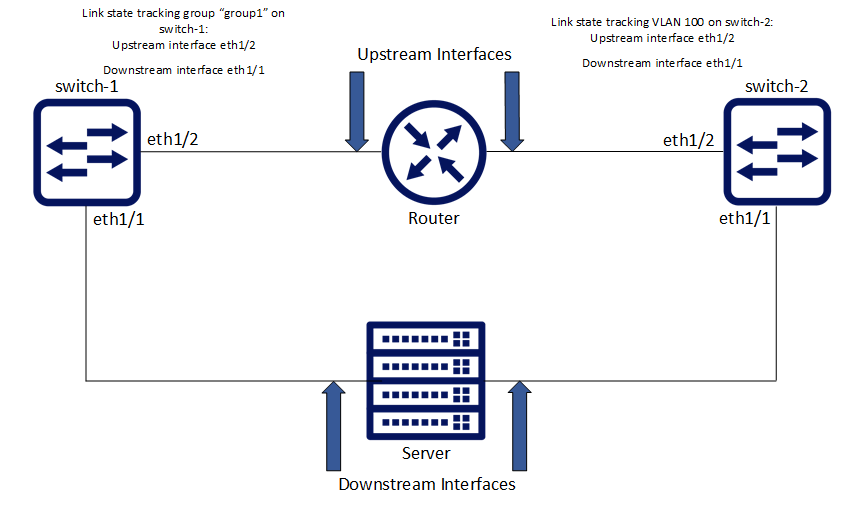
To configure Link State Tracking group:
-
Create tracking group. Run:
switch-1 (config) # link state tracking group group1
-
Configure link type on the interface. Run:
switch-1 (config) # interface ethernet 1/2 link type upstream
switch-1 (config) # interface ethernet 1/1 link type downstream
-
Add interfaces into the group. Run:
switch-1 (config) # interface ethernet 1/1 link state tracking group group1
switch-1 (config) # interface ethernet 1/2 link state tracking group group1
To configure Link State Tracking VLAN:
-
Create VLAN. Run:
switch-2 (config) # vlan 100
-
Configure VLAN members. Run:
switch-2 (config) # interface ethernet 1/1 switchport access vlan 100
switch-2 (config) # interface ethernet 1/2 switchport access vlan 100
-
Configure link type on the interface. Run:
switch-2 (config) # interface ethernet 1/2 link type upstream
switch-2 (config) # interface ethernet 1/1 link type downstream
-
Create link state tracking VLAN. Run:
switch-2 (config) # link state tracking vlan 100
To verify Link State Tracking configuration, run:
switch-1 (config) # show link state tracking group group1

---------------------------------------------------------------------------------------
Group              Port Type      Interface          Admin Status   Operational Status
---------------------------------------------------------------------------------------
group1             Upstream       Eth1/2             Enabled        Up
Link State Tracking Commands
link type
|
|
link type {downstream | upstream}
Configures an interface’s link direction.
|
|
|
Syntax Description |
downstream |
Configures interface as downstream |
|
upstream |
Configures interface as upstream |
|
|
Default |
N/A |
|
|
Configuration Mode |
config interface ethernet |
|
|
History |
3.7.1000 |
|
|
Example |
switch (config interface ethernet 1/1)# link type downstream |
|
|
Related Commands |
show link state tracking |
|
|
Notes |
|
|
link state tracking group
|
|
link state tracking group <group-name>
Creates a link state tracking group if one does not exist, and if applied to a specific interface, then it adds that interface to the group.
|
|
|
Syntax Description |
group-name |
Name for link state tracking group |
|
Default |
N/A |
|
|
Configuration Mode |
config config interface ethernet config interface port-channel config interface mlag-port-channel |
|
|
History |
3.7.1000 |
|
|
Example |
switch (config interface ethernet 1/1)# link state tracking group group1 |
|
|
Related Commands |
show link state tracking |
|
|
Notes |
|
|
link state tracking vlan
|
|
link state tracking vlan <vlan-id>
Creates a VLAN link state tracking group. All VLAN members are automatically added into this group.
|
|
|
Syntax Description |
vlan-id |
ID of VLAN whose link state to track |
|
Default |
N/A |
|
|
Configuration Mode |
config |
|
|
History |
3.7.1000 |
|
|
Example |
switch (config)# link state tracking vlan 100 |
|
|
Related Commands |
show link state tracking |
|
|
Notes |
The maximum number of tracking groups/VLANs is 64 |
|
show link state tracking
|
|
show link state tracking [group <group-name> | vlan <vlan-id>] Displays link state tracking configuration. |
|
|
Syntax Description |
group |
Displays link state tracking per tracking group |
|
vlan |
Displays link state tracking per VLAN |
|
|
Default |
N/A |
|
|
Configuration Mode |
Any command mode |
|
|
History |
3.7.1000 |
|
|
Example |
||
|
switch (config)# show link state tracking --------------------------------------------------------------------------------------- Group Port Type Interface Admin Status Operational Status --------------------------------------------------------------------------------------- Vlan 100 Upstream Eth1/54 Enabled Down Vlan 100 Downstream Eth1/1 Enabled Down (by tracking) Vlan 100 Unassigned Eth1/2 Enabled Up Vlan 101 Upstream Eth1/54 Enabled Down Vlan 101 Downstream Eth1/1 Enabled Down (by tracking) Vlan 101 Unassigned Eth1/2 Enabled Up group1 Downstream Eth1/1 Enabled Down (by tracking) |
||
|
Related Commands |
link type
|
|
|
Notes |
The maximum number of tracking groups/VLANs is 64 |
|
Last updated: