

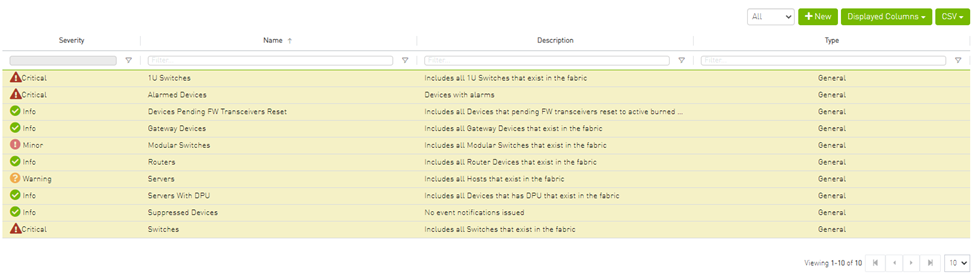
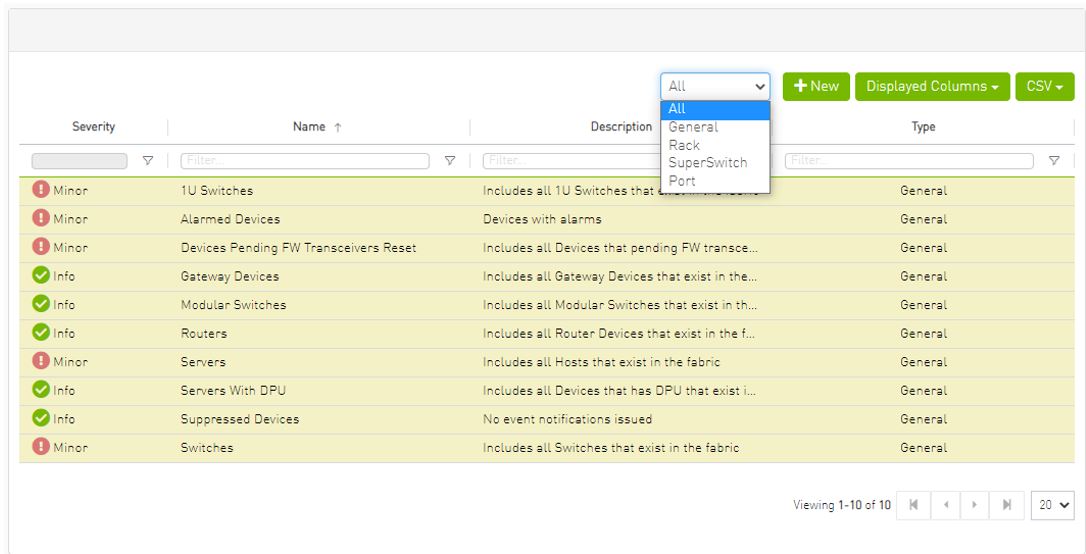
The Groups window allows users to create new groups of devices and provides information about existing groups.
All predefined groups have Read permissions only, except Suppressed_Devices to/from which the user is also able to add/remove members or devices.
The following predefined groups auto-populate upon UFM startup: Switches, 1U_Switches, Modular_Switches, Gateway_Devices, and Hosts.

-
Click “New” under “Groups.”
-
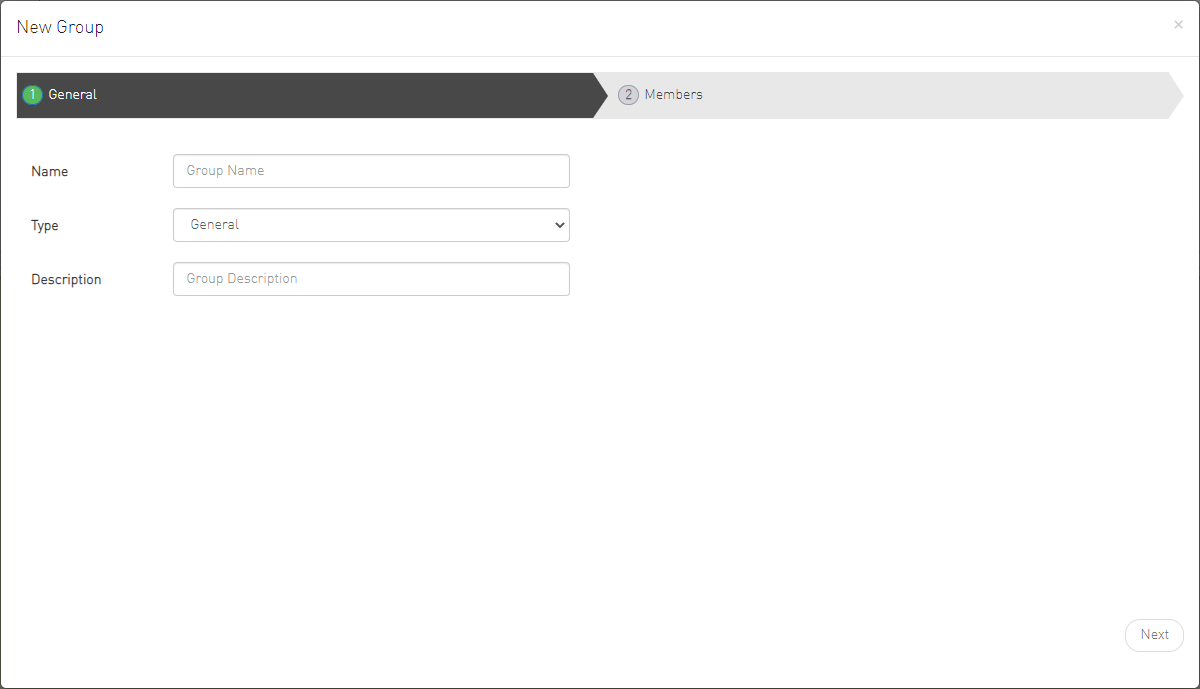
In the New Group wizard, fill in the required information under the General tab: Name (must be between 4-20 characters), Type (General/Rack/Port), and Description (optional), and click Next.
-
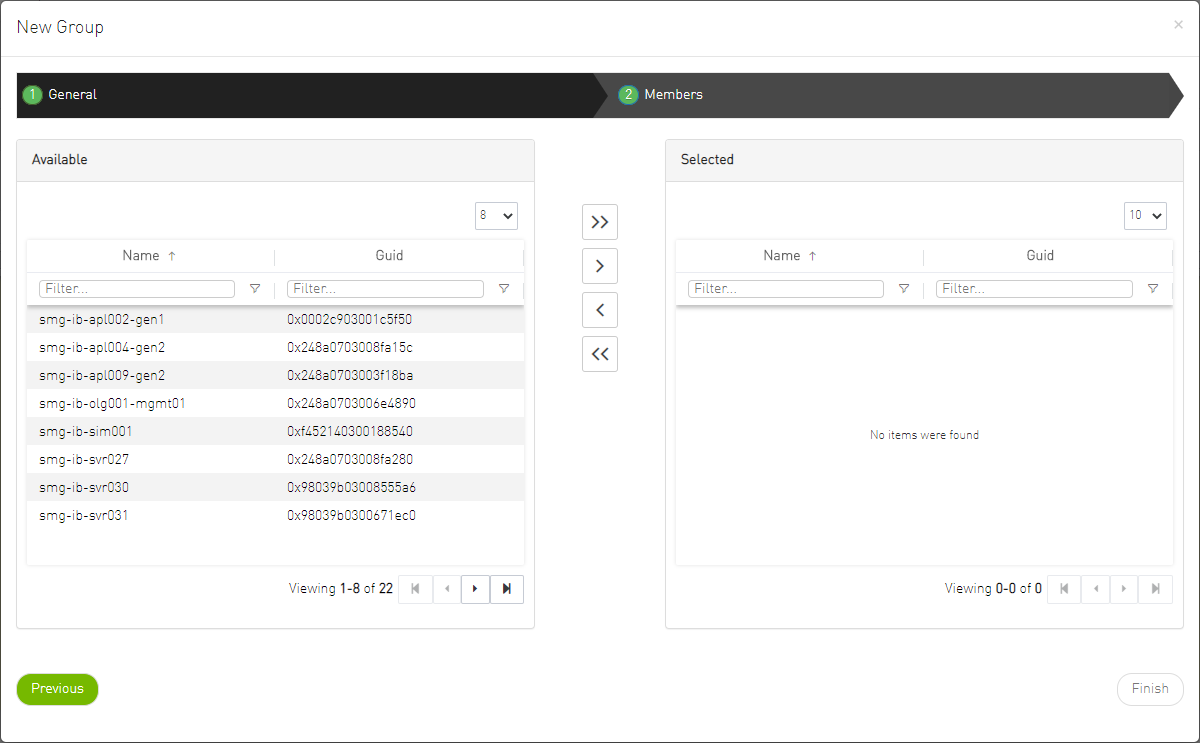
Under Members tab, move the members of the new group from the Available list to the Selected list.
-
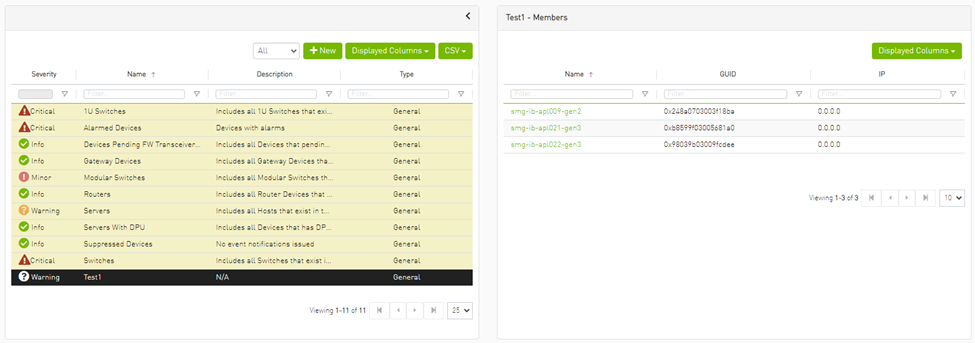
Click “Finish” and the new group will appear under the Groups window.
Group members details – port’s hostname, port’s GUID, and device’s IP address – can be viewed when selecting the group from the list of all groups available.
Group Actions
Right-clicking a group enables performing the following actions:
-
Edit – groups can be modified either by editing the group description under General tab, or substituting group members under Members tab
-
Delete – existing groups can be deleted from the list
-
Remove All Members – all members of an existing group can be removed at once
-
Collect System Dump – sysdump may be generated for all members of an existing group
The user can filter group by type (General, Rack, Super Switch and Port)
Last updated: