

This section describes how to customize your UFM display settings and change your password,
Dark/Light Theme
-
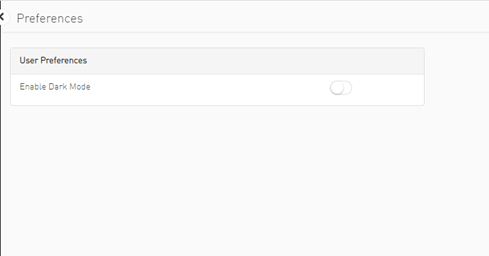
Select Preferences.
-
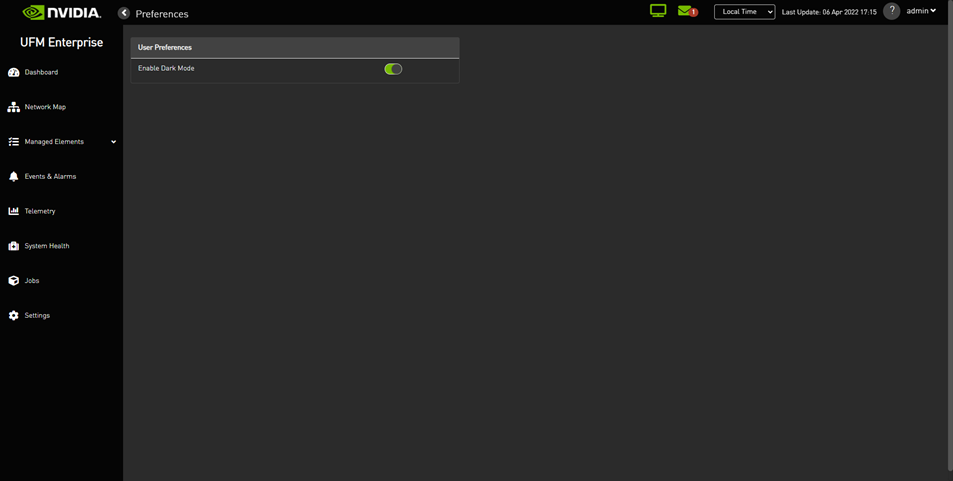
In User Preferences, enable dark mode for UFM presentation in a dark theme. The following figure shows the dark theme:
Time Zone Converter
Allows you to unify all times in UFM like events and alarms, ibdiagnet, telemetry and logs. You can switch between local and machine time.
In the status bar drop-down menu, switch between local and server/machine time.

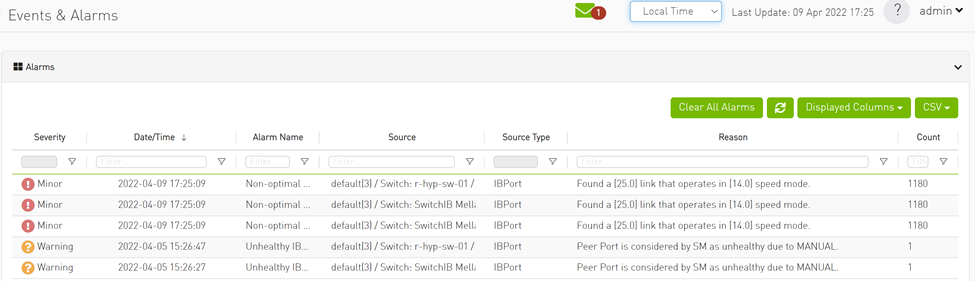
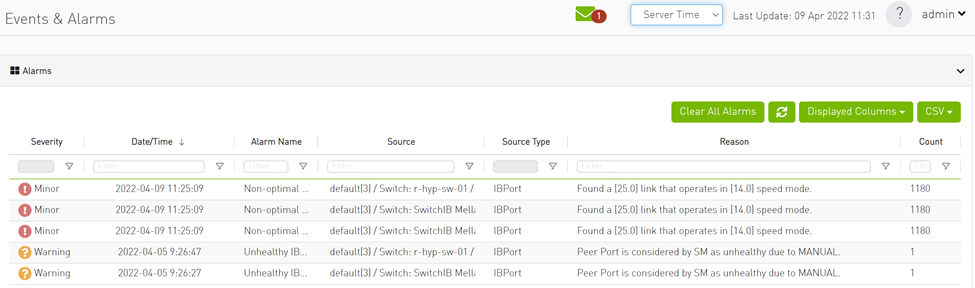
In the screenshots, the difference between Server Time and Local Time is 6 hours.
Table Enhancements
Look and Feel Improvements
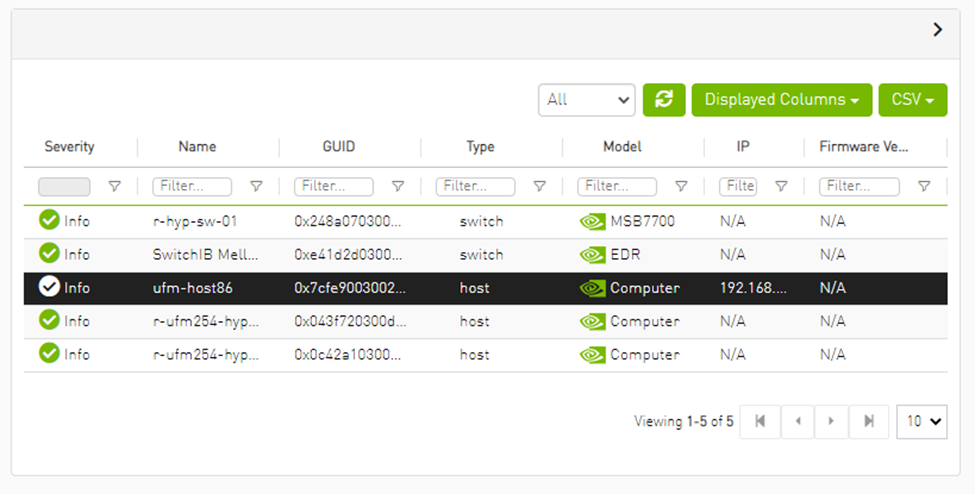
Displayed Columns
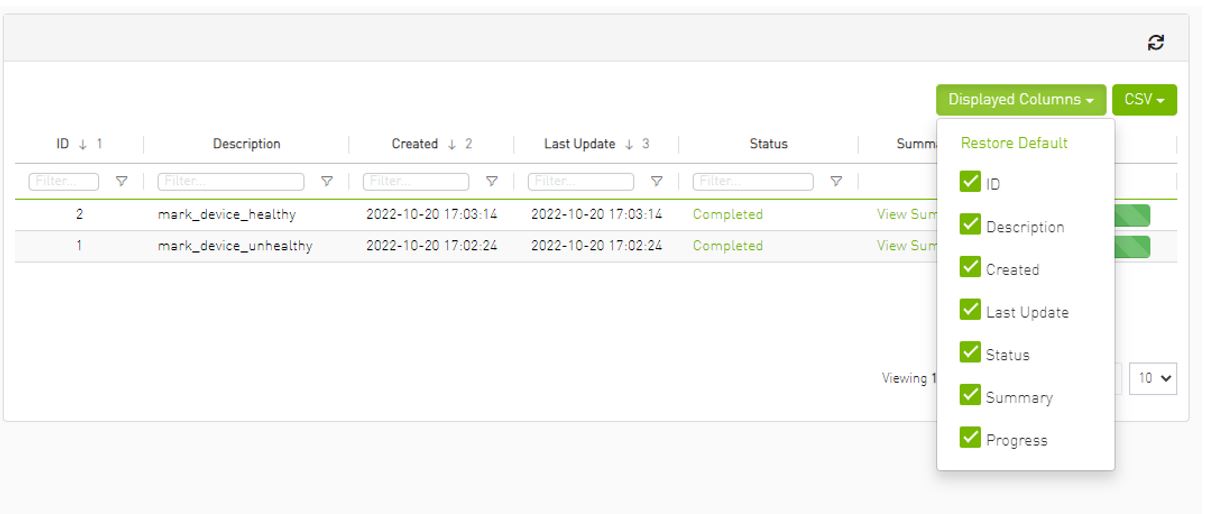
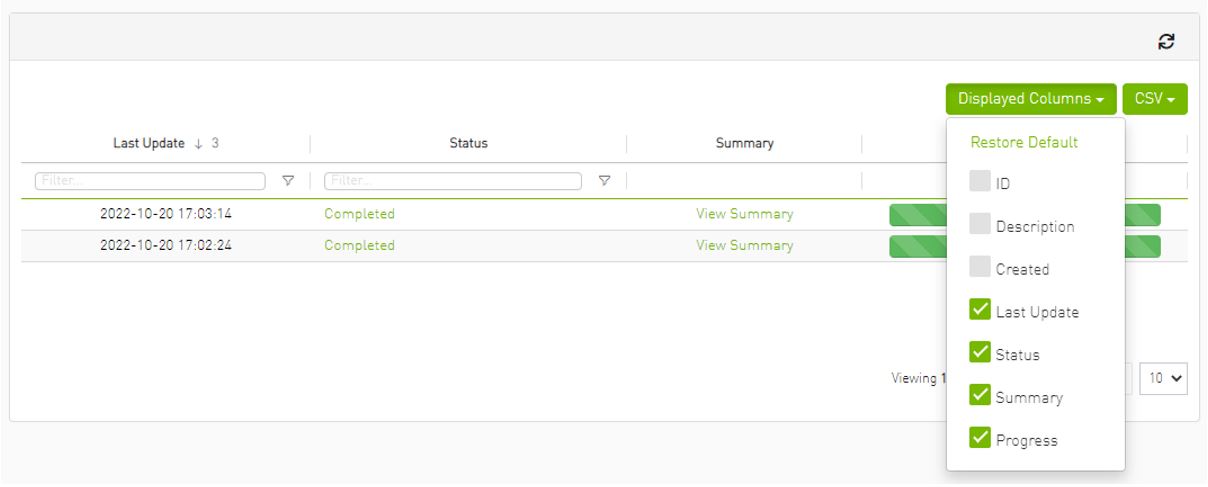
Displayed columns of all tables are persistent per user, with the option to restore defaults.
Export All Data as CSV
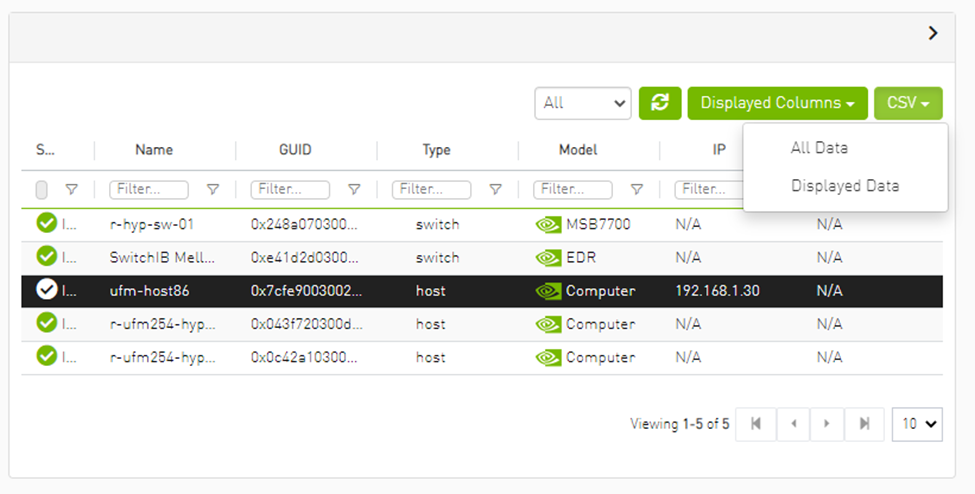
There are two options for exporting as CSV
-
All Data: all data returned from server.
-
Displayed Data: only displayed rows.
Last updated: