

This chapter will cover how to read firmware and software version for the following:
-
Switch ASICs
-
Transceivers
-
HCA cards
The recommended guideline is to confirm that the versions among the cluster are aligned, or differ with up to 2 versions.
Information of the recommended NDR cluster bundle can be found here.
The process can be done using UFM GUI ( which is recommended), or through MOFED commands.
Verify versions using UFM GUI
ASICs and HCAs Firmware Version
From the left side main menu, click on Managed Elements, and then on Devices.
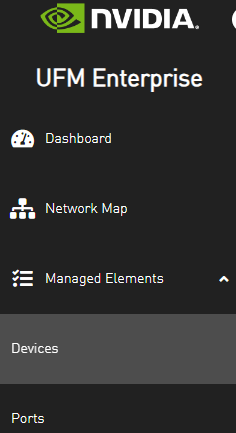
The Devices page opens and displays a table with all the managed switches/hosts in the cluster.
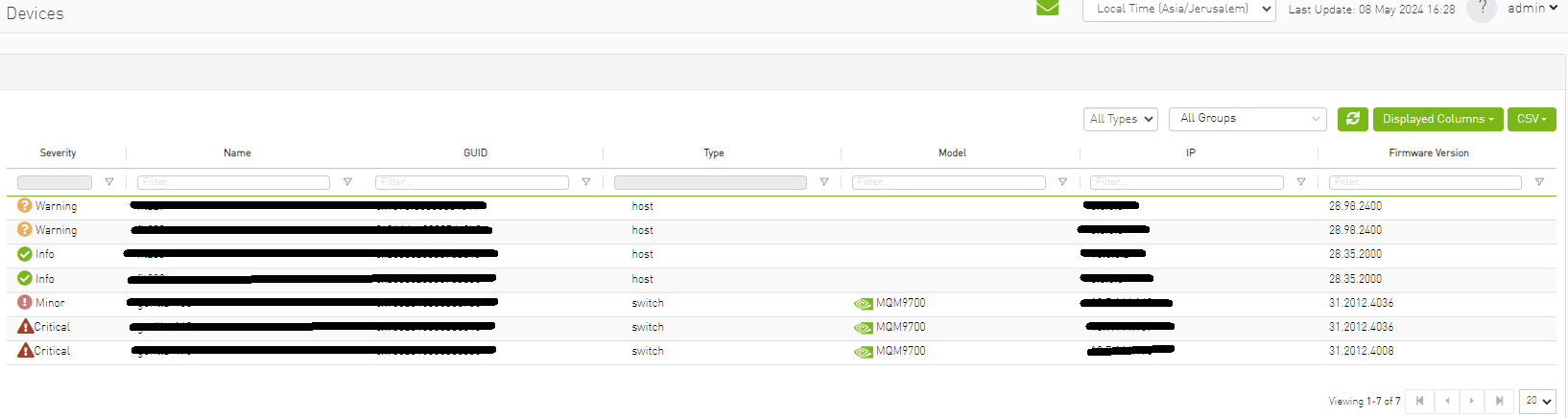
For switch ASIC, the FW version is listed in the main table.
For node HCA, select its row, Device Information section should pop up from the right side of the window, containing information about the selected device. If this section does not pop up, you should be able to open it by clicking on the left arrow on the top-right side of the table.


Click on the HCAs tab to see the device HCAs and the FW versions.
For HCAs only, click on HCAs from the left side main menu. All connected HCAs are listed there with the FW versions.
Managed Switch SW (NOS) Version
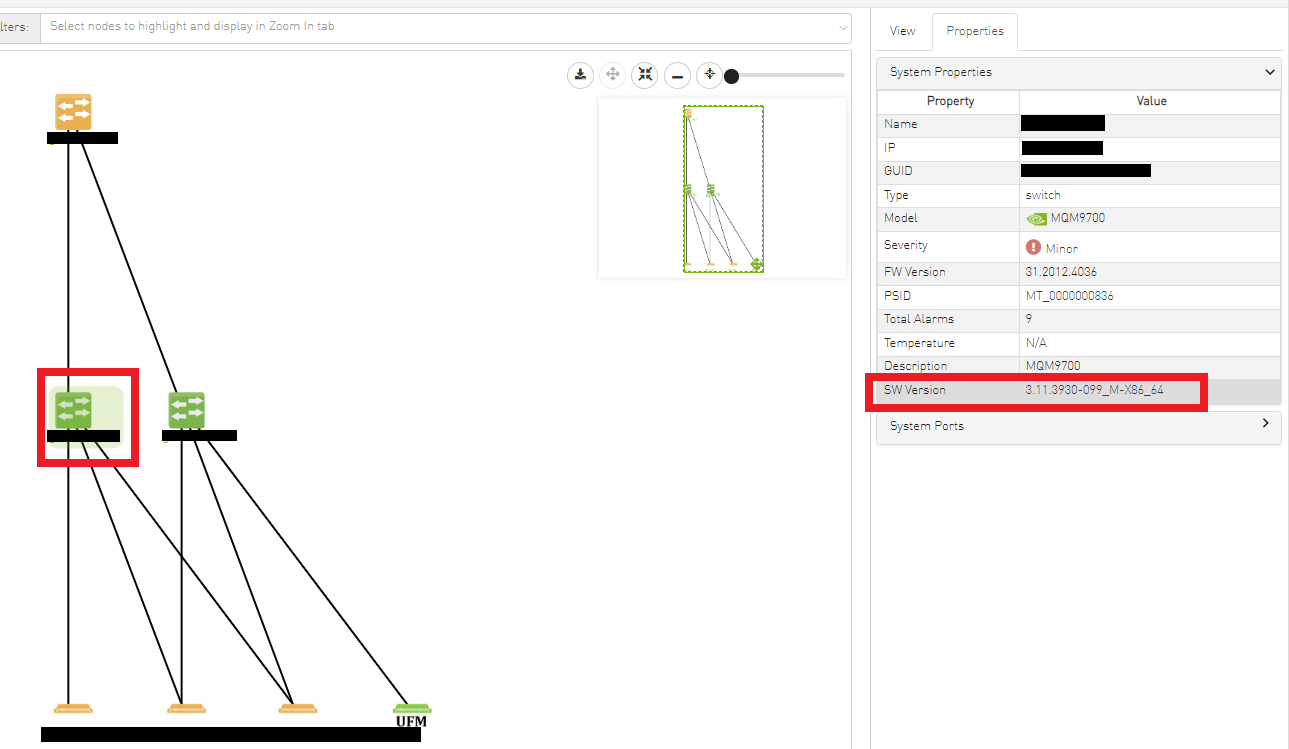
Click on Network Map from the left side main menu. The visualization of the cluster should display.
Select a switch. The switch information and the SW Version (NOS) should appear in the table on the left side.
Transceivers
From the Devices page, select a switch, and from the Device Information table on the right, click on Cables tab.
The page displays a table with the connected cables and the FW versions.
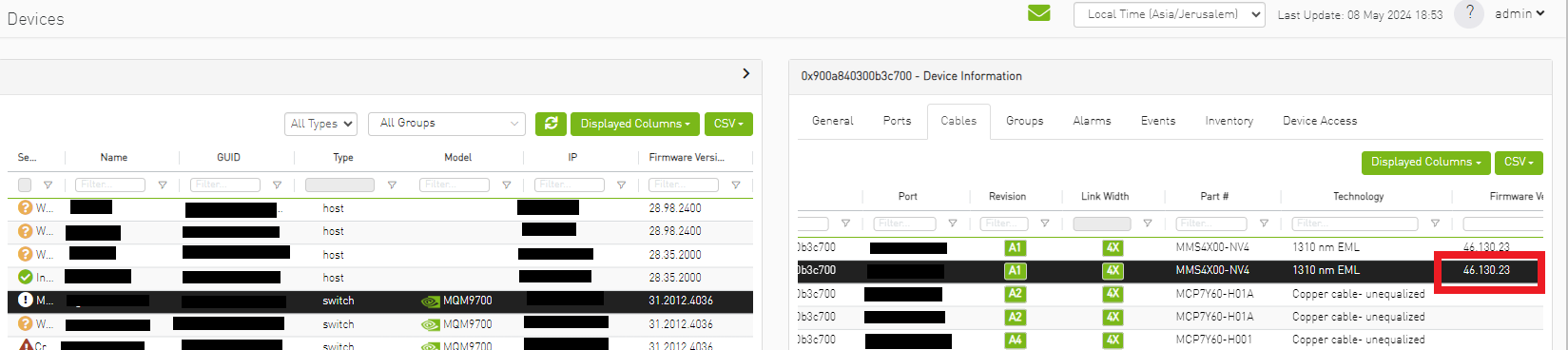
Alternatively, go to Cables page from the left side main menu, which displays information on all the connected cables at once.
Optional Alternative - Verify Versions Using MOFED Tools
Prerequisite
-
Make sure you have the latest MFT installed. If not, install it either as part of MLNX_OFED installation process or according to the instructions found here
-
Before using it, start the MST driver, run
mst start
This command will create files that represent NVIDIA devices in directory/dev/mst
For the relevant devices, run "mst status"
For further information, see the mst Service section in the MFT User Manual.
Identify the Switch Firmware Version
This section is applicable only to externally managed (unmanaged) switches (the ASIC firmware is bundled in NOS in managed systems).
-
Access the unmanaged switches via its LID.
-
Identify the switch LID, run
ibswitches.root@ufmx-qnt-02: # ibswitches Switch 0x900a8403006 f f780 ports 65 "MF0 ;grla -quanta -01:MQM9700/U l" enhanced port 0 lid 1 lmc 0 Switch 0x900a8403006 f e0c0 ports 65 "MF0 ;grla -quanta -s2:MQM9700/U l" enhanced port 0 lid 5 lmc 0 Switch 0x900a8403006 f f8c0 ports 65 "MF0 ;grla -quanta -s1:MQM9700/U l" enhanced port 0 lid 14 lmc 0 Switch 0x900a8403006 f e040 ports 65 "MF0 ;grla -quanta -02:MQM9700/U l" enhanced port 0 ltd 15 lmc 0
-
Check the firmware version, run
flint -d lid-X -qq q.root@ufmx -qnt-02: # flint -d lid-1 -qq q Image type: FS4 FW Version: 31.2012.3008 FW Release Date: 3.1.2024 Product Version: 31.2012.3008 Rom Info: type=UEFI version=skipped cpu=skipped type=PXE version=skipped devid=skipped type=NVMe version=skipped devid=skipped Description: UID GuidsNumber Base GUID: 900a8403006ff780 64 Base MAC: 900a846ff780 64 Image VSD: N/A Device VSD: N/A PSID: MT 0000000577 Security Attributes: secure-fw
Identify the Switch Version - MLNX-OS
-
Connect to your switch remotely with SSH: #ssh admin@my-switch-name(e.g. ssh admin@172.28.3.216)
-
Enter config mode.
switch> enable
switch# configure terminal
switch (config)#
-
Check the NOS' version.
switch (config)# show version
Product name: 		MLNX-OS
Product release: 	3.4.2002
Build ID: 			#1-dev
Build date: 		2015-07-30 20:13:19
Target arch: 		x86_64
Target hw: 			x86_64
Built by: 			jenkins@fit74 _Version
summary: 			X86_64 3.4.2002 2015-07-30 20:13:19 x86_64
This chapter will cover how to read firmware and software version for the following:
-
Switch ASICs
-
Transceivers
-
HCA cards
The recommended guideline is to confirm that the versions among the cluster are aligned, or differ with up to 2 versions.
Information of the recommended NDR cluster bundle can be found here.
The process can be done using UFM GUI ( which is recommended), or through MOFED commands.
Verify versions using UFM GUI
ASICs and HCAs FW version
From the left side main menu, click on Managed Elements, and then on Devices.
The Devices page opens and displays a table with all the managed switches/hosts in the cluster.
For switch ASIC, the FW version is listed in the main table.
For node HCA, select its row, Device Information section should pop up from the right side of the window, containing information about the selected device. If this section does not pop up, you should be able to open it by clicking on the left arrow on the top-right side of the table.
Click on the HCAs tab to see the device HCAs and the FW versions.
For HCAs only, click on HCAs from the left side main menu. All connected HCAs are listed there with the FW versions.
Managed switch SW (NOS) version
Click on Network Map from the left side main menu. The visualization of the cluster should display.
Select a switch. The switch information and the SW Version (NOS) should appear in the table on the left side.
Transceivers
From the Devices page, select a switch, and from the Device Information table on the right, click on Cables tab.
The page displays a table with the connected cables and the FW versions.
Alternatively, go to Cables page from the left side main menu, which displays information on all the connected cables at once.
Optional Alternative - Verify Versions Using MOFED Tools
Prerequisite
-
Make sure you have the latest MFT installed. If not, install it either as part of MLNX_OFED installation process or according to the instructions found here
-
Before using it, start the MST driver, run
mst start
This command will create files that represent NVIDIA devices in directory/dev/mst
For the relevant devices, run "mst status"
For further information, see the mst Service section in the MFT User Manual.
Identify the Switch Firmware Version
This section is applicable only to externally managed (unmanaged) switches (the ASIC firmware is bundled in NOS in managed systems).
-
Access the unmanaged switches via its LID.
-
Identify the switch LID, run
ibswitches.root@ufmx-qnt-02: # ibswitches Switch 0x900a8403006 f f780 ports 65 "MF0 ;grla -quanta -01:MQM9700/U l" enhanced port 0 lid 1 lmc 0 Switch 0x900a8403006 f e0c0 ports 65 "MF0 ;grla -quanta -s2:MQM9700/U l" enhanced port 0 lid 5 lmc 0 Switch 0x900a8403006 f f8c0 ports 65 "MF0 ;grla -quanta -s1:MQM9700/U l" enhanced port 0 lid 14 lmc 0 Switch 0x900a8403006 f e040 ports 65 "MF0 ;grla -quanta -02:MQM9700/U l" enhanced port 0 ltd 15 lmc 0
-
Check the firmware version, run
flint -d lid-X -qq q.root@ufmx -qnt-02: # flint -d lid-1 -qq q Image type: FS4 FW Version: 31.2012.3008 FW Release Date: 3.1.2024 Product Version: 31.2012.3008 Rom Info: type=UEFI version=skipped cpu=skipped type=PXE version=skipped devid=skipped type=NVMe version=skipped devid=skipped Description: UID GuidsNumber Base GUID: 900a8403006ff780 64 Base MAC: 900a846ff780 64 Image VSD: N/A Device VSD: N/A PSID: MT 0000000577 Security Attributes: secure-fw
Identify the Switch Version - MLNX-OS
-
Connect to your switch remotely with SSH: #ssh admin@my-switch-name(e.g. ssh admin@172.28.3.216)
-
Enter config mode.
switch> enable
switch# configure terminal
switch (config)#
-
Check the NOS' version.
switch (config)# show version
Product name: 		MLNX-OS
Product release: 	3.4.2002
Build ID: 			#1-dev
Build date: 		2015-07-30 20:13:19
Target arch: 		x86_64
Target hw: 			x86_64
Built by: 			jenkins@fit74 _Version
summary: 			X86_64 3.4.2002 2015-07-30 20:13:19 x86_64
Identify the Image Version - NVOS
-
Connect to your switch remotely with SSH: #ssh admin@my-switch-name(e.g. ssh admin@172.28.3.216)
-
Enter the following command:
admin@croc-94-mgmt2:~$ nv show system image
            operational
----------  -------------------
current     1
next        1
partition1
  build-id  nvos-25.02.2931-004
In the example above - the current image version is
nvos-25.02.2931-004
Identify the ASIC FW Version - NVOS
-
Connect to your switch remotely with SSH: #ssh admin@my-switch-name(e.g. ssh admin@172.28.3.216)
-
Enter the following command:
admin@croc-94-mgmt2:~$ nv show platform firmware ASIC
                 operational             applied
---------------  ----------------------  -------
part-number      920-9B31-RX-5M0-IPN_Ax
actual-firmware  35.2014.2152
auto-update      enabled                 enabled
fw-source        default                 default
In the example above - the current firmware version is 35.2014.2152.
Identify the HCA Firmware Version
-
Identify the HCA device, run
mst status.[root@fit229 ~]# mst status MST modules: ------------ MST PCI module is not loaded MST PCI configuration module loaded MST devices: ------------ /dev/mst/mt4129_pciconf0 - PCI configuration cycles access. domain:bus:dev.fn=0000:04:00.0 addr.reg=88 data.reg=92 cr_bar.gw_offset=-1 Chip revision is: 00
-
Check the firmware version.
[root@fit229 ~]# flint -d /dev/mst/mt4129_pciconf0 -qq q
Image type:            FS4
FW Version:            28.98.2400
FW Release Date:       14.2.2022
Product Version:       28.98.2400
Rom Info:              type=UEFI version=14.25.21 cpu=AMD64,AARCH64
                       type=PXE version=3.6.502 cpu=AMD64
Description:           UID                GuidsNumber
Base GUID:             1070fd0300d84644        4
Base MAC:              1070fdd84644            4
Image VSD:             N/A
Device VSD:            N/A
PSID:                  MT_0000000798
Security Attributes:   N/A
-
For further details, see: Querying the Firmware Image.
Identify the Transceiver Firmware Version
To check what is the transceiver firmware version, run flint -d lid-1 --linkx --downstream_device_ids 1 q
[admin@gorilla-169 ~]# flint -d lid-1 --linkx --downstream_device_ids 1 q
Host : lid-1
 Device index 1
 Component Index 3
 Component Status NOT_PRESENT
 Component Update State IDLE
 Running state is :  Image A is running
Information block is :  FW image A is present
FW A Version : 46.130.0023
FW B Version : 00.00.0000
FW Factory Version : 00.00.0000
SupportedProtocol: CMIS 4.0 is implemented
Activation type: Self-activation with HW reset contained in the Run FW Image command. No additional actions required from the host.
Serial number is 0
Identify the Transceiver Firmware Version - NVOS
To check what is the transceiver firmware version in NVOS - please visit Transceiver Firmware Installation.
Identify the Driver Version
Make sure all the servers are using the latest driver version, run - ofed_info -s.
~ $ofed_info -s
MLNX_OFED_LINUX-23.04-0.5.3.3
Last updated: