

This chapter describes how to deploy UFM Cyber-AI on UFM Cyber-AI appliance.
Deploying UFM Cyber-AI
NVIDIA® UFM® Cyber-AI is packaged in a tar file. The tar file consists of several docker images and an installation script. The script will load the docker images and create a UFM Cyber-AI service. UFM Cyber-AI should be installed on UFM Cyber-AI appliance.
To deploy the UFM Cyber-AI:
-
Copy the tar file to the UFM Cyber-AI appliance, for example, to the
/tmpfolder. -
Copy the license file to the same directory on the UFM Cyber-AI appliance.
-
Connect to the UFM Cyber-AI appliance via SSH.
-
Extract the tar file and install the service. Run:
[root@r-ufm ~]# cd /tmp
[root@r-ufm ~]# tar xvf ufm-cyberai-sw-<version>.tar
[root@r-ufm ~]# cd ufm-cyberai-sw-<version>
[root@r-ufm ~]# ./install.sh
Installer options:
-
-n|--no-ufm: By default, UFM Enterprise is installed -
-q|--quiet: Upgrade Cyber-AI without a prompt -
-l|--license: License file location
Example:./install -u –l <license_file_path>
-
-
If you did not provide the license when running the install script, copy the license file. Run:
[root@r-ufm ~]# cp /tmp/<cyberai-license-file>.lic /opt/ufm/cyberai/licenses -
Start the UFM Cyber-AI service. Run:
[root@r-ufm ~]# systemctl start ufm-cyberai.service
-
Start the UFM Enterprise service. Run:
[root@r-ufm ~]# systemctl start ufm-enterprise.service -
Wait 1 minute for the system to come up.
-
Ensure the service health by running the following:
[root@r-ufm ~]# ufm-cai-sanity –u <username> -p <password> Where the username and password are the default username and password for cyberai Checking Service... Done Checking Images... Done Checking Containers... Done Checking ufm-cyberai REST server... Done Sanity tests completed successfully! -
Set the NVIDIA UFM Enterprise connection parameters:
[root@ r-ufm ~]# ufm-cai-ufm-params update-i <ufm_ip> -p <ufm_port> -U <username> -P <password> -s <site_name> -t <protocol>Options:
   -h|--help           Show this message
   -i|--ip               UFM server IP
   -p|--port           UFM REST API connection port
   -U|--username   UFM username
   -P|--password    UFM password
   -s|--site            UFM site name
   -t|--protocol     UFM Rest API connection protocol
This step can be done also using the web UI. However, it is recommended to set the UFM Enterprise parameters as early as possible, as UFM Cyber-AI needs it to retrieve the fabric topology. -
To access the UFM Cyber-AI logs, run the following on the UFM Cyber-AI appliance:
[root@r-ufm ~]# ls -la /var/log/cyberai/ total 86160 drwxr-xr-x 2 root root 4096 Mar 6 03:28 . drwxr-xr-x 3 root root 4096 Mar 5 18:46 .. -rw-r--r-- 1 root root 0 Mar 5 19:51 access.log -rw-r--r-- 1 root root 45563430 Mar 12 16:09 console.log -rw-r--r-- 1 root root 42646820 Mar 12 16:09 cyberai.log -rw-r--r-- 1 root root 0 Mar 5 19:53 rest.log -
Access the Cyber-AI User Interface at https:<ip>:8443/cyberai.
-
For settings and configuration instructions, see Settings and Configuration.
To view the license details:
-
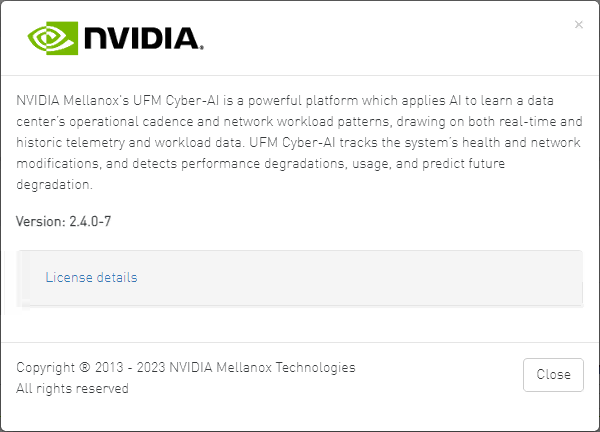
After installing and activating the software, licenses can be viewed in the Web UI by clicking the about icon on the main page.
-
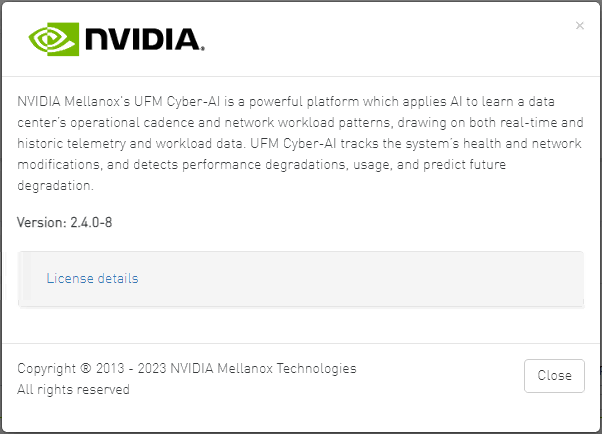
The main about screen displays the current UFM Cyber-AI version and build. To view more information, click "License details".
Upgrading UFM Cyber Software
The first step of upgrading UFM Cyber-AI are similar to the first steps of a fresh installation. The installation process consists of replacing the containers with the new version and upgrading the data according to the new scheme.
-
Copy the tar file to the UFM Cyber-AI appliance, for example, to the
/tmpfolder. -
Connect to the UFM Cyber-AI appliance via SSH.
-
Stop the UFM Cyber-AI service. Run:
[root@r-ufm ~]# systemctl stop ufm-cyberai.service -
Extract the tar file and install the service for upgrade. Run:
root@r-ufm ~]# cd /tmp [root@r-ufm ~]# tar xvf ufm-cyberai-sw-<version>.tar [root@r-ufm ~]# cd ufm-cyberai-sw-<version> [root@r-ufm ~]# ./install.sh UFM Cyber-AI version <old-version> is installed on this machine Would you like to upgrade to version <new-version>? [y|N]: -
Enter ‘y’ to proceed with the upgrade.
Installer options:-
-q|--quiet: Upgrade Cyber-Ai without prompt -
-n|--no-ufm: Will not install UFM-Enterprise -
-l|--license: The License file location
-
-
Start the ufm-cyberai service. Run:
[root@r-ufm ~]# systemctl start ufm-cyberai.service -
Wait 1 minute for the system to come up.
-
Ensure the service health by running the following:
root@r-ufm ~]# ufm-cai-sanity –u <username> -p <password>

Where the username and password are the default username and password for cyberai
Checking Service...
Done
Checking Images...
Done
Checking Containers...
Done
Checking ufm-cyberai REST server...
Done
Sanity tests completed successfully!
Last updated: