

Before you obtain a license for the UFM® software, prepare a list of servers with the MAC address of each server on which you plan to install the UFM software. These MAC addresses are requested during the licensing procedure.
Obtaining License
UFM is licensed per managed device according to the UFM license agreement.
When you purchase UFM, you will receive an email with instructions on obtaining your product license. A valid UFM license is a prerequisite for the installation and operation of UFM.
UFM licenses are per managed HCA and are aggregative. If you install an additional license, the system adds the previous HCA number and the new HCA number and manages the sum of the HCAs. For example, if you install a license for 10 managed HCAs and an additional license for 15 HCAs, UFM will be licensed for up to 25 managed HCAs.
To obtain the license:
-
Go to NVIDIA’s Licensing and Download Portal and log in as specified in the licensing email you received.
-
If you did not receive your NVIDIA Licensing and Download Portal login information, contact your product reseller.
-
-
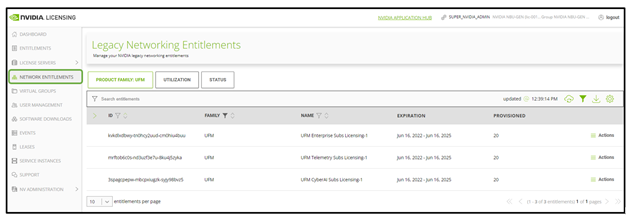
Click the Network Entitlements tab. You will see a list with the serial licenses of all your software products and software product license information and status.
-
Select the license you want to activate and click Actions.
-
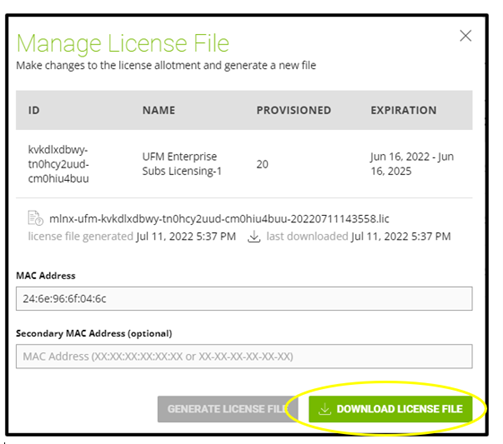
In the MAC Address field, enter the MAC address of the delegated license-registered host. If applicable, in the HA MAC Address field, enter your High Availability (HA) server MAC address. If you have more than one NIC installed on a UFM Server, use any of the MAC addresses.
Enter the MAC address in colon-separated format only. UFM rejects a license generated with any other separator. For example, B1:E2:B3:4A:15:56 is valid, but B1-E2-B3-4A-15-56 is not.
The number of times you can regenerate a license on your own is limited. If you enter the MAC address incorrectly and exceed that limit, you must contact NVIDIA to request intervention. Verify the format before submitting the license request.
-
Click Generate License File to create the license key file for the software.
-
Click Download License File. Save the file on your local computer.
You can generate the license only once. If you replace the NIC or UFM server and need to regenerate the license, you should create a support case with:
-
Product Type: Support Portals
-
Product Category: NVIDIA Licensing Portal
Downloading UFM Software
Due to internal packaging incompatibility, this release has two different packages for each of the supported distributions:
-
One for UFM deployments over DOCA_Host
Make sure that you use the UFM installation package compatible with your setup.
This software download process applies to software updates and first-time installation.
If you own the UFM Media Kit and this is your first-time installation, skip this section.
To download the UFM software:
-
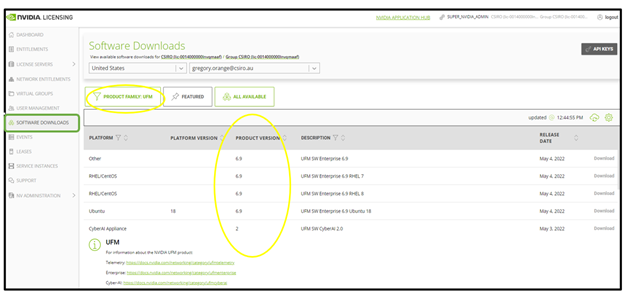
Click Software Downloads, filter the product family to UFM, and select the relevant version of the software. Click Download.
-
Save the file on your local drive.
-
Click Close.
Last updated: