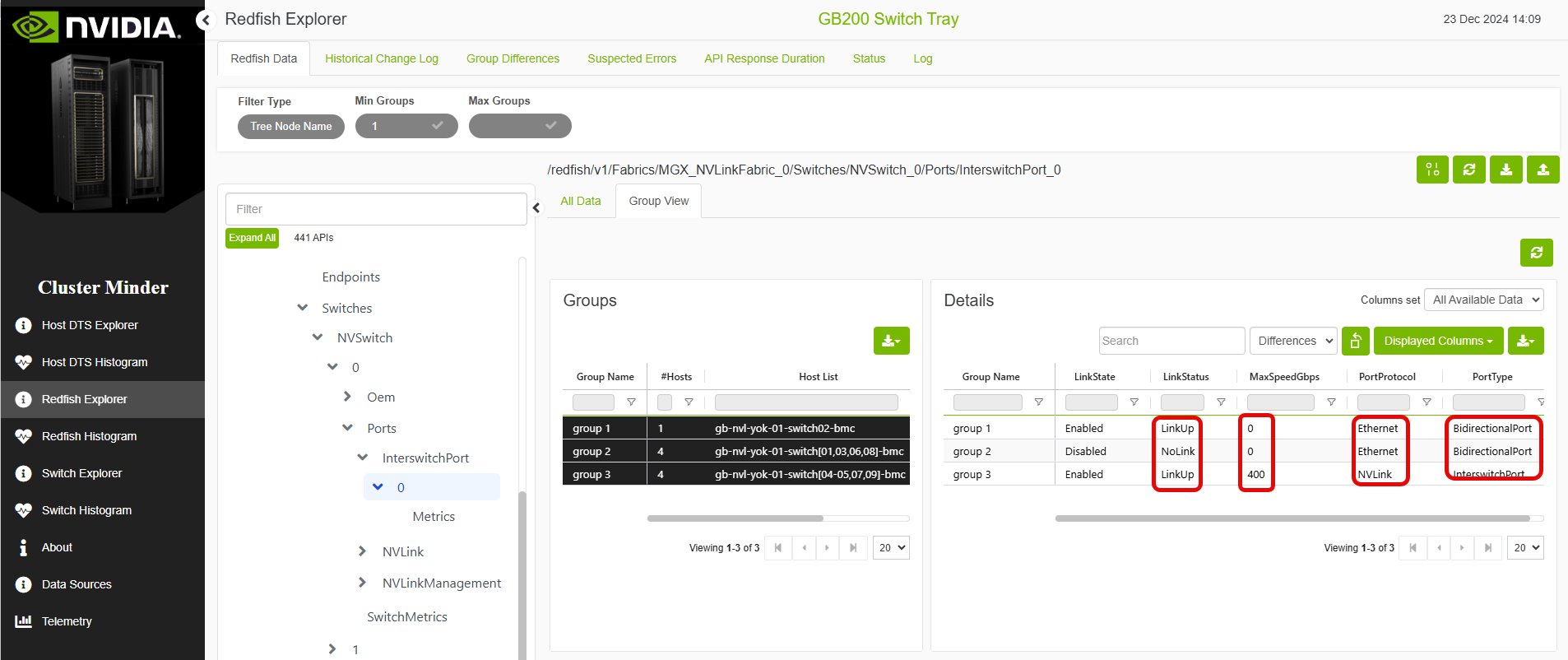
Displays all data in a tree or table view. A Group View tab lets you compare host groups to identify misconfigurations.
Redfish Data Example
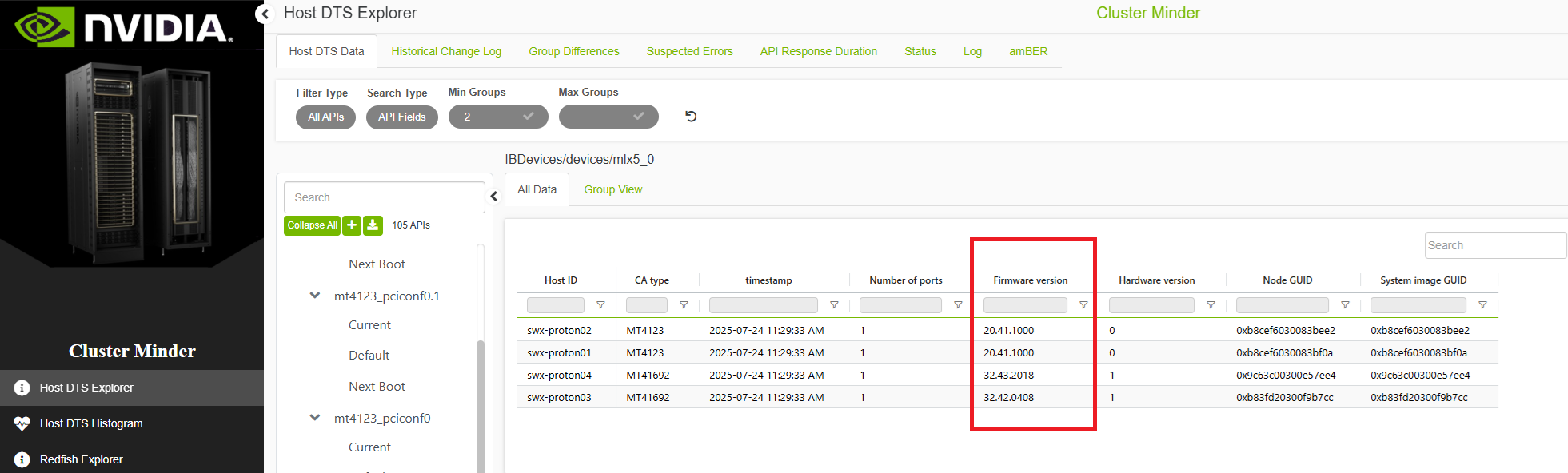
Host DTS Data Example
Switch Data Example
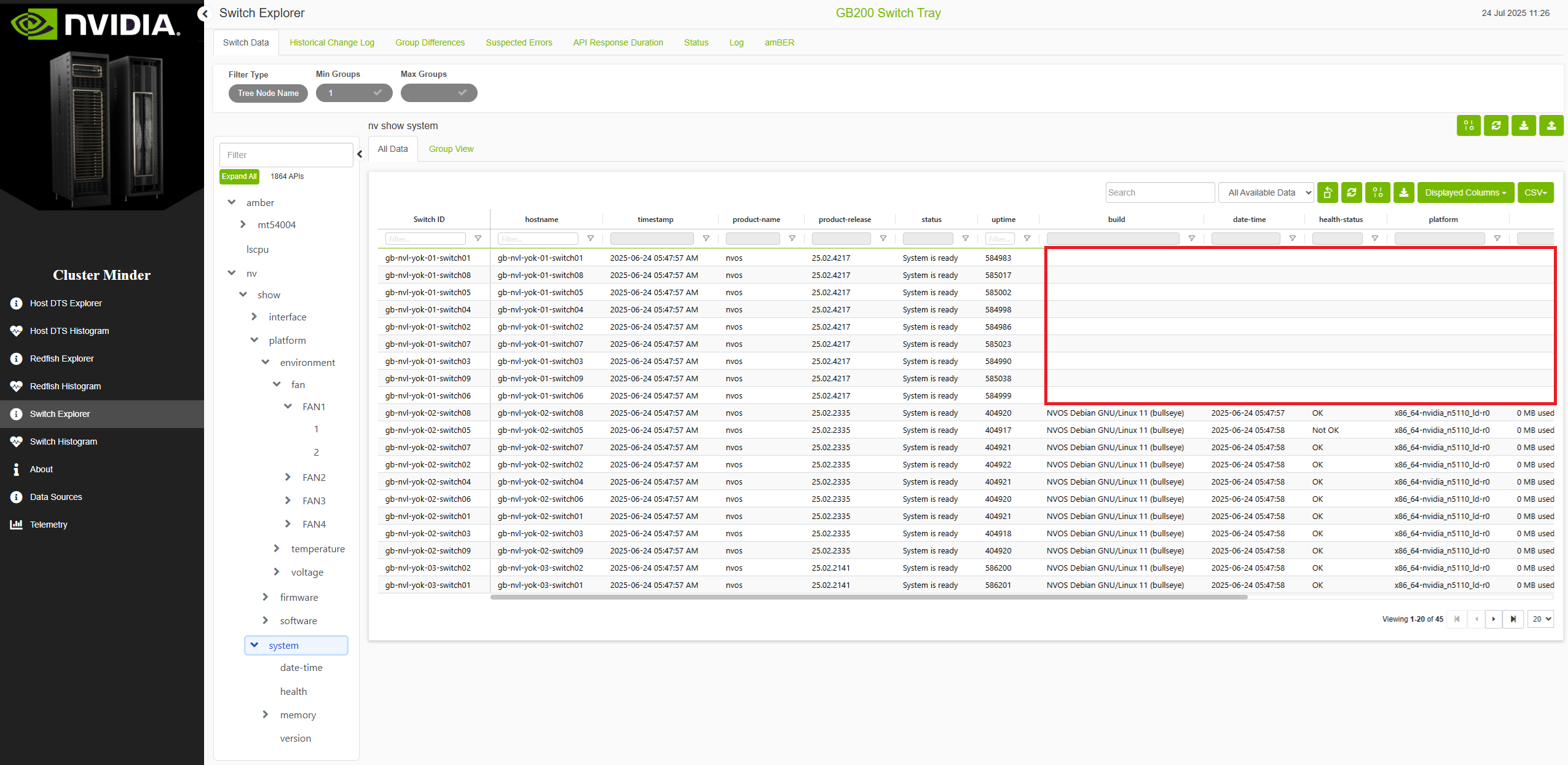
CDU Data Example
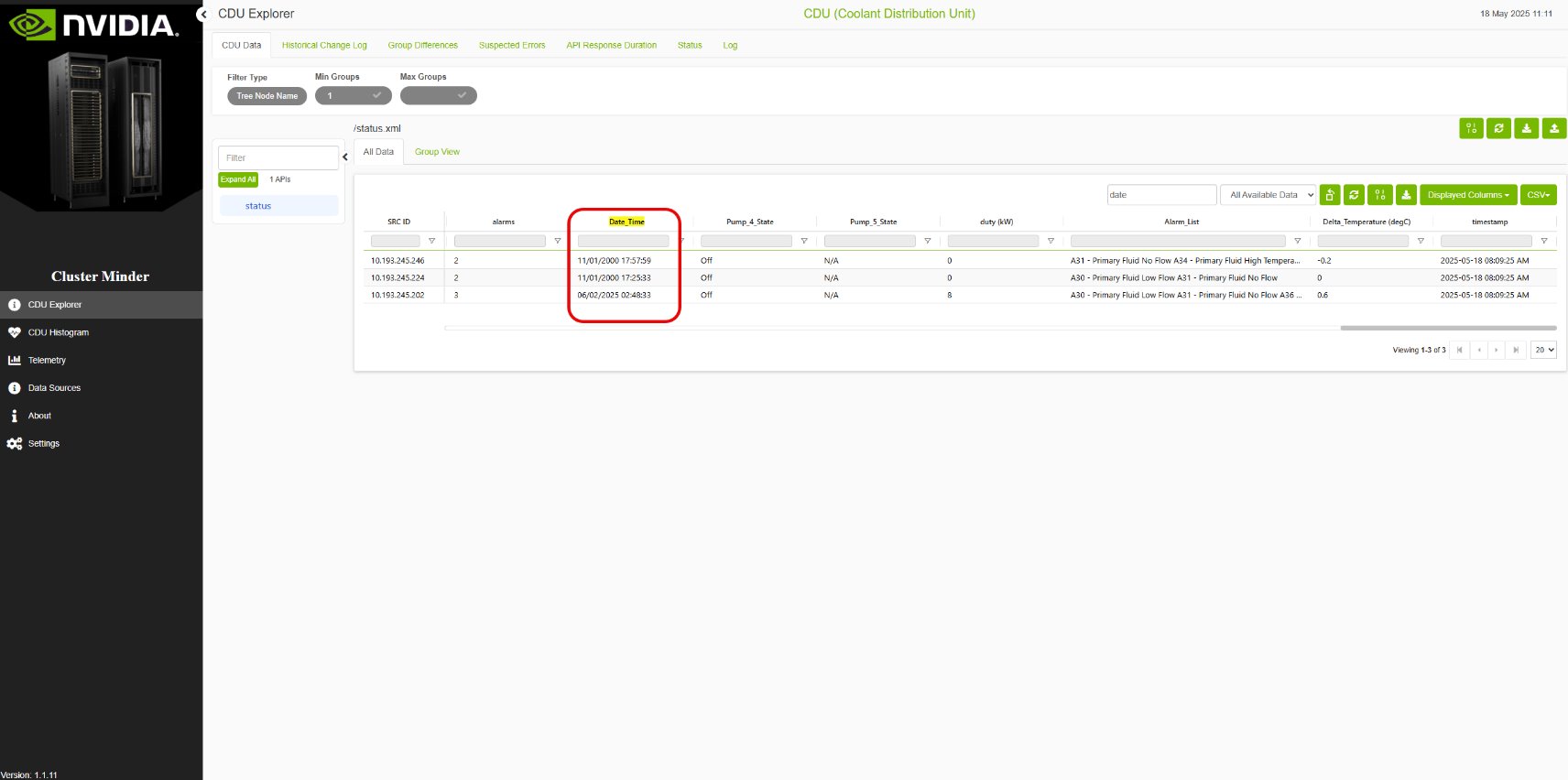
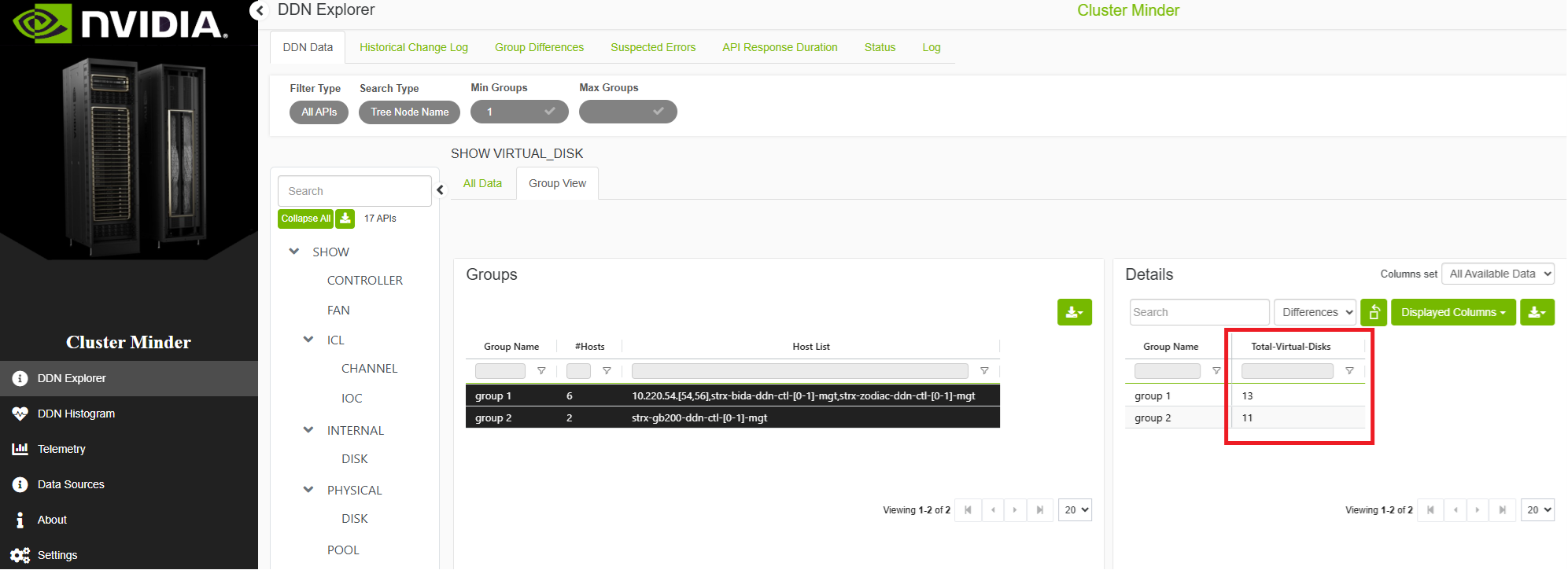
DDN Data Example
Additional Features
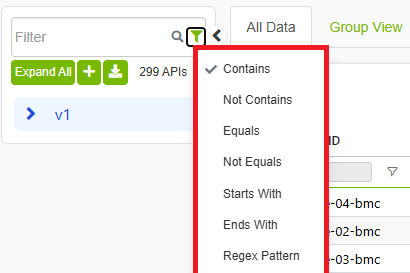
Filter Bar
The filter lets you select specific APIs based on frequency level. The search box lets you search for a substring in the API name or in a specific data field. Use the control next to the search box to choose how the text is matched — for example, contains, does not contain, equals, regex, and other comparison modes. You can also choose to display only APIs with a minimum or maximum number of groups.
Group View
The group view inner tab allows to view endpoints divided to groups based on differences in data.
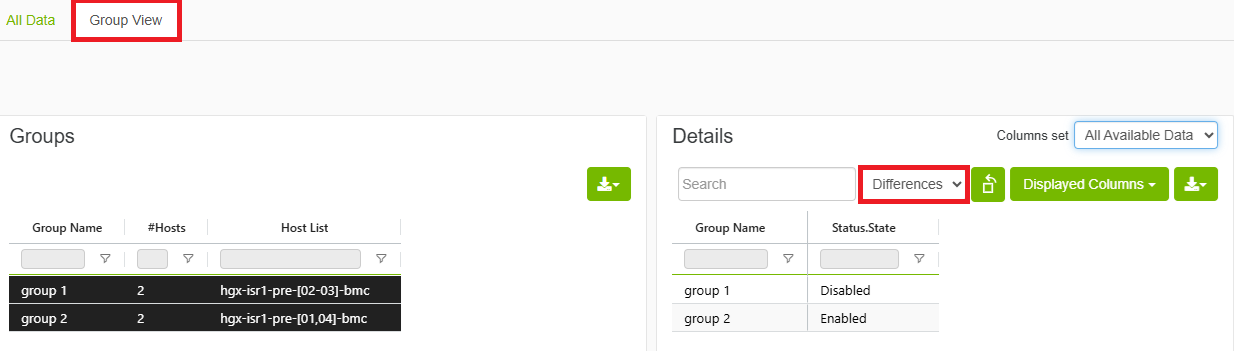
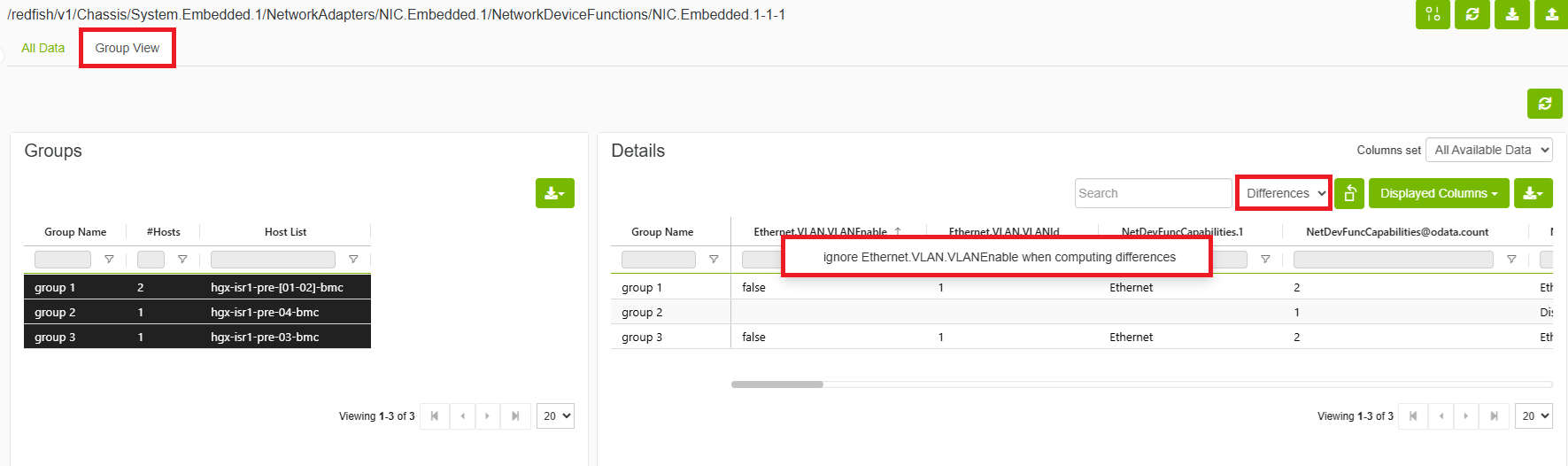
Ignoring Fields When Computing Differences
Allows users to ignore certain fields when computing differences by right clicking field name and choosing ignore.
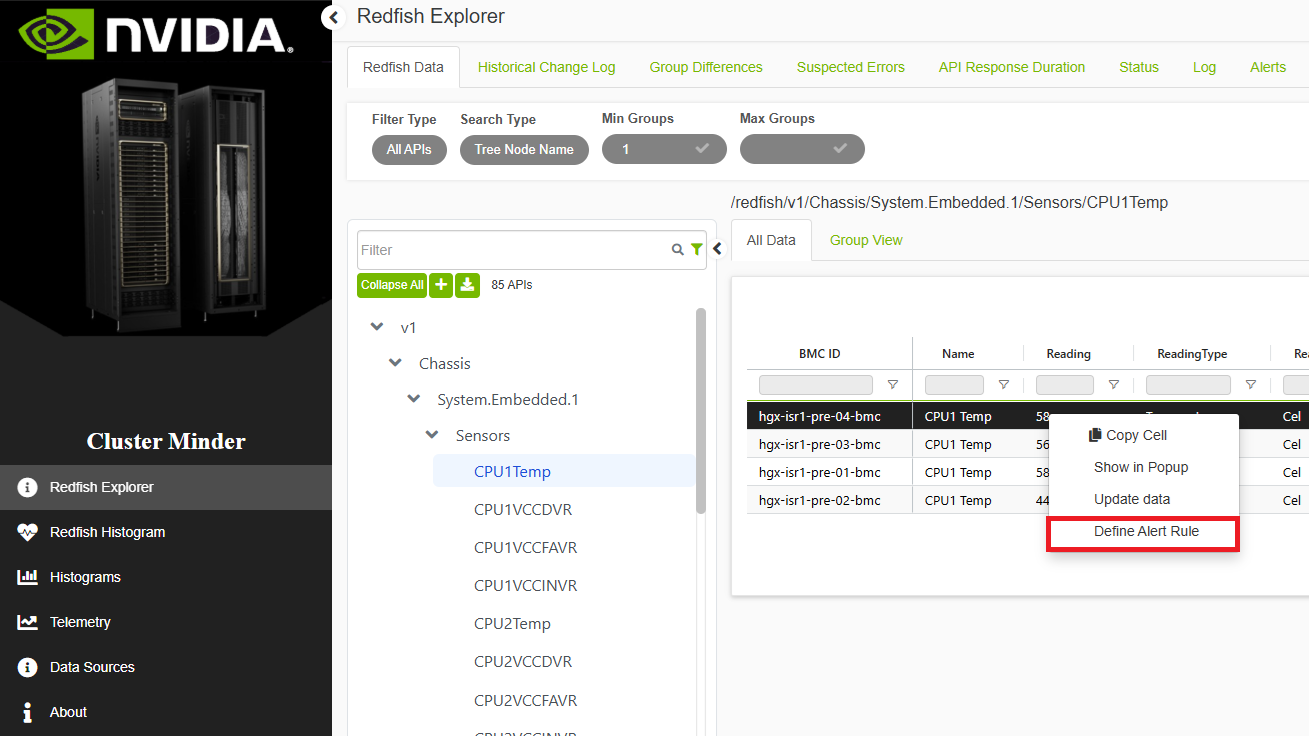
Adding an Alert Rule
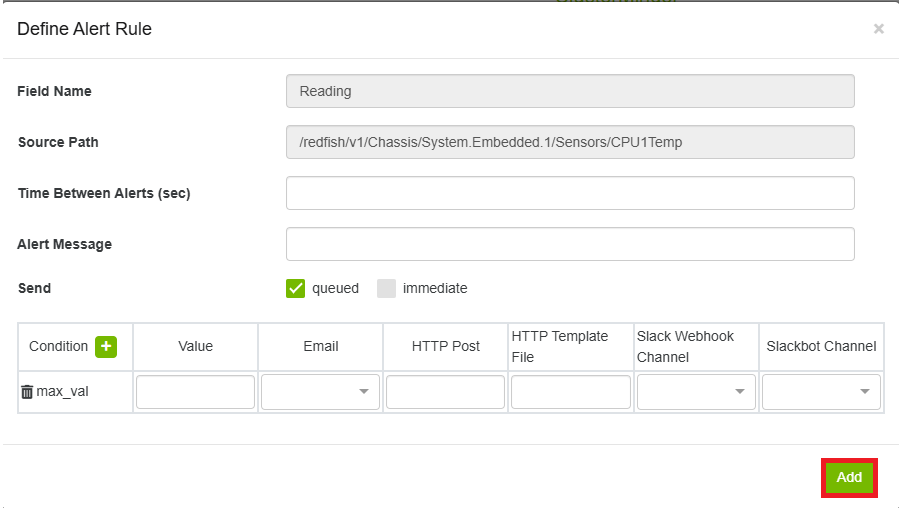
Right-click a field or column header and select Define Alert Rule. In the form:
-
Set Time Between Alerts (seconds) and an Alert Message.
-
Add one or more conditions using the + button (e.g., min_val, max_val, contains).
-
Optionally configure a notification method: Email, Slack Webhook, or Slackbot.
-
Email requires SMTP settings configured on the Settings page.
-
Slackbot requires a Slack bot token configured in the Alert Rules General tab.
-
-
Click Add to create the rule.
Setting a Source of Truth Value
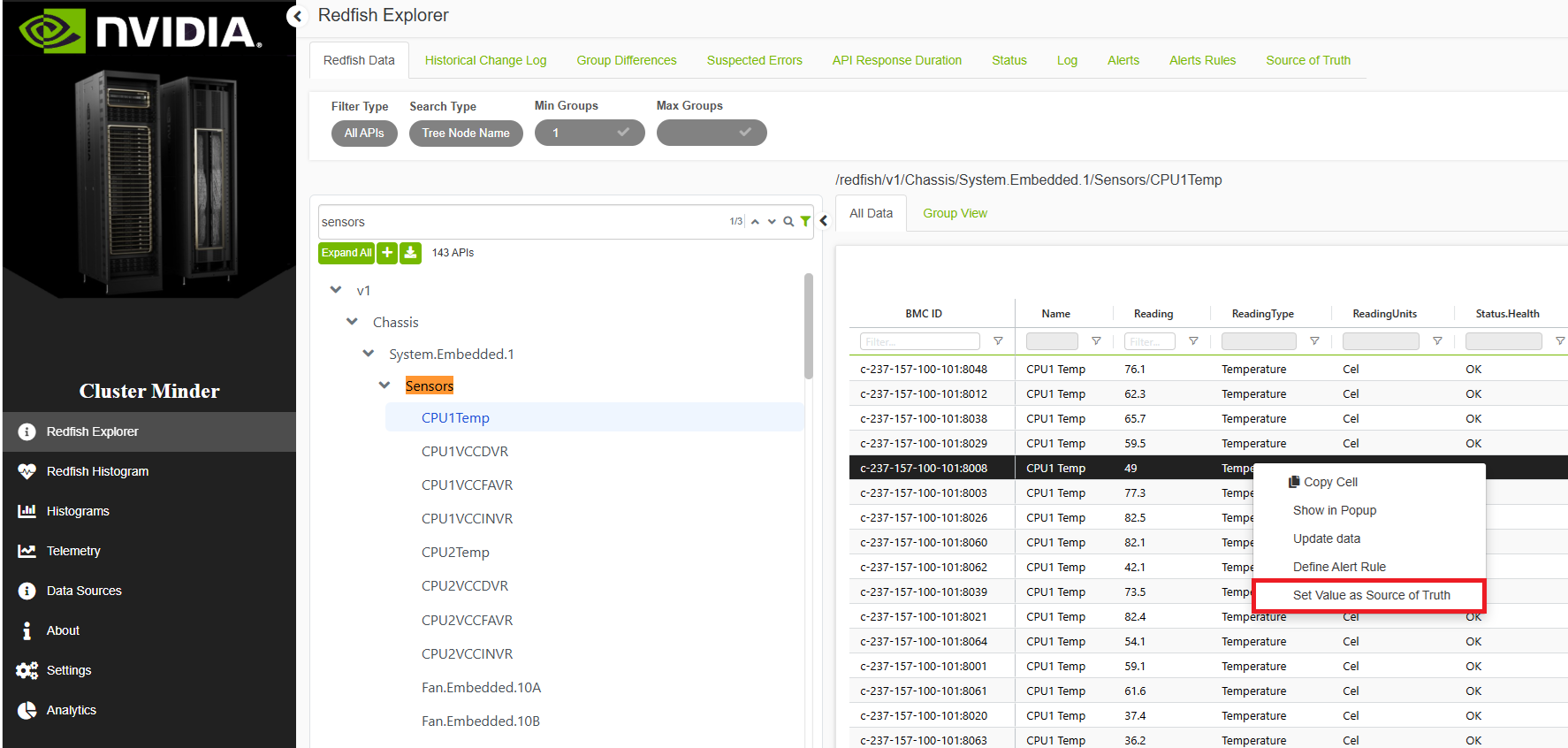
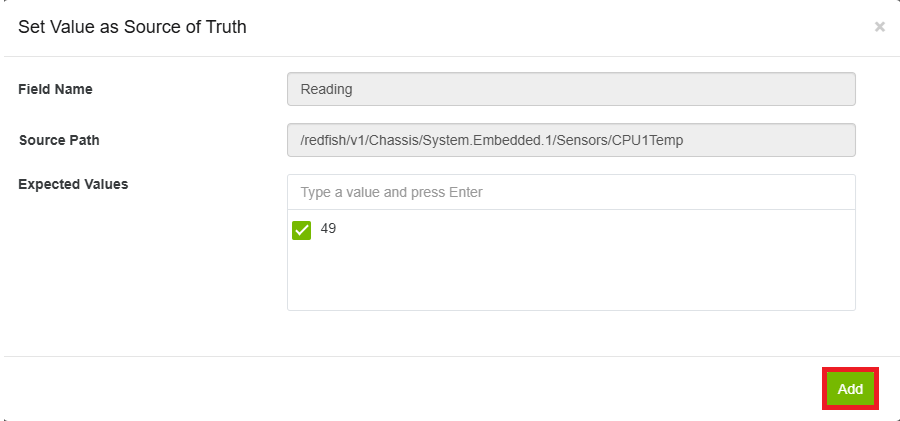
Right-click a field or column header and select Set Value as Source of Truth. Enter the expected value and click Add. This automatically creates an alert rule that triggers whenever the field value deviates from the expected value.
Last updated: