
All NVIDIA Minerva deployments require a valid license. NVIDIA Minerva 1.1.0 doesn't include a built-in evaluation license, so a fresh deployment starts in the invalid state until a license is installed. An upgrade from a 1.0.x deployment that never had a license installed also starts in the invalid state. To obtain a license, see Get a License.
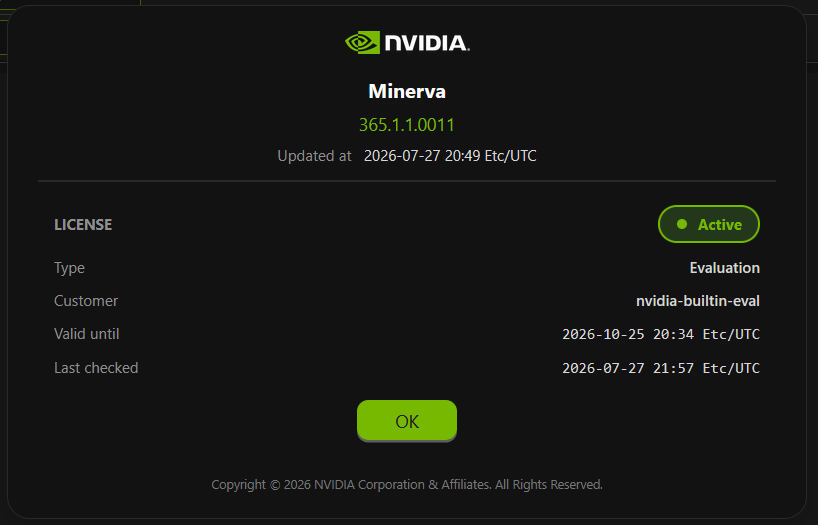
To view the current license, in the upper-right corner of the NVIDIA Minerva UI, click 
License States
NVIDIA Minerva derives one of four license states at startup and updates it automatically as time passes:
|
State |
Meaning |
|---|---|
|
|
License is valid and within its validity window. |
|
|
License has passed its validity date but is within the grace period. Most functionality continues. |
|
|
License has passed both its validity date and its grace period. Some functionality is restricted. |
|
|
No license file is present, or the file is malformed or has a signature failure. Some functionality is restricted. |
The grace period length is defined in the license file and may vary. See What to Expect When a License Expires for details on what is restricted when the license is expired or invalid.
Check License Status
To check the current license state, type, and expiry:
curl -sk https://<minerva-host>/minerva/api/v1/license/state
Example response for an active license:
{
  "state": "active",
  "type": "production",
  "customer_id": "acme-corp",
  "valid_until": "2027-05-01T00:00:00Z",
  "derived_at": "2026-10-01T09:00:00Z"
}
When the license is in grace, expired, or invalid state, the response includes a message field with an advisory. The NVIDIA Minerva UI also displays a status banner in these states.
Get a License
NVIDIA issues both evaluation and production licenses as signed license files. Download your license file from the NVIDIA Licensing Portal.
The license type shows whether it's an evaluation or production license. Both types are installed the same way and follow the same expiry, grace, and enforcement rules.
Validate a License File
To check a license file before installing it:
minerva/bin/license-validate ./your-license.lic
Example output:
state:        active
type:         production
customer ID:  acme-corp
issued at:    2026-05-01T00:00:00Z
valid until:  2027-05-01T00:00:00Z
grace period: 30 days
Exit codes: 0 active or grace · 1 expired · 2 invalid · 3 usage error.
Install or Renew a License
Installing a new license and renewing an existing one use the same procedure. The license survives an NVIDIA Minerva version upgrade and does not need to be reinstalled after upgrading.
You install licenses from the command line, not from the UI, so an expired or invalid license never prevents you from installing a new one.
Docker Swarm
minerva/bin/license-install ./your-license.lic
The script validates the file first, then updates the Swarm config and restarts the license service with no downtime.
Kubernetes
kubectl -n minerva-app create configmap minerva-license \
  --from-file=license.lic=./your-license.lic \
  --dry-run=client -o yaml | kubectl apply -f -
kubectl -n minerva-app rollout restart deploy/license
kubectl -n minerva-app rollout status deploy/license
The license service picks up the new file on restart. For the full procedure, including how to confirm the license state, see Renew the License.
Backup and Restore
The NVIDIA Minerva backup does not include the license file. A restore onto the same host or cluster keeps the existing license in place. A restore onto a new host or cluster starts in the invalid state — reinstall the license using the procedure above before resuming normal use.
What to Expect When a License Expires
When the license is expired or invalid, the following are restricted:
-
Public query API calls return
403. The UI shell still loads so you can sign in and manage the license. -
User-facing notifications (Slack, email, webhook, ServiceNow) stop. Notifications queued before expiry may still be delivered; skipped ones are not replayed when the license is renewed.
The following continue regardless of license state:
-
Telemetry collection, ingestion, enrichment, storage, and analytics.
-
Kafka and syslog notification deliveries.
-
NVIDIA Minerva MCP.
The NVIDIA Minerva UI shows an advisory banner when the license is not active:
|
State |
Banner message |
|---|---|
|
|
NVIDIA Minerva license is in its grace period; grace ends <date>. |
|
|
NVIDIA Minerva license expired (valid until <date>). |
|
|
No valid NVIDIA Minerva license is installed. |
To restore full access, install a valid license using the procedure above. Access is restored within two minutes of the license service restarting with a valid file.
Last updated: