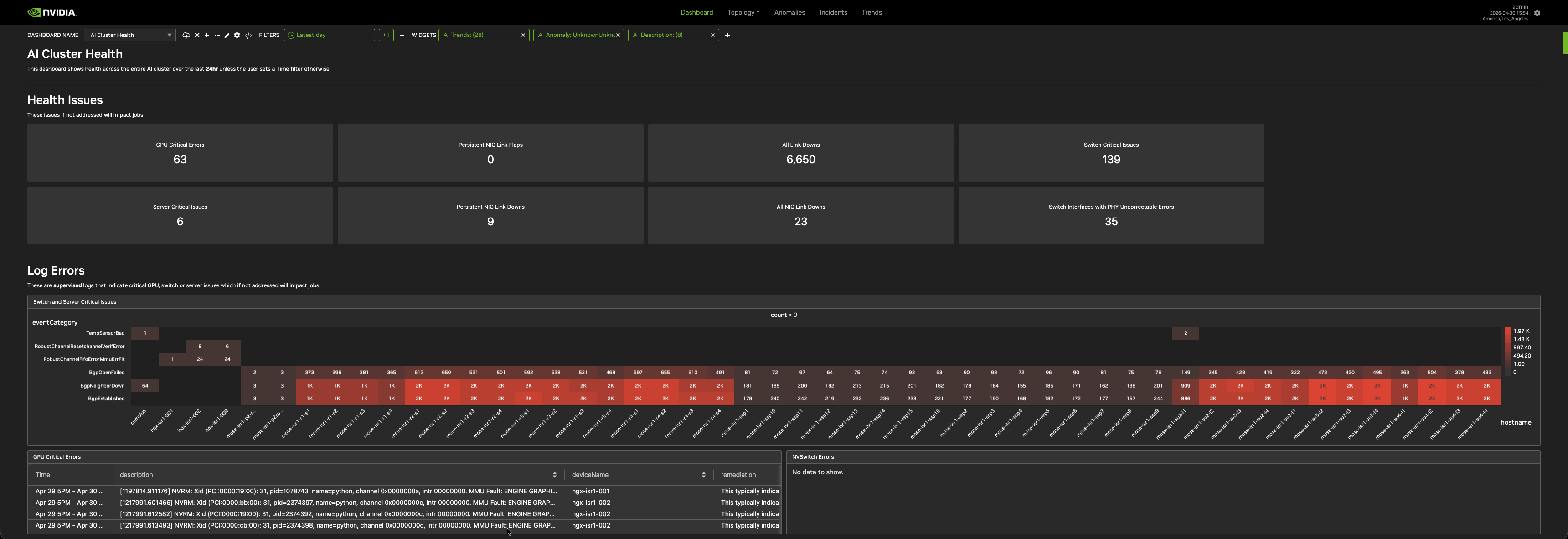
The NVIDIA Minerva UI has the following top-level tabs: Dashboard, Topology, Anomalies, Incidents, Trends, and Ask Sherlock. Each tab provides a different view of your cluster, and you can combine views across tabs in a dashboard.
|
Tab |
Description |
|---|---|
|
View metrics, anomalies, topology, and incidents in one place. Build custom dashboards by arranging views from Topology, Anomalies, Incidents, Trends, and Descriptions. |
|
|
View a graphical representation of your network. Explore the topology model, enrich it with metadata, and use it as a real-time map to detect anomalies, metrics, and events. |
|
|
View all ML-generated anomalies in real time. Create views that isolate specific anomaly types and enable notifications. |
|
|
View events and anomalies that NVIDIA Minerva has automatically correlated across multiple data sources. Each incident includes a contextual topology view and a playback of correlated events. Create views that notify on specific correlation combinations. |
|
|
Visualize raw data, incidents, and anomalies using line charts, heatmaps, bar charts, and tables. Use Top Talkers to find the top values of a dimension. |
|
|
Query your cluster's health, anomalies, incidents, and topology using plain language. |
Admins and Editors can open Settings: in the upper-right corner, click 
Switch Between Light and Dark Mode
In the upper-right corner, click
Until you change it, NVIDIA Minerva follows the light or dark setting of your operating system or browser. Your choice is saved in the browser, not in your user account, so it applies only to that browser.
Change Your Password
If you sign in with a local NVIDIA Minerva username and password, you can change your password. If you sign in with single sign-on (SSO), you don't see this option, because your identity provider manages your password.
-
Open the settings menu and select Update Password.
-
Enter your Current password.
-
Enter the new password in New password and Confirm password.
-
Click Submit. It's available only when the new password meets every requirement in the checklist below the form.
The new password must:
-
Have at least eight characters.
-
Include upper and lower case letters, at least one number, and at least one special character.
-
Not contain your username.
-
Not be a very common password.
After the change, NVIDIA Minerva signs you out of all your browser sessions, including the current one. Sign in again with the new password.
Last updated: