
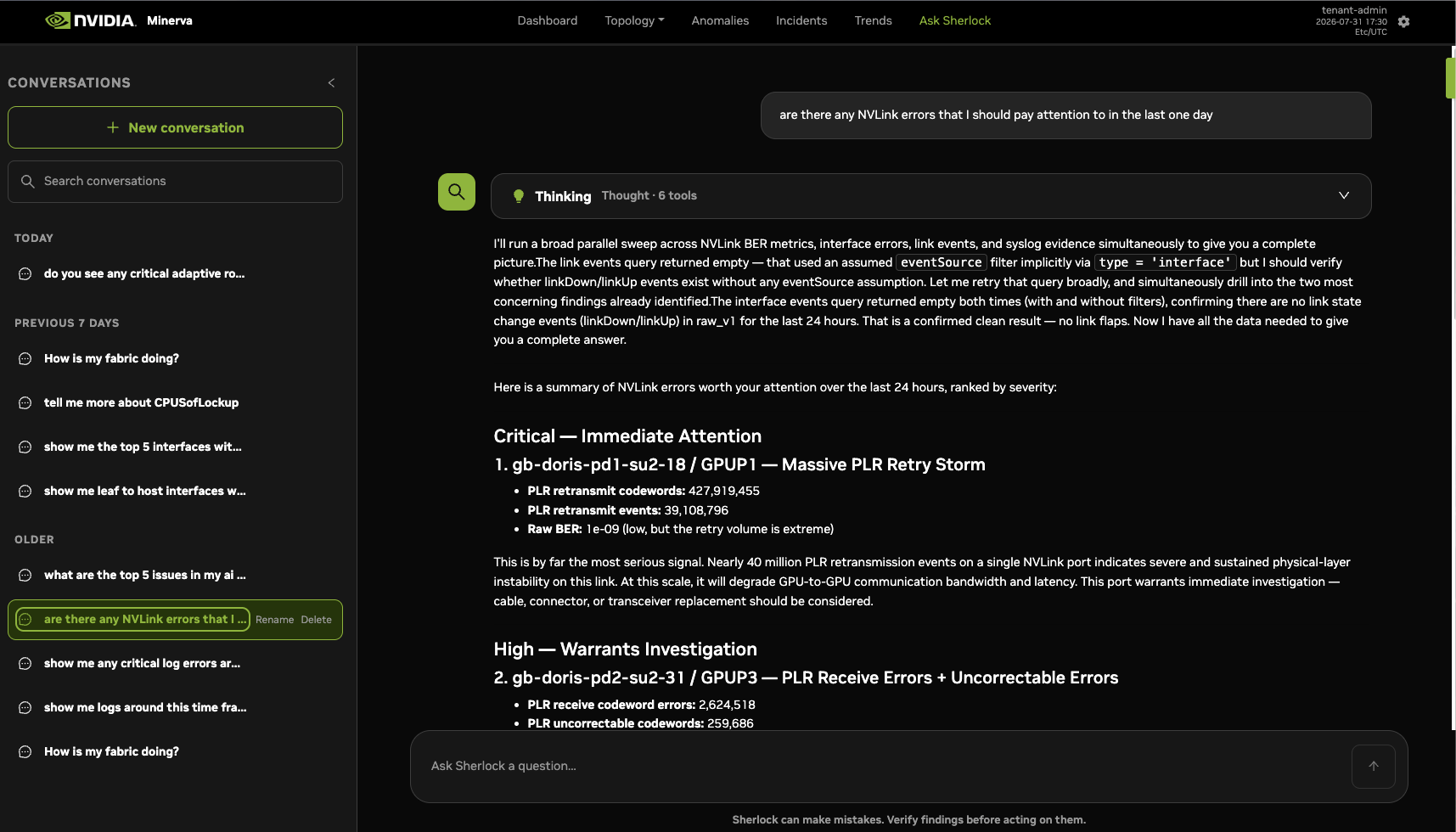
Sherlock is the NVIDIA Minerva natural-language assistant that lets you query your cluster's health, anomalies, incidents, and topology using plain language. Instead of navigating views manually, you can type questions and Sherlock returns answers drawn from live NVIDIA Minerva data, helping you triage issues and investigate root causes faster. Sherlock has access to the same data as the rest of NVIDIA Minerva, including link and BGP up, down, and flap events and NVLink metrics, so you can ask it to explain any anomaly.
Prerequisite LLM Configuration
Confirm the LLM configuration task has been completed. See Configure an On-Premises LLM. Platform Admins turn Sherlock on or off and set its base URL, model, and API key. In the upper-right corner, click 
Start a Conversation
To start a new conversation with Sherlock:
-
Go to the Ask Sherlock tab.
-
Click New conversation in the Conversations panel on the left.
-
Type your question in the chat input at the bottom of the chat area and press Enter or click the up arrow to submit your query.
-
Sherlock processes your query and returns a response in the chat area. Each response includes a text answer and, when it helps, a chart or table.
-
Continue the conversation by asking follow-up questions. Sherlock builds on earlier answers in the conversation: if you don't give a new time range, it reuses the earlier one and refreshes the data.
Sherlock can make mistakes. Verify its findings before you act on them.
Manage Conversations
Your conversations are saved in the Conversations panel, where you can pin, rename, search, and delete them. Open a saved conversation to continue where you left off.
Your conversations are private. Other users, including users in the same tenant, can't see, pin, or rate them.
Conversations are kept for 30 days after the last message, and each new message restarts the 30 days. Pinning a conversation doesn't keep it longer.
Each user can have up to 100 conversations. When you've reached the limit and start a new conversation, Sherlock asks to permanently delete your oldest unpinned conversation, the one with the least recent activity. Click Delete and continue to delete it and start the new conversation. Pinned conversations are never deleted to make room. If all 100 conversations are pinned, unpin or delete one before you start a new conversation.
Charts and Tables
Sherlock can add a line chart, bar chart, heatmap, or table to an answer. Ask for one directly, for example "Show me a line chart of interface errors in the last 24 hours," or let Sherlock add one when it supports the answer. To see the same data another way, ask a follow-up such as "Show this as a table." If Sherlock can't build the view you asked for, it says so and still gives a text answer.
Charts and tables are read-only. Sherlock doesn't generate their values: each one is a Trends query for a fixed time range, saved with the conversation. When you open the conversation again, the query runs again. If the data source has changed and the chart no longer fits it, the chart shows "Chart unavailable for the current datasource schemas or time settings."
Ask Sherlock About an Anomaly
On the Anomalies page, select an anomaly, and then type a question in the Ask Sherlock about this row box below the anomaly details, for example "Explain this anomaly." Press Enter to send, or Shift+Enter to start a new line. Sherlock answers about the anomaly you selected. If you select a different anomaly, a new conversation starts.
To continue the conversation on the Ask Sherlock page, click Expand to Ask Sherlock page after your first question. The Sherlock box appears only when Sherlock is turned on and you have access to Ask Sherlock. It doesn't appear on dashboards.
Ask Sherlock About a Trends View
On the Trends page, click the Sherlock icon (Ask Sherlock about this visualization) in the lower-right corner, and then type a question about the chart on screen, for example "Summarize this visualization." Sherlock answers from a snapshot of the view, including its filters, measures, and time range. To see the snapshot Sherlock used, click View Trends snapshot. Each question takes a new snapshot, so if you change the chart and ask again, Sherlock uses the updated chart. If you open a different view, the conversation closes. Sherlock can't change the Trends view itself.
The Sherlock icon appears only when Sherlock is turned on, you have access to Ask Sherlock, and the view uses one of these data sources: interface_v1, interface_nvlink_v1, system_v1, raw_v1, or syslog_v1.
To continue the conversation on the Ask Sherlock page, click Expand to Ask Sherlock page after your first question. The conversation keeps a link to the original Trends view, and if that view is later deleted, the conversation still opens from its snapshot.
Rate an Answer
After Sherlock finishes an answer, you can rate it as a good or bad response and optionally say why. Ratings are saved in NVIDIA Minerva.
Example Queries
Sherlock can answer questions such as:
-
"Show me any GPU NVLink anomalies in the last 24 hours."
-
"Which hosts have been in a degraded state the longest this week?"
-
"Summarize active incidents for rack R03."
-
"What is the current health of the fabric between spine and leaf layers?"
-
"Which links went down or flapped in the last 24 hours?"
-
"Which BGP sessions went down in the last 24 hours?"
-
"Show NVLink errors for the last day."
-
"Was there congestion on leaf-01 in the last hour, and which interfaces were affected?" (see Adaptive Routing Congestion)
Last updated: