
Overview
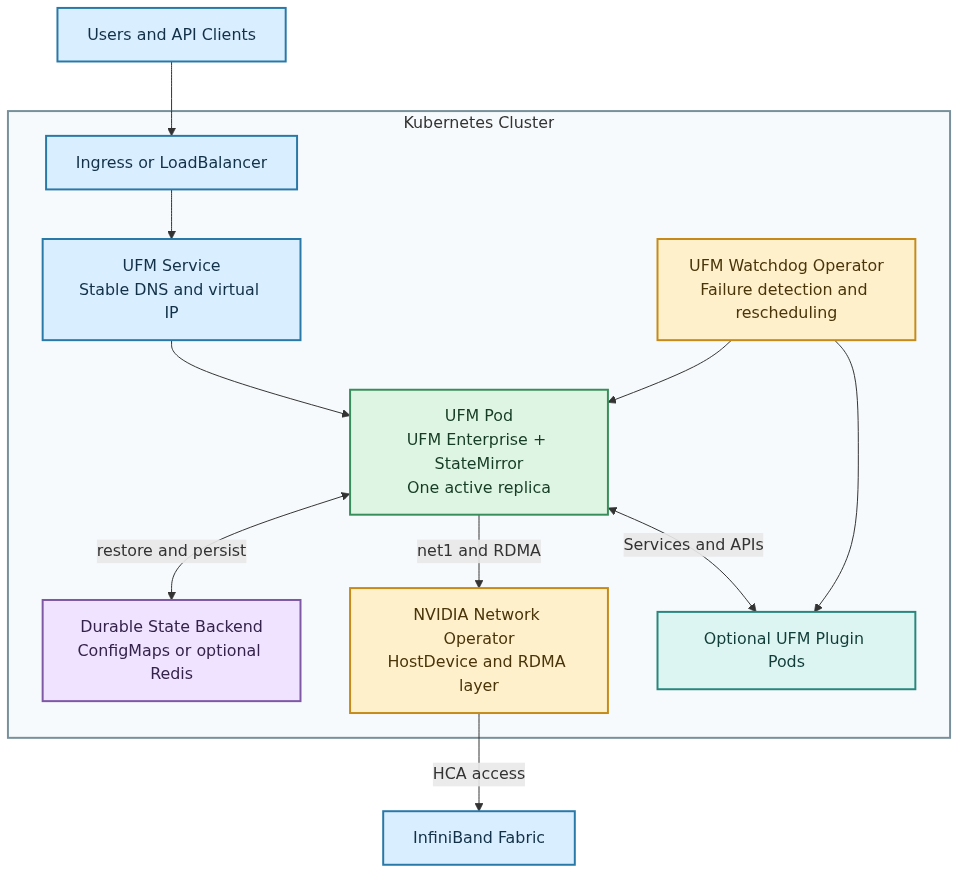
NVIDIA UFM Enterprise can run as a Kubernetes workload installed and managed with Helm. Kubernetes provides scheduling, service discovery, health probes, and pod recovery while UFM retains a single-active-instance model.
The UFM Enterprise Helm chart deploys:
-
One UFM Deployment with one active UFM pod.
-
A
ClusterIPService by default and an optional Ingress. -
Kubernetes DRA through DRANET is the default fabric-attachment mechanism. It allocates an exclusive InfiniBand physical function, exposes
/dev/infiniband, and creates the UFMnet1interface. NVIDIA Network Operator HostDeviceNetwork remains available as an explicit compatibility mode. -
StateMirrorrestore and runtime sidecar containers, which support durable UFM state without a shared PVC. -
The UFM Watchdog Operator, enabled by default, for node-level failure detection and pod migration.
-
ConfigMaps, license and TLS Secret references, and least-privilege StateMirror RBAC.
UFM plugins are deployed separately with the UFM Plugins Helm chart. Each plugin runs in its own Kubernetes Deployment and communicates with UFM through a Kubernetes Service and the plugins.yaml ConfigMap.
Deployment Characteristics
-
UFM always runs as one active pod. Active-active UFM replicas are not supported.
-
The UFM Deployment uses the
Recreatestrategy. -
The supported storage mode is StateMirror with a pod-local
emptyDir; no PVC or StorageClass is required. -
The Watchdog Operator can move UFM away from an unhealthy node.
-
The UFM Service retains a stable DNS name and virtual IP across pod replacements. During failover, service is temporarily unavailable until the replacement UFM pod becomes ready.
-
Automatic failover has service downtime while Kubernetes schedules the replacement pod, StateMirror restores state, and UFM initializes.
UFM Kubernetes Architecture
Deployment Models and High Availability
Single-Node Deployment
A single-node deployment is suitable for development or environments that do not require worker-node failure recovery.
-
UFM replicas:
1. -
Set
watchdog.replicas=1. -
StateMirror protects classified UFM state from normal pod recreation, but UFM is unavailable when the only worker node is unavailable.
-
A single-node Kubernetes control plane and ConfigMap backend do not constitute an HA platform.
Multi-node deployment with Automatic Recovery
For automatic UFM recovery after a worker-node failure:
-
Provide at least two schedulable UFM-capable worker nodes.
-
In DRA mode, every UFM-capable node must run DRANET and advertise a matching, available device through a
dra.netResourceSlice. In Network Operator mode, every UFM-capable node must provide Multus, host-device CNI,nvidia.com/hostdev, andrdma/hca_shared. -
Make the UFM and StateMirror images available on every UFM-capable node.
-
Run two Watchdog replicas on different Kubernetes nodes.
-
Ensure node selectors, taints, tolerations, and affinity rules leave at least two eligible UFM nodes.
-
Use a highly available Kubernetes control plane.
-
Use customer-managed Redis/Valkey with Sentinel when the StateMirror data exceeds the ConfigMap backend limits or requires independent backend HA.
UFM itself remains a single replica. Do not scale the UFM Deployment above one.
Automatic Failover Sequence
-
UFM reports a critical failover condition, or repeated process restarts reach the configured Watchdog threshold.
-
The active Watchdog replica labels the current node
ufm.nvidia.com/unhealthy=true. -
The Watchdog deletes the failing UFM pod.
-
The Deployment creates a replacement pod. UFM node affinity excludes the labeled node.
-
The installer seeds the replacement pod's
emptyDir. -
StateMirror restores classified UFM state from ConfigMaps or Redis/Valkey.
-
The StateMirror sidecar completes its initial scan and becomes ready.
-
UFM starts, and the Kubernetes Service routes traffic to the replacement pod.
This is restart-and-restore recovery, not zero-downtime active-active UFM.
Supported Environments
Kubernetes Version
The default DRA fabric-attachment path requires Kubernetes 1.34 or later with resource.k8s.io/v1. Clusters using the Network Operator compatibility path must meet the minimum Kubernetes requirement documented for the installed UFM release.
Node Operating Systems
UFM on Kubernetes supports the same operating systems as UFM Enterprise. See the Installation Notes for the complete list of supported operating systems.
Hardware Requirements
UFM on Kubernetes has the same hardware requirements as UFM Enterprise. See the Installation Notes for detailed specifications.
Kubernetes Node Requirements
Every node eligible to run the UFM pod must:
-
Meet the UFM Enterprise CPU, memory, and disk requirements for the managed fabric.
-
Have a supported NVIDIA/Mellanox HCA connected to the target InfiniBand fabric.
-
Have the supported host OFED/DOCA driver stack.
-
In DRA mode, run DRANET and advertise a matching, available device through a
dra.netResourceSlice. In Network Operator mode, provide Multus, host-device CNI,nvidia.com/hostdev, andrdma/hca_shared. -
Have enough Linux inotify capacity for StateMirror.
-
Have access to the UFM and StateMirror images.
-
Not run a host OpenSM or host UFM process that manages the same HCA port.
For automatic node recovery, at least two nodes must satisfy all these requirements.
Note - Linux inotify (StateMirror):
StateMirror uses inotify to watch classified UFM paths. If instance or watch capacity is too low, the StateMirror sidecar stays unready and UFM does not start.
On every UFM-capable node, check:
sysctl fs.inotify.max_user_instances
sysctl fs.inotify.max_user_watches
sysctl fs.inotify.max_queued_events
Sizing guidance:
-
fs.inotify.max_user_instances: size for all pods and host processes that use inotify on the node. -
fs.inotify.max_user_watches: size for classified parent directories, all subdirectories under recursive classifier entries, expected growth, and operational headroom. -
fs.inotify.max_queued_events: size for the expected peak filesystem-event burst across classified paths during the longest anticipated StateMirror processing or backend delay, plus operational headroom.
Configure these host-level settings on every node where UFM can be scheduled, and persist them across reboot using the site OS configuration method.
Prerequisites
Before deploying UFM Enterprise on Kubernetes, ensure the following requirements are met:
Kubernetes Cluster
-
For default DRA deployments, Kubernetes 1.34 or later with
resource.k8s.io/v1. -
kubectlconfigured with cluster access. -
Cluster admin permissions for installation.
Helm
Helm 3.x installed on the management workstation:
helm version
# Expected: version.BuildInfo{Version:"v3.14.0", GitCommit:"3fc9f4b2638e76f26739cd77c7017139be81d0ea", GitTreeState:"clean", GoVersion:"go1.21.5"}
Release Artifacts and Container Images
Obtain mutually compatible artifacts from the same UFM release:
-
UFM Enterprise Helm package.
-
UFM Enterprise container image.
-
UFM Watchdog Operator container image.
-
UFM StateMirror container image.
-
Optional UFM Plugins Helm package.
-
Optional plugin container images.
Do not assume that the StateMirror version equals the UFM version. Set stateMirror.image.repository and stateMirror.image.tag to the exact image delivered for the release unless the packaged chart already contains that mapping. The Watchdog image tag normally matches the UFM chart appVersion.
For registry-based installations:
-
Configure the exact image repositories and tags in the values file.
-
Set the required pull policy.
-
Create registry credentials in the UFM namespace when authentication is required.
For air-gapped installations or pullPolicy: Never:
-
Load the UFM and StateMirror images on every UFM-capable node.
-
Load the Watchdog image on every node where a Watchdog replica can run.
-
Load each plugin image on every node where that plugin can run.
-
Verify that each imported image repository and tag exactly match the Helm values.
For air-gapped clusters or pullPolicy: Never, import every required image on every eligible node before installing the chart. Image repository and tag values in ufm-values.yaml must match the imported names exactly.
Containerd example (ctr 1.x; adjust for your runtime):
# UFM Enterprise
gunzip -c ufm_<version>.ubuntu24.x86_64-docker.img.gz \
  | sudo ctr -n k8s.io images import -

# StateMirror
gunzip -c ufm-state-mirror_<version>.x86_64-docker.img.gz \
  | sudo ctr -n k8s.io images import -

# Watchdog Operator
gunzip -c ufm-watchdog_<version>.x86_64-docker.img.gz \
  | sudo ctr -n k8s.io images import -
Docker runtime example:
gunzip -c ufm_<version>.ubuntu24.x86_64-docker.img.gz | sudo docker load
gunzip -c ufm-state-mirror_<version>.x86_64-docker.img.gz | sudo docker load
gunzip -c ufm-watchdog_<version>.x86_64-docker.img.gz | sudo docker load
Verify imported tags before Helm install:
sudo ctr -n k8s.io images ls | grep -E 'ufm|state-mirror|watchdog'
# or: sudo docker images | grep -E 'ufm|state-mirror|watchdog'
Do not assume that the StateMirror image tag equals the UFM image tag. Set stateMirror.image.repository and stateMirror.image.tag to the exact release artifact names.
Storage
-
The default deployment uses
storage.mode=statemirrorand does not require a PVC or StorageClass./opt/ufm/filesuses a pod-localemptyDir, while the StateMirror containers persist selected runtime state to a durable ConfigMap or Redis backend.
The UFM StateMirror image must be available to the cluster. -
A ReadWriteMany StorageClass is required only for the legacy, unsupported storage.mode=pvc fallback.
-
stateMirror.backend=configmap is the default and needs no external storage service.
-
stateMirror.backend=redis requires customer-supplied Redis.
-
The ConfigMap backend has the Kubernetes object-size limitation; larger state should use Redis.
Fabric Attachment
UFM requires access to an InfiniBand HCA inside the pod. UFM supports these fabric-attachment modes:
|
Mode |
Default |
Requirements |
Recommended use |
|---|---|---|---|
|
|
Yes |
Kubernetes 1.34+, containerd NRI, DRANET, and a compatible DeviceClass |
New installations using an exclusive UFM HCA |
|
|
No |
NVIDIA Network Operator, Multus, HostDeviceNetwork, |
Existing deployments and environments requiring shared RDMA |
DRA / DRANET (Default)
New UFM installations use Kubernetes Dynamic Resource Allocation (DRA) through DRANET by default. The Helm chart creates a namespaced ResourceClaimTemplate. The template requests one device from a cluster-scoped DeviceClass. DRANET allocates the selected InfiniBand physical function to the UFM pod, exposes /dev/infiniband, and creates the net1 interface. UFM continues using fabric_interface=net1, and the UFM container does not require privileged mode.
The chart does not install DRANET or create the cluster-scoped DeviceClass.
Every DRA-capable UFM node requires:
-
Kubernetes 1.34 or later with
resource.k8s.io/v1. -
Containerd NRI enabled.
-
DRANET installed and running.
-
A supported NVIDIA/Mellanox HCA connected to the target fabric.
-
An unused InfiniBand physical function advertised in a DRANET
ResourceSlice. -
A matching cluster-scoped
DeviceClass. -
The supported host OFED/DOCA driver stack.
-
Access to all required UFM images.
Example DRANET installation:
helm install dranet \
  oci://registry.k8s.io/networking/charts/dranet \
  --namespace kube-system \
  --version v1.4.0
Example DeviceClass:
apiVersion: resource.k8s.io/v1
kind: DeviceClass
metadata:
  name: ufm-infiniband
spec:
  selectors:
    - cel:
        expression: >-
          device.driver == "dra.net" &&
          cel.bind(d, device.attributes["dra.net"],
            d.?encapsulation.orValue("") == "infiniband" &&
            d.?rdma.orValue(false) == true &&
            d.?virtual.orValue(false) == false &&
            d.?isSriovVf.orValue(false) == false &&
            d.?type.orValue("") == "ipoib")
Prerequisite checks:
kubectl api-resources --api-group=resource.k8s.io
kubectl get pods -n kube-system -l app.kubernetes.io/name=dranet
kubectl get deviceclass ufm-infiniband
kubectl get resourceslice --field-selector spec.driver=dra.net
At least one eligible node must advertise a populated dra.net ResourceSlice.
Helm configuration
DRA is already the default, but showing it explicitly makes the selected deployment mode clear:
fabricNetwork:
  mode: dra

dra:
  deviceClassName: ufm-infiniband
  driverName: dra.net
  podInterfaceName: net1
The default ResourceClaimTemplate setting is:
dra:
  createResourceClaimTemplate: true
The chart creates the template, and Kubernetes creates a claim for each UFM pod.
HCA selection and licensing
A generated claim can select any physical function matching the DeviceClass. If the UFM license is bound to a specific HCA GUID, the administrator must pin the claim to the corresponding device:
dra:
  pciAddress: "0000:xx:yy.z"
  # Alternatively:
  # hostInterfaceName: ib0
Do not set both values unless they refer to the same physical function.
DRA preflight validation
In DRA mode, the chart runs a pre-install,pre-upgrade Helm hook. It checks for:
-
The configured DeviceClass.
-
A populated ResourceSlice from
dra.driverName. -
An eligible node matching the chart's scheduling configuration.
The configurable defaults are:
dra:
  preflight:
    enabled: true
    timeoutSeconds: 120
    pollIntervalSeconds: 5
Administrators should not disable the preflight unless an external deployment workflow performs equivalent validation.
Troubleshooting commands:
kubectl get job -n "$NS" \
  -l app.kubernetes.io/component=dra-preflight

kubectl logs -n "$NS" \
  -l app.kubernetes.io/component=dra-preflight
Important:
-
DRANET claims are exclusive.
-
UFM and UTM cannot share the same HCA using separate DRA claims.
-
Use
fabricNetwork.mode=networkOperatorwhen same-node shared RDMA is required. -
Do not attach the same physical function through DRA and HostDeviceNetwork simultaneously.
-
With
hostNetwork=true, fabric access is externally managed; keephostDevice.enabled=falseandrdma.enabled=false. -
Applicable ConnectX-8/XDR split-SMI-plane configurations might require the release-specific
dra.rdmaResourceNameworkaround. -
Pin the physical function when the UFM license depends on a particular HCA GUID.
NVIDIA Network Operator (Compatibility Mode)
Use the NVIDIA Network Operator compatibility mode for existing HostDeviceNetwork deployments or when UFM must share RDMA resources with another workload.
The NVIDIA Network Operator is required only when fabricNetwork.mode=networkOperator is selected. Add this to ufm-values.yaml for compatibility mode:
fabricNetwork:
  mode: networkOperator

hostDevice:
  enabled: true

rdma:
  enabled: true
-
Install Network Operator:
helm repo add nvidia https://helm.ngc.nvidia.com/nvidia
helm repo update

helm install network-operator nvidia/network-operator \
  --namespace nvidia-network-operator \
  --create-namespace \
  --version 25.7.0 \
  --set nfd.enabled=true \
  --set ofedDriver.deploy=false \
  --set sriovDevicePlugin.deploy=true \
  --set secondaryNetwork.deploy=true \
  --set secondaryNetwork.multus.deploy=true \
  --wait --timeout 5m
Note: Set ofedDriver.deploy=false if OFED/DOCA drivers are already installed on the host.
-
Create NicClusterPolicy:
The sriovDevicePlugin must be enabled so the nodes expose nvidia.com/hostdev. The rdmaSharedDevicePlugin must be enabled to expose rdma/hca_shared, which is required for OpenSM to access InfiniBand character devices.
kubectl apply -f - <<EOF
apiVersion: mellanox.com/v1alpha1
kind: NicClusterPolicy
metadata:
  name: nic-cluster-policy
spec:
  secondaryNetwork:
    multus:
      image: multus-cni
      repository: ghcr.io/k8snetworkplumbingwg
      version: v4.1.0
    cniPlugins:
      image: plugins
      repository: nvcr.io/nvidia/mellanox
      version: network-operator-v25.7.0
  sriovDevicePlugin:
    image: sriov-network-device-plugin
    repository: nvcr.io/nvidia/mellanox
    version: network-operator-v25.7.0
    config: |
      {
        "resourceList": [
          {
            "resourcePrefix": "nvidia.com",
            "resourceName": "hostdev",
            "selectors": {
              "vendors": ["15b3"],
              "devices": [],
              "drivers": [],
              "pfNames": [],
              "pciAddresses": [],
              "rootDevices": [],
              "linkTypes": ["infiniband"],
              "isRdma": true
            }
          }
        ]
      }
  rdmaSharedDevicePlugin:
    image: k8s-rdma-shared-dev-plugin
    repository: nvcr.io/nvidia/mellanox
    version: network-operator-v25.7.0
    config: |
      {
        "configList": [
          {
            "resourceName": "hca_shared",
            "rdmaHcaMax": 1000,
            "devices": ["all"]
          }
        ]
      }
EOF
The linkTypes selector is case-sensitive. Use infiniband in lowercase. An empty selector can expose both InfiniBand and Ethernet ports on mixed-mode hosts, which may cause UFM to receive a non-InfiniBand net1 interface.
On hosts with multiple HCAs, restrict the device-plugin selectors to the adapters intended for UFM by setting pfNames, rootDevices, or pciAddresses. Avoid exposing every NVIDIA/Mellanox adapter on mixed-purpose hosts.
Wait for the policy to be ready:
kubectl get nicclusterpolicy -o jsonpath='{.items[0].status.state}'
# Expected: ready
-
Verify resources are available:
kubectl get nodes -o custom-columns=NAME:.metadata.name,HOSTDEV:.status.allocatable.nvidia\.com/hostdev,RDMA:.status.allocatable.rdma/hca_shared
# Expected: both nvidia.com/hostdev and rdma/hca_shared should appear on the target nodes
Note: 15b3 is the NVIDIA/Mellanox PCI vendor ID.
UFM License
-
Valid UFM Enterprise license file
Installation
Step 1: Select the Storage Mode
UFM uses storage.mode as the single selector between the available storage implementations:
-
statemirror— supported default; usesemptyDirwith StateMirror and does not require a PVC. -
pvc— legacy, unsupported fallback requiring a ReadWriteMany claim.
When storage.mode=statemirror, stateMirror.backend selects the durable StateMirror backend:
-
configmap— default; no external storage service. -
redis— customer-supplied Redis.
storage:
  mode: statemirror

stateMirror:
  backend: configmap
Optional: Shared PVC Mode
Use shared PVC mode only when the installed UFM release supports PVC deployment, UFM or an installed plugin requires live shared filesystem access, and the cluster provides a ReadWriteMany volume accessible from every node where UFM or the plugin can run.
Do not switch an existing deployment between PVC and StateMirror by changing only Helm values. The chart does not migrate data between a PVC and the StateMirror backend.
Step 2: Create Namespace and Provide the UFM License
Create the namespace before installing UFM. The chart value namespace.name must match the namespace passed to Helm with --namespace.
export NS=ufm-enterprise

# Create the namespace
kubectl create namespace "$NS"
If the namespace already exists, do not recreate it. Choose either a license ConfigMap or Secret. Do not configure both methods for the same installation. The license object and the UFM release must be in the same namespace.
For additional Kubernetes-specific licensing guidance, see Activating Software License | Kubernetes: license the node by HCA GUID .
Step 3: Install UFM with Helm
The Helm artifact contains the chart's default values.yaml. Do not modify or repackage the artifact. First inspect its chart metadata and default values:
export UFM_CHART=<ufm-enterprise-chart.tgz>

helm show chart "$UFM_CHART"
helm show values "$UFM_CHART" > ufm-default-values.yaml
Use ufm-default-values.yaml as a read-only reference. Create a separate ufm-values.yaml containing the required and environment-specific overrides. Helm merges this file over the defaults packaged in the chart.
The following is an override-file example. Replace all placeholders with the exact image repositories and tags delivered for the release:
namespace:
  name: ufm-enterprise

image:
  repository: <registry>/ufm-enterprise
  tag: <ufm-image-tag>
  pullPolicy: IfNotPresent

storage:
  mode: statemirror

fabricNetwork:
  mode: dra

dra:
  deviceClassName: ufm-infiniband
  driverName: dra.net
  podInterfaceName: net1

stateMirror:
  backend: configmap
  image:
    repository: <registry>/ufm-state-mirror
    tag: <state-mirror-image-tag>
    pullPolicy: IfNotPresent

watchdog:
  enabled: true
  image:
    repository: <registry>/ufm-enterprise-watchdog
    tag: <watchdog-image-tag>
  replicas: 2

license:
  existingSecret: ufm-license

resources:
  requests:
    cpu: "2"
    memory: 4Gi
This example uses the license Secret from Step 2. If a license ConfigMap was created instead, replace the license block with:
license:
  existingConfigMap: ufm-license
StateMirror Configuration Examples
The following fragments are examples for ufm-values.yaml. Merge one backend configuration into the main override file; do not pass these as replacements for the complete file.
Install the chart:
export NS=ufm-enterprise
export UFM_RELEASE=ufm-enterprise

helm upgrade --install "$UFM_RELEASE" "$UFM_CHART" \
  --namespace "$NS" \
  -f ufm-values.yaml \
  --wait \
  --timeout 15m
The UFM image version must be equal to or newer than the chart appVersion. Keep versionCheckEnabled=true unless NVIDIA Support directs otherwise.
Note: The chart-delivered gv.cfg defaults Server.fabric_interface to net1, matching the interface provided by DRA/DRANET or Network Operator compatibility mode. To change this or another gv.cfg setting, supply a complete gv.cfg through configFiles during Helm installation or upgrade.
Step 4: Discover UFM resource names
The generated UFM resource fullname depends on the Helm release name. Discover the Deployment instead of hard-coding it:
export UFM_SELECTOR="app.kubernetes.io/name=ufm-enterprise,app.kubernetes.io/instance=${UFM_RELEASE}"
export UFM_DEPLOYMENT="$(
  kubectl get deployment -n "$NS" -l "$UFM_SELECTOR" \
    -o jsonpath='{.items[0].metadata.name}'
)"
test -n "$UFM_DEPLOYMENT"
echo "$UFM_DEPLOYMENT"
Use $UFM_DEPLOYMENT as the ufmFullname value for the UFM Plugins Helm chart.
Step 5: Verify Installation
Watch the UFM and Watchdog pods:
kubectl get pods -n "$NS" -o wide -w
Verify the UFM Deployment and StateMirror:
kubectl rollout status deployment/"$UFM_DEPLOYMENT" \
  -n "$NS" --timeout=15m

export UFM_POD="$(
  kubectl get pod -n "$NS" -l "$UFM_SELECTOR" \
    -o jsonpath='{.items[0].metadata.name}'
)"

kubectl logs -n "$NS" "$UFM_POD" -c ufm-installer
kubectl logs -n "$NS" "$UFM_POD" -c state-mirror-restore
kubectl logs -n "$NS" "$UFM_POD" -c state-mirror --tail=100
DRA verification
For DRA mode, after $UFM_POD is discovered, verify the generated fabric claim and the pod interface:
export FABRIC_CLAIM="$(
  kubectl get pod "$UFM_POD" -n "$NS" \
    -o jsonpath='{.status.resourceClaimStatuses[?(@.name=="fabric")].resourceClaimName}'
)"

test -n "$FABRIC_CLAIM"

kubectl get resourceclaim "$FABRIC_CLAIM" -n "$NS"

kubectl get resourceclaim "$FABRIC_CLAIM" -n "$NS" \
  -o jsonpath='{.status.allocation.devices.results[0].driver}{"\n"}'
# Expected: dra.net

kubectl exec "$UFM_POD" -n "$NS" -c ufm-enterprise -- \
  ip -d link show net1
net1 must exist and report link/infiniband.
Network Operator compatibility verification
For fabricNetwork.mode=networkOperator, verify the HostDeviceNetwork, NetworkAttachmentDefinition, and pod interface:
kubectl get hostdevicenetwork ufm-hostdevice
kubectl get network-attachment-definition -n "$NS" ufm-hostdevice
kubectl exec -n "$NS" "$UFM_POD" -c ufm-enterprise -- \
  ip -d link show net1
net1 must report link/infiniband.
Configuration Reference
Chart configuration is supplied through Helm values, values files, and --set-file.
UFM application settings contained in gv.cfg are managed by supplying the complete file through configFiles; they are not exposed as individual Helm values.
Namespace Configuration
|
Parameter |
Description |
Default |
|---|---|---|
|
|
Create the namespace |
|
|
|
Namespace name |
|
Image Configuration
|
Parameter |
Description |
Default |
|---|---|---|
|
|
Image repository |
|
|
|
Image tag |
|
|
|
Image pull policy (REQUIRED) |
— |
|
|
Image pull secrets for private registries |
|
|
|
Check that UFM image version >= Helm chart appVersion at startup. |
|
UFM Configuration
|
Parameter |
Description |
Default |
|---|---|---|
|
|
Apache HTTP port |
|
|
|
Apache HTTPS port |
|
Fabric Network Configuration
|
Parameter |
Description |
Default |
|---|---|---|
|
|
Fabric attachment mode: |
|
|
|
Cluster-scoped DeviceClass requested by UFM |
|
|
|
Driver required in the advertised ResourceSlice |
|
|
|
Interface created inside the UFM pod |
|
|
|
Optional PCI address used to pin the allocation |
Empty |
|
|
Optional host-interface name used to pin the allocation |
Empty |
|
|
Create the UFM ResourceClaimTemplate |
|
|
|
Run the blocking DRA readiness hook |
|
|
|
Maximum readiness wait time |
|
|
|
Delay between readiness checks |
|
Network Operator Compatibility Configuration
These values apply only when fabricNetwork.mode=networkOperator. UFM requires a valid InfiniBand fabric interface inside the pod. In compatibility mode, the interface is provided by the NVIDIA Network Operator HostDeviceNetwork. The pod gets a net1 interface which is a link/infiniband interface. UFM uses fabric_interface = net1.
|
Parameter |
Description |
Default |
|---|---|---|
|
|
Create the HostDeviceNetwork resource as part of chart install |
|
|
|
Name of the HostDeviceNetwork resource |
|
|
|
Resource name referenced by the HostDeviceNetwork |
|
|
|
Device-plugin resource requested by the pod |
|
|
|
Number of host-device resources per container |
|
Set hostDevice.createNetwork=false if you want to reference a pre-created HostDeviceNetwork instead of letting the chart create it.
RDMA Configuration
In Network Operator compatibility mode, the RDMA shared device plugin grants cgroup-level access to /dev/infiniband/* character devices. This is required for OpenSM to function. The HostDevice resource alone makes device files visible but does not grant the necessary cgroup permissions.
|
Parameter |
Description |
Default |
|---|---|---|
|
|
RDMA device plugin resource name |
|
|
|
Number of RDMA resources to request per container |
|
Storage Configuration
The storage.mode value is the single storage selector. Set it to statemirror for the supported no-PVC deployment or pvc for the legacy fallback. The stateMirror.* settings are used only when storage.mode=statemirror, while the PVC-specific storage settings are used only when storage.mode=pvc.
StateMirror architecture, classifier, backup, controlled-stop, resource, license, SSL, probe, service, ingress, scheduling, deployment, config-file, user-script, and Watchdog configuration content remains as previously documented.
Plugin Deployment
UFM plugins are installed with the separate UFM Plugins Helm chart. Install UFM Enterprise before installing plugins.
Prerequisites
-
UFM Enterprise must already be installed in the target namespace. The chart-created ConfigMap
<ufmFullname>-configmust exist and contain theUFM_VERSIONkey, which plugin init containers use during startup. -
The plugin chart is compatible with the installed UFM release.
-
ufmFullnameis set to the generated UFM Deployment fullname. -
Plugin images are available on all nodes where plugins can run.
-
The RDMA device plugin is available when a plugin requests
rdma/hca_sharedin Network Operator compatibility mode.
Plugin storage, lifecycle, Watchdog integration, values reference, operations, UTM standalone deployment, and troubleshooting content remains as previously documented, except that DRA claims are exclusive and UFM and UTM cannot share the same HCA using separate DRA claims.
Custom Configuration Files
The Helm chart includes default UFM configuration files that can be customized. Existing configFiles, gv.cfg, configuration priority, and important notes remain as previously documented.
Upgrading UFM on Kubernetes
Upgrade UFM using the target UFM Helm package and compatible UFM, StateMirror, and Watchdog container images. Supply configuration through Helm command-line options without creating a YAML values file.
For deployments using storage.mode=statemirror, the chart coordinates state restoration and UFM migration automatically.
Prerequisites
Before upgrading:
-
Verify that the source-to-target upgrade is supported by the target release. Upgrading from the legacy UFM 6.24.2 Kubernetes deployment is not supported.
-
Schedule a maintenance window. UFM is unavailable during pod replacement, state restoration, migration, and initialization.
-
Back up the StateMirror backend and retain the current Helm configuration.
-
Export required logs and audit records, which StateMirror does not persist.
-
Obtain the target UFM Helm package and compatible UFM, StateMirror, and Watchdog images.
-
Make the images available on every eligible node.
The StateMirror image must provide both commands:
python -m state_mirror.upgrade preflight
python -m state_mirror.upgrade commit
An older image without these commands causes the upgrade to fail. The StateMirror image tag does not have to equal the UFM version. Set stateMirror.image.tag explicitly to the compatible image supplied for the release. An empty tag falls back to the chart’s appVersion, which selects the wrong StateMirror image for this release.
Release limitation: The initial StateMirror upgrade implementation does not guarantee safe recovery from an interruption while migrated state is being persisted. Follow the target release’s support statement before performing a production upgrade.
Identify the Existing Installation
Set the existing Helm release name and namespace:
export NS=ufm-enterprise
export UFM_RELEASE=ufm-enterprise
Verify that the release exists:
helm status "$UFM_RELEASE" --namespace "$NS"
Review its current configuration and the target chart defaults:
helm get values "$UFM_RELEASE" --namespace "$NS"

helm show values /path/to/ufm-enterprise-<target-chart-version>.tgz
The example below uses --reuse-values to retain existing settings, including networking, resources, licensing, backend connections, and custom configuration. Review these settings against the target chart before proceeding. Explicitly override settings that must change.
Upgrade UFM
Use helm upgrade --install with the existing release name and namespace. This command upgrades an existing installation; if the release does not exist, it performs a new installation.
helm upgrade --install "$UFM_RELEASE" \
  /path/to/ufm-enterprise-<target-chart-version>.tgz \
  --namespace "$NS" \
  --reuse-values \
  --set-string image.repository=<ufm-image-repository> \
  --set-string image.tag=<target-ufm-image-tag> \
  --set storage.mode=statemirror \
  --set-string stateMirror.image.repository=<state-mirror-image-repository> \
  --set-string stateMirror.image.tag=<compatible-state-mirror-tag> \
  --set stateMirror.upgrade.enabled=true \
  --set-string watchdog.image.tag=<target-watchdog-image-tag> \
  --wait \
  --timeout 15m
Replace the placeholders with the exact artifact path, image repositories, and tags supplied for the target release.
This command upgrades the UFM chart and UFM image together with the compatible StateMirror and Watchdog images. Retain the existing StateMirror backend and connection settings. Do not combine a backend change with this procedure.
For installations using preloaded images, add these options:
--set image.pullPolicy=Never \
--set stateMirror.image.pullPolicy=Never
In UFM 6.27.1-2, the Watchdog also uses image.pullPolicy. All required images must already be loaded on their eligible nodes under the exact configured repository names and tags.
Increase the timeout when required for larger deployments.
A native helm upgrade runs the upgrade transaction through the chart’s pre-upgrade hook. A GitOps sync that only renders and applies templates does not run this transaction unless it executes the same pre-upgrade hook.
Do not use --no-hooks, and do not set stateMirror.upgrade.enabled=false to bypass validation or force startup.
Custom UFM Configuration
To supply an updated gv.cfg, add the following option to the upgrade command:
--set-file 'configFiles.gv\.cfg=/path/to/target-gv.cfg'
Supply a complete file appropriate for the target release, including the required customer settings.
The previous Helm-delivered gv.cfg is used as migration input. The target Helm configuration is applied afterward. Direct edits inside a running pod are unmanaged and can be overwritten or lost.
Automatic Upgrade Sequence
The Helm chart performs these stages automatically:
-
Preflight: Validates persisted source-version metadata, checks the target version and configuration ownership, and creates an upgrade handoff.
-
Restore: Restores classified configuration files and databases from the StateMirror backend into the replacement pod.
-
Migration: Runs UFM’s existing file, configuration, and database migration procedures against the restored state.
-
Configuration: Applies the target Helm-managed configuration.
-
Commit and startup: Marks the upgrade handoff committed, then starts StateMirror and UFM.
No separate manual StateMirror upgrade command is required.
Verify the Upgrade
Check the Helm release and workload status:
helm status "$UFM_RELEASE" --namespace "$NS"

kubectl get pods --namespace "$NS" \
  -l "app.kubernetes.io/instance=$UFM_RELEASE"
Confirm that:
-
UFM and StateMirror become ready.
-
Watchdog replicas are ready.
-
The UFM UI and REST API report the target UFM version.
-
Customer configuration and application data are present.
-
StateMirror logs contain no restore or persistence errors.
-
No StateMirror or Watchdog alerts are active.
Plugins are managed through their separate Helm chart.
Upgrade Failure and Recovery
If the upgrade fails, retain the backend state, upgrade handoff ConfigMap, Helm configuration, and available logs.
Do not delete upgrade metadata, use --no-hooks, or set stateMirror.upgrade.enabled=false to force startup.
A Helm rollback alone does not restore migrated configuration files or databases. Follow the target release’s recovery guidance or contact NVIDIA Support before retrying an interrupted migration or restoring a previous release.
Operations
Start, stop, restart, log collection, UFM UI/REST access, ingress, and uninstallation procedures remain as previously documented. For fabric diagnostics, collect DRA ResourceClaims and ResourceSlices for DRA mode, or NicClusterPolicy, HostDeviceNetwork, NetworkAttachmentDefinition, and node allocatable resources for Network Operator compatibility mode.
Monitoring
Kubernetes probes, StateMirror monitoring, Watchdog Operator monitoring, monitoring commands, and diagnostic collection remain as previously documented.
Known Limitations
|
Limitation |
Description |
Workaround |
|---|---|---|
|
Single Pod |
Only one UFM replica supported |
No horizontal scaling |
|
DRANET Claim Exclusivity |
DRANET claims are exclusive. UFM and UTM cannot share the same HCA using separate DRA claims. |
Use |
|
XDR HCA Port Sharing |
UFM and an XDR/UTM plugin cannot use the same HCA port in separate Kubernetes pods. |
Assign separate supported HCA resources or ports and consult the release-specific support matrix. |
|
Plugin Manager Read-Only |
Plugin manager UI and REST API are read-only; write operations are blocked. |
Use Helm chart for plugin lifecycle management. |
|
Watchdog Label Cleanup |
Watchdog does not automatically remove unhealthy labels from nodes after recovery. |
Resolve the underlying problem, then remove the label manually. |
|
No Upgrade from 6.24.2 |
This version is not compatible with the previous Kubernetes deployment. |
Fresh install required. |
|
StateMirror Scope |
StateMirror persists only paths included in the UFM classifier. It is not a backup of the complete |
Back up the configured backend and use supported external persistence for data outside the classifier. |
|
Log and Audit Retention |
UFM application logs, container logs, and audit records are not persisted by StateMirror. |
Export logs and audit records to an external logging and retention system. |
Last updated: