

Summary Report
The Summary Report View offers a comprehensive overview of the loaded topology, providing information about the state of devices and their associated agents.
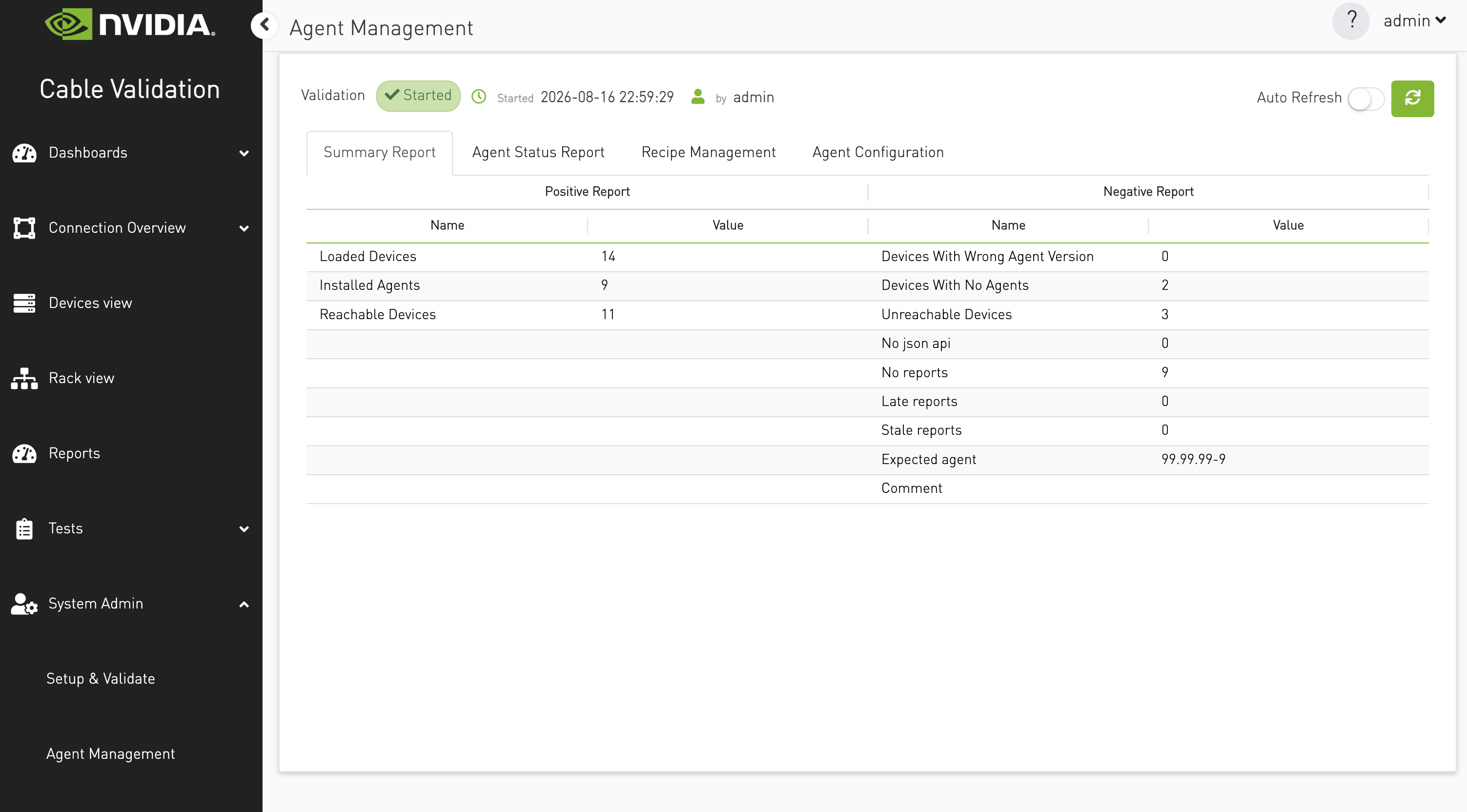
The report includes the following key metrics:
-
Loaded Devices – The total number of devices loaded in the topology.
-
Installed Agents – The number of devices with agents successfully installed.
-
Reachable Devices – Devices that are accessible and responsive.
-
Unreachable Devices – Devices that could not be reached during validation.
-
Devices with Wrong Agent Version – Devices running an agent version different from the expected one.
-
Devices with No Agents – Devices that do not have any agents installed.
-
No JSON API – Devices that do not expose the required JSON API.
-
No Reports – Devices that have not submitted any reports.
-
Late Reports – Devices whose reports were received after the expected time.
-
Stale Reports – Devices that have not sent updated reports within the last 15 minutes.
Agent Status Report
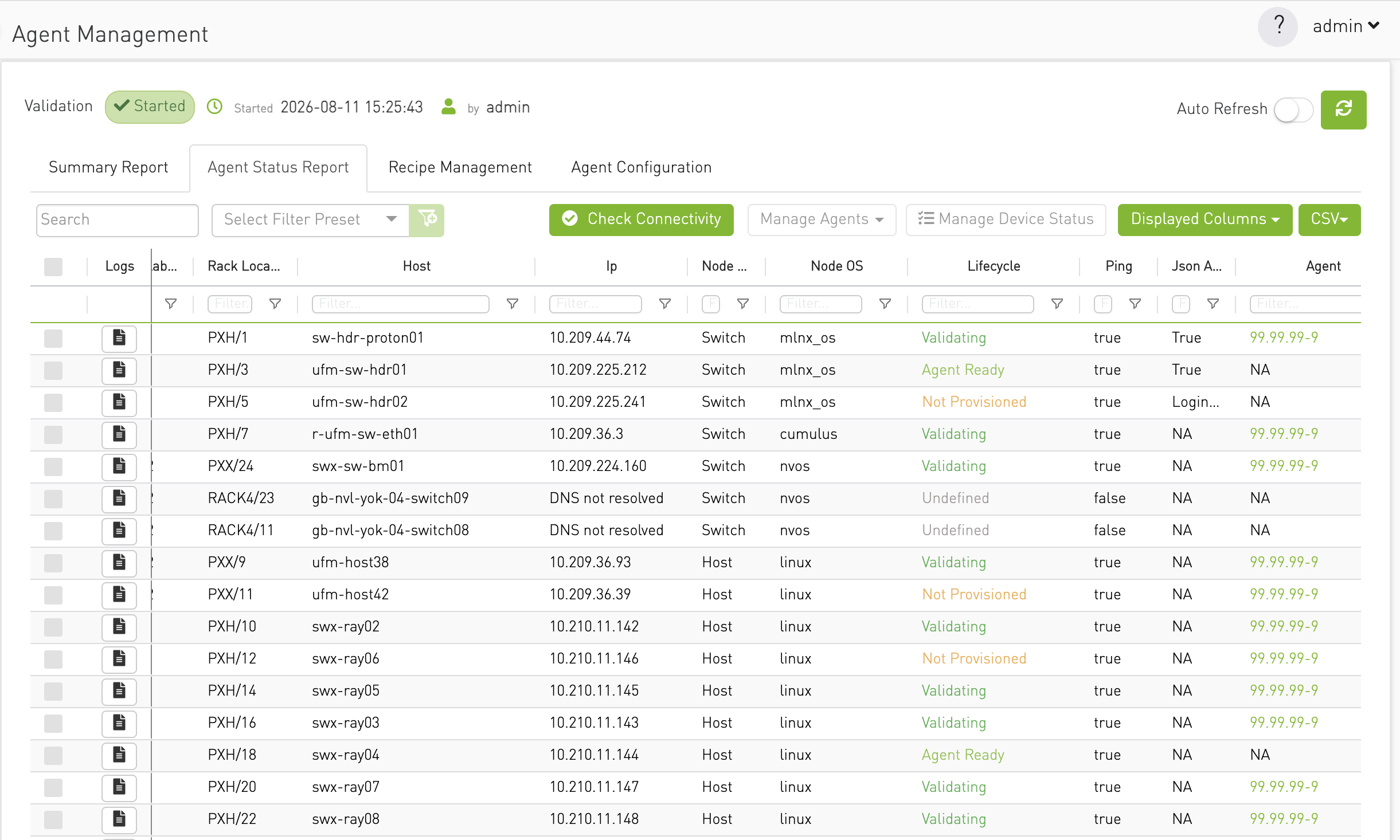
The Agent Status Report provides detailed information about the agents installed on each node within the topology.
The report includes key details such as the node’s location (rack and unit), type, name, and IP address.
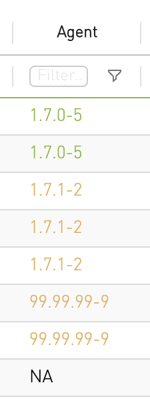
To simplify validation, agent versions are color-coded in the UI:
-
Green → Version matches the bring-up version.
-
Orange → Version does not match the bring-up version.
-
Black → Not available (N/A).
Selection-based management
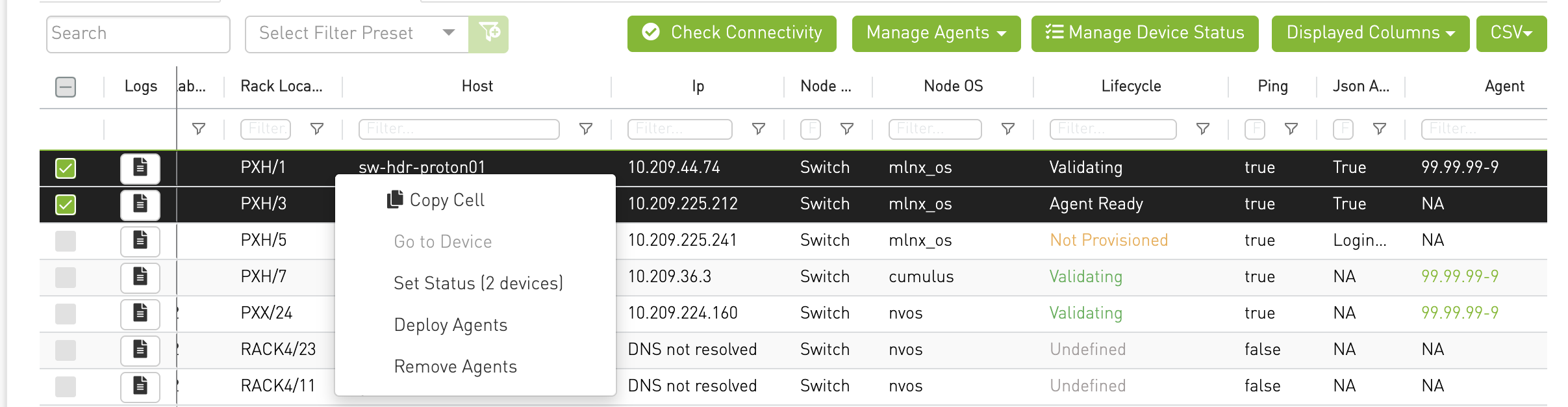
Administrators can select one or more rows and manage agents and device lifecycle status directly from the report. The toolbar actions remain disabled until at least one row is selected.

Use the header checkbox to select all rows when an operation should apply to all agents.

Selections are preserved when the table reloads, so the same devices remain selected after data refreshes.
Manage Agents
Select the required rows, then open Manage Agents and choose Deploy Agents or Remove Agents.

The same actions are also available from the right-click context menu.
Action availability depends on the selected rows:
-
Deploy Agents is enabled when every selected row has an IP address and at least one selected device does not have the bring-up agent version.
-
Remove Agents is enabled when every selected row has an IP address and at least one selected device has an agent installed.
-
For a mixed selection, both actions can be available.
-
To deploy or remove all agents, select all rows with the header checkbox and then use Manage Agents.
Manage Device Status
Select one or more rows and click Manage Device Status to update their lifecycle status from the shared Set Device Status modal. The report reloads after the status is changed.
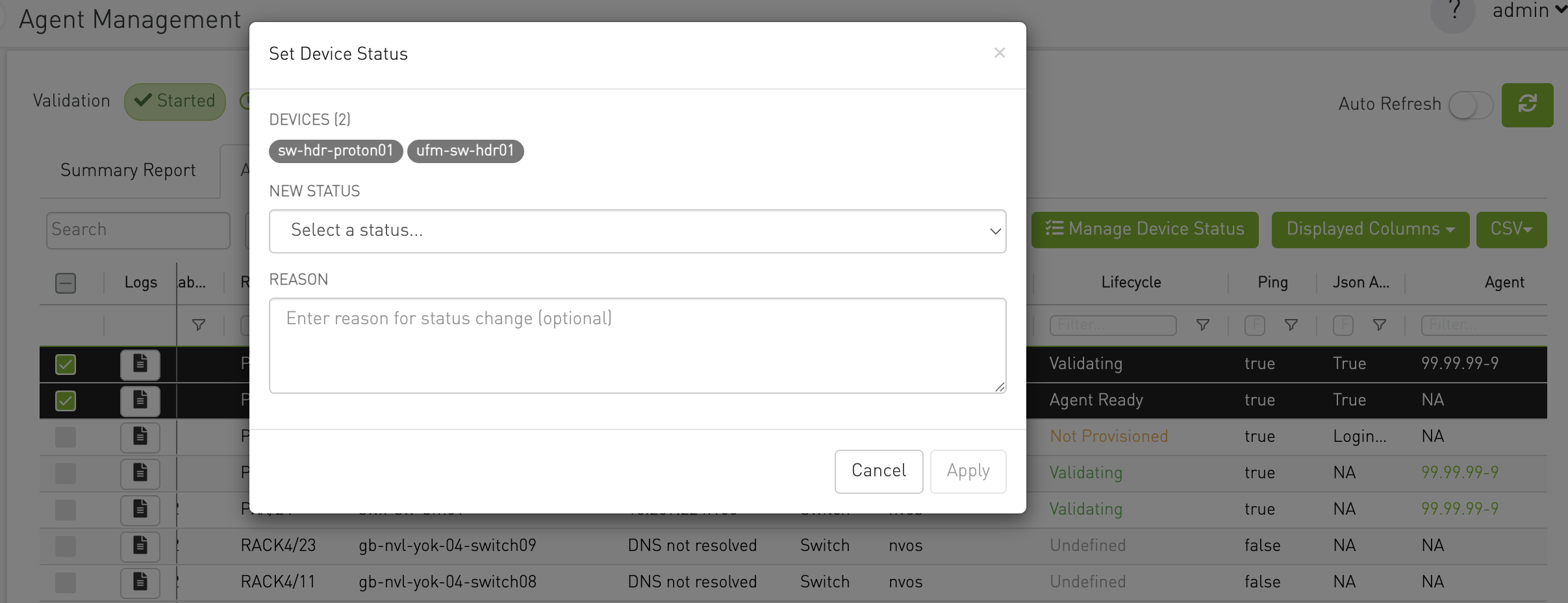
The right-click context menu also provides Set Device Status for one selected device or Set Status (N devices) for multiple selected devices. Device-status management is available only when every selected row has a device hostname.
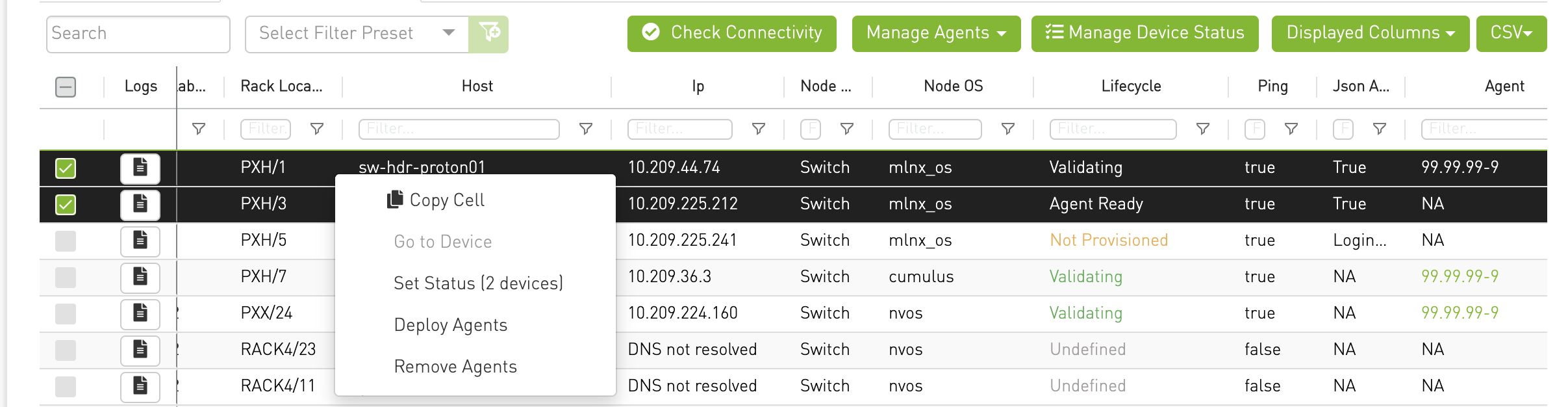
Context menu
Right-click the selected rows to access the actions that apply to the current selection:
-
Go to Device – Available only when one device with a hostname is selected.
-
Set Device Status / Set Status (N devices) – Updates lifecycle status for the selected devices.
-
Deploy Agents – Deploys agents to the selected devices when applicable.
-
Remove Agents – Removes agents from the selected devices when applicable.
Unavailable actions are disabled.
Connectivity last-run indicator
The Check Connectivity control displays the last manual run status and provides the ability to run it.

Real-time deployment monitoring
After deploying or removing agents, a monitoring window is displayed.
This window shows real-time output of the ongoing operation, allowing administrators to track deployment progress and verify success or failure.
The monitoring window is resizable, enabling users to minimize it and continue navigating through the application while the operation runs in the background.
Users can also export the displayed output to a text file for later review, troubleshooting, or record-keeping.
Agent logs:
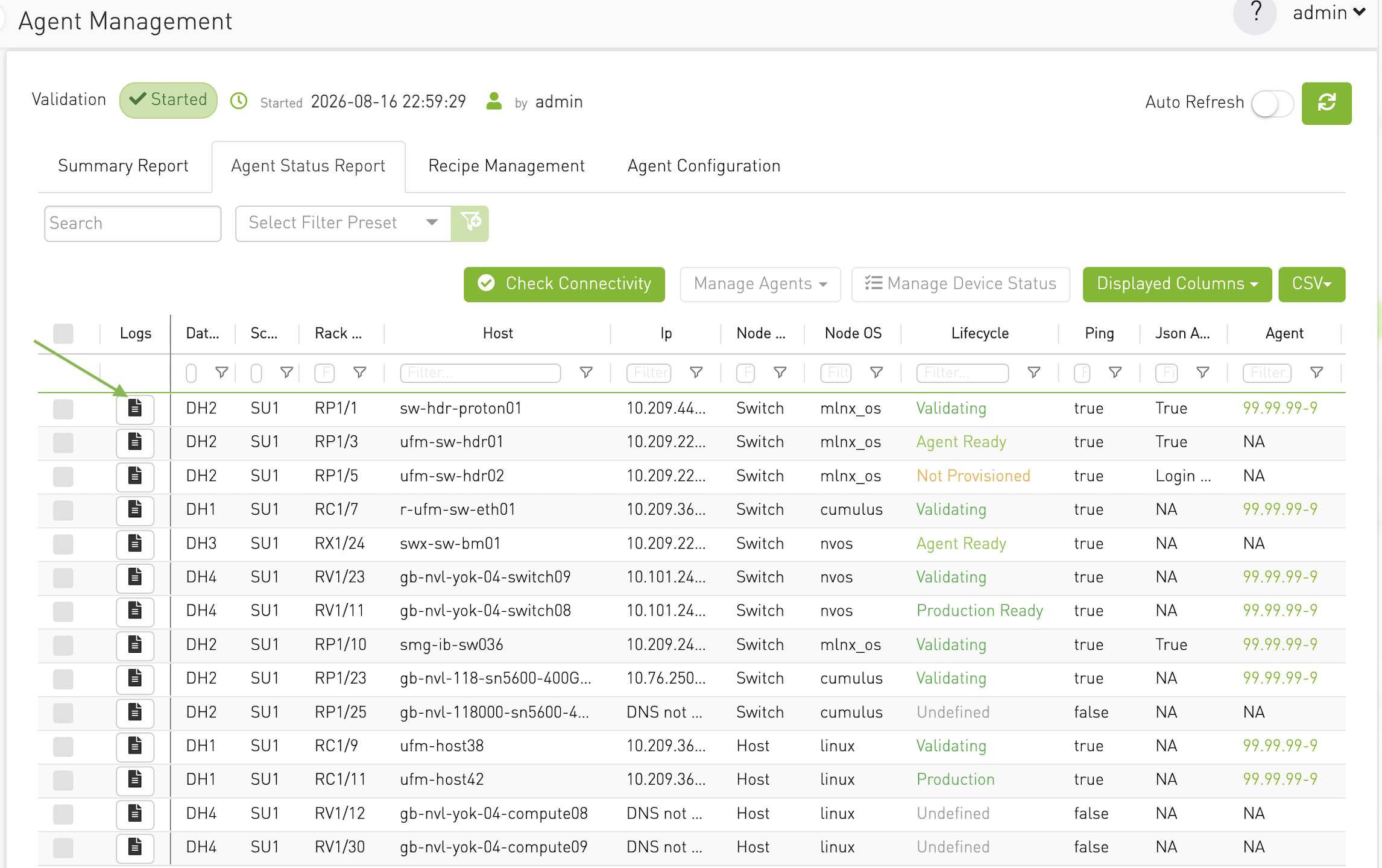
In the Agent status report page, the table contains a row per node managed on CVT. The first column in the table contains the link to the logs (click on corresponding log icon of the node to see its logs).
-
Clicking on the log icon on a row opens a modal with options to view logs.
-
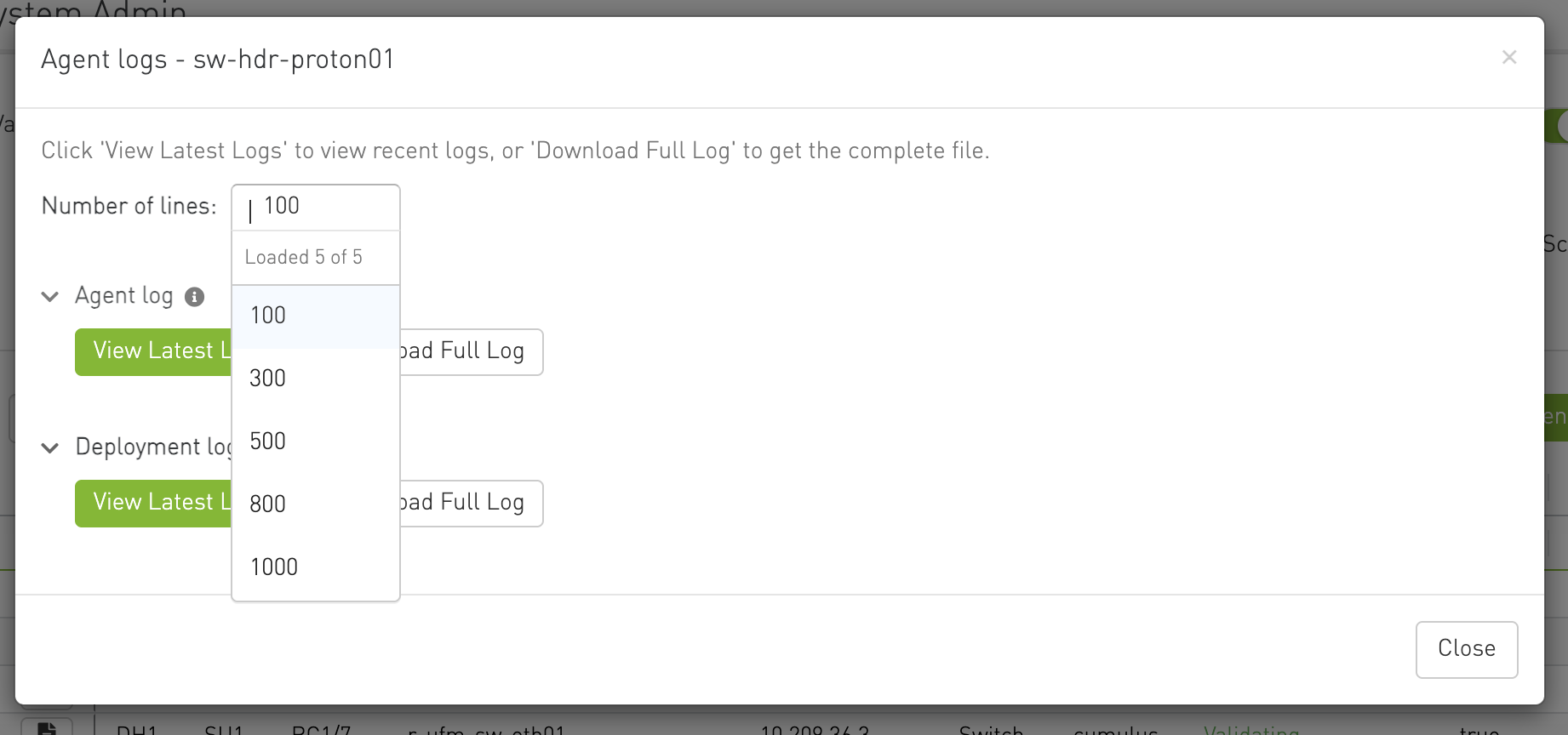
Number of lines — same choices as collector (100, 300, 500, 800, 1000). Changing the value reloads any section that already has loaded content.
-
Two collapsible sections:
-
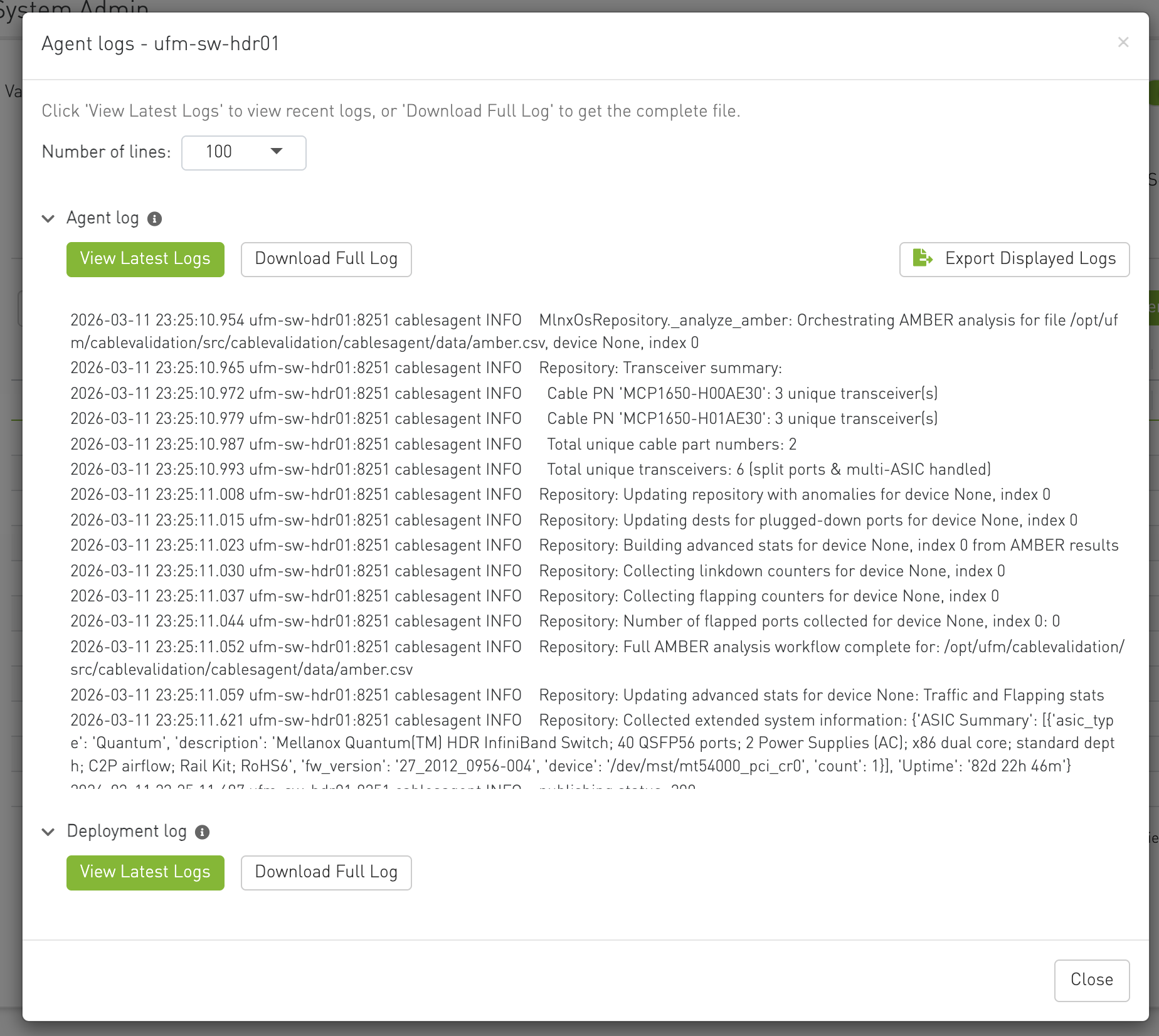
Agent log — runtime / validation output (Buttons to
View Latest LogsandDownload full Log). -
Deployment log — deploy/remove operations (Buttons to
View Latest LogsandDownload full Log).
-
-
View Latest Logs — loads the tail for that section (content does not load until you click this).
-
Download Full Log / Export Displayed Logs — per section, same idea as on the collector logs screen.
-
Export Displayed Logs — saves the text currently in the panel (the tail), not the full file. This option is available once
View Latest Logsbutton is clicked.
Agent Logs Modal opens:
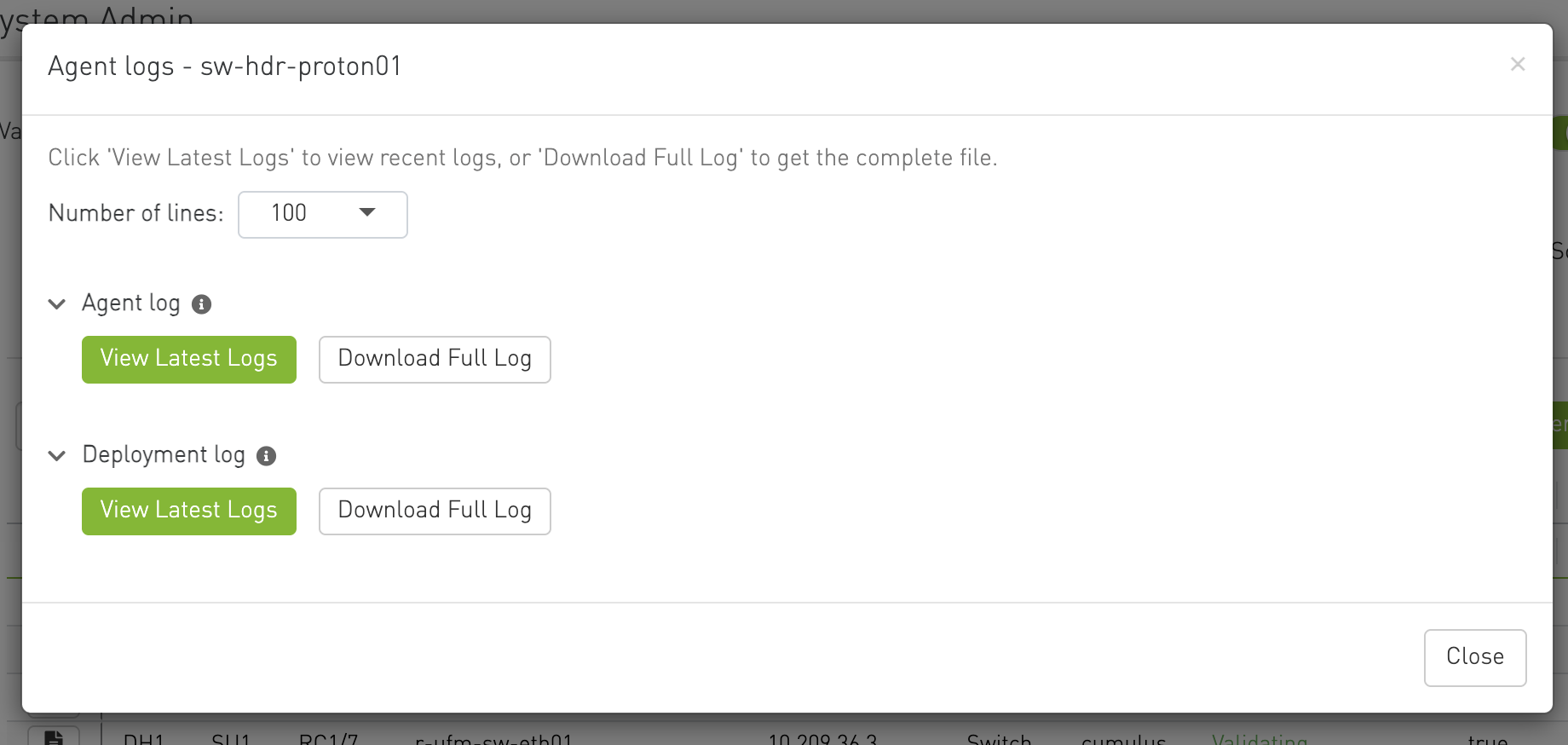
Select number of latest log lines to display:
Click buttons to view latest logs, or download full log file or export the latest logs loaded on the modal:
Recipe Management
Recipe validation lets CVT operators confirm that devices in a fabric are running the expected software and firmware versions defined in YAML recipe files. CVT compares actual versions reported by agents against expected versions in the recipe, and surfaces pass/fail status at the device and rack level.
How it works
-
Recipe files — YAML files listing expected software and firmware versions (e.g. switch image, ASIC firmware).
-
Mapping file — A YAML mapping assigns recipes to devices using rules (by data hall, scalable unit, rack, hostname pattern, role, etc.) or explicit per-device overrides. Resolution order is: override → rack → SU → DH → pattern → role → default.
-
Validation — When agent data is available, the collector compares each version field in the recipe to what the device reports and marks each field Pass or Fail. A device-level status is derived from those results.
Where it appears in the UI
|
Location |
Purpose |
|---|---|
|
System Admin → Agent Management → Recipe Management (described in this page) |
Upload/manage recipe and mapping YAML files |
|
Devices View → Device Recipe tab |
See assigned recipe, mapping rule, and field-level results; assign or override per device |
|
Devices View grid |
Recipe Compliance column for fleet-wide scanning |
|
Rack View |
Per-rack compliance summary and per-unit recipe badges |
Upload and manage recipe validation files used across the cluster.
-
Device-to-Recipe Mapping: Upload a single mapping YAML file. Download template, preview content inline, download, or delete.
-
Recipe Files: Upload one or more recipe YAML files. Select a recipe from a dropdown to preview, download, or delete.
-
Overwrite confirmation: Prompted when uploading a file that already exists.
Recipe files drive compliance reporting in Devices View and Rack View.
The view has two stacked sections:
Device-to-Recipe Mapping Section
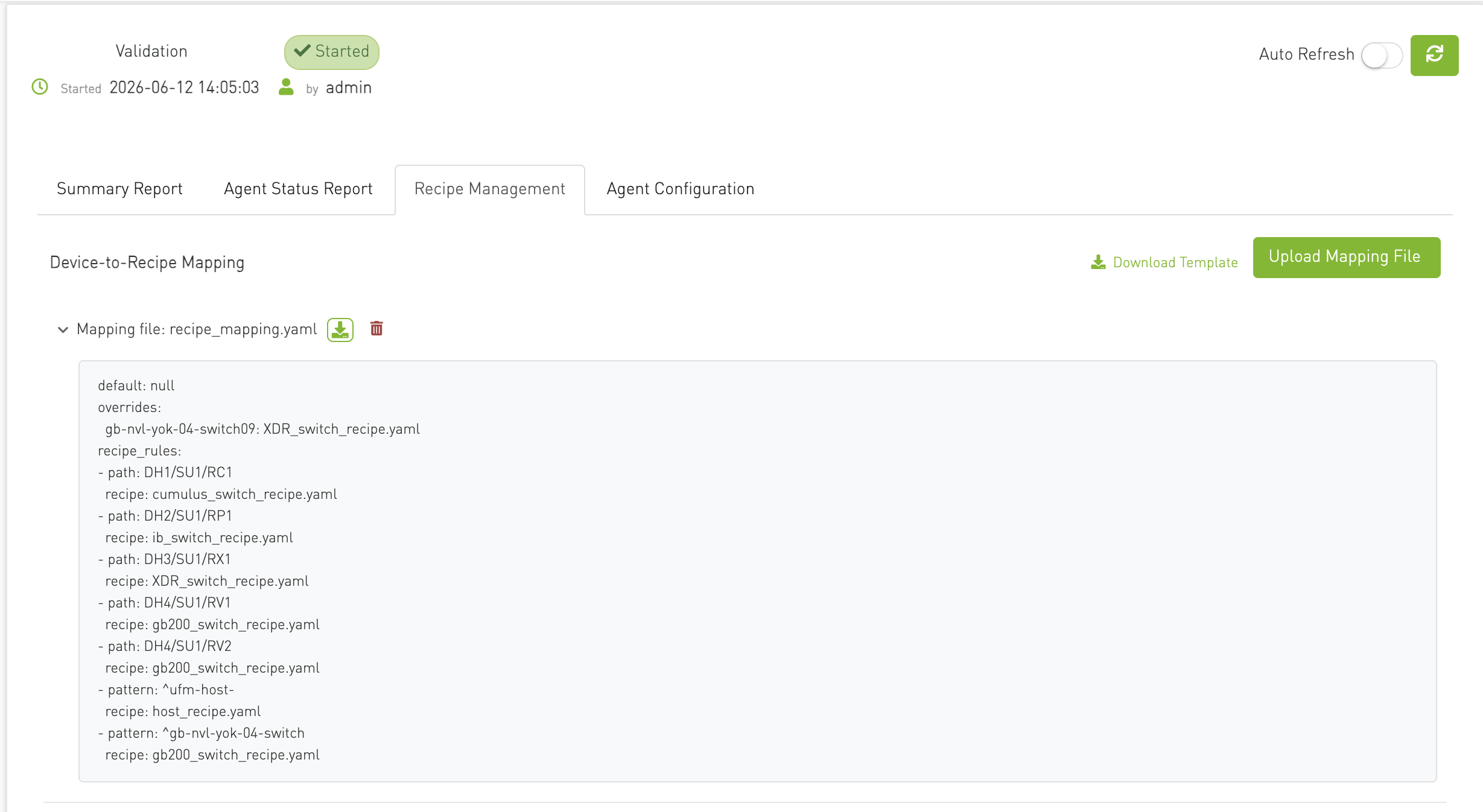
|
Element |
Description |
|---|---|
|
Section title |
"Device-to-Recipe Mapping" |
|
Download Template |
Downloads bundled |
|
Upload |
|
|
Mapping file row |
Shows first mapping file in folder (single-file model); collapsible preview |
|
Preview |
Raw YAML in |
|
Download |
Downloads current mapping file |
|
Delete |
Removes mapping file; triggers mapping reload and targeted revalidation |
|
Empty state |
"No mapping file uploaded" |
|
Overwrite confirm |
Modal when uploading a file that already exists |
Behavior on upload/delete:
-
Backend reloads mapping, re-resolves all topology nodes, diffs old vs new per-device assignments, and revalidates only affected devices.
Storage: uploads/recipes/mapping/ (first .yaml/.yml file found is used).
Recipe Files Section
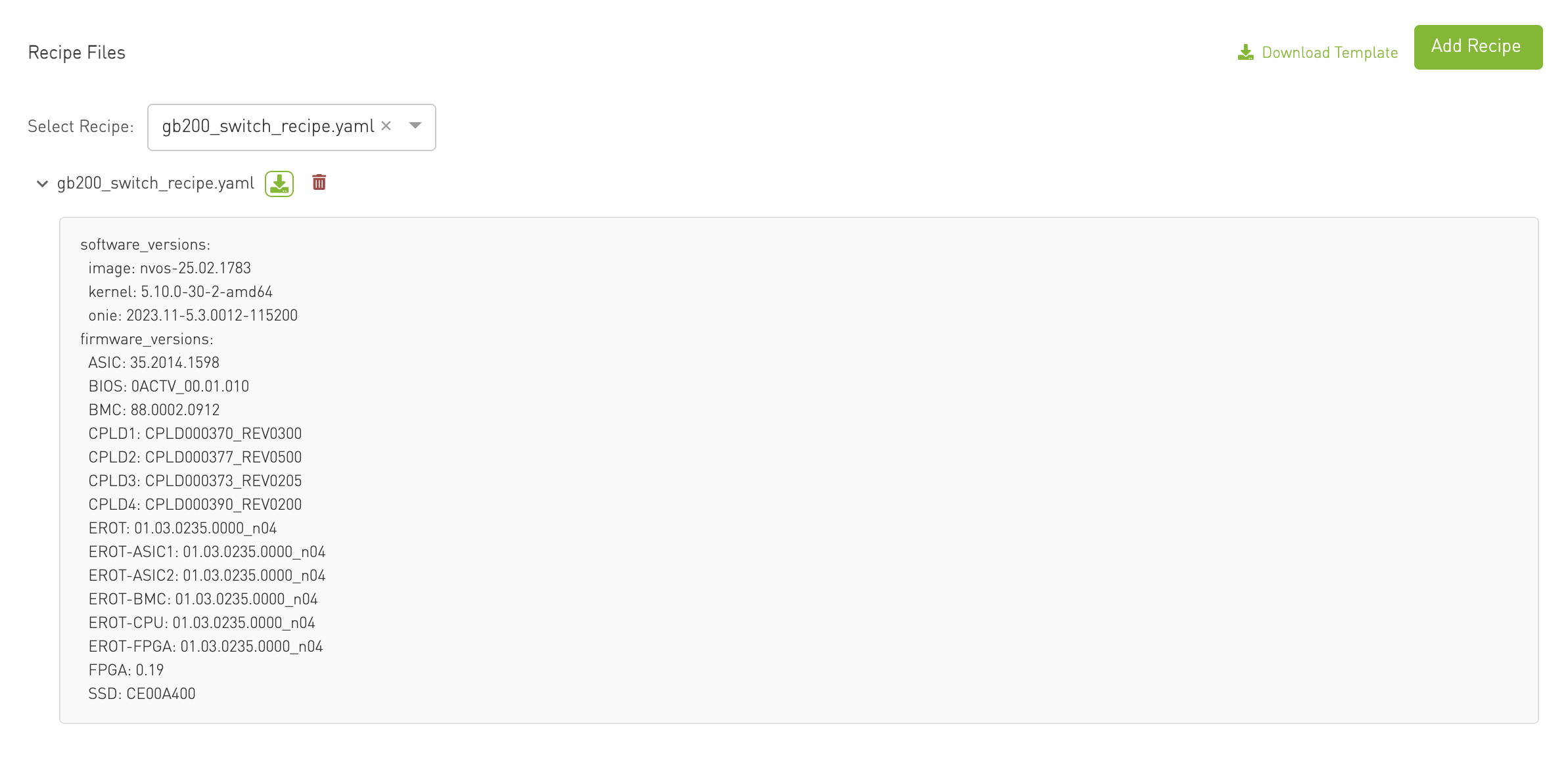
|
Element |
Description |
|---|---|
|
Section title |
"Recipe Files" |
|
Download Template |
Downloads bundled |
|
Upload |
Adds recipe YAML to recipes folder |
|
Recipe dropdown |
|
|
Selected recipe row |
Collapsible preview with download and delete actions |
|
Preview |
Raw YAML expected versions |
|
Empty state |
"No recipe files uploaded" |
|
Overwrite confirm |
Modal on duplicate filename upload |
Behavior on upload/delete:
-
Recipe file upload invalidates that file's parse cache and revalidates all devices mapped to it.
-
Recipe file delete invalidates cache and revalidates affected devices.
Storage: uploads/recipes/files/
Recipe and Mapping File Formats
Recipe File
Defines expected versions. All sections and fields are optional — only listed fields are validated; others appear as Not Validated in the UI.
software:
  image: nvos-25.02.1783
  kernel: 5.10.0-30-2-amd64
  onie: 2023.11-5.3.0012-115200
firmware:
  ASIC: 35.2014.1598
  BIOS: 0ACTV_00.01.010
  BMC: 88.0002.0912
Section keys are matched flexibly (case-insensitive substring: software, firmware). Firmware keys must match agent-reported component names.
Bundled template: src/cablevalidation/collector/recipes/templates/recipe_template.yaml
Mapping File
Uses hierarchy path-based rules, per-device overrides, and global default.
recipe_rules:
  - path: "DH1/SU1/RP1"
    recipe: spine_recipe.yaml
  - path: "DH1/SU2"
    roles:
      switch: leaf_recipe.yaml
      host: gpu_host_recipe.yaml
  - pattern: "mgmt-.*"
    recipe: mgmt_recipe.yaml
  - roles:
      switch: default_switch_recipe.yaml
      host: default_host_recipe.yaml
overrides:
  spine-01: spine_special.yaml
default: base_recipe.yaml
Bundled template: src/cablevalidation/collector/recipes/templates/recipe_mapping_template.yaml
Device-to-Recipe Mapping Resolution
Resolution order (7 levels, highest priority first):
|
Priority |
Level |
Source |
|---|
|
Priority |
Level |
Source |
|---|---|---|
|
1 |
Per-device override |
|
|
2 |
Rack path |
|
|
3 |
SU path |
|
|
4 |
DH path |
|
|
5 |
Pattern |
|
|
6 |
Role-only |
|
|
7 |
Global default |
|
Path rule notes:
-
Path rules are sorted by depth (rack > SU > DH) regardless of file order.
-
Rules may include
exclude.node_nameregex list — excluded devices fall through to lower-priority rules. -
Rules may use
rolesinstead ofrecipefor per-node_typesplits (switch,host, etc.). -
Role entries may include per-role
excludeblocks.
Topology attributes used: data_hall, su_number, rack on each node → path DH/SU/Rack; node.get_type() for role.
Unmapped device: No recipe file; all version fields show No Recipe when agent data exists.
Last updated: