
Auto correlation groups anomalies and events across the cluster using dimensional or topology-based logic. It reduces notification noise by grouping repeated events together and aids root-cause analysis by building a single timeline of related events.
Create a Correlation Namespace
A correlation namespace defines the logic used to group anomalies or trends. To create one:
-
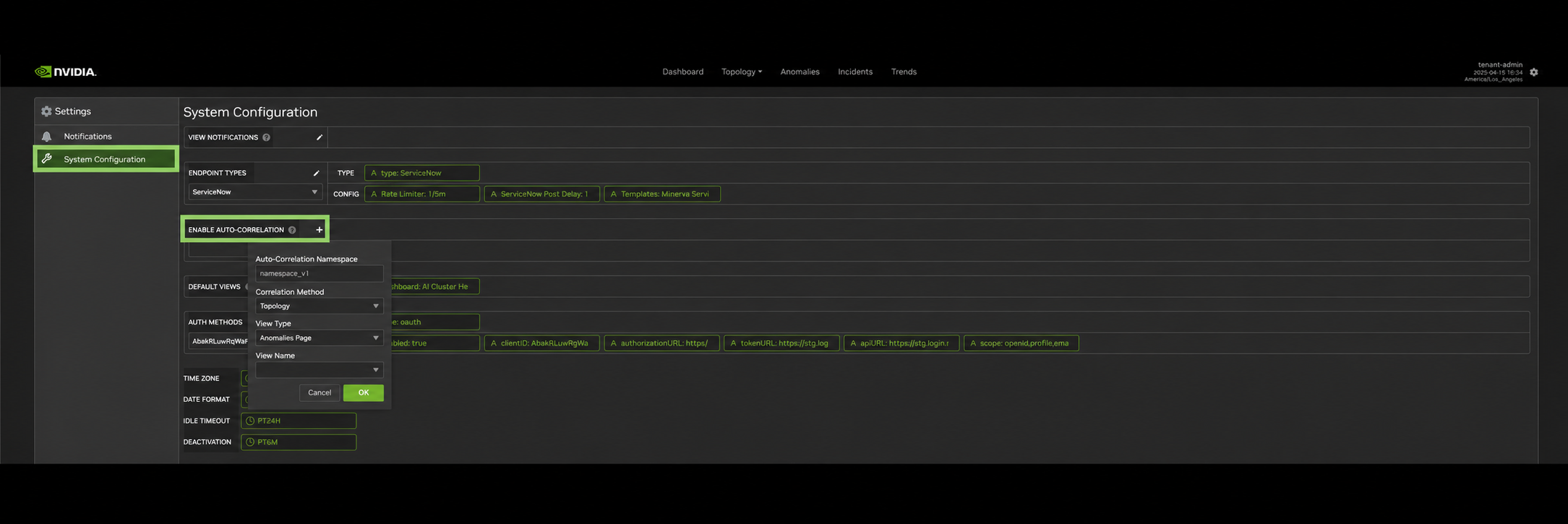
Click the settings icon in the upper-right corner to open Settings.
-
Navigate to the System Configuration tab.
-
Find the Enable auto-correlation section and click +.
-
Configure the new namespace:
-
Auto-correlation namespace: the name of the namespace. An auto-generated prefix is added based on your tenant and user.
-
Correlation method: select Dimensions to group events by shared metadata (for example, matching
RackorjobIdvalues), or Topology to group events by network fabric relationships. -
View type: sets the view type in the View Name dropdown (Anomaly or Trends).
-
View name: select the Anomaly or Trends views to include in this namespace. If using Dimensions, a red settings icon appears next to each selected view. Select it to choose the dimensions to correlate on for that view.
-
Set Up a Correlation Endpoint
Next, set up the correlation endpoint to receive notifications:
-
From Settings, navigate to the Notifications tab.
-
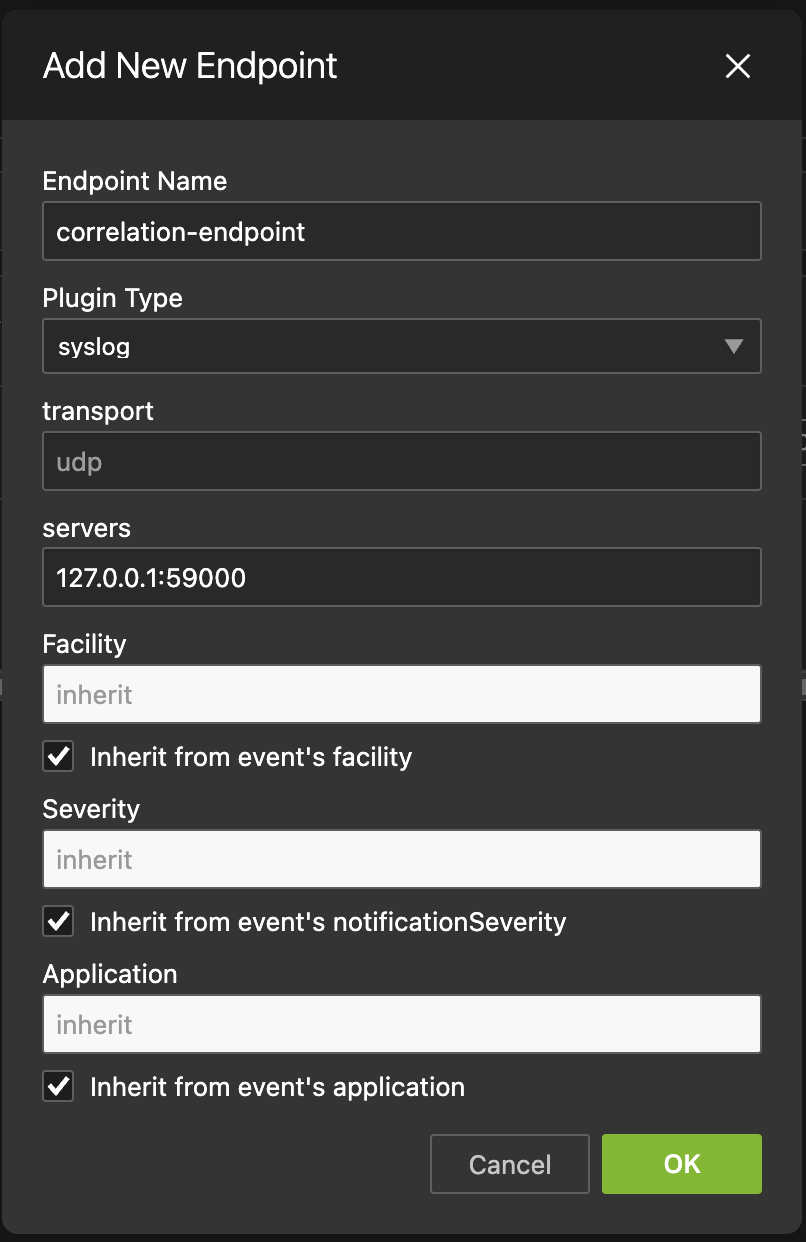
Under Actions, click Add new endpoint.
-
Use the following configuration settings for the endpoint:
-
Endpoint name: correlation-endpoint
-
Plugin Type: syslog
-
Transport: UDP
-
Servers: 127.0.0.1:59000
-
Facility: inherit
-
Severity: inherit
-
Application: inherit
-
Configure Views for Correlation
After you have configured a namespace and endpoint, enable auto correlation on each Trends and Anomaly view you selected in the namespace:
-
Navigate to a view.
-
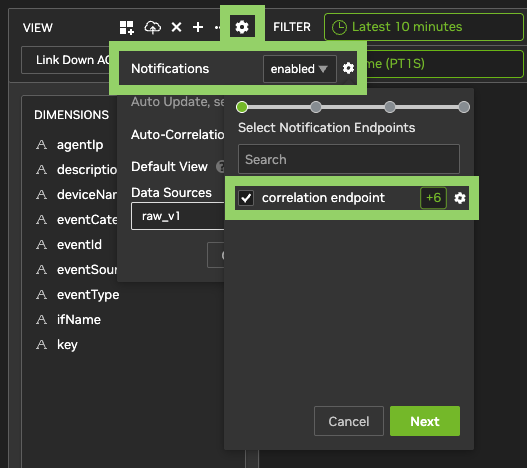
Click the settings icon: in Trends views this is in the View Name section; in Anomaly views it is to the right of the View Selection dropdown.
-
Confirm Auto-Correlation is ON to verify that this view was included in the namespace.
-
Set Notifications to Enabled and click the settings icon next to the dropdown.
-
Select correlation endpoint from the Select Notification Endpoints list. Use dedicated auto correlation views that notify only to the correlation endpoint.
-
Confirm that no deduplication dimensions are selected.
-
Click OK.
-
Repeat for all views included in the namespace.
Last updated: