

This page covers the full notification configuration workflow: enabling notifications on a view, setting up endpoints, and creating templates.
Enable Notifications on a View
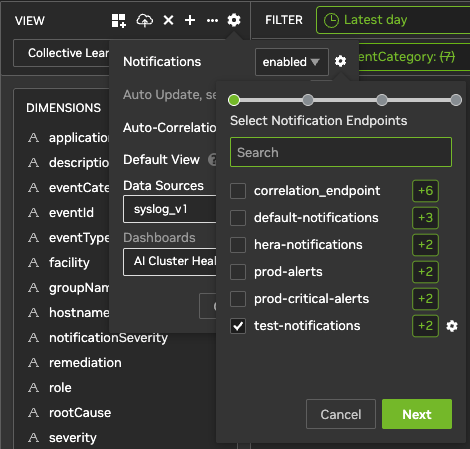
To enable notifications on an NVIDIA Minerva UI view, open the 
For example, the following image shows the "Collective Learning" view configured to notify the "test-notifications" endpoint:
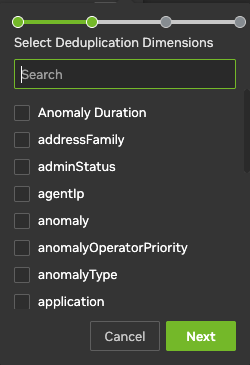
Deduplication Dimensions
You can optionally configure a dedupe key on a view to suppress duplicate notifications. Select one or more dimensions; the combination forms the composite key. See Notifications for details.
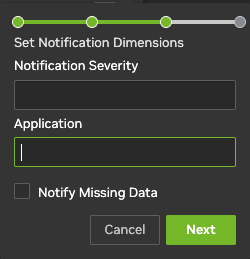
Notification Dimensions
You can optionally configure notification severity and application on a view. Enable Notify Missing Data to receive a notification when the view returns no data.
Polling Timers
Three timers control how the framework checks a view for new events:
-
Poll Interval: how often NVIDIA Minerva checks the view for new events, in minutes.
-
Poll Window: how far back in time NVIDIA Minerva looks on each check, in minutes. Defaults to the Poll Interval if not set.
-
Poll Lag: how many minutes the polling interval lags behind the current time. Defaults to 0.
Endpoints
Endpoint Types
The supported endpoint types are ServiceNow, Kafka, syslog, email, Slack, and webhook. All endpoint types support a rate limiter. Custom templates are supported on all endpoint types except ServiceNow and syslog.
Add an Endpoint
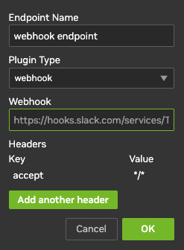
In the sidebar, go to the Notifications tab. Click Actions, then Add new endpoint. Give your endpoint a name and select a Plugin Type (the endpoint type). Fill in the fields for your chosen type.
The following example configures a webhook endpoint: in the Webhook field, add the webhook address, then select Add another header to add key/value header pairs. Click OK to save.
Rate Limiter
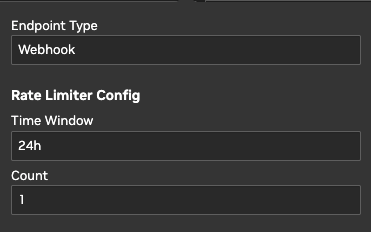
Click the edit icon on an endpoint to configure a Rate Limiter. This limits how many times a dedupe key can trigger a notification to that endpoint within a given time window before it is suppressed.
For example, the configuration below limits a dedupe key to one webhook notification per 24-hour period:
Templates
Templates define the JSON payload sent to a notification endpoint. After NVIDIA Minerva renders the template variables, the resulting JSON is sent directly to the endpoint without additional wrapping or transformation. The template must therefore:
-
Be valid JSON.
-
Match the schema required by the selected endpoint type. For example, Slack templates must be valid Slack Incoming Webhook/Block Kit payloads, while generic webhook templates must match the receiving service's API contract.
-
Use Go template syntax — for example,
{{.deviceName}}— rather than other variable formats such as${event.deviceName}.
When possible, clone an existing template for the same endpoint type and modify it rather than starting from scratch.
Additional Variables
Most template variables come from the time-series record that triggered the notification. NVIDIA Minerva also supplies contextual variables that are not part of that record:
-
{{.domainUrl}}: Base URL of the NVIDIA Minerva system -
{{.viewName}}: Name of the view that triggered the notification -
{{.preview}}: URL of the generated preview image, when a preview is available
Template Selection Scope
A view can use multiple endpoints, including multiple endpoints of the same type. However, template selection is scoped to the view and endpoint type — not to an individual endpoint. For example, if a view uses two Slack endpoints, both receive payloads rendered with the same Slack template. That view can simultaneously use a different template for another endpoint type, such as webhook or email.
Create a Template
To create a template, click + next to Templates in the endpoint settings panel.
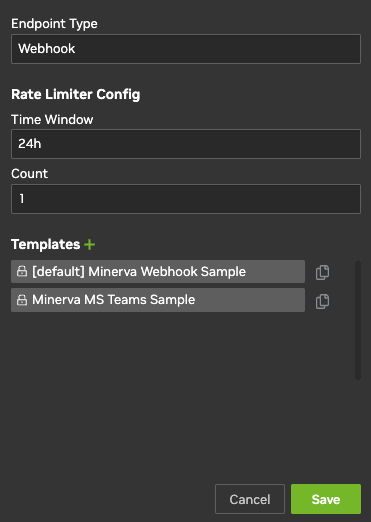
Give your template a name. Enable Make Default to set it as the default for any new view that uses this endpoint type.
The notification body supports Go template syntax:
-
{{.variable}}: inserts event data -
{{if .variable}} {{.variable}} {{end}}: conditional field
The body format depends on the endpoint type: JSON for webhook, Slack, and ServiceNow; plain text for email.
For example, a "Link Down Alert" template might include the alert name, a link to the UI event page, device name, downed interface, link-down count, and a timestamp:
{
  "alertName": "Link Down",
  "alertLink": "https://stack.nvidia.com/trends?viewName=LinkDown",
  "ifDownCount": "{{.ifDown | nilToSkip}}",
  "deviceName": "{{.deviceName}}",
  "ifName": "{{.ifName}}",
  "time": "{{.time}}"
}
Last updated: