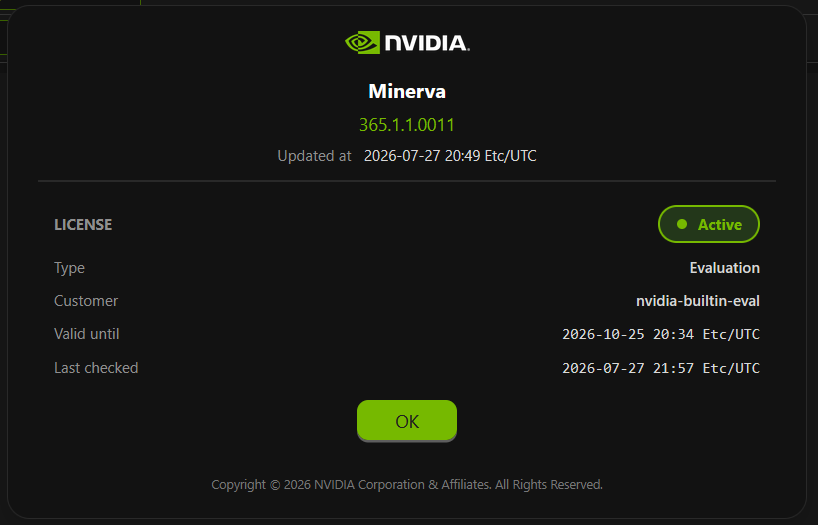
All NVIDIA Minerva deployments include a built-in 90-day evaluation license. The evaluation period begins at image build time, not at installation; an NVIDIA Minerva image installed after its build date will have fewer than 90 days remaining. To view license information, go to Settings > About. Production licenses are issued by NVIDIA through the NVIDIA License Portal.
Check License Status
To check the current license state, type, and expiry:
curl -sk https://<minerva-host>/minerva/api/v1/license/state
Example response:
{"state":"active","type":"production","customer_id":"<your-customer-id>","valid_until":"2027-07-20T00:00:00Z","derived_at":"2026-07-24T06:29:51Z"}
The state field returns one of:
|
State |
Meaning |
|---|---|
|
|
License is valid and within its validity window. |
|
|
License has expired but is within the 30-day grace period. |
|
|
License has expired and the grace period has passed. |
|
|
License file is malformed or the signature is invalid. |
Get a License
Production licenses are issued and signed by NVIDIA.
-
Log in to the NVIDIA License Portal with your NVIDIA account.
-
Locate your NVIDIA Minerva entitlement and select Generate License / Download.
-
Save the resulting
.licfile.
Install or Renew a License
Installing a new license and renewing an existing one use the same command. The file is validated before any changes take effect.
minerva/bin/license-install ./your-license.lic
Verify a License
To validate a .lic file before installing it:
minerva/bin/license-validate ./your-license.lic
Example output:
state:        active
type:         production
customer ID:  <your-customer-id>
issued at:    2026-07-28T20:27:17Z
valid until:  2027-07-20T00:00:00Z
grace period: 30 days
Exit codes: 0 active or in grace period · 1 expired · 2 invalid · 3 usage error.
Last updated: