

To set up notifications, add an endpoint, check the rate limiter and templates for its endpoint type, and then enable notifications on a view.
Add an Endpoint
-
Go to Settings > Notifications and click Actions > Add new endpoint.
-
Enter an Endpoint Name and select the endpoint type in Plugin Type.
-
Fill in the fields for the type, and then click OK.
|
Plugin type |
Fields |
|---|---|
|
|
SMTP Server Type (Local Postfix or Custom SMTP) and Recipients, separated by commas. For Custom SMTP, also SMTP Host, SMTP Port, SMTP Username, and SMTP Password, and optionally Sender Name and Sender Email. |
|
Kafka |
broker ( |
|
OpenTelemetry (alpha) |
|
|
ServiceNow |
See ServiceNow Endpoints. |
|
Slack |
webhook: the Slack incoming webhook URL. |
|
Syslog |
transport, servers ( |
|
Webhook |
Webhook: the URL. Optionally, click Add another header to add header key/value pairs. |
After you rename an endpoint, do not create another endpoint with its former name. The new endpoint can overwrite the renamed endpoint's stored configuration.
OpenTelemetry Endpoints
OpenTelemetry endpoints are an alpha feature.
An OpenTelemetry endpoint sends each notification as an OpenTelemetry Protocol (OTLP) log record to an OTLP receiver, such as an OpenTelemetry Collector. The Endpoint value sets the protocol:
-
An
http://orhttps://URL uses OTLP/HTTP. Enter the full URL, including the path, such ashttp://collector.example.com:4318/v1/logs. -
A
host:portvalue with no scheme, such asotel-collector:4317, uses OTLP/gRPC. OTLP/gRPC connections are unencrypted.
Headers are sent only to OTLP/HTTP endpoints. On an OTLP/gRPC endpoint, they're ignored.
To skip verifying the certificate of an https:// receiver, such as a receiver with a self-signed certificate, select Insecure (skip TLS certificate verification).
OpenTelemetry templates don't define the payload. Instead, they map event fields to parts of the log record, such as the body, severity, and attributes. NVIDIA Minerva includes built-in OpenTelemetry templates, and Default mapping is the default.
ServiceNow Endpoints
A ServiceNow endpoint creates and updates ServiceNow tickets. NVIDIA Minerva tracks the open tickets it creates. Events with the same dedupe key map to the same ticket. When an event arrives, NVIDIA Minerva checks whether a ticket is already open for its dedupe key, and then either creates a ticket or updates the open one.
Views that notify a ServiceNow endpoint need deduplication dimensions. Without a dedupe key, NVIDIA Minerva doesn't send the event to ServiceNow.
|
Field |
Description |
|---|---|
|
POST URL |
The ServiceNow URL that NVIDIA Minerva posts events to. |
|
No verify |
Skips verifying the ServiceNow server's TLS certificate. |
|
Poll URL |
Optional. The URL that NVIDIA Minerva polls to track each ticket's number and state. |
|
Custom Transaction ID |
Replaces |
|
Poll Timer |
Optional. How often to poll, in seconds. |
|
Authentication Type |
authorization header or basic auth. |
|
Username and Password |
The ServiceNow account credentials. |
ServiceNow notifications use the built-in Minerva Service Now template unless the view selects another one. To customize it, copy it and edit the copy (see Create a Template).
Configure Endpoint Types
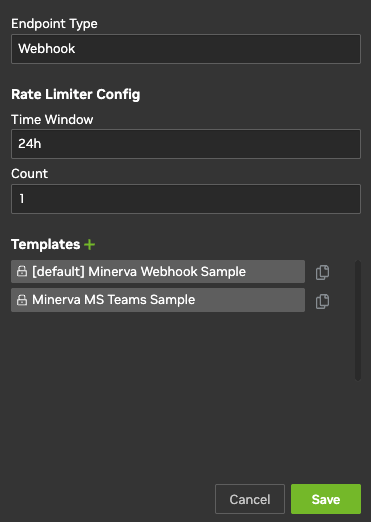
Each endpoint type has a rate limiter and a set of templates that apply to all endpoints of that type. To change them, go to Settings > System Configuration, select the type under Endpoint Types, and click the edit icon.
Rate Limiter
Rate Limiter Config limits how many notifications with the same dedupe key each endpoint receives within Time Window. Notifications over Count are dropped. For example, a Time Window of 24h and a Count of 1 send at most one notification a day for each dedupe key. See Deduplication and Rate Limiting.
|
Endpoint type |
Default |
|---|---|
|
Email, Slack, Webhook |
1 per 24 hours |
|
Syslog |
1 per 6 hours |
|
ServiceNow |
1 per 5 minutes |
|
Kafka, OpenTelemetry |
1 per minute |
Templates
A template defines the content of the notifications for one endpoint type:
-
Webhook, Slack, and ServiceNow: the JSON payload. NVIDIA Minerva fills in the template variables and sends the result as is.
-
Email: a subject and a plain-text body.
-
OpenTelemetry: a mapping from event fields to the log record (see OpenTelemetry Endpoints).
A JSON payload template must:
-
Be valid JSON.
-
Match the format that the receiving service expects. For example, a Slack template must be a valid Slack incoming webhook or Block Kit payload.
-
Use Go template syntax, such as
{{.deviceName}}, rather than other formats, such as${event.deviceName}.
Templates support Go template syntax:
-
{{.variable}}: inserts event data. -
{{if .variable}} {{.variable}} {{end}}: inserts a field only when it has a value.
Create a Template
-
Go to Settings > System Configuration, select the endpoint type under Endpoint Types, and click the edit icon.
-
Click + next to Templates. To start from an existing template, click the copy icon next to it instead.
-
Enter a Template Name. To make this template the default for new views that use this endpoint type, select Make default.
-
Edit the template, and then click OK and Save.
Built-in templates can't be edited. To customize one, copy it and edit the copy.
For example, a "Link Down" webhook template might include the alert name, a link to the event, the device name, the interface, the link-down count, and a timestamp. nilToSkip leaves the value empty when the event doesn't have the field.
{
  "alertName": "Link Down",
  "alertLink": "{{.url}}",
  "ifDownCount": "{{.ifDown | nilToSkip}}",
  "deviceName": "{{.deviceName}}",
  "ifName": "{{.ifName}}",
  "time": "{{.time}}"
}
Additional Variables
Most template variables come from the record that triggered the notification. NVIDIA Minerva also supplies these variables:
-
{{.domainUrl}}: base URL of the NVIDIA Minerva system -
{{.viewName}}: name of the view that triggered the notification -
{{.url}}: permalink of the event that triggered the notification -
{{.preview}}: URL of a preview image of the event, in Slack and webhook templates only
Template Selection Scope
A view can use multiple endpoints, including multiple endpoints of the same type. However, template selection is scoped to the view and endpoint type, not to an individual endpoint. For example, if a view uses two Slack endpoints, both receive payloads rendered with the same Slack template. That view can use a different template for another endpoint type, such as webhook or email, at the same time.
Enable Notifications on a View
A view needs an eventType filter before you can enable notifications on it.
-
Open the view and click its

-
Set Notifications to enabled, and then click the settings icon next to it.
-
Complete the four steps, clicking Next after each one, and then click OK.
Select Notification Endpoints
Select one or more endpoints. To use a template other than the default for an endpoint type, click the settings icon next to the endpoint and select a Template.
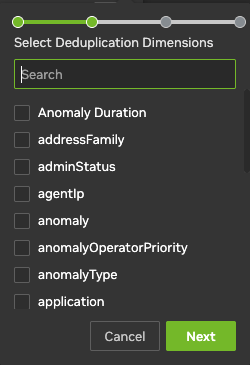
Select Deduplication Dimensions
Optionally, select the dimensions that form the dedupe key. See Deduplication and Rate Limiting.
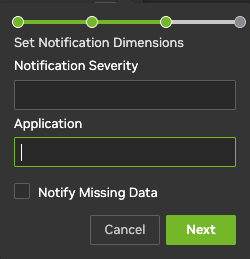
Set Notification Dimensions
Optionally, set the following:
-
Notification Severity and Application: values added to every notification from this view, as the
notificationSeverityandapplicationfields. Templates can use them, and syslog endpoints can use them in the syslog header. -
Notify Missing Data: sends a notification only when the view returns no data, instead of when it returns events.
Notification Timers
Three timers control how often NVIDIA Minerva checks the view for new events:
-
Poll Interval: how often NVIDIA Minerva checks the view for new events, in minutes.
-
Poll Window: how far back in time NVIDIA Minerva looks on each check, in minutes. Defaults to the Poll Interval if not set.
-
Poll Lag: how many minutes the polling interval lags behind the current time. Defaults to 0.
Last updated: