Anomaly feedback lets you label anomalies as operationally relevant or not. NVIDIA Minerva uses your labels to automatically categorize future anomalies that match the same criteria, reducing noise and improving alert quality over time. The customized feedback is unique to your network.
How to Submit Feedback
-
Go to Anomalies and find the anomaly you want to label.
-
At the right end of the row, click Give Anomaly Feedback. The Anomaly Feedback window opens and shows the anomaly's object type and event ID.
-
Under Category, select a category, and then click Next:
-
Operationally relevant & urgent: requires immediate action, for example a hardware failure.
-
Operationally relevant: needs investigation but isn't critical.
-
Not operationally relevant: a real anomaly that doesn't need action.
-
Not an anomaly: expected or benign behavior that shouldn't have been flagged.
-
-
Under Dimensions, select the dimensions that define when this anomaly matters, and then click Next. Select at least one. For example, if you care about this error only on spine switches, select
role: spine. Future recommendations apply only to anomalies that match all the selected dimensions.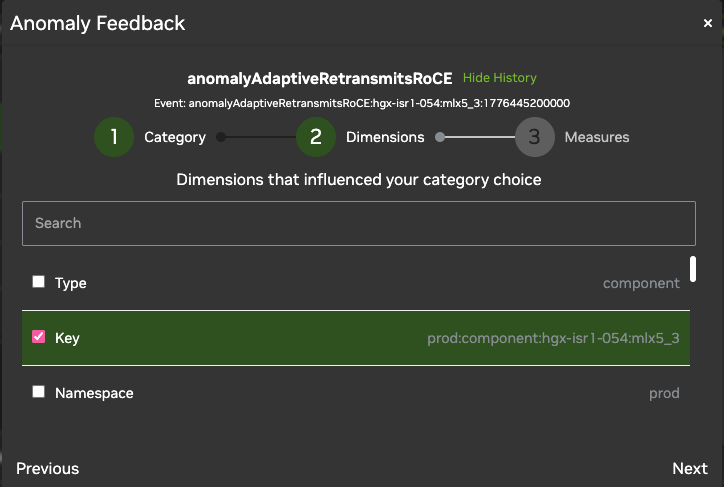
-
Under Measures, select at least one measure and set the range that should trigger this recommendation. Each bound needs a number and a comparator:
<,<=, or==. For example, to match only when pause frames RX is above 300 Kb/s, enter300as the lower bound and select<. If the anomaly has no measures, skip this step.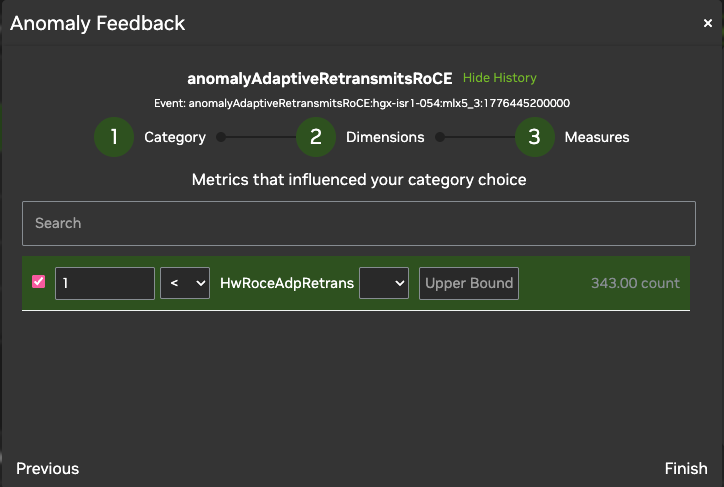
-
Click Finish.
Change or Rank Feedback
If several feedback entries match a new anomaly, NVIDIA Minerva applies the highest-ranked one. To see and rank entries, open the Anomaly Feedback window on an anomaly. The ranking panel lists every feedback entry for that object type, with the highest rank first.
-
Change the rank: click ▲ or ▼ next to an entry.
-
Delete an entry: click Delete.
-
Change feedback on an anomaly that already has it: click Edit.
Rank changes and deletions are saved when you click Finish. To hide or show the ranking panel, click Hide History or Show History.
Review Feedback Across Anomalies
The default Trends view MinervaStats-AnomalyFeedback shows the feedback users have given on anomalies over the last 30 days, broken down by category. Use it to see how your team is labeling anomalies and which categories come up most. The view lists only categories that have received feedback.
Best Practices
-
Be specific with dimensions: Only select the dimensions that truly define the issue's scope. Selecting too many dimensions makes the profile too narrow to match future events reliably.
-
Ranked feedback: If multiple pieces of feedback match a new anomaly, NVIDIA Minerva applies the highest-ranked feedback. See Change or Rank Feedback.
-
Feedback is object-specific: For example, feedback provided for a
sysloganomaly does not apply to atemperatureanomaly. Tune each base type independently.
Last updated: