

Trends provide a graphical representation of data using line charts, heatmaps, bar charts, and tables. Build custom views from raw data, incidents, and anomalies to analyze when needed. Use the Pinboard (right-hand side of the display) to "pin" dimension top-talkers. Use the left-hand side display of dimensions and measures to build your views and pinboards.
Elements of the Trends Page
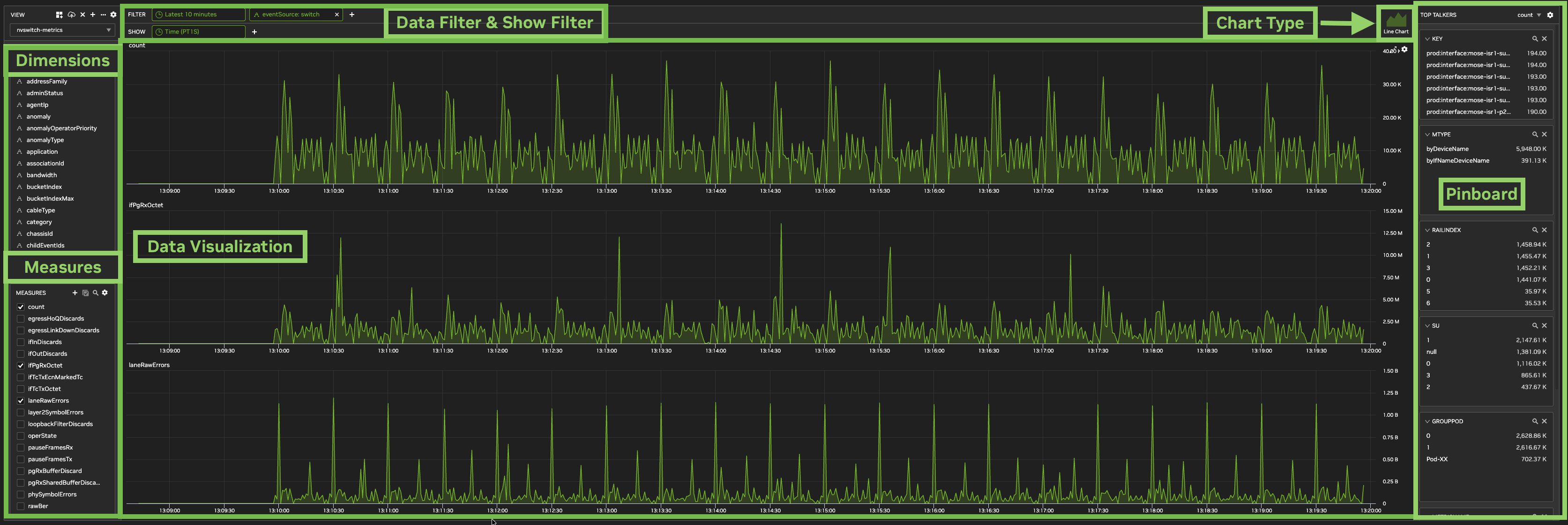
Chart Type: Use one of the four data visualization options from the drop-down menu: Line Chart, Table, Bar Chart, or Heatmap.
Pinboard: Visualizes top-talker dimensions based on the selected measure. Add a dimension to the pinboard by right-clicking it and selecting Pin. At the top of the pinboard, select the measure to use as your top talker. Clicking a value in one of the dimension boxes adds a filter to the view for that dimension's selected value.
Dimensions: Add dimensions to the pinboard, or use them as filters.
Measures: Contains all available measures, or a subset depending on your selection. Hovering over a measure and clicking 
+ icon in the top right of the Measures box to create a derived measure. A derived measure lets you create a new measure as an expression of one or more other metrics (for example, ifInErrors/ifInBandwidth = ifInErrorRate). For more information on working with measures, refer to Build Views.
Filter Data
Filters let you narrow the data displayed in any view.
In the SHOW field, select the granularity of the visualization for Line Chart or Heatmap views. For Table views, you must choose one or more dimensions. For Heatmap views, you must choose either time granularity and one dimension, or two dimensions. For Line Chart views, you can optionally add one dimension to the charts.

In SHOW, click +Add to add a dimension to display in the Line Chart. For example, view the results of choosing ifName in the SHOW field.

Advanced Filter Settings
For all dimensions, use advanced data filtering options including regular expression matching (regex) or including/excluding specific dimension values.
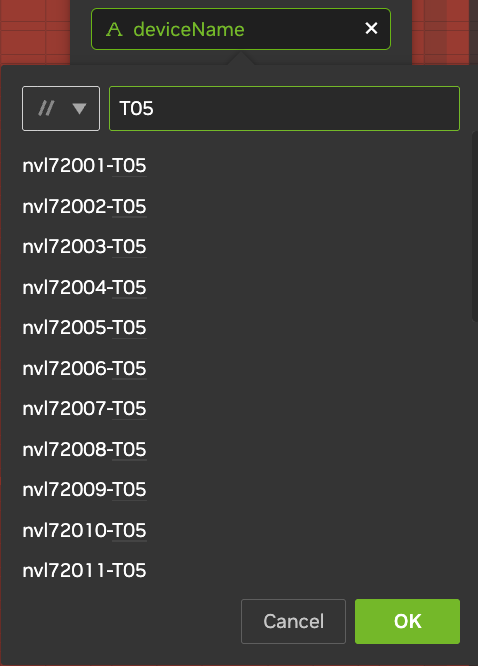
To use a simple regular expression, add a dimension to use as the filter (in this example, deviceName):
-
Click the filter name to open the drop-down menu.
-
Select the upper left square for filtering options (Include, Exclude, or Regex).
-
Select Regex.
-
Enter the regex pattern you want to match.
For example, enter T05 to match any device name containing T05. All devices containing T05 appear in the list.
Top Talkers
Use the Pinboard to rank one or more dimensions by a particular measure. For example, rank devices by the number of syslog messages sent per device to identify if one device far outpaces its peers. Similarly, rank interfaces by the number of dropped packets to identify network congestion.
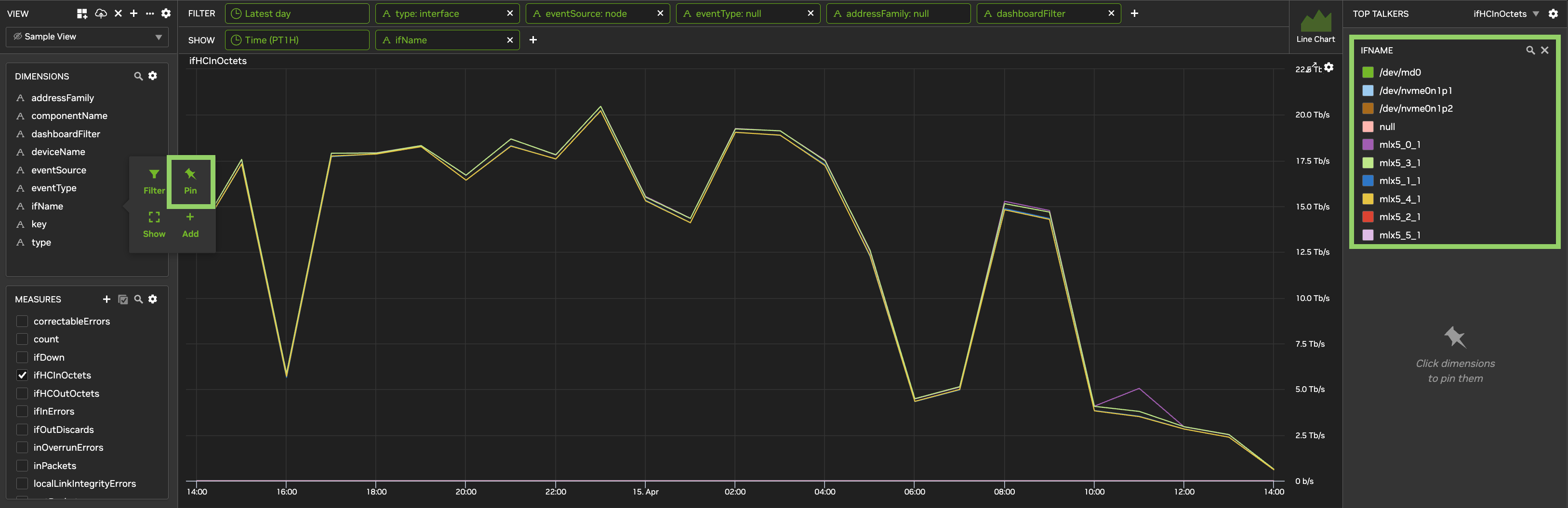
To pin a dimension to the TOP TALKERS pinboard:
-
From Dimensions, select a dimension.
-
Next to the selected dimension, click the 📌 Pin. The dimension appears on the TOP TALKERS pinboard on the right side of the screen.
Change Top Talker Metric
To change the metric used to show top talkers for a pinned dimension:
-
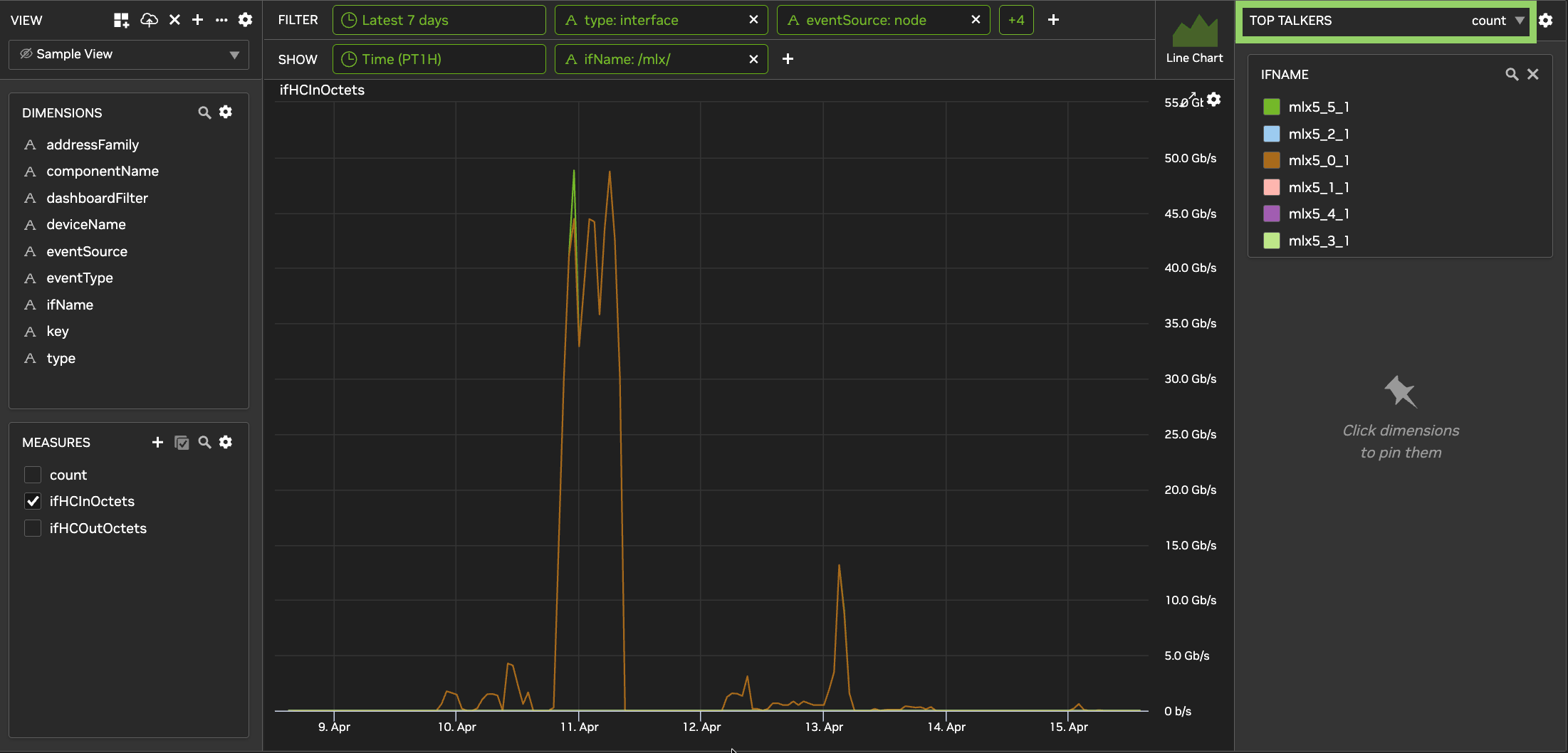
At the top of the pinboard, click the arrow next to the current top talker metric (for example, "count").
-
From the dropdown, select the desired metric. For example, selecting
ifHCInOctetsshows the top interfaces by RX bandwidth.
Derived Metrics
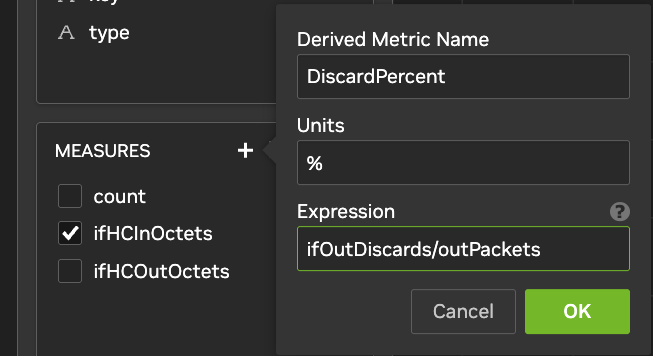
Derived metrics are user-defined metrics derived from existing metrics, manipulated via arithmetic or if-expressions. Supported arithmetic operations include + (add), - (subtract), * (multiply), / (divide), minof, and maxof. For example, create a DiscardPercent metric defined as total discarded packets divided by the sum of all unicast, multicast, and broadcast packets.
If-expressions follow the form if(predicate, thenValue, elseValue). For example, if(minof(a) > 0, minof(b)/minof(a), 0).
To create a derived metric:
-
In the MEASURES list, click +Add.
-
In Derived Metric Name, enter
DiscardPercent. -
In Units, enter
%. -
In Expression, enter
ifOutDiscards/outPackets. -
Click OK.
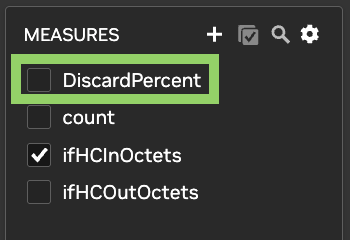
The new measure is now available in the MEASURES list. If you do not see the update, refresh the page.
Build Views
Visualize data using a line chart, heatmap, table, or bar chart. From the Chart Type area, create a Line Chart to visualize data in a time series; use Heatmap to compare two dimensions or a dimension and time on the X and Y axes for a single measure; or use Table for a table representation of multiple dimensions that can also be exported.
Line Chart
Use Line Charts to visualize data in a time series. Control what data is shown and how it is presented. This can include data from a single object (for example, bandwidth of a particular switch), aggregate data from multiple objects of the same type (for example, bandwidth of all spine switches), or combinations of objects (for example, all spine interface downlinks).
-
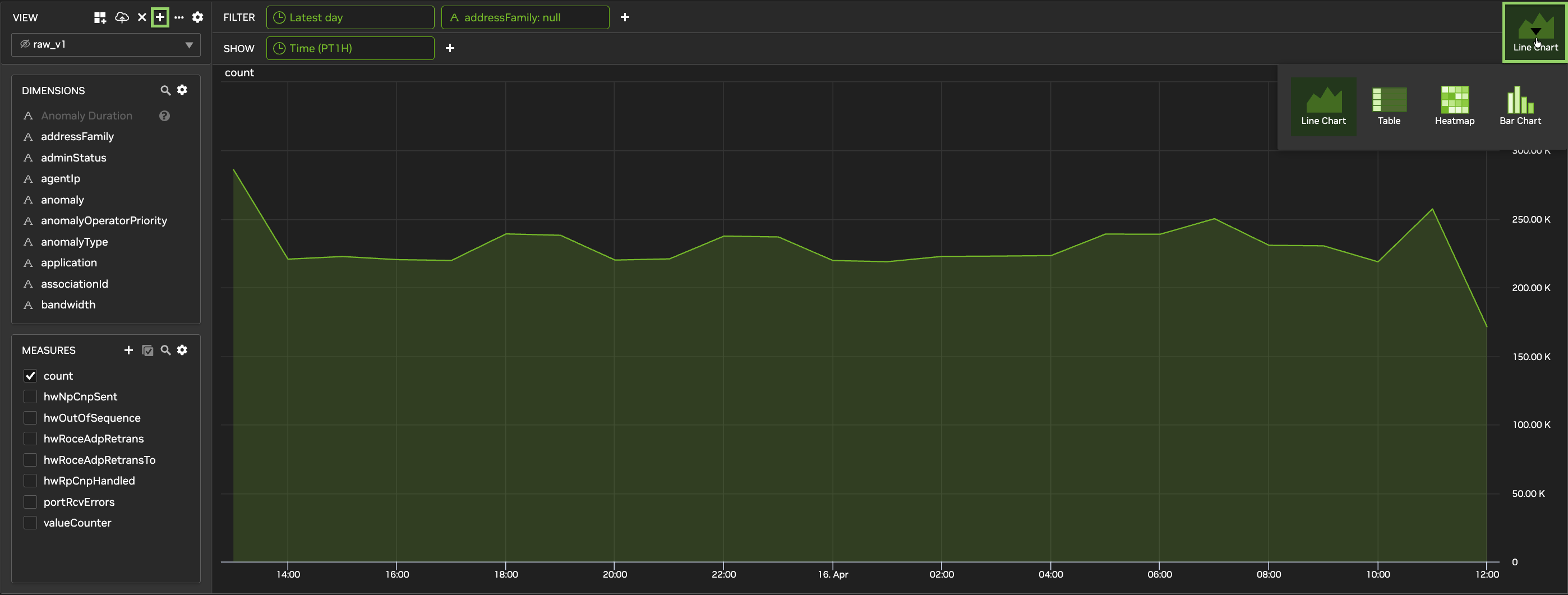
From the Trends tab, click +Add above the current view name to create a new view. Provide a unique name, select the appropriate data sources, and optionally publish the view for all users of the current tenant.
-
This creates a copy of the currently selected view with your given name. From the Chart Type section, select Line Chart if not already selected.
-
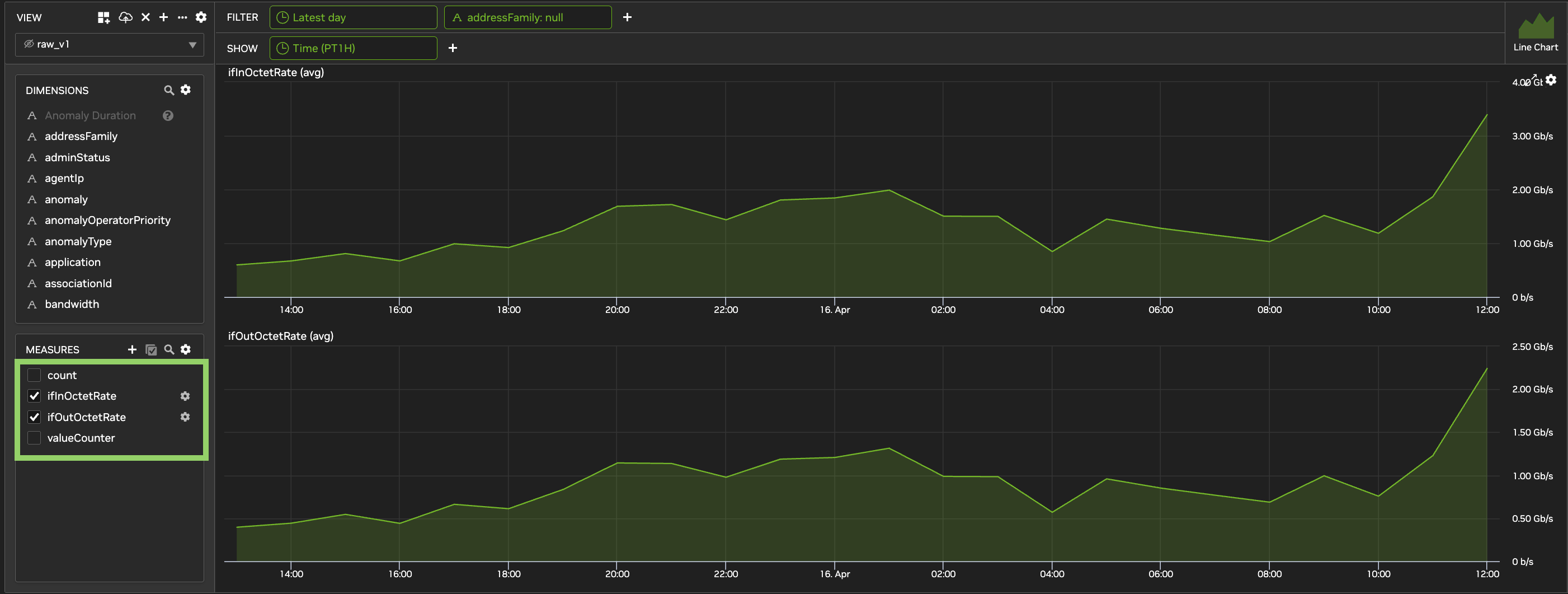
Select one or more metrics from the MEASURES list. In the following example, multiple measures are selected:
Heatmap
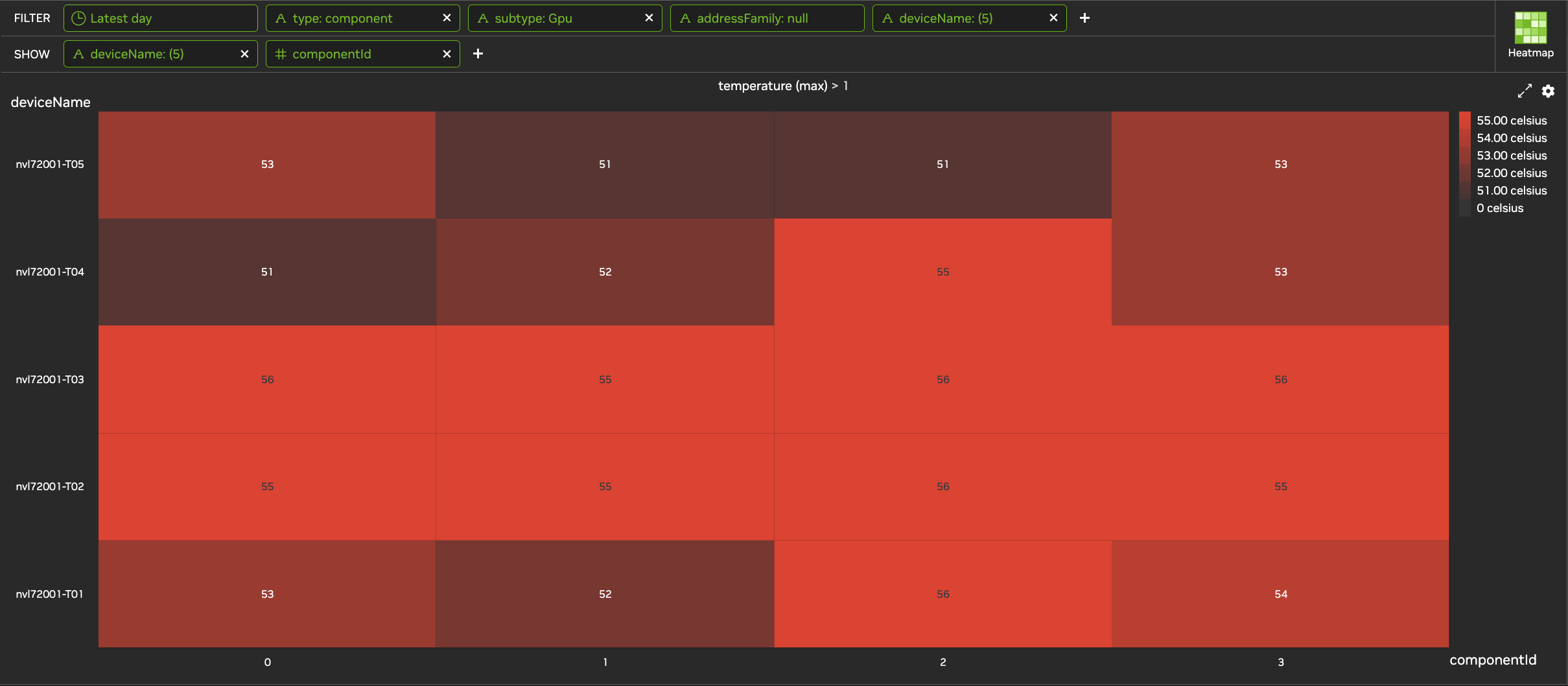
Heatmaps let you compare two dimensions, or a dimension and time, on the X and Y axes for a single measure. Metrics with high values appear in bolder colors; color intensity scales to the range of values in the table. The heatmap can be configured to display each cell value directly. You can also click each cell to see the underlying data table for that cell.
The following example displays GPU temperature per GPU, where the X axis represents the GPU tray index, and the Y axis represents the hostname.
Create a New Heatmap View
-
From the Trends tab, click +Add above the current view name to create a new view. Provide a unique name, select the appropriate data sources, and optionally publish the view for all users of the current tenant.
-
This creates a copy of the currently selected view with your given name. From the Chart Type section, select Heatmap if not already selected.
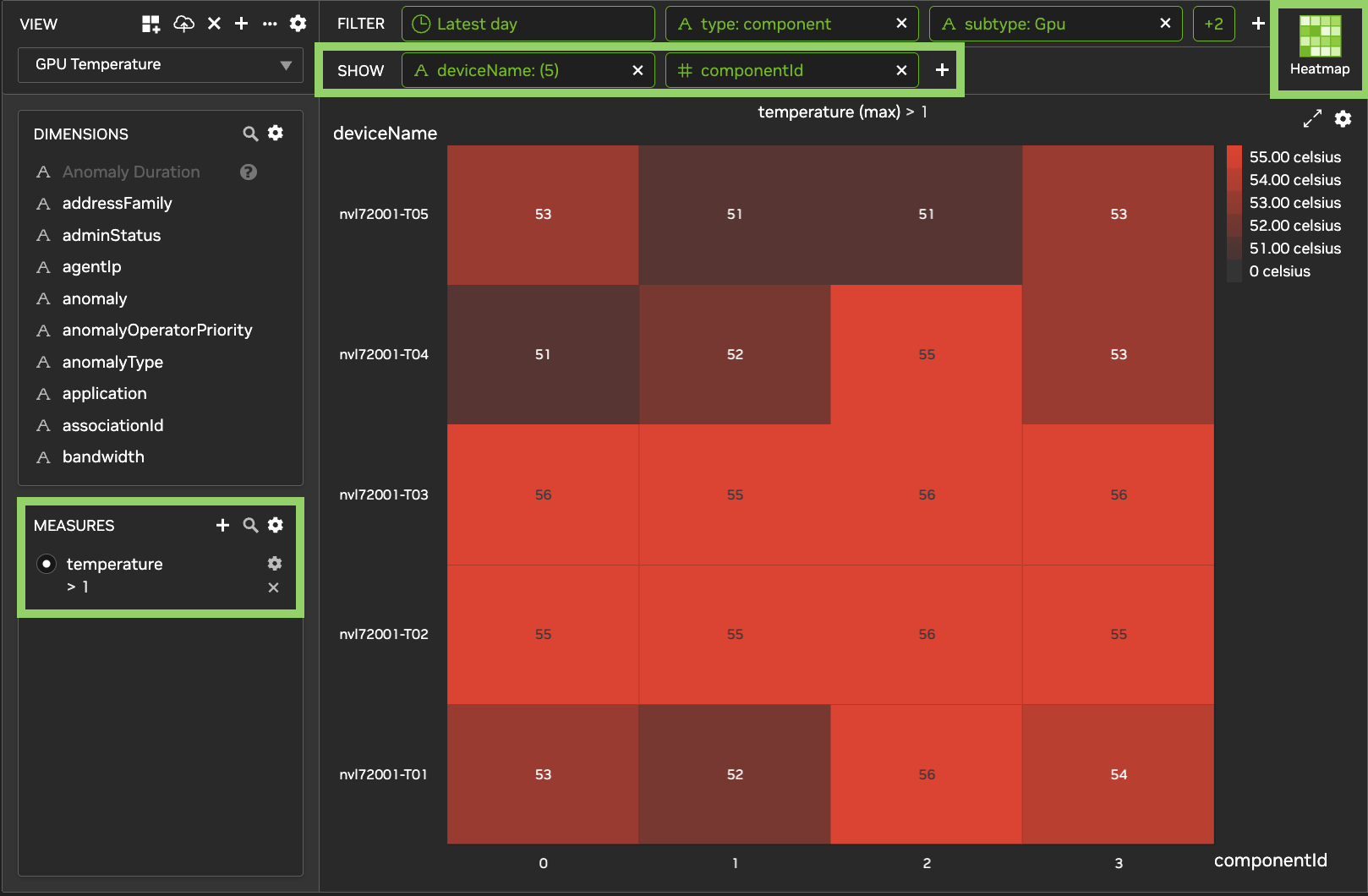
Heatmaps consist of two comparators representing the two axes.
In this example, select deviceName and componentId as the comparators and temperature as the measure:
-
From SHOW, click the
+symbol. -
Type "device" in the search bar to narrow down choices.
-
Select deviceName from the drop-down list.
-
Repeat for componentId.
-
Under Measures, in the bottom left, select Temperature.
-
Use the magnifying glass icon to search for a measure.
-
If you do not see your desired measure, click the gear icon next to Measures and confirm that Show all measures is selected.
-
Optional Heatmap Settings
Your Heatmap color scheme is customizable. To change the color:
-
From the upper right-hand corner of the heatmap, select
-
Choose a color scheme.
-
Click OK to save.
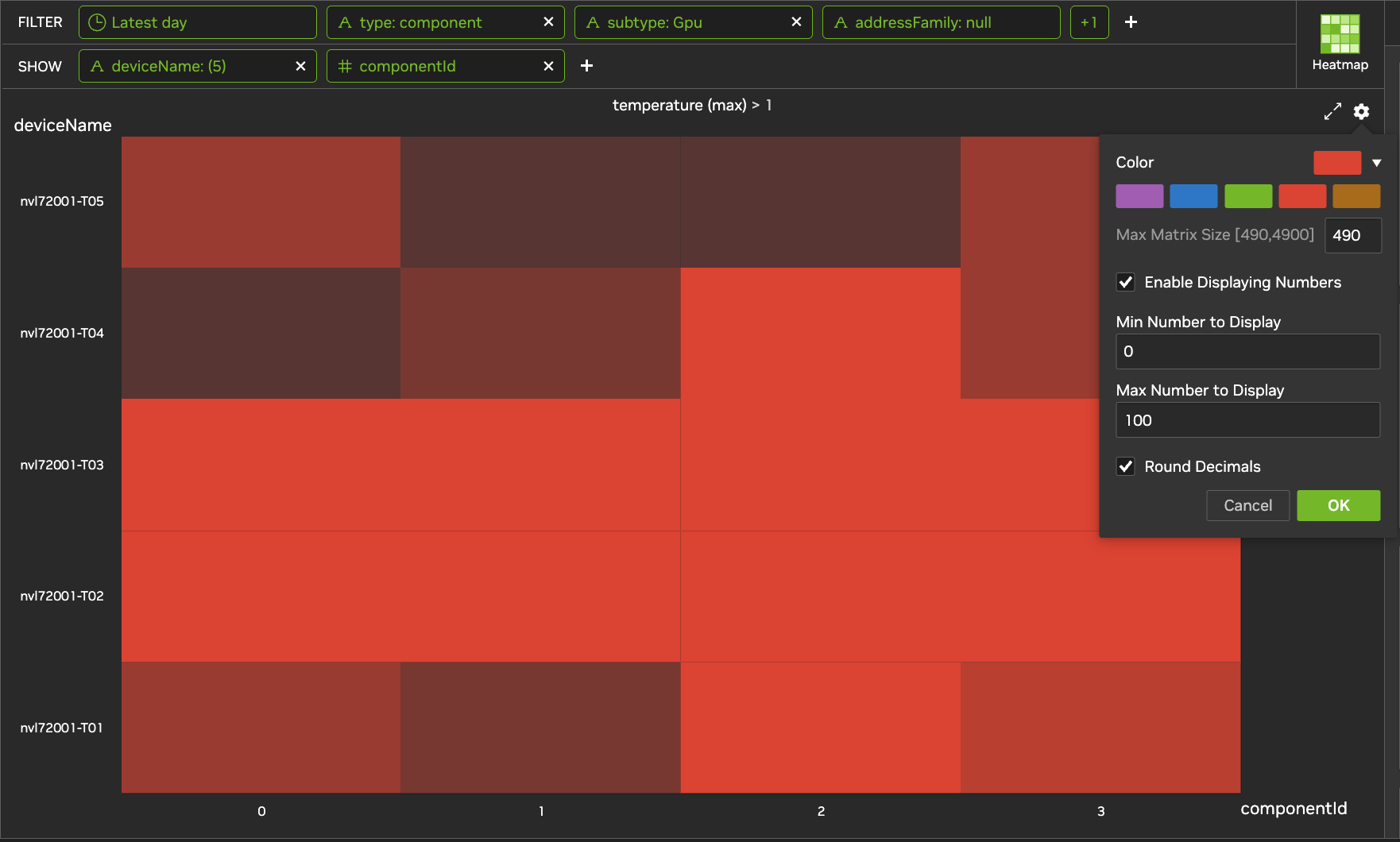
Hover over any grid section to see the value in that section. Alternatively, set the heatmap to always display numbers over each grid section.
To enable number display:
-
From the upper right-hand corner of the heatmap, select
-
Check Enable Displaying Numbers.
-
Optionally set minimum and/or maximum values to display.
-
Check Round Decimals to display only round numbers.
-
Click OK to save.
To display numbers only for values above a minimum, below a maximum, or within a range:
-
From the upper right-hand corner of the heatmap, select
-
Enter the minimum, maximum, or both values to display.
-
Click OK to save.
Table
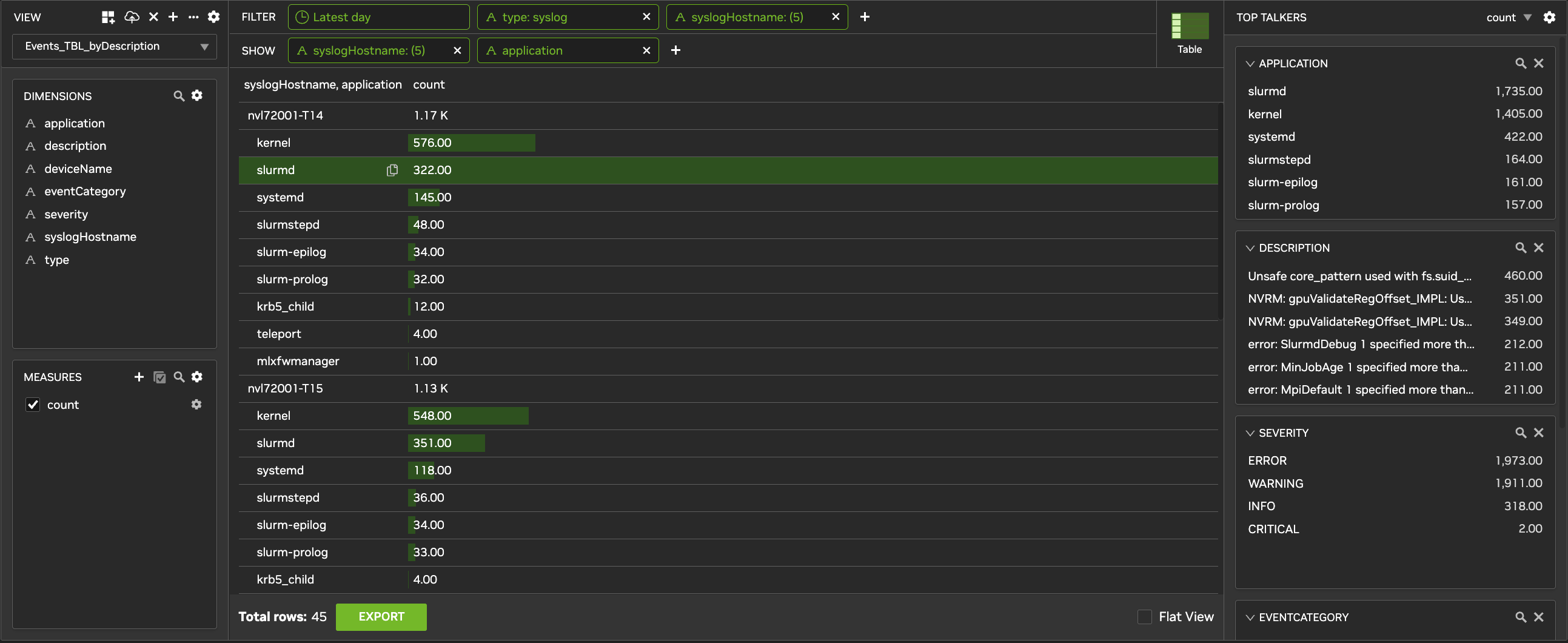
Tables support data export, metric display, and nested dimension hierarchies.
For example, the following table shows the number of syslogs from an application per syslogHostname. Host nvl72001-T14 has generated 567 kernel logs in the past day. Tables can also be configured to show non-nested (Flat View) data.
Export or View Metrics in Tables
Create a Table
-
Click + Add to create a new view, provide a unique name, and select the appropriate data sources.
-
Select Table as the view type.
-
Configure any desired filters.
-
From SHOW, add the dimensions you want to display. Order determines column order in flat view and nesting level in non-flat view.
-
Add the measures you want to display.
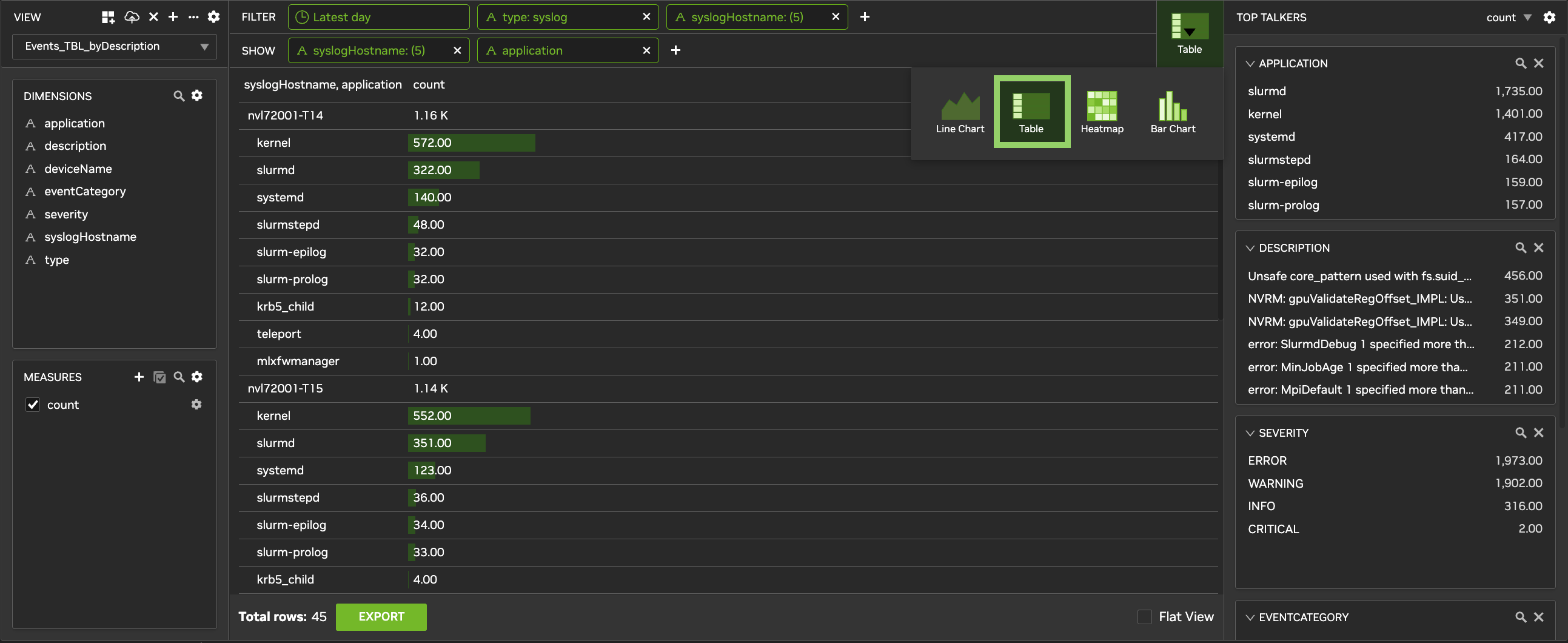
Create a Table View
Download the Table
-
From the bottom of the screen, click Export to download the table as a CSV.
-
(Optional) Select the number of rows to export.
Bar Chart
Bar Charts show the relative and absolute scale of a single metric, split across two dimensions (for example, Device and Interface Name).
The following example displays average TX traffic for the last hour, split per device and port type (uplink or downlink).
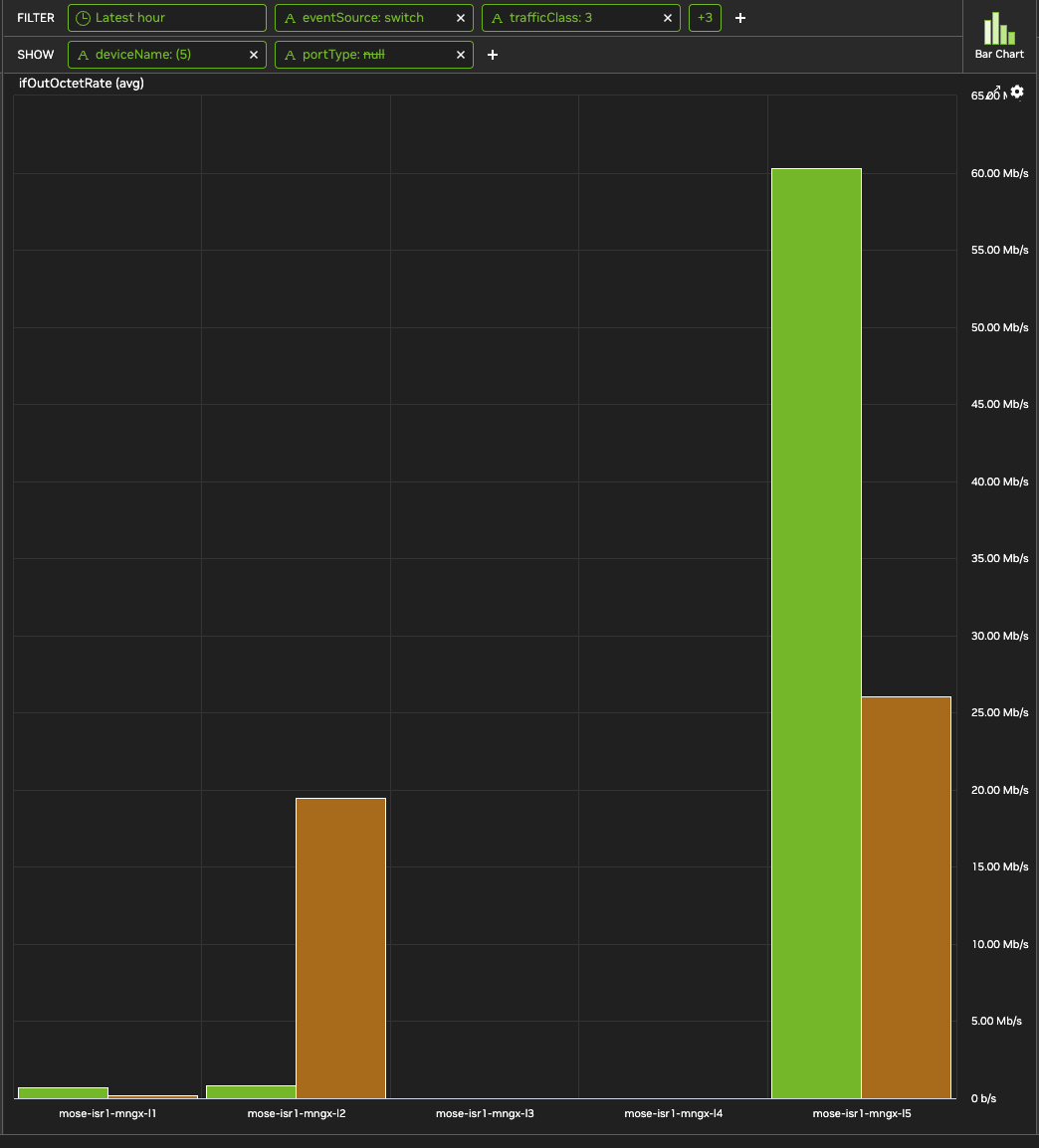
Create a New Bar Chart View
-
From the Trends tab, click +Add above the current view name to create a new view. Provide a unique name, select the appropriate data sources, and optionally publish the view for all users of the current tenant.
-
This creates a copy of the currently selected view with your given name. From the Chart Type section, select Bar Chart if not already selected.
Bar Charts consist of two dimensions: the first SHOW filter defines the data grouping, the second SHOW filter defines the bars within each grouping.
In this example, select deviceName and ifName as the comparators and ifOutOctetRate as the measure:
-
From SHOW, click the
+symbol. -
Type "device" in the search bar to narrow down choices.
-
Select deviceName from the drop-down list.
-
Repeat for ifName.
-
Under Measures, in the bottom left, select ifOutOctetRate.
-
Use the magnifying glass icon to search for a measure.
-
If you do not see your desired measure, click the gear icon next to Measures and confirm that Show all measures is selected.
-
Optional Bar Chart Settings
Horizontal Mode:
-
From the upper right-hand corner of the bar chart view, select
-
Select
HORIZONTAL MODE. -
Click OK to save.
Logarithmic Scale:
-
From the upper right-hand corner of the bar chart view, select
-
Select
LOGARITHMIC SCALE. -
Click OK to save.
Last updated: